Tag: SSMS

  • Quick Filtering in SSMS–#SQLNewBlogger

    I saw someone limit the databases they see in SSMS, which isn’t something I often do, but I thought this was great.

    A Long List

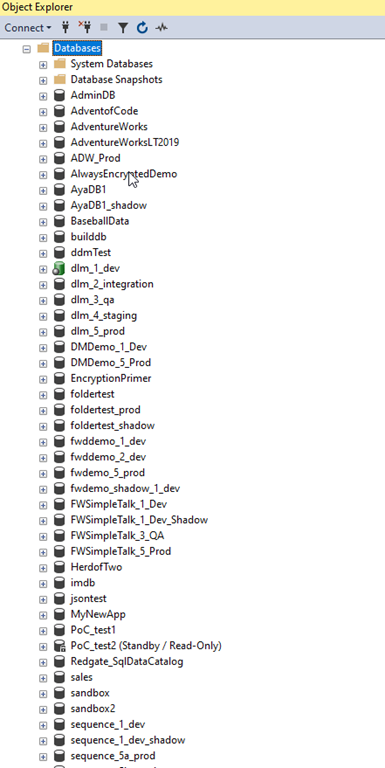
    This is the list of databases on a demo instance I have. While it’s a lot since I do a lot of testing with customers and colleagues, I see plenty of people will lists of databases longer than this.
    2023-09-18 09_39_38-Window

    I also watch them scroll like I do when trying to find an object in a database.

    However, for demos, this is a lot, so I like to slim things down. I used to have a script to detach all the databases and then attach the ones I need, but that’s time consuming and once in awhile, I need a different database, so that’s an issue.

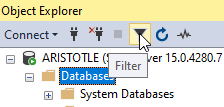
    I saw the someone filter their list by clicking the filter button in the Object Explorer. This is the funnel button shown here:
    2023-09-18 13_57_35-Window

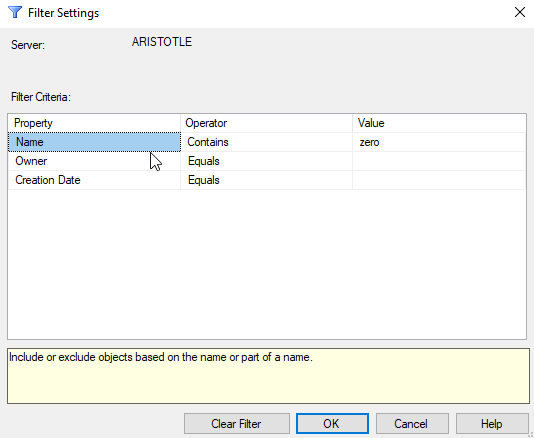
    Once you click this, a dialog appears that let’s you enter your filter criteria. I’ll use a simple filter of “zero” to limit to those databases in my zerodowntime demo.
    2023-09-18 09_39_25-Window

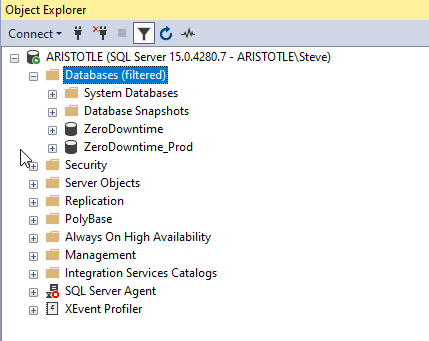
    Once I click “OK”, I see only those databases listed.
    2023-09-18 09_39_18-Window

    If I want to get everything back, I can click filter again and then delete my criteria, or click “Clear” filter. That gets me the entire list back.
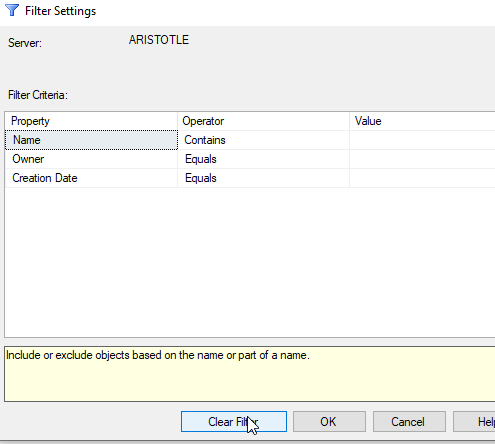
    2023-09-18 09_39_32-Window

    Easy.

    SQLNewBlogger

    This post was something I jotted a note about when I saw someone do this. The note was literally “write about filtering in SSMS object explorer”. I took that and wrote this post in 10 minutes, including time to grab screen shots.

    You could do this as well, showcasing the knowledge that you’re learning to use tools better, which make you more productive. Employers love that.

    Write your own post with more advanced filtering.
  • Changing Case in SSMS–#SQLNewBlogger

    Another post for me that is simple and hopefully serves as an example for people trying to get blogging as #SQLNewBloggers.

    I never knew I could change case for objects in SSMS easily. This actually was something that another individual pointed out to me, but once I tried it, I liked it and know I’ll use it at times.

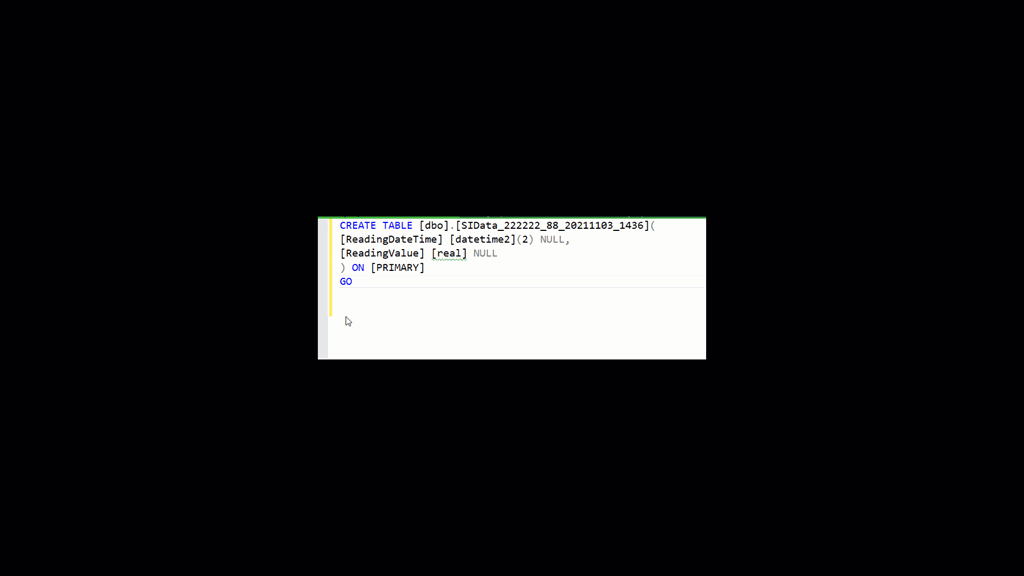
    CTRL+Shift+L will lowercase whatever text is selected in SSMS. A quick gif to show this below, where I select a portion of the code and then CTRL+Shift+U to upper case it, which is what I’d want. I then CTRL+Shift+L to put it back.

    Untitled Project

    Normally I use SQL Prompt to do these types of things, but that reformats the entire section of code. I don’t always want to do that. I could certainly CTRL+K, Y, which would upper case this according to my current format, but I can’t change to lower case easily. Knowing these shortcuts makes it easy for me to match case if needed.

    SQLNewBlogger

    When I ran across this and realized it was new, I just wrote this post. It took about 5 minutes and I spent more time deciding if I should record the screen than it took to just do it.

    You could easily write this type of post as you learn small things. Tag them with SQLNewBlogger as well to encourage others.

  • The Separation of Tools

    I’ve got a question for you today. Is it better to have SSMS and ADS available as separate downloads?

    If you installed SQL Server prior to 2017 (the year, not the version), you had the option to add Management Studio (SSMS) to your installation. In fact, that was the only way to get SSMS back then. There was no separate tools download, which was a pain for many customers.

    Since then, there have been multiple releases of SSMS separately, starting with 16.x and moving through v17 and now v18. In fact, it’s been roughly every quarter we’ve gotten new releases of the tooling. In addition, we’ve gotten Azure Data Studio (ADS), which is based on Visual Studio Code, but built with connections to the data platform as the primary goal.

    There are now separate downloads for SSMS and ADS, though the latest SSMS download notes that starting with v18.7, ADS is automatically installed alongside the tool. That generated a feedback item, which requests that this bundling be removed. While I don’t find this to be an issue, I do understand that this can be a problem for many organizations.

    I think that Microsoft moving to provide a more customized and flexible tooling experience makes sense. Give us the options to configure our systems as we desired. Let us add new features that are appropriate for us, or easily remove them from the install. I would include the requirement that ADS be installed with SSMS, as noted above. That being said, the ability to add in various extensions might be of concern to many organizations. Flexibility includes the ability of both users and organizations to control the allowed and prohibited list of features.

    I will admit a fondness for SSMS that ADS has not replicated, but I do find myself using it more and more as new tooling items are available only in ADS and not in SSMS. Perhaps as I use notebooks more, I’ll find myself more enamored with ADS. After all, I loved isql/Windows for years, even when other tools became the standard.

    Steve Jones

    Listen to the podcast at Libsyn, Stitcher or iTunes.

  • Quick SSMS Tip: Map Mode for Code–#SQLNewBlogger

    Another post for me that is simple and hopefully serves as an example for people trying to get blogging as #SQLNewBloggers.

    In recent versions of SSMS, there’s been an addition to the query windows that I find helpful and useful. This is the map mode for code, and it means that when you have a large script, you can get a quick view of where you are in the file, and where you code is located.

    First, turning this on. In the Options for SSMS, select the Text Editor section on the left, then expand the All Languages item. There is a Scroll Bars section to select. When you pick this, on the right you will see the Behavior section near the bottom. The default is bar mode, but you can switch this to map mode.

    2020-07-23 16_44_26-Window

    When you do that, if you open a script that is bigger than your query window, you will see a map of the code, along with a light colored bar that shows where you are in the code.

    In the image below, Glenn Berry’s diagnostic script is open, and  I have actual code near the middle of my screen, and on the right, you can see the pink just at the bottom of the oval that’s lighter in color than the map.

    2020-07-24 10_24_27-Window

    This is a little hard to describe, but if you turn this on and experiment, you’ll get an idea of what happens.

    Let me add some blank links to this script. When I do that, I can see the map expand with some gray spaces near the top.

    2020-07-24 10_46_23-Window

    You can also get a preview of code by putting the cursor on the map to the right. Below I’ve put the cursor on the right side, above the current location in the query window. I see a preview of the code, while I see the locator bar below the preview, showing me where I am in the code file.

    2020-07-24 10_47_33-Window

    Map mode is an interesting way to manage large code files, which sometimes occur in stored procedures and complex queries. While I would hope that most people don’t have hundreds of lines of code in any one file, I do know some do. Map mode can help.

    SQLNewBlogger

    This was a question someone asked me in a presentation. It took me almost as long to type an explanation as it did to take a few screenshots. Adding a little text made this a 10 minute effort.

    This is the type of thing that you can do, showing how this might help you with some code that is complex and harder to navigate. In addition, this is a nice way to show you are honing your craft and learning to use your tools.