Tag: SSMS

  • Removing SSMS Completion Time–#SQLNewBlogger

    Another post for me that is simple and hopefully serves as an example for people trying to get blogging as #SQLNewBloggers.

    If you’ve upgraded your SSMS lately, you might have seen this. Queries now have a completion time on the Messages window.

    2019-10-17 17_15_23-SQLQuery1.sql - Plato_SQL2017.sandbox (PLATO_Steve (52))_ - Microsoft SQL Server

    On one hand, I think this is great, because I can tell that I’ve run this recently. On the other hand, I might have multiple batches, so I can get confused or mis-informed. I also just don’t like this.

    Microsoft didn’t agree, because at first, I couldn’t remove this. That was really annoying. However, with  SSMS v18.3.1, I can.

    If I go to the SSMS Options, and then go to Query Execution | SQL Server | Advanced, I see this:

    2019-10-17 17_18_34-Options

    At the bottom of the first column is the Show completion time checkbox. Uncheck this, and suddenly, I’m happy.

    2019-10-17 17_19_52-SQLQuery2.sql - Plato_SQL2017.sandbox (PLATO_Steve (59))_ - Microsoft SQL Server

    One caveat, I do need to open a new window. That old window, even if I change the connection, still shows the time. Fortunately, CTRL+A, CTRL+C, CTRL+V help me move on.

    SQLNewBlogger

    This was one of those annoying things I needed to fix because it impacted my productivity. It’s a perfect post of my finding a way to be more productive and learning on my own.

  • Launching ADS from SSMS

    If you haven’t heard, SSMS v18 went GA (Generally Availability) recently. You can download it from Microsoft, though if you have a preview version, you do need to uninstall that. You also have to reboot after install Sad smile

    There is one cool feature that’s easy to miss, and I wanted to point it out.

    Azure Data Studio

    I am warming to Azure Data Studio (ADS) as an editor. I like notebooks, and I’m hopeful SQL Prompt will come soon, but it’s a nice, lightweight editor. It’s based on Visual Studio Code, and I like some things, like version control.

    Others I find annoying, like the connection dialogs, the results display, trying to use the Object Explorer, and more. That means I am often still using SSMS as a primary tool to work with SQL Server.

    Switching between tools is sometimes a pain, but things got easier.

    SSMS Integration

    With SSMS v18, there’s a small item that you may easily miss. If I right click a database, I see this:

    2019-04-25 09_51_17-SQLQuery12.sql - 192.168.1.35.sandbox (sa (58))_ - Microsoft SQL Server Manageme

    I have the option to launch ADS with a new query or notebook. The connection context passes along, which is nice. I hate the connection dialog in ADS.

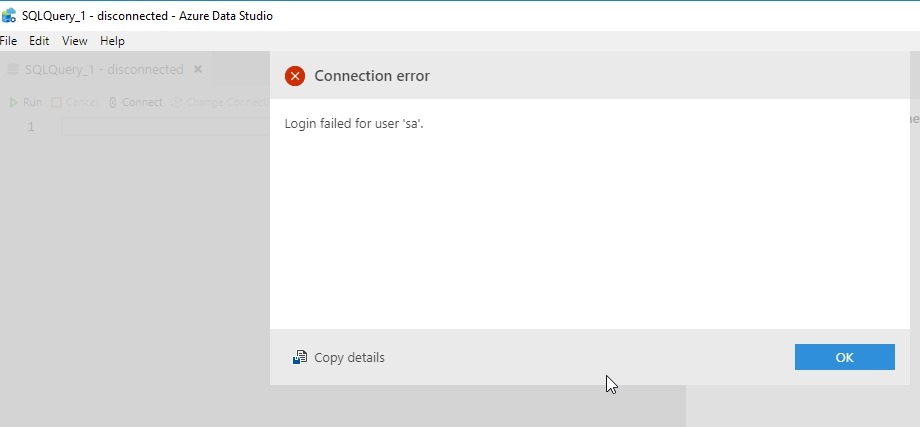
    If I click “New Query”, I see this:

    2019-04-25 09_54_29-SQLQuery_1 - disconnected - Azure Data Studio

    Hmm, an error? No, this is actually good. The connection was SQL Auth to a Linux instance. I haven’t saved the password, so the current context can’t be passed. This is a new connection, and needs to authenticate. This is what I’d expect. When I click OK, I drop into the password box.

    2019-04-25 09_54_36-SQLQuery_1 - disconnected - Azure Data Studio

    Even if I’ve got a connection, if I go back to SSMS an open either a new query or notebook, I get the same result.

    If I have a Windows Auth connection, and I right click and choose New Query, I get this:

    2019-04-25 09_59_58-SQLQuery_1 - Plato_SQL2017.MLDemo (Integrated) - Azure Data Studio

    In this case, I was connected to Plato\SQL2017 as the instance and right clicked the MLDemo database. I also had ADS closed, with the notebook tab open when it closed. ADS restored my tab and then connected to the new database.

    A little thing, but a handy one that I expect more people will use over time.

  • Evolving Our Tools

    This week the next preview version of SSMS v18 was released. This is the sixth preview release, and I’m guessing that this will be one of the last. Six seems like a lot of releases, and I’d like to think that this is getting close to being ready to use by most people, but I’m not sure. I certainly have some some annoying and problematic bugs, so I can’t be sure there won’t be a seventh, eighth, or ninth preview, but it does seem to be fewer issues are being reported.

    With the release of SQL Server 2016, SSMS was decoupled from the database engine, and we saw some SSMS v16 releases. I didn’t use many of those before moving to SSMS v17, which came slightly after SQL Server 2017. I’m glad we’ll start to get the versions separate from the engine as this is confusing to many people. However, I do expect that plenty of people will call this SSMS 2019 or think there’s a SQL Server 2018, etc. If we could get more people to leave the older SSMS versions that came with 2008 R2, 2012, 2014, then I’ll take a little confusion in how we talk about SSMS.

    However, we don’t need to stick with SSMS these days. If you’ve been heads down and just focused on keeping your existing systems running, you might not realize that not only do we have different SSMS choices, but we also have other tools. I’m not talking about SQLCMD, bcp, and Visual Studio, but we have other ways of working with SQL Server. Visual Studio Code has an mssql extension if you write code in that IDE, which might be something you full stack developers need.

    For the SQL Server people, we have a fork of VS Code in Azure Data Studio. This is a lighterweight IDE built for SQL Server work. We also have the mssql-cli tool, giving us way more control over command line work than we have with SQLCMD. I haven’t worked with it much, but it’s on my list for January to play with a bit. I don’t know how well either of these will catch on, but let me know your thoughts. Are you doing more work with either of these tools?

    There are certainly plenty of other choices as well. My company (Redgate) and others make plugins for SSMS that improve how you work with SQL Server. There are even other IDEs, such as DataGrip, that you can use and abandon the Microsoft tools altogether. I’m not sure I would look to leave SSMS entirely, but perhaps I should give some of these a try at some point.

    Tools matter to many professionals. Mechanics treasure their sets of wrenches, chefs love their knives, and we ought to have tools that we know, use, and are comfortable with. This includes both the actual software and the various scripts, code, and helper applications that allow us to work efficiently. If you don’t love your tools, or have a collection, maybe now is the time to start the new year building some skills with the one you use, or try a new one. Wayne Sheffield has a nice series on SSMS and I’m hoping to get some other pieces written for other tools. If you want to tackle one for SQLServerCentral, let me know.

    If you’re looking for a new tool to try for SQL Server work, might I suggest some PoSh and dbatools. It’s an amazing combination for lots of tasks.

    Steve Jones

  • Updating SSMS to 17.9.1

    I went to download the SSMS v17.9.1 package the other day and saw this:
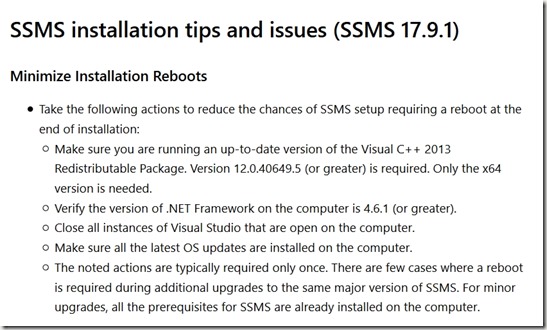
    2018-11-27 12_48_59-Download SQL Server Management Studio (SSMS) _ Microsoft Docs

    I remember some issues with a C++ redistributable with a SQL Server install (2016?) and decided to just check on this. I really wish that these articles and items were crosslinked, so I could check them easily.

    I decided to write this post to note how to do a few things, maybe to help you, but mostly so that I’ll remember things later.

    I don’t know if I need a reboot, but I’d rather not if I can avoid it, through I’m slightly concerned this stuff will force a reboot.

    Checking C++ Redistributable

    The first thing is to check the Visual C++ 2013 version. I found this KB article on the update with downloads. The file information is

    Name: VCRedist_x86.exe

    X64 location: %WinDir%\SysWow64

    A search was slow, but found files. Lots of them. Apparently this is put down quite a bit by various software.

    2018-11-27 12_53_25-VCRedist_x86.exe - Search Results in SanDisk900_a (C_)

    Let’s go to the location noted. In there, I find I don’t have the file.

    2018-11-27 12_53_40-SysWOW64

    Not good, and I’m glad I checked. I’ll download the US English version from: http://download.microsoft.com/download/0/5/6/056dcda9-d667-4e27-8001-8a0c6971d6b1/vcredist_x86.exe

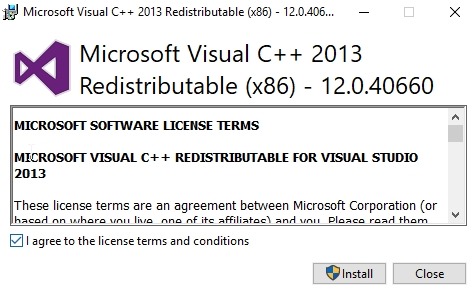
    Once that’s done, I’ll install it.
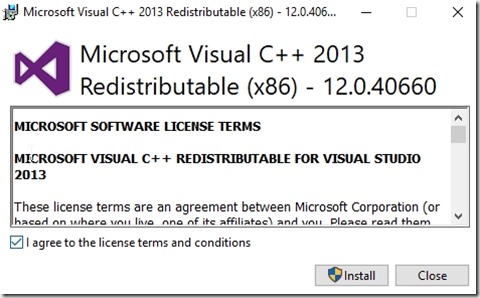
    2018-11-27 12_54_58-Microsoft Visual C   2013 Redistributable (x86) - 12.0.40660 Setup

    This is 12.0.40660 and the minimum for SSMS is 12.0.40649.5, so I should be good here. The installation is slow, especially for a 6MB download.

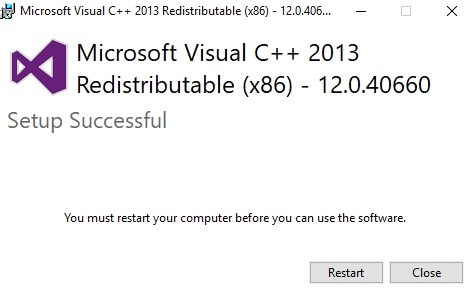
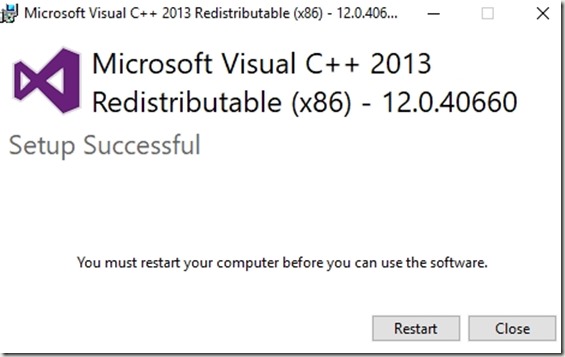
    It finishes, and I’m out of luck. I’ll reboot and continue this post.
    2018-11-27 13_00_26-Microsoft Visual C   2013 Redistributable (x86) - 12.0.40660 Setup

    Checking .NET

    There’s a KB for this and it has various links, including viewing the registry or using code. I’ll use PoSh. The code they give is:

    # PowerShell 5
    Get-ChildItem 'HKLM:\SOFTWARE\Microsoft\NET Framework Setup\NDP\v4\Full\' | Get-ItemPropertyValue -Name Release | Foreach-Object { $_ -ge 394802 }

    That last value is the minimum for .NET 4.6.2. If I remove the Foreach, I get a result of 461808, which is 4.7.2. I’m good here.

    OS Updates

    I’ll check Windows Updates, and its shows a couple items, none of which matter. Not sure what the SQL2016 item is. I know I have a couple old installations that are broken, so maybe that’s for one of those. Fortunately I have a couple working instances, should I need them.

    2018-11-27 13_11_49-Settings

    Upgrade SSMS

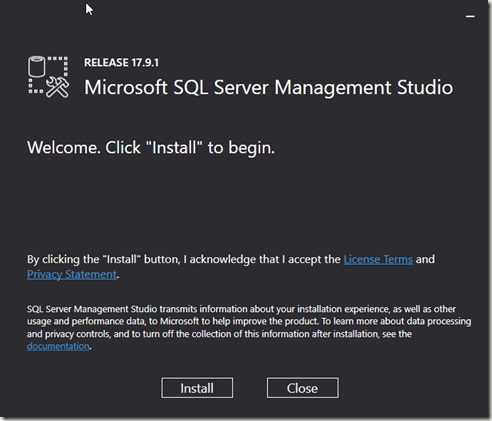
    Let’s install.

    2018-11-27 13_15_26-Microsoft SQL Server Management Studio

    The process runs without issues, as I’d expect. For the most part SSMS 17.8 has been what I’ve run and it’s been fine. No real issues, and not sure this updates changes anything for me.

    The list of issues is small, and I haven’t had any of these. Even the 17.9 list of issues isn’t anything that concerned me, so this was more updating for the sake of updating here.

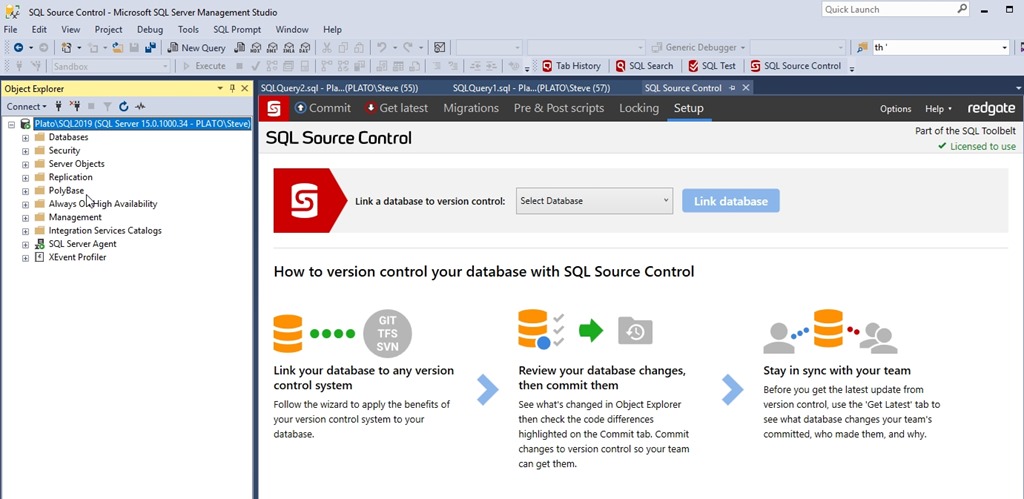
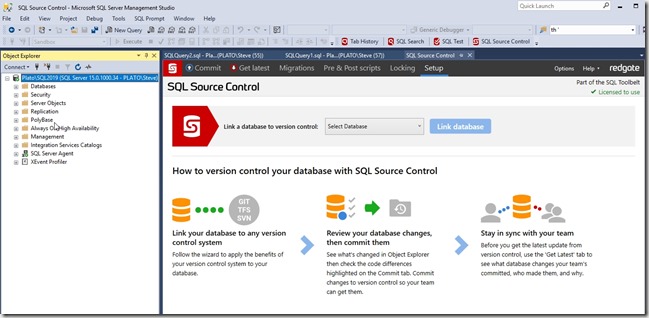
    This completed, and when I restart SSMS, I see what I expect. All my plugins and the tool connects to my instances.
    2018-11-27 13_19_43-SQL Source Control - Microsoft SQL Server Management Studio