Tag: SSMS

  • Importing Flat Files in SSMS 17.x Works

    One of the more annoying things I’ve found in SSIS/SSMS is trying to import CSV files for some quick analysis. For some reason I constantly seem to get files that the import wizard keeps having issues. On top of that, the defaults are annoying. When I need to get a CSV in, I select a Flat File source, but the filter for files always defaults to text files. Then there are more drivers and choices that make this complex.

    Recently I was looking to load a file and noticed a new option: Import from Flat File. I decided to try it and was pleasantly surprised.

    2018-08-27 09_52_03-

    Updating a Database

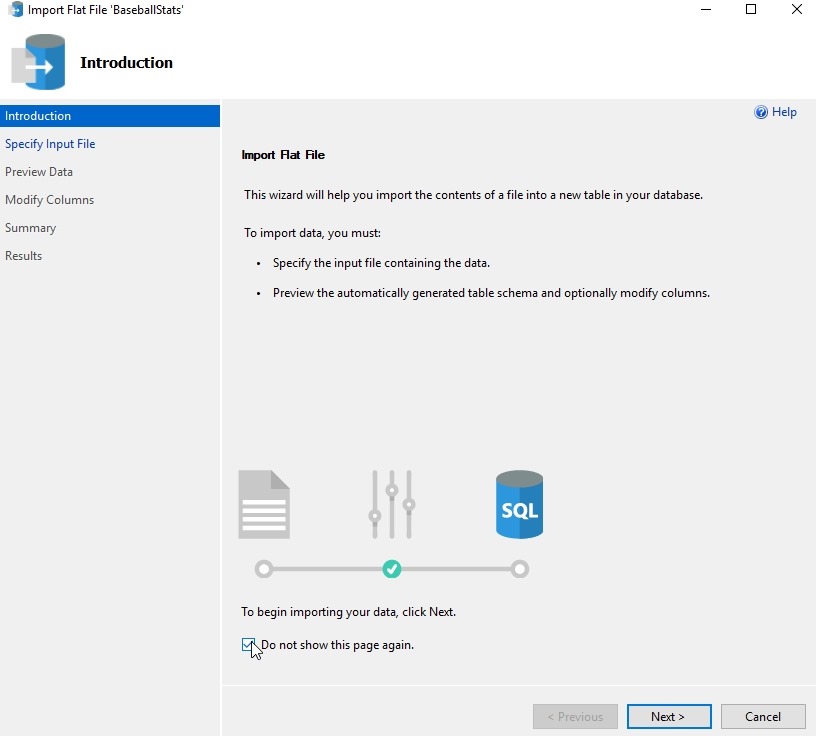
    I have a database of some baseball statistics, but wanted a few updates. I started using this wizard to quickly update about 10 tables. Here’s how this works. When you select the option, a wizard starts with this screen.
    2018-08-27 09_54_42-Microsoft Edge

    There’s no reason to look at this more than once, so check the “Do not show” box, as I did. Click Next.

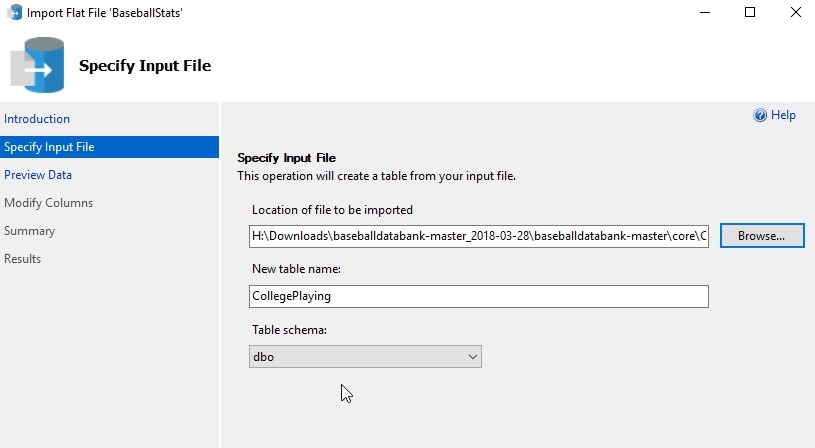
    Once you do that, you need to pick the source of your data. There’s a Browse button, and when you pick the file, you get a filter for Data files, which are .csv and .txt files. The file you pick will be used for the table name in the dbo schema, but those can be changed in the text boxes.
    2018-08-27 09_55_39-Microsoft Edge

    Note that this wizard only works with new tables, so if your plan is to update another table, you need to stage this data in its own space first.

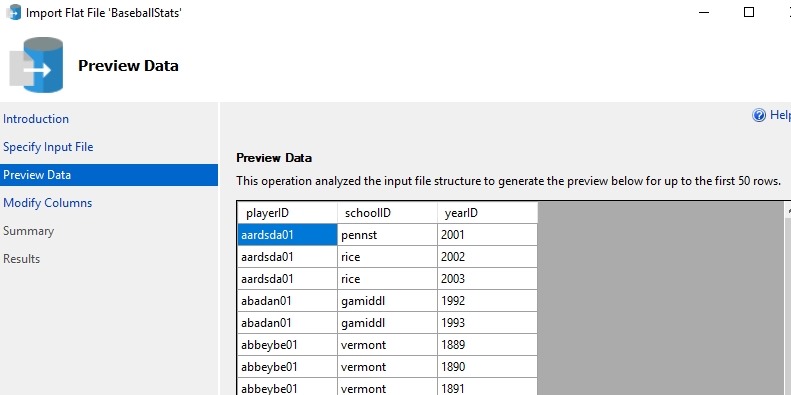
    The next step in the wizard is a preview of the data. This is handy, and for me I glance to get an idea of what the data is. This is useful and you can use the “Previous” button at the bottom to get back here from the next screen.
    2018-08-27 09_56_46-Microsoft Edge

    This next screen is the reason I love this wizard. I can get the data types and the PK for the table. This designer makes it easy to import the data. I can fix the table, which is nice. In a few of these files, I want to change from nvarchar to smallint for data, and allow nulls for some fields. Plus, being able to set the PK here is great.
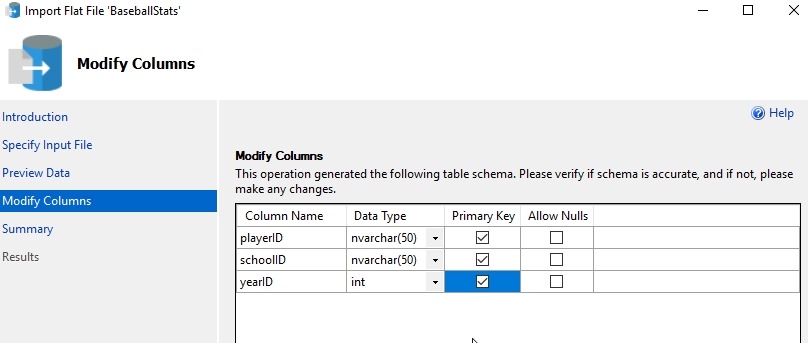
    2018-08-27 09_58_14-Microsoft Edge

    The next step is a summary. I usually quickly click the Next button to import data.
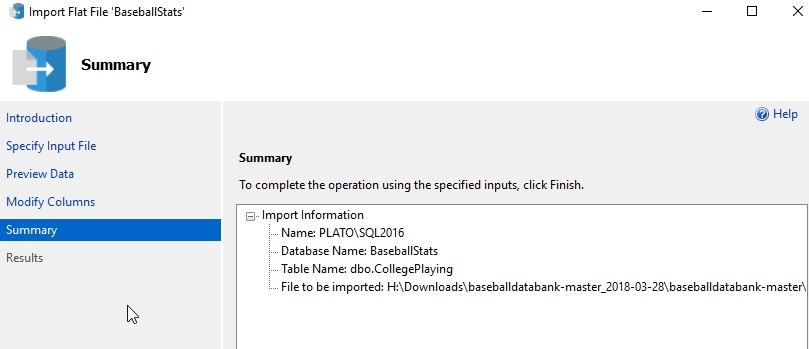
    2018-08-27 09_58_21-Microsoft Edge

    If things work well, you get a green checkmark here. If not, you can go back and change settings, like adjust the PK or allow nulls. I even go back twice to preview data sometimes.
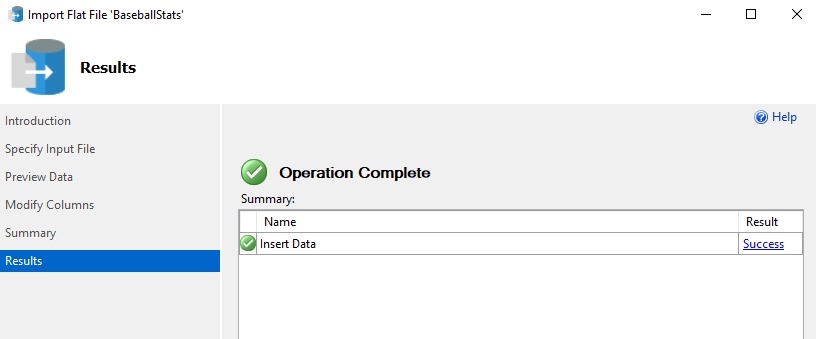
    2018-08-27 09_58_28-Microsoft Edge

    One note here. If you go back, the table exists, and you’ll need to drop it.

    If you care, you can get the baseball statistics from here: http://www.seanlahman.com/baseball-archive/statistics/

  • The Ideal IDE

    When I started working with SQL Server, I spent a lot of time in Query Analyzer and isql.exe. Those were my two main tools, using those to query a database instance in a lightweight manner. At some point Microsoft released Enterprise Manager, which was more useful for some tasks, but overall, I preferred Query Analyzer. Eventually that died away, and we got stuck with Management Studio, which most of us now use. Along the way, I also used DBArtisan, RapidSQL, and a few other IDEs for writing code against a SQL Server.

    These days we have a few choices for doing development and administration on the Microsoft data platform. There is still SSMS, but Visual Studio has gotten quite a few upgrades and extensions to allow work with everything from a local SQL Server to a cloud database to data lakes and more. Microsoft built a lightweight IDE in Visual Studio Code, and released a SQL Server extension for that tool. In the last year, we also saw a preview release of SQL Operations Studio (SOS) from Microsoft, and perhaps this is the direction that Microsoft is moving in the future. There are also other IDEs, such as DataGrip, that some people are using.

    I’m still stuck in the the SSMS mode. Even when I use Visual Studio for SQL Server work, with something like SQL Change Automation, I often switch back to SSMS for lots of my work. I’ve done some work in SOS, but I don’t love the experience overall. Since I have SSMS running most of the time, the speed of SOS isn’t helpful. If I were shutting down and restarting SSMS often, I might feel differently.

    Today I’m curious. I’m sure you all have preferences, but if you could choose only one IDE, what would it be? Let’s imagine that we’re not looking at the current state of the tools, but for whatever functionality you need, whether that’s database development tools, AG management tools, scheduling tools, etc., all of the functionality would be added to VS, VSCode, SSMS, SOS, DataGrip, etc. In that case, what do you prefer?

    I think I’d lean towards keeping SSMS, though I wish it were more open and extensible. Since that’s not likely to happen, I think SOS might be my next choice as an IDE if it has lots of extensions, and I have the ability to enable or disable them for the functionality I need.

    Steve Jones

    The Voice of the DBA Podcast

    Listen to the MP3 Audio ( 3.7MB) podcast or subscribe to the feed at iTunes and Libsyn.

  • Finding Tabs in SSMS–#SQLNewBlogger

    Another post for me that is simple and hopefully serves as an example for people trying to get blogging as #SQLNewBloggers.

    Someone posted this as a question and I thought it was worth noting. I use SQL Prompt for formatting, and never worry if there are tabs in code, but I know there are people without this amazing tool.

    I added some tabs to a script and want to replace them.

    2018-05-04 09_50_15-SQLQuery1.sql - (local)_SQL2016.sandbox (PLATO_Steve (60))_ - Microsoft SQL Serv

    I hit CTRL+H for the search and replace toolbar. The tab character is represented by a \t in a regular expression. I enter that, and then enter 4 spaces in the replace text box. I do need to click the “Use Regular Expressions” button, which is the one my arrow is on in the image below. It’s a little box with an asterisk in it

    2018-05-04 09_51_39-SQLQuery1.sql - (local)_SQL2016.sandbox (PLATO_Steve (60))_ - Microsoft SQL Serv

    When I do that, tabs are highlighted in SSMS.

    2018-05-04 09_53_32-SQLQuery1.sql - (local)_SQL2016.sandbox (PLATO_Steve (60))_ - Microsoft SQL Serv

    If I click “replace all”, I see 4 replacements, and if I check, the tabs are gone and spaces live.

    2018-05-04 09_51_48-SQLQuery1.sql - (local)_SQL2016.sandbox (PLATO_Steve (60))_ - Microsoft SQL Serv

    SQLNewBlogger

    This is a quick post, an example of what you can do to show you’re building better work habits and learning about your tools.

  • SSMS 17.4 Vulnerability Assessment

    SSMS 17.5 is out as of February 2018, but the the Vulnerability Assessment (VA) was released in SSMS 7.4

    It seems that the Microsoft tools team is trying to build us better tools that come with the platform. There are good third parties that build tools, such as my employer, Redgate Software, but I am glad that Microsoft is also providing a little more value. This is especially welcome in the area of security.

    In SSMS 17.4, the upgrade came with one goodie: the VA. This is an analysis that will help you determine if you potentially have issues with your instances and databases. This is an assessment of a database, but there are server implications as well.

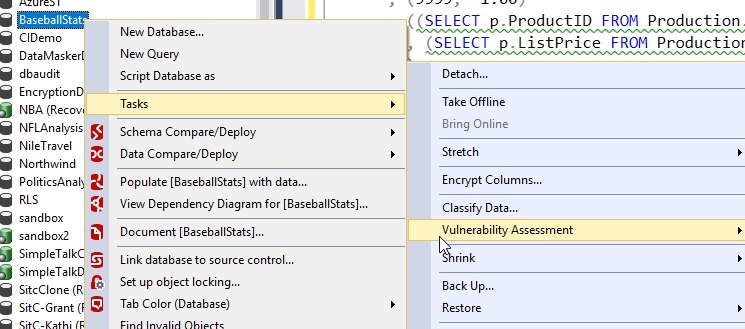
    Once you install or upgrade SSMS, you can right click on a database and choose Tasks, Vulnerability Assessment.

    2018-02-23 17_37_53-

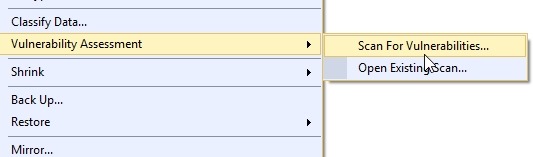
    This is actually a menu of a couple items. You have the choice to run a scan or open an existing scan that you might have saved on your system.

    2018-02-23 17_38_29-SQLQuery4.sql - (local)_SQL2016.AdventureWorks2014 (PLATO_Steve (70)) - Microsof

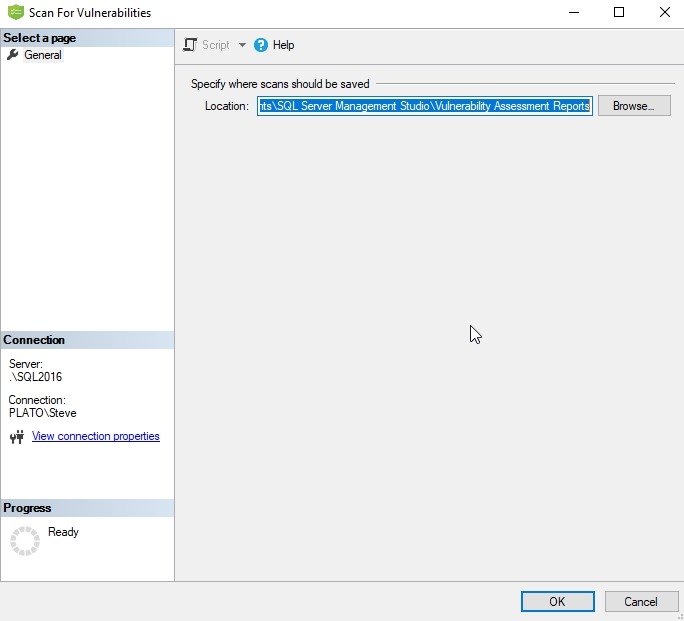
    When you run a scan, a new dialog opens that asks you where to save the scan. You can change the path, and once you click OK, the scan runs.

    2018-02-23 17_39_14-Scan For Vulnerabilities

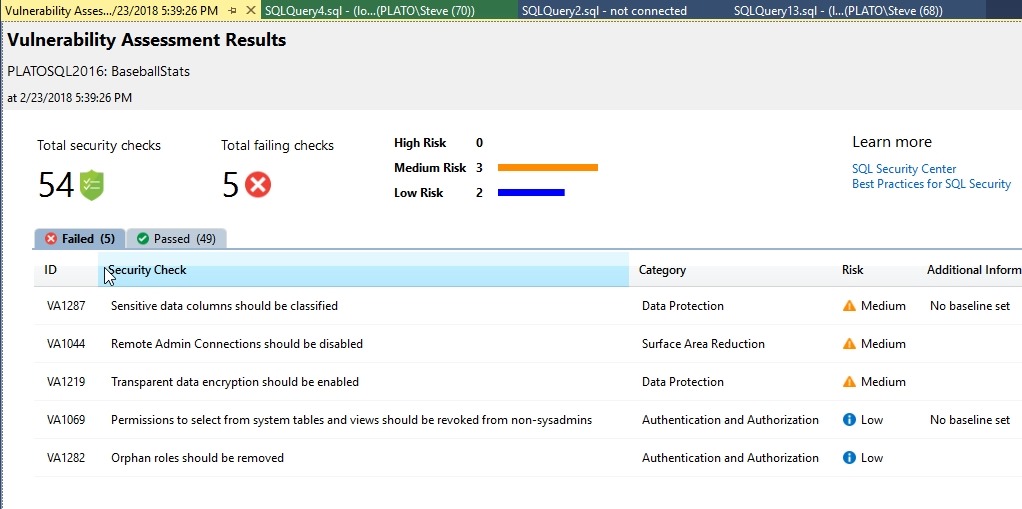
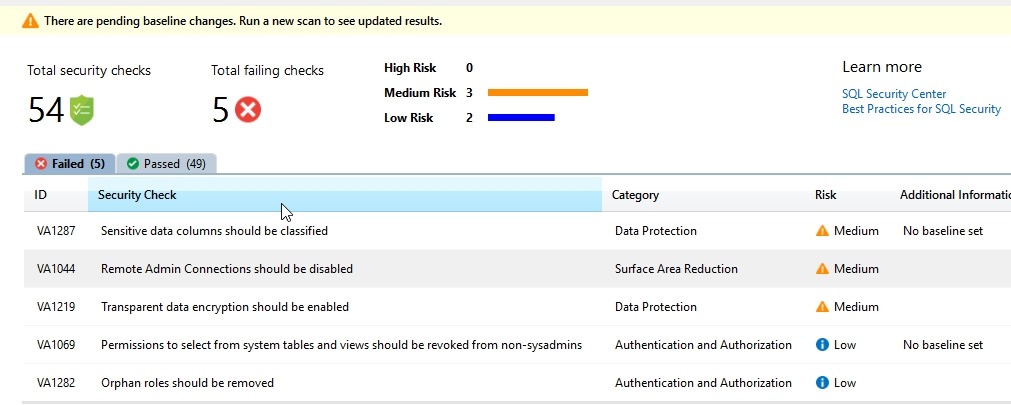
    A new tab opens in the query window space with the results of your scan. This gives you the bad news first. Those items you failed. In my case, I had 5 items.

    2018-02-23 17_50_17-Vulnerability Assessment - BaseballStats - 2_23_2018 5_39_26 PM - Microsoft SQL  

    These items are listed as high, medium, or low risk. I haven’t dug into these too deeply, so I won’t comment on the appropriateness, but look for more information at SQLServerCentral soon.

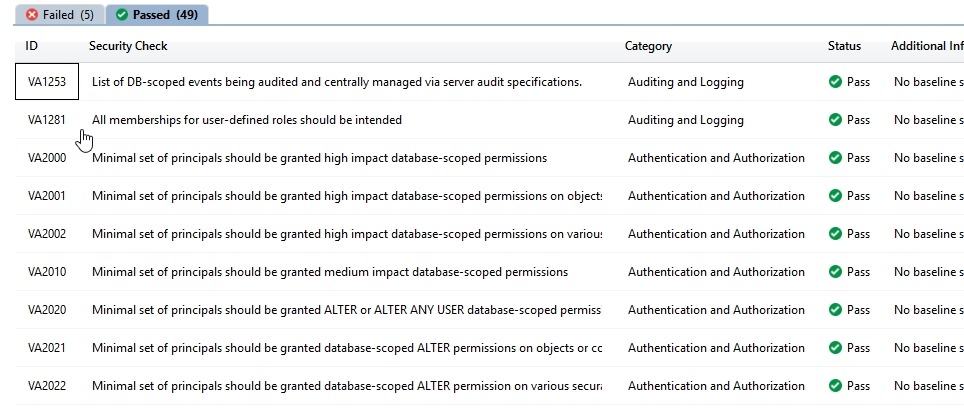
    I did better on the passing side, 49 items.

    2018-02-23 17_50_25-Vulnerability Assessment - BaseballStats - 2_23_2018 5_39_26 PM - Microsoft SQL

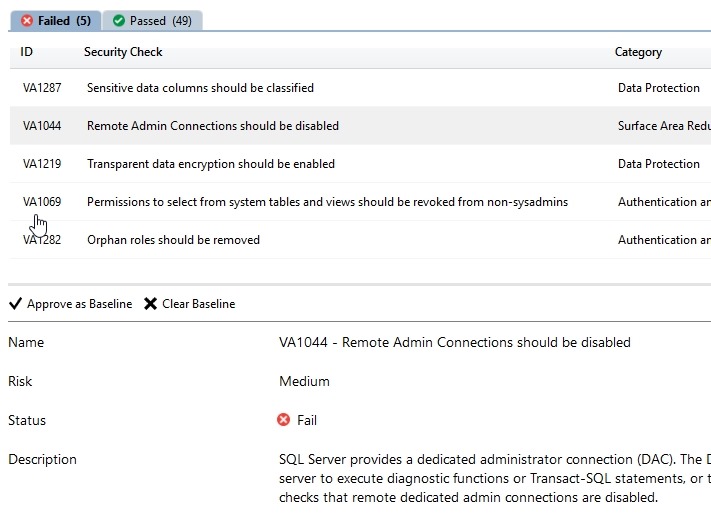
    If I pick an item, I can mark this as approved as the baseline setting. For example, on this instance, I want Remote Admin connections.

    2018-02-23 17_52_32-Vulnerability Assessment - BaseballStats - 2_23_2018 5_39_26 PM - Microsoft SQL

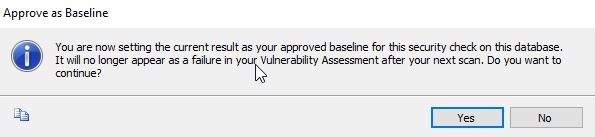
    If I click “Approve as Baseline”, I get a dialog. I’ll say yes.

    2018-02-23 17_52_38-Approve as Baseline

    This item now has a baseline marked, or rather, the absence of a baseline removed. I also get a note that there are changes near the top.

    2018-02-23 17_53_26-Vulnerability Assessment - BaseballStats - 2_23_2018 5_39_26 PM - Microsoft SQL

    If I run a new scan, this issue doesn’t appear.

    2018-02-23 17_54_24-Vulnerability Assessment - BaseballStats - 2_23_2018 5_53_44 PM - Microsoft SQL

    This is now an item in the Passed tab.

    2018-02-23 17_54_52-Vulnerability Assessment - BaseballStats - 2_23_2018 5_53_44 PM - Microsoft SQL

    This is simple, and perhaps trivial, but having this built into a tool means that you can now start to see if things change. There is likely lots of opportunity to build on top of this and perhaps aggregate data or make it more consumable. Look for other companies to add to this, but for now, it’s nice that Microsoft is adding security help to SSMS.

    You can read more about the Vulnerability Assessment on docs.microsoft.com.