Tag: SSMS

  • Adding a Format SQL Button to the Redgate Toolbar

    I’ve gotten used to CTRL+K,Y to format SQL with SQL Prompt, but a customer wanted a button on the toolbar. It’s fairly easy to do, but I thought I should document the process for others.

    First, if you click the small area on the right of a toolbar in SSMS, you’ll get an “Add or Remove Buttons” menu, as shown here.

    2017-11-14 16_29_31-~vs7FB.sql - DKRSPECTRE_SQL2016.sandbox (DKRSPECTRE_way0u (52))_ - Microsoft SQL

    If you click that, you’ll see this dialog.

    2017-11-14 16_29_39-~vs7FB.sql - DKRSPECTRE_SQL2016.sandbox (DKRSPECTRE_way0u (52))_ - Microsoft SQL

    In  this case, I’m happy with the buttons, I want to customize my toolbar. Click that option. This opens up the dialog below, and I’ll want to click the “add Command” to add a menu item as a button.

    2017-11-14 16_29_50-Customize

    From here, I get a list of all SSMS menus. In this case, I’ve clicked the Dimension item, and I can see all the possible menu items on the right.

    2017-11-14 16_30_02-Add Command

    However, I want a SQL Prompt item, so I need to scroll down the left to SQL Prompt. Once I click that, I see the commands on the right,

    2017-11-14 16_30_11-Add Command

    Now scroll the right to find Format SQL.

    2017-11-14 16_30_23-Add Command

    Click OK and then your new button appears in the list.

    2017-11-14 16_30_32-Customize

    And on the toolbar.

    2017-11-14 16_30_41-~vs7FB.sql - DKRSPECTRE_SQL2016.sandbox (DKRSPECTRE_way0u (52))_ - Microsoft SQL

    Now you GUI clickers can reformat SQL quickly.

  • SSMS is Free

    Really, Management Studio (SSMS) is free as in beer. Go download it today.

    I got a note from a reader recently that was complaining about SSMS and the lack of MDI support. This individual mentioned that they would undock windows (something I never do) and if they minimzed the parent, the child windows all disappeared. I  wondered if there were still issues with SSMS, so I fired up my version, undocked some windows and played around. Things worked as I expected, and every window was independent of the others. I had no issues working, though I did find I’d forget on which monitor a particular child window would appear.

    Last year (2016) we saw SSMS get released as a separate download for SQL Server. The tool has it’s own release cycle, and we saw new updates every other month. As this development team at Microsoft got up to speed with the process and began improving and changing the product, we saw some rough release cycles, but things stabilized a bit late last year. The move to the Visual Studio 2017 shell with v17.x was nice, and I’ve found the latest version to be very stable and easy to use.

    After working with Enterprise Manager in my career, then moving to Management Studio and seeing the product languish over the years as SQL Server grew, I am pleased with the direction of SSMS. The changelog is quite impressive, and I expect more things to be fixed and improved in the future. The team is more responsive, and while they won’t fix everything I (or you) want, they are making progress.

    The new SSMS is not tied to any version of SQL Server. You can use it with SQL Server 2008 and later (though there are OS requirements). It will work with SQL 2000+, though there may be some issues. If you can, I’d say abandon whatever SSMS version you’re using and get the latest 17.1 release. It works well, is stable, and has lots of fixes for previous issues. Plus, you won’t need to apply those old 2008/2012/2014 patches to your workstation. Just update SSMS on your schedule.

    SSMS is free, and while some of us have known this for awhile, I regularly meet people still using the version that came with 2008, R2, 2012, etc. Go download the latest bits today. This is the easiest SQL Server upgrade to justify.

    Steve Jones

    The Voice of the DBA Podcast

    Listen to the MP3 Audio ( 4.1MB) podcast or subscribe to the feed at iTunes and Libsyn.

  • Opening .SQL Files in SSMS 2016 by Default #SQLNewBlogger

    Another post for me that is simple and hopefully serves as an example for people trying to get blogging as #SQLNewBloggers.

    This is an easy one, but you’ll want to try this yourself.

    As I’ve been trying to move off the various SSMS versions I have installed to the new, free, updated SSMS 2016, I’ve found that on every system (4 so far) that the default action for .SQL files is to open SSMS 2012 or SSMS 2014. That used to be OK, but it’s annoying. I have SSMS 2016 open (maybe just SSMS?) and waiting on the long load times for 2012/2014 SSMS, especially in demos, is annoying.

    If I right click a .SQL file, I get the chance to choose, but what do I choose?

    2016-08-04 16_34_37-2-sqlserver-replacing-profiler-extended-events-m2-exercise-files

    A little experimentation shows that I want SSMS, not SQL Server Management Studio. So let’s change that.

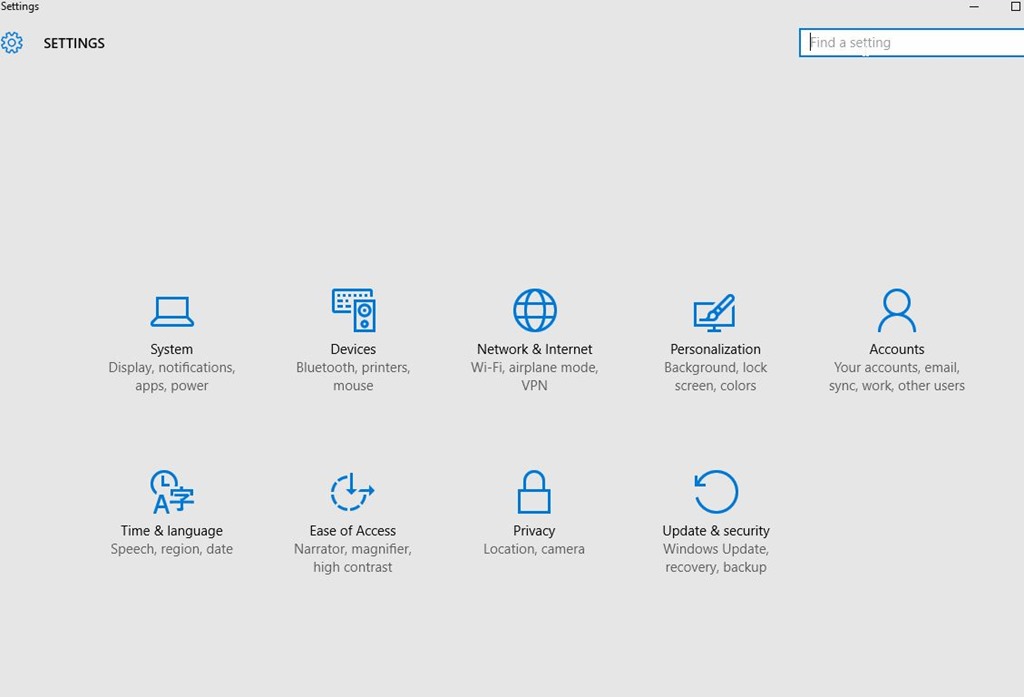
    First, open the Control Panel. On Windows 10, this is the Win+I key combination. I find it hard to know where some things are located, but I like the Search in the upper right.

    2016-08-04 16_36_28-Settings

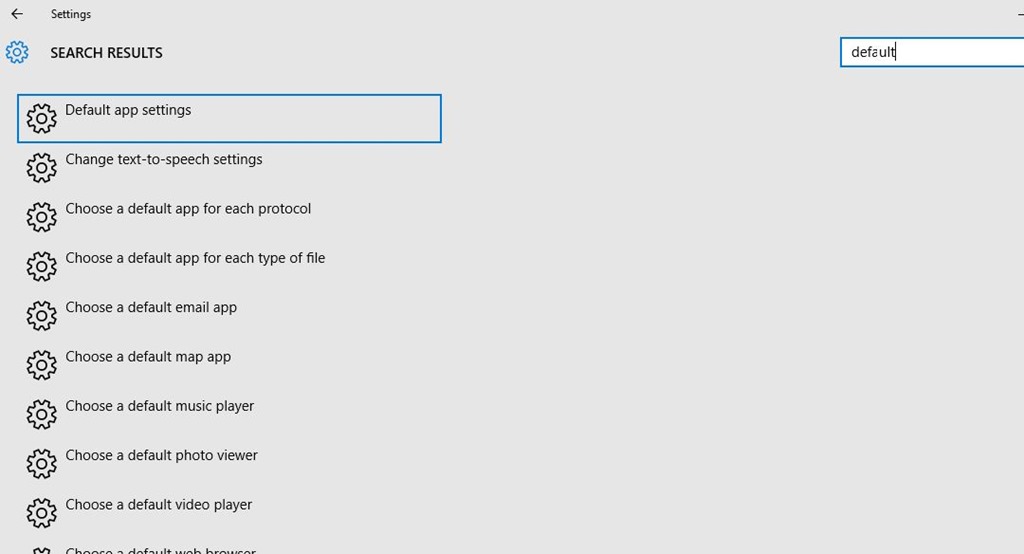
    When I type “default,” I get a list of things. The fourth one down is the one I want to click.

    2016-08-04 16_36_38-Settings

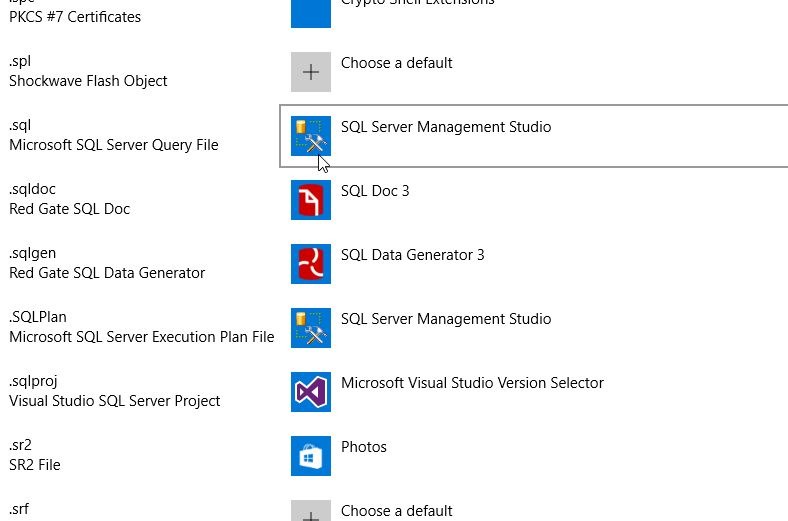
    This brings me a list of each file type and the app. Boy, there are a lot of types to go through. You’ll want to scroll down about two thirds of the way to find .SQL.

    2016-08-04 16_37_09-Settings

    Once I find the file, I click the icon on the right, where it says SQL Server Management Studio. This brings up a “Choose an app” dialog as shown below. I click the SSMS choice.

    2016-08-04 16_37_14-Settings

    Now when I double click a file, it just opens in SSMS (2016). Quickly.

    SQLNewBlogger

    A handy tip. This shows I saw a problem and fixed it. I’m sure some of you could write this in 10 minutes. Some might even built a .reg file or some other automation to show off skills that would help you fix this.

  • Getting Table Change Scripts–#SQLNewBlogger

    Another post for me that is simple and hopefully serves as an example for people trying to get blogging as #SQLNewBloggers.

    One of the really basic things I think everyone should understand is how to get scripts from Management Studio (SSMS) and saving them. In fact, I’ve written that everyone should use this button and really not ever execute their GUI changes. Capture the script, save that, and automate things.

    However, that’s not what this post is about. This post is about how you get a script to look at changes, or better understand how SSMS might implement your changes.

    Editing a Table

    Let’s say that you want to redesign a table, so you Edit it in the SSMS Table Designer. Here, you can see I have small table with a few fields.

    2016-06-27 09_33_55-PLATO_SQL2016.EncryptionDemo - dbo.OrderDetail - Microsoft SQL Server Management

    I want to rename the field with incorrect casing as well as insert an OrderDate column in the middle. I have made those changes below.

    2016-06-27 09_34_31-PLATO_SQL2016.EncryptionDemo - dbo.OrderDetail_ - Microsoft SQL Server Managemen

    Now, I’m not sure how these changes will be made in SSMS, and I certainly want to be careful in production. We want a script we can examine and approve.

    Certainly, I could use something like SQL Compare to generate a script between two databases. That would include transactions and error handling and more. That’s my preferred method. However, since not everyone has SQL Compare (a mistake! Winking smile ), let’s just use SSMS.

    Instead of saving, I’ll click this button.

    2016-06-27 09_37_09-PLATO_SQL2016.EncryptionDemo - dbo.OrderDetail_ - Microsoft SQL Server Managemen

    Or I’ll go to this menu item.

    2016-06-27 09_37_52-PLATO_SQL2016.EncryptionDemo - dbo.OrderDetail_ - Microsoft SQL Server Managemen

    Once I do that, after a warning, I get a script dialog.

    2016-06-27 09_39_28-PLATO_SQL2016.EncryptionDemo - dbo.OrderDetail_ - Microsoft SQL Server Managemen

    I can now save the script and then open it back  up in SSMS. I can see all the changes that the scripting engine thinks we should make.

    2016-06-27 09_41_29-OrderDetail.sql - (local)_SQL2016.master (PLATO_Steve (57)) - Microsoft SQL Serv

    This allows me to learn about one way to make these changes, as well as see things that might concern me, such as poorly named constraints and indexes.

    SQLNewBlogger

    This is a great productivity and learning technique, but also a core thing I’d hope most DBAs knew. You could certainly write about how you use this, or how this might have been helpful in a situation. Showcase your knowledge on this topic with the #SQLNewBlogger hashtag.