Tag: SSMS

  • Quick Tips–SQL Prompt Qualifying Columns

    I love SQL Prompt, and think it’s a great productivity tool. Even before I worked at Red Gate, I love the tool and had a copy before Red Gate bought the technology from the original developer. Recently I’ve run into a few people that weren’t aware of some of the ways in which it can help you. This is a quick look at one of the ways I use SQL Prompt.

    Qualifying Columns

    One of the things that’s a good programming practice for T-SQL is to qualify your columns. Imagine that I have this query:
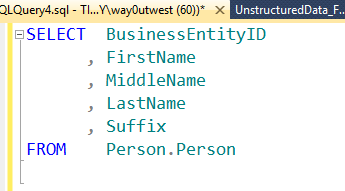
    qualify_a

    Note that my column names are listed with just the column name and don’t include the table from which they come. Not a big deal here, but as I enhance this code over time, I may add another table to a join, perhaps one that includes BusinessEntityID in it. In that case, I’ll get an ambiguous column error, and a squiggly in SSMS (shown below).

    qualify_e

    SQL Prompt tries to make writing code quicker and easier, and if I look back to my first query, Prompt can qualify those columns for me.

    If I press CTRL+B, CTRL+Q, I’ll get this (from the first query).

    qualify_b

    Note that every column now includes the table names.

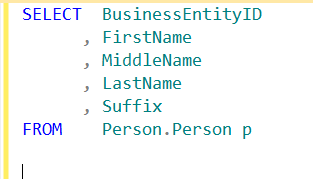
    It also works for aliases. If I have this (note I’ve added an alias)
    qualify_c

    CTRL+B, CTRL+Q gives me this:

    qualify_d

    As I add tables and modify this code, anytime I find columns unqualified, I can use this quick shortcut to fix my code.

    Note: If you have ambiguous columns, Prompt can’t fix them (yet).
  • Customizing SSMS–Results

    This is a short series on some customizations in SSMS to make it visually more appealing.

    As a presenter, I’ve learned how to change the way Management Studio (SSMS) looks to make it easier for people to see the screen on a projector. I had wrongly assumed that so many people knew many of these tricks, which is a poor attitude on my part. That should be especially apparent as I saw a presentation recently where the speaker didn’t know how to make things easier to see.

    In a previous post I talked about changing the query font size. In this post we’ll look at result sizes.

    The Defaults

    This is what I see, and it’s not easy to read.

    Capture_009

    The results are much smaller than the query itself. How can we change this and make things easier to read?

    I wrote about one way: using results to text. This works well, but it isn’t the best solution for everyone, and you still want to change the size of your results. The technique I’ll show you works for that as well.

    Customization

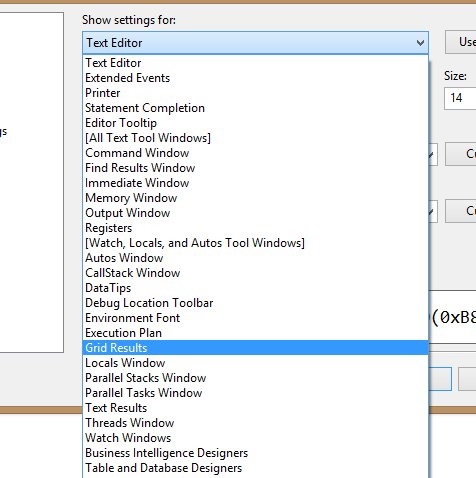
    If you go to the Tools | Options menu, in the Fonts tab as I showed in the last post, you’ll find there’s a drop down titled “Show settings for:” at the top. If you select Grid results, you can change the font settings.

    Capture_006

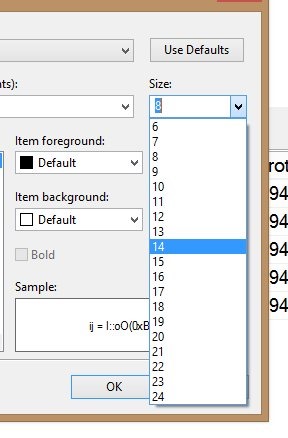
    The default is 8, and I usually up that a bit.

    Capture_007

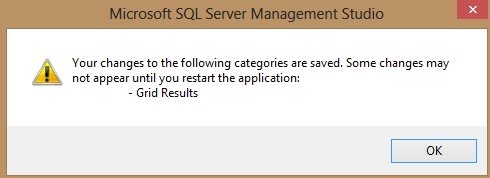
    Once that is done, you click OK, and get this note:

    Capture_008

    Make sure your tabs are saved, since you need to restart SSMS. Once you do, your results will be much easier to read.

    Capture_005

    Note that in the drop down for settings, there is an item for “Results to text”. If you change that, your text results will be larger.

  • Customizing SSMS – Bigger Queries

    This is a short series on some customizations in SSMS to make it visually more appealing.

    As a presenter, I’ve learned how to change the way Management Studio (SSMS) looks to make it easier for people to see the screen on a projector. I had wrongly assumed that so many people knew many of these tricks, which is a poor attitude on my part. That should be especially apparent as I saw a presentation recently where the speaker didn’t know how to make things easier to see.

    Here’s another item I saw someone struggle with recently, the query font size.

    The Default View

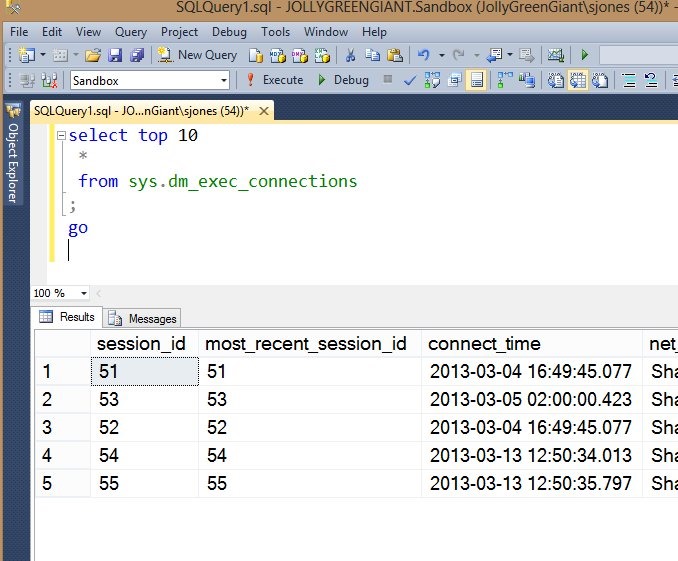
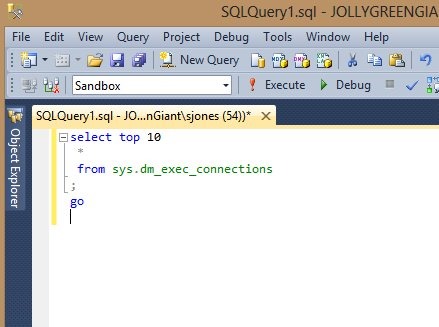
    When you install SSMS, this is what you often get, and how your queries look:

    ssms_f

    Not easy to read, especially for these old eyes. When someone uses the default settings in SSMS and presents on a big screen, I am usually struggling to see, sometimes even when I sit in the front row.

    Customizing

    You can make SSMS easier to read for yourself in a couple ways. The first is the quickest, but it’s a change for only the current SSMS execution. If you close and re-launch it, things will return back to the previous settings.

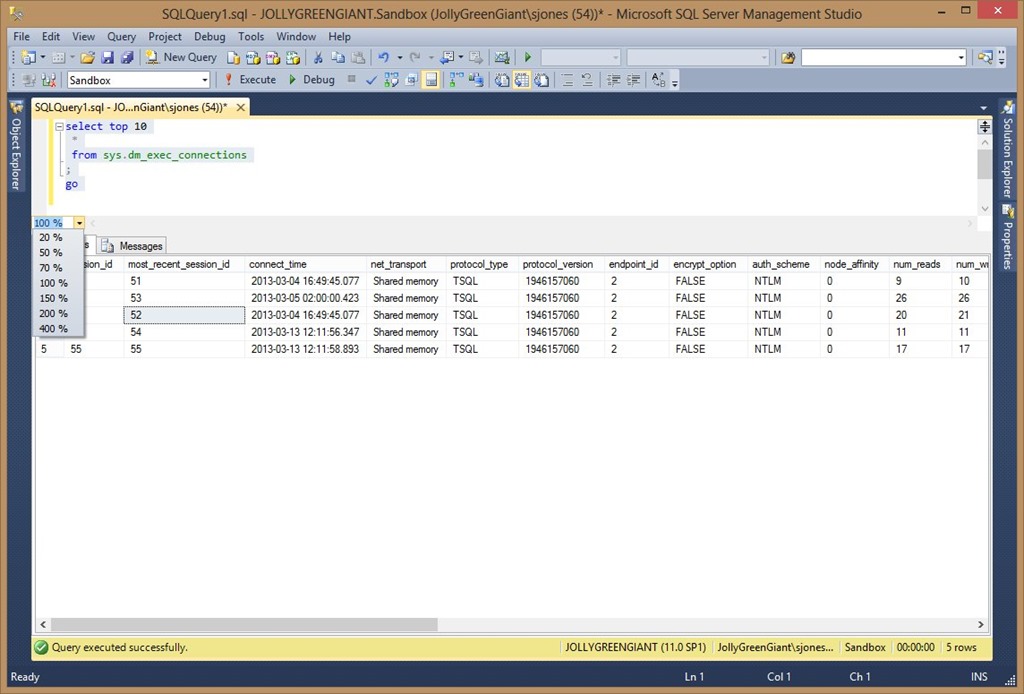
    If you look below the query and above the results, there’s a drop down that says 100% in it.

    ssms_g

    If you click that, you’ll get a drop down of some percentages you can choose.

    ssms_h

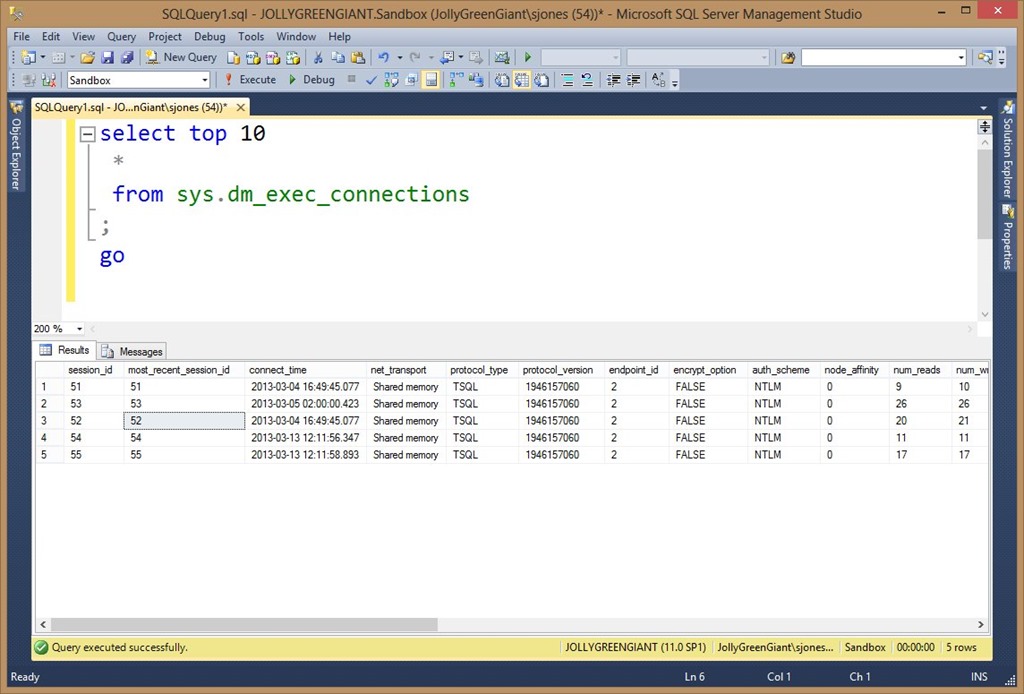
    These percentages will change the size of the query pane. For example, if I choose 200%, you can see things are much easier to read. The query pane is much better than the results. This is great for quick changes when you are presenting.

    ssms_i

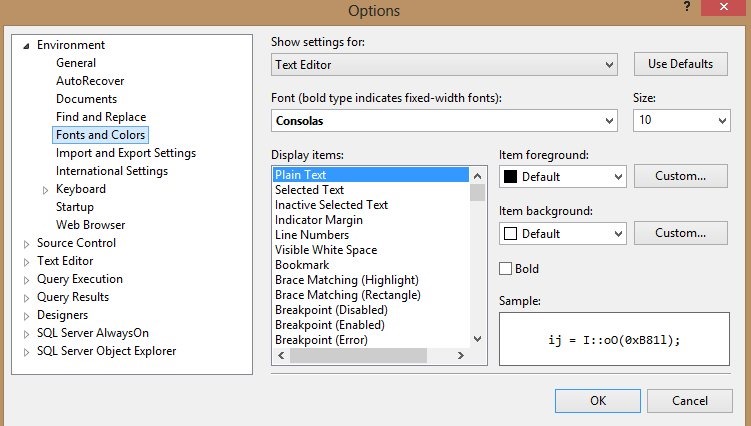
    For permanent changes, this is what I quickly do. Go to the Tools menu at the top of SSMS and select Options. You will get this dialog:

    Capture_002

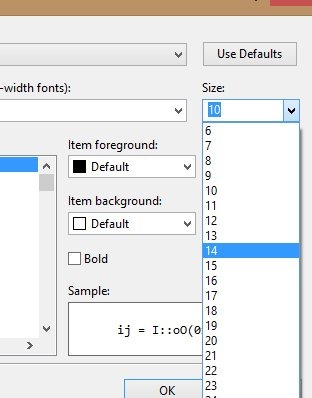
    I’ve selected “Fonts and Colors” from the left already, but once you do that, there’s a “Size” drop down on the right. Choose that.

    Capture_003

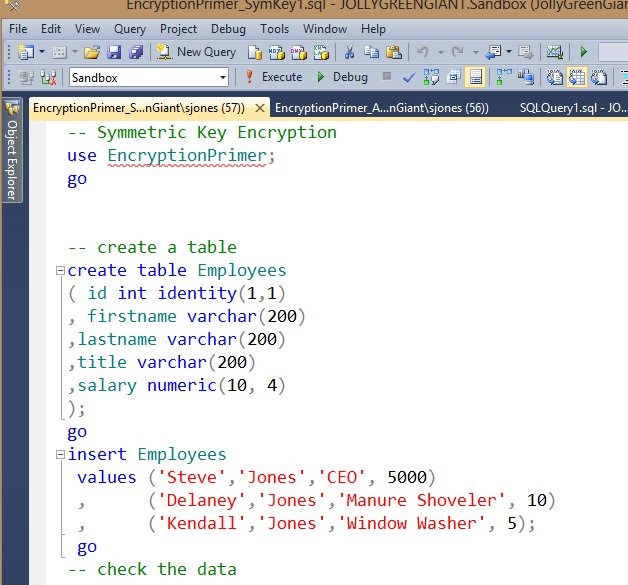
    I usually set that to 14 and it looks good for me. A balance of large size, but still being able to get lots of code on the screen.

    Capture_004

    This make it easier to read your code. In another post I’ll talk about results.

  • Customizing SSMS – Hiding the panels

    This is a short series on some customizations in SSMS to make it visually more appealing.

    As a presenter, I’ve learned how to change the way Management Studio (SSMS) looks to make it easier for people to see the screen on a projector. I had wrongly assumed that so many people knew many of these tricks, which is a poor attitude on my part. That should be especially apparent as I saw a presentation recently where the speaker didn’t know how to make things easier to see.

    Note that I often caution writers not to assume too much from the reader, and here I took it one step further, assuming some topics weren’t worth writing about.

    Here’s one that I heard asked recently: how do you hide the side panels in SSMS?

    The Default View

    Here’s what SSMS looks like for most people.

    ssms_a

    The Object Explorer takes up a good portion of the screen on the left. For some people, they may have this:

    ssms_b

    Or even this:

    ssms_c

    In the last two images, the Solution Explorer and Properties panes are on the right. If you have these panes open, you might find yourself squeezing a query into a small space in the middle. If your resolution is 1024×768 (standard for many projectors), you might get very little on the screen.

    Customizing

    There’s a way to clean things up quickly and easily. All of these panes have this item in their upper right sides:

    ssms_d

    If you click the middle, pin icon, the “Auto Hide” will be enabled, and the panes will slide to the side. They’ll still be there, but now they’ll be in a side bar, like the Object Explorer is below:

    ssms_e

    If I hover the mouse over the “Object Explorer” button on the side, it will appear, or I can click it.

    I can always use the “View” menu at the top as well (or a shortcut) to expose any of these panes. However when I’m presenting, or want to make a quick change, the “auto hide” feature works very well for me.