Tag: SSMS

  • SSMS Maturity

    I’ve used a lot of tools with SQL Server over the years. We had a variety of individual tools from Microsoft for SQL Server 4.2, including the isqlw query editor that I used for years. I wrestled with the Enterprise Manager MMC plugin and eventually moved away to use the Embarcadero suite to work with SQL Server before coming back to Microsoft’s SSMS in SQL Server 2005. I’ve had a love/hate relationship with that tool ever since, though the Redgate suite of extentions has certainly made life easier.

    However Management Studio (SSMS) hasn’t really evolved in quite a few years. It seems that the enhancements and additions that have been made with each version have been minimal, sometimes barely working and rarely improved across versions. It’s been disappointing that relatively few resources have been expended on SSMS, despite the regular evolution of SQL Server every 2-3 years. And despite the fact that one of the big reasons SQL Server was touted over Oracle and other RDBMSs is that the tooling was better. 

    I suspect some of the problems were the pressure to release the core parts of SQL Server first, and link SSMS to the server product, despite the fact that it really needs to support multiple versions and previous tooling should have been improved.

    That’s changing a bit. As Tim Ford noted, SSMS now has it’s own release and upgrade path. The tool should not have it’s own, separate download and lightweight installer along with a separate release cadence from SQL Server. I suspect this will evolve more rapidly, probably closer to an Azure like schedule, with more regular patches and enhancements. At least that’s what I hope.

    I was glad to see SSMS being made available for 2012 and 2014 versions as a separate download, and the change to a completely separate product that will likely become de-linked from SQL Server versions. I expect we’ll just have SSMS in the future, with some version that’s more like what we see in Chrome and Firefox. 

    For now SSMS is still based on the 2010 Visual Studio shell, but the comments in this announcement seem to indicate it will move to the 2015 shell soon. Let’s hope that happens and the performance improves along with the maturity of the tool in the future.

    Steve Jones

    The Voice of the DBA Podcast

    Listen to the MP3 Audio ( 3.1MB) podcast or subscribe to the feed at iTunes and LibSyn.
  • See Two Queries at Once in SSMS

    I’m writing this post as a way to help motivate the #SQLNewBloggers out there. Read the bottom for a few notes on structuring a post.

    One of the things that I’ve struggled with a bit in SSMS is sometimes comparing the results of two batches. I’m sure many of you have executed a query, then make a change, and execute it again, losing your results. Or you are testing something in two query windows and need to switch back and forth. Sometimes doing this, and only seeing one set of results (or checking if a query is finished) is cumbersome.

    A few years ago I was watching Brent Ozar tune queries at an event and one of the things he wanted to do was compare two queries and their execution plans. He used vertical tab groups, which is a great way of seeing two things at once.

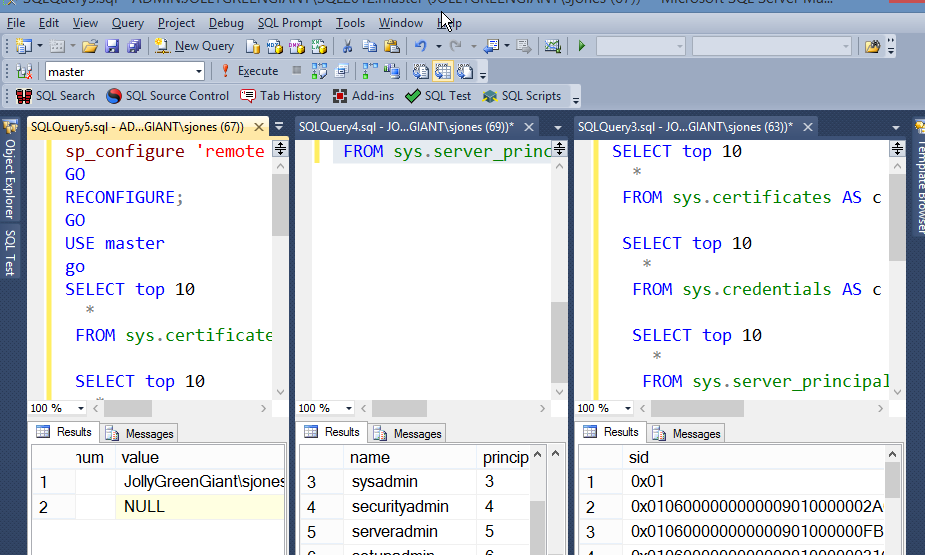
    Here’s how my screen ended up during the comparison I was actually doing of three queries. I was checking credentials using a before, after, and with the DAC.

    verticalwindows

    Things are a bit shrunk down as I wanted the image to be viewable. I actually had this full screen on a 30" wide monitor, and I could more easily see the queries and results from each window.

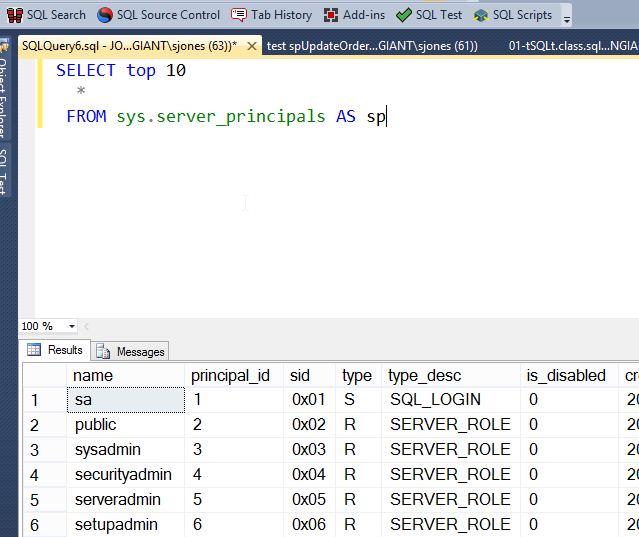
    The easiest way to do this is to start with a query:

    verticalwindows_b

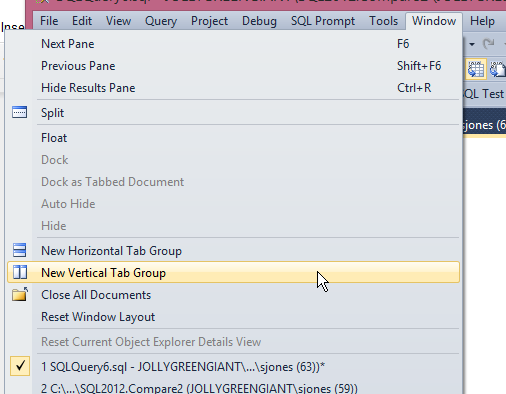
    I want to change something, add a login, and test again, but I don’t want to lose my results. I’d also like to do an easy comparison. What I can do is go to the Window menu and get a new Vertical Tab Group. I could also do a Horizontal one, but comparing results is easier for me with vertical ones.

    verticalwindows_c

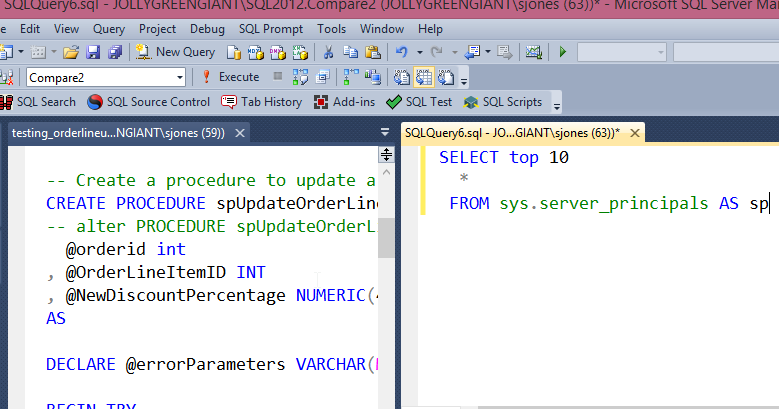
    Once I select this, my selected window will move to a new tab group, and I’ll see two places where I can run code and visualize the queries and results at once.

    verticalwindows_d

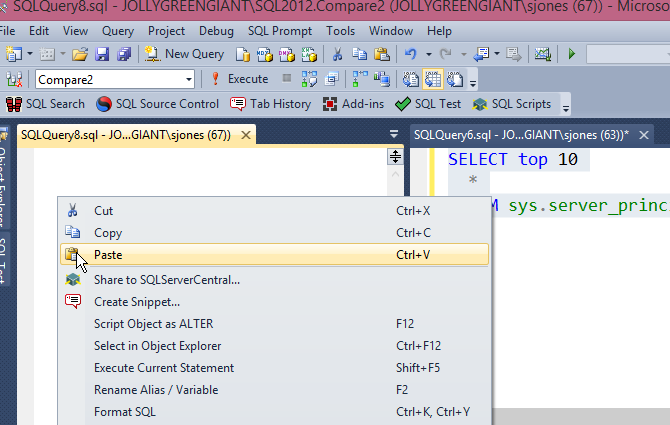
    I selected the left hand query, then clicked "New Query" to get a blank window. I then cut and pasted my code from the right to the left. This is exactly what you might want to do when tuning queries, keeping the original on the right while you work on the left.

    verticalwindows_e

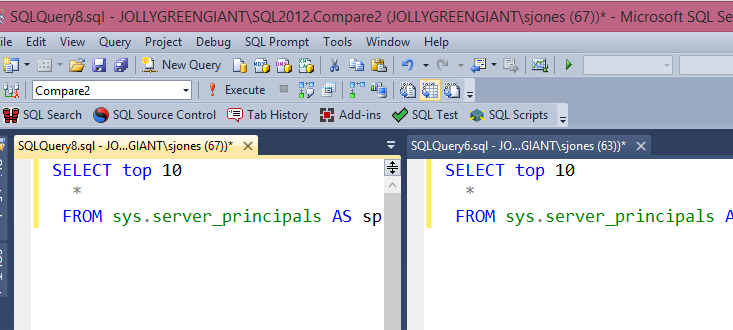
    Now I have two places to work on code. In my case, I wanted the before and after view of Server_principals as I checked some admin changes. I could do things and keep re-running the query in one of these windows, but keep the results from the other one visible.

    verticalwindows_f

    SQLNewBlogger

    Once again I was doing something else and realized the vertical window trick was handy. I killed the three windows I had, set up a new query, shot the screen, ran through the process with more screen shots.

    Less than 10 minutes.

    References

    Watch Brent Tune Queries – http://www.brentozar.com/sql/watch-brent-tune-queries/

  • Custom SSMS

    In my career, I’ve gotten used to working with SSMS on a variety of machines. It seems that as I toiled in various environments, I’d often connect to different SQL Server hosts, or use various consoles that only had the stock Enterprise Manager/SSMS environments installed. I do like larger fonts and a few other settings, so I learned how to quickly change those items, but otherwise I often have just learned to work with the default SSMS.

    However that’s not a very efficient way to work. SSMS, and the Visual Studio shell on which it’s based, have a number of ways to customize and modify the application to suit the way you work. You can also even export and import settings to transfer them across machines.

    Most software has a variety of settings, though I still don’t change many of them. As I’ve matured in my career, I do look to customize my environments to suit me, but somewhat lightly. There aren’t a lot of changes that I make, but I suspect that’s because of the nature of my work. I tend to do what works, and I don’t often explore other settings. This week I’m wondering if you have tips and tricks.

    What customizations or add-ins do you use to customize SSMS (or other development software)?

    I’m curious what many of you do and how you do it. I don’t often explore the possibilities as I’m usually concerned with just getting work done. However I’m sure that I’m missing opportunities to work smarter. I’ve never been a big fan of the function keys, though I know some people love them. I’ve tended to rely on templates (and snippets in SQL Prompt) to work faster.

    If you’ve got idea, tweaks, or software, let us know. I’m sure that many of us would appreciate suggestions that might help ease our jobs.

    Steve Jones

    The Voice of the DBA Podcast

    Listen to the MP3 Audio ( 2.0MB) podcast or subscribe to the feed at iTunes and LibSyn.
  • Quick Tips–SSMS Select a vertical block

    I saw this years ago in a presentation from Aaron Bertrand. At the time I thought it was super cool and I’d use it all the time, but I haven’t found many uses. However since I needed to do this recently, this helped.

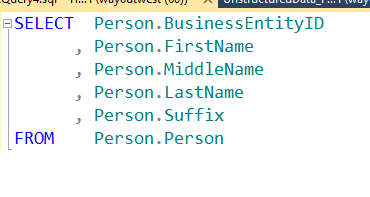
    Imagine that you have this:

    blockselect_a

    A normal select statement. Perhaps you’ve qualified columns with SQL Prompt, or you’ve used some tool to enter this (or you’re a typing masochist). Now you add an alias for the column because you don’t want to type the full name everywhere. That causes SSMS to complain.

    blockselect_b

    You can’t run this because once you use an alias, you need to use it elsewhere. The full table name isn’t valid anymore.

    Now you could do a search and replace (CTRL+H), but that presents other problems, not the least of which is replacing the table in the FROM name. Unless you want to go through and approve or deny every replacement. You could also edit Person to “p” on each line manually.

    Hey, this is programming, we don’t do things over and over when we can avoid them.

    Enter Block Select

    If you place your cursor here, shown with the arrow as my capture tool missed it.

    blockselect_c

    Now I can click ALT+Shift and hold them down while I move my cursor to the lower right of the block I want to select. In this case, it’s between the “n” and period on the last line of the column list, above the FROM clause. Look at the image below.

    blockselect_d

    I’ve now selected a block, and I can hit delete. This gives me:

    blockselect_e

    Notice that my selection is a thin cursor still visible. I can actually type here. Imagine I typed “sn” now. This is what I’d get.

    blockselect_f

    I fixed the alias before I shot this, and once I moved the cursor, I lost my selection, but a simple ALT+Shift, lets me highlight, select, and type in a vertical block.

    Handy when trying to correct a number of items on separate lines.