Tag: SSMS

  • Where are Sequences?–#SQLNewBlogger

    Another post for me that is simple and hopefully serves as an example for people trying to get blogging as #SQLNewBloggers.

    I created a few sequence objects lately to test some things. Since I tended to create and use these, I knew the names. Coming back a few days later, with new queries, I wondered where these were stored. This post shows a few things I learned.

    SSMS

    Where would you think Sequences are stored. They are a weird object, with the NEXT VALUE FOR syntax being used. This feels DDL-ish. However, if we look at the Object Explorer, there aren’t a lot of choices here.

    2020-05-12 10_36_03-SQLQuery7.sql - ARISTOTLE_SQL2017.way0utwest (ARISTOTLE_Steve (56))_ - Microsoft

    The area that seems most promising is Programmability, and when I check here, I see them.

    2020-05-12 10_37_00-SQLQuery7.sql - ARISTOTLE_SQL2017.way0utwest (ARISTOTLE_Steve (56))_ - Microsoft

    If I look at the properties, I can see the settings, which is good. I especially like seeing the current value.

    2020-05-12 10_37_20-Sequence Properties - MyKey


    T-SQL

    Since this is an object, it ought to be query-able from T-SQL. sys.objects is a good place to start, and when I query, I see this:

    Sequence object results from sys.objects

    Good, but not a lot of information here. With SQLPrompt, I do see there is another choice, sys.sequences.

    SQL Prompt Intellisense with sys.sequences

    If I query this DMV, I now see the same information from sys.objects at the top of the result set.

    First few columns of sys.sequences

    If I scroll, I can see more of the metadata I am looking for. Last_used_value is important, though I wonder what caching does here. A post for another day.

    metadata for the sequence from the DMV

    ADS

    Azure Data Studio has an Object Explorer, but it’s not as useful, as you can see. No options to get data. In ADS, I’d query the DMV.

    Azure Data Studio Object Explorer with just a Refresh option

    SQLNewBlogger

    This was a quick post, as I tried to find information. Once I did, which took just a minute, I decided to spend 5-10 minutes assembling this post and trying the various tools to get information.

    A quick look at how I find the information. You could focus a small post in this way on some learning effort you make.
  • Server Side SSMS

    SSMS is a large monolithic application built on the Visual Studio shell. It’s slow to start, heavyweight, resource intensive, and can be a resource hog. It’s also indispensable for many SQL Server DBAs.

    I grew up using various SQL Server tools. We had isql for Windows early on and then Enteprise Manager before SQL Server Management Studio (SSMS) was built. Now we also have Azure Data Studio(ADS), though arguably for many administrators and DBAs, ADS doesn’t have enough capabilities to supplant SSMS. That may change, but for now I find myself sticking with SSMS for most of the code writing I want to do.

    Many people install SMSS on the database server itself, and many other people refuse to do so. Most experts agree that running SSMS on the server itself is a bad idea, though that doesn’t stop some people from doing so on a regular basis. While I agree with Andy Mallon that we should install SQL Server on a server, I also agree that we shouldn’t use it.

    That seems counter intuitive doesn’t it? Install it but not use it? Why install it in the first place?

    When there is a crisis, you will want this tool. It’s familiar, it has all the wizards, dialog boxes, and tools that many solutions will describe when you frantically search for a solution to a problem. It’s also the best way to get something done if you have to connect from a remote location. Even if your laptop connects, sometimes networking issues, long query times, and more mean you will want local execution of queries, not remote calls from SSMS on a workstation. After all, if something happens to your client, you don’t want your query to rollback.

    Andy has a good list of reasons, as well as a few tips to avoid running SSMS on the server. For me, I’d recommend a dedicated jump box, server or workstation, where users can RDP to this dedicated box and run SSMS from there. Why? It’s becoming more common as organizations try to implement better security. They often do this by limiting access to production from most workstations. In fact, for some clients, that’s the only way they can connect to production. I expect that to become more prevalent than not in the future, so I’d suggest you get comfortable with another solution now.

    Steve Jones

    Listen to the podcast at Libsyn, Stitcher or iTunes.

  • Cleaning Up Registered Servers

    Another post for me that is simple and hopefully serves as an example for people trying to get blogging as #SQLNewBloggers.

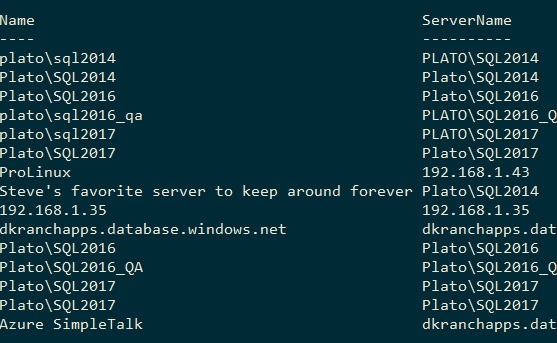
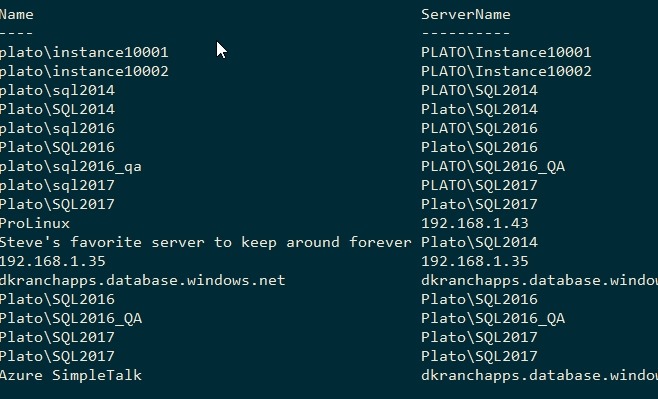
    I was working with Get-DbaRegServer from dbatools and got some errors. When I dug through the errors, I noticed some interesting items listed in my server list. This is what I saw:

    2020-03-30 10_18_14-cmd - powershell (Admin)

    While all the servernames are valid, the names are a little silly. I initially thought some of these were the reason for my errors with the cmdlet, but they weren’t. Still, I want to remove a few of these.

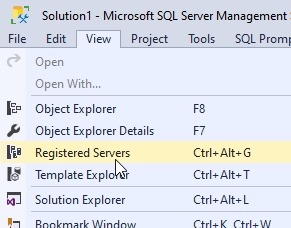
    I can likely find these in the registry or elsewhere, but there’s an way way to see this: SSMS. Under the View menu, there is a Registered Servers item.

    2020-03-30 10_22_23-

    Clicking this will get me a new pane, where the Object Explorer lives.

    2020-03-30 10_22_35-Solution1 - Microsoft SQL Server Management Studio

    If I expand this, I see a few categories, including my Azure Data Studio (ADS) connections and groups. It’s a nice way to see what’s registered.

    2020-03-30 10_22_44-Solution1 - Microsoft SQL Server Management Studio

    For the Local Server Groups for SSMS, I can highlight an instance and click “delete” to remove it. You get a confirmation dialog, but it’s removed. I can this in PoSh. Instance001 and 002 are gone.

    2020-03-30 10_29_47-cmd - powershell (Admin)

    I can’t, however, remove the ADS ones. I get this with a right click (nothing with Delete).

    2020-03-30 10_27_29-Solution1 - Microsoft SQL Server Management Studio

    The integrations between SSMS and ADS do not extend to altering the connections.

    Simple stuff, but handy to have around, especially over time as you add lots of registrations over time.

    SQLNewBlogger

    This took about 3-4 minutes to figure out as a part of other things I was doing, but I made a few notes and then spent 10 minutes writing this up and taking screenshots.

    This is a good place to start blogging if you want to get going.

  • Going Dark in SSMS

    I haven’t been a big fan of dark mode in many tools, but I’ve been giving it a try in some applications as my eyes age. I decided to try it in SSMS, which wasn’t as easy as I’d hoped.

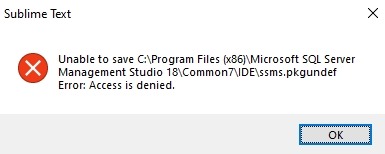
    I had heard this was coming, then found some notes it wasn’t coming, and eventually landed on Pinal Dave’s blog that shows how to enable it. I followed the instructions, but had this issue in Sublime Text.

    2020-03-19 11_09_26-Sublime Text

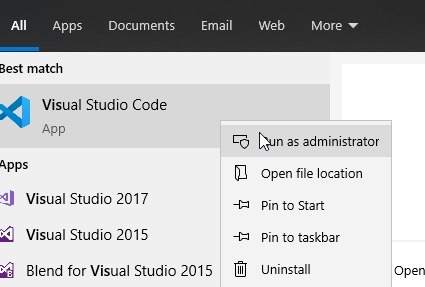
    That’s easy to fix. In my case, I didn’t want to restart Sublime in administrator mode, nor did I want to mess with permissions. I decided to use VS Code, since that’s the other default program that appears with many files. I started it in admin mode:

    2020-03-19 11_09_48-SQLQuery1.sql - Plato_SQL2017.sandbox (PLATO_Steve (65))_ - Microsoft SQL Server

    I accepted the UAC dialog and then clicked File | Open. From there, I pasted in this path: C:\Program Files (x86)\Microsoft SQL Server Management Studio 18\Common7\IDE

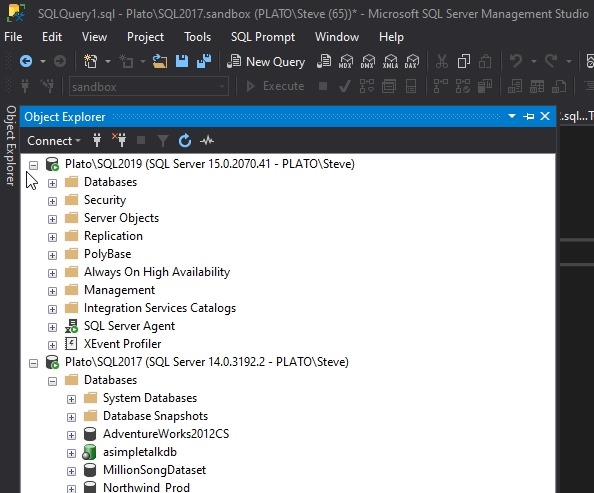
    I picked ssms.pkgundef and opened it. Uncommented the last line for the dark theme and saved the file. Then I restarted SSMS and:

    2020-03-19 11_11_39-SQLQuery1.sql - Plato_SQL2017.sandbox (PLATO_Steve (65))_ - Microsoft SQL Server

    Voila!

    ish. Not everything is dark.

    2020-03-19 11_12_01-SQLQuery1.sql - Plato_SQL2017.sandbox (PLATO_Steve (65))_ - Microsoft SQL Server

    This one is particularly annoying to me.

    2020-03-19 11_12_12-SQLQuery1.sql - Plato_SQL2017.sandbox (PLATO_Steve (65))_ - Microsoft SQL Server

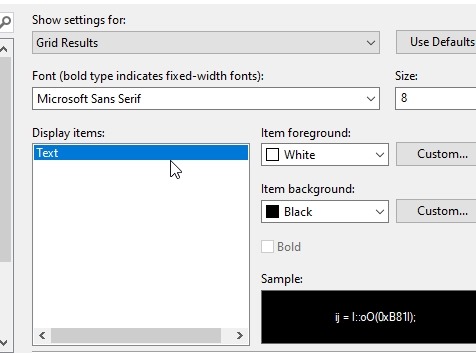
    I did try to alter some items, such as my grid results:

    2020-03-19 11_19_34-Options

    This somewhat works:

    2020-03-19 11_20_54-SQLQuery1.sql - Plato_SQL2017.sandbox (PLATO_Steve (64))_ - Microsoft SQL Server

    I’ll stick with it for a bit, but I’ll have to see how much the white sections bother me, especially with the Object Explorer.

    I don’t know why this is so hard, or why it’s a low priority. When I look at some of the feedback and posts, this is upsetting to plenty of people and it would seem like something that shouldn’t be hard to fix. However, I know this is a thick, old client, and perhaps no one wants to touch the code? I’ve certainly seen that before in other orgs. Perhaps Microsoft isn’t so different.