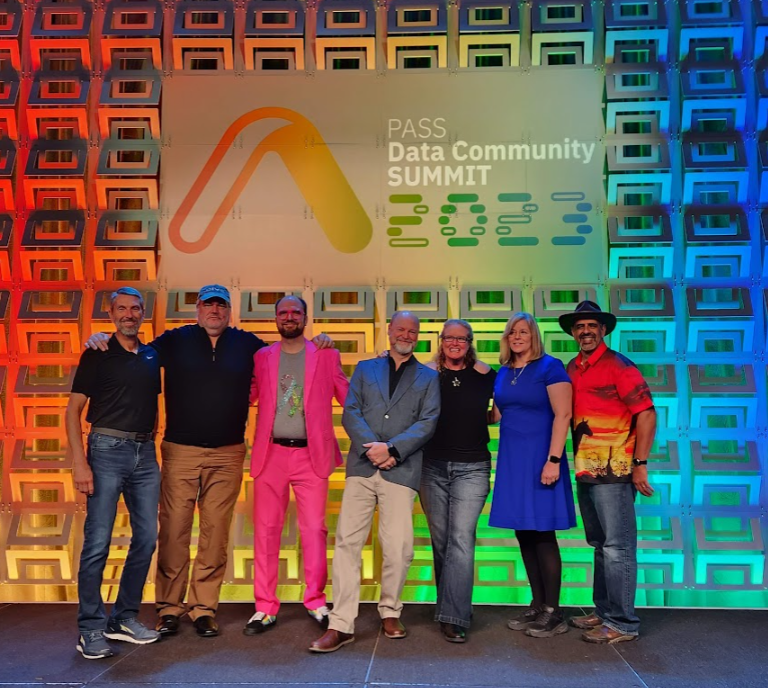
I’ve been to a lot of conferences, and one that I’ve probably attended the most is the annual PASS Data Community Summit. It’s been listed under various names, but that’s what it’s called now.
I think conferences are a great career boost for motivated people. I know meeting people and talking with them, getting inspired by presentations, and seeing new ideas is great. Not for everyone, but good for some that are driving their careers forward.
I wanted to take a few minutes and look back at last week’s 2023 event and share a few thoughts and memories.
A Prep Day
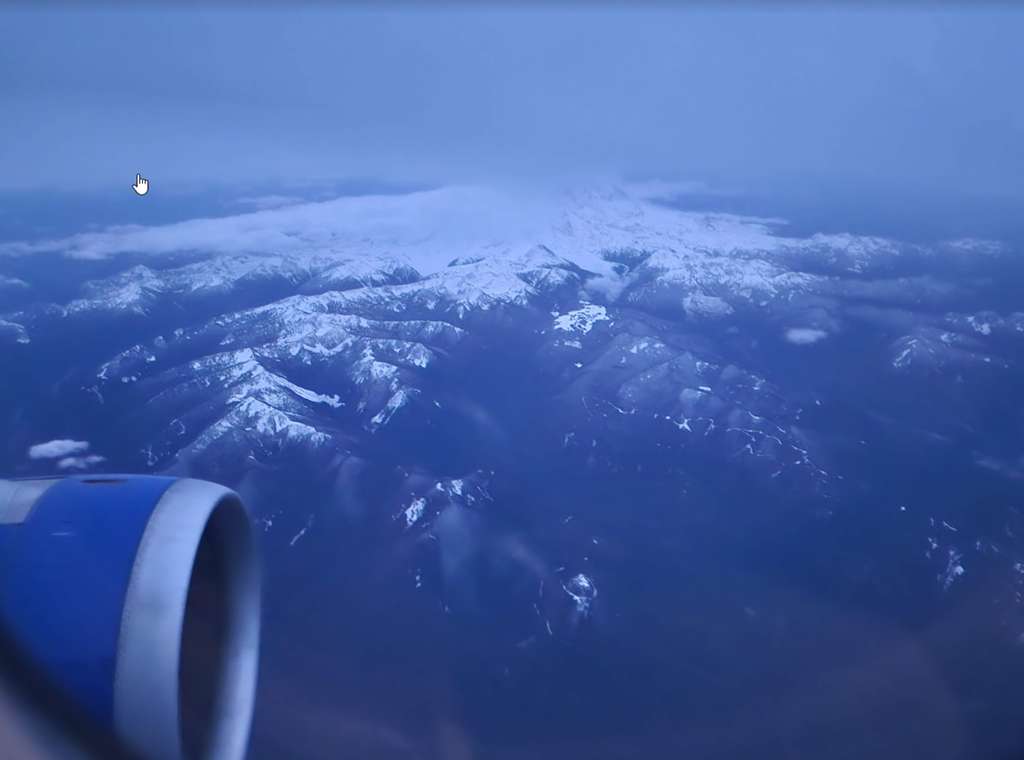
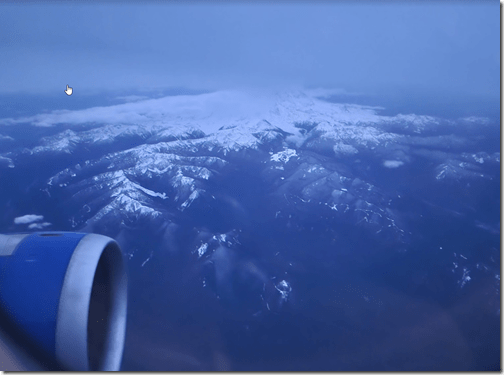
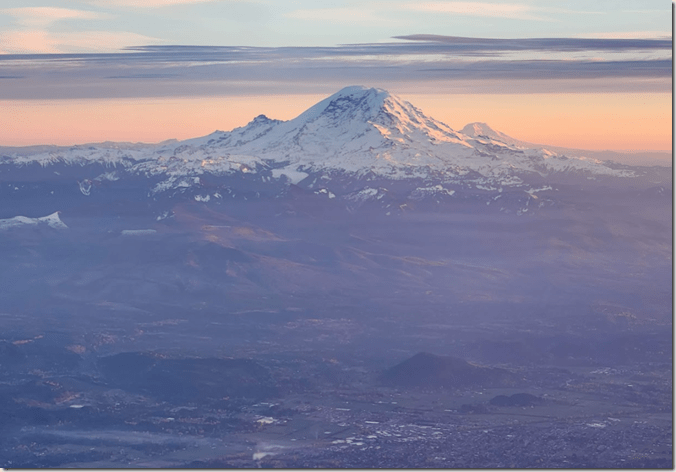
I flew up Sunday night to spend Monday prepping for a few sessions and getting organized. This is a neat flight for me, coming out of Denver and seeing some mountains, then relaxing for a couple hours before coming up on the sights outside of Seattle. I try to get on the left side of the plane coming in and the right side leaving. Here’s Mt Ranier Sunday evening.
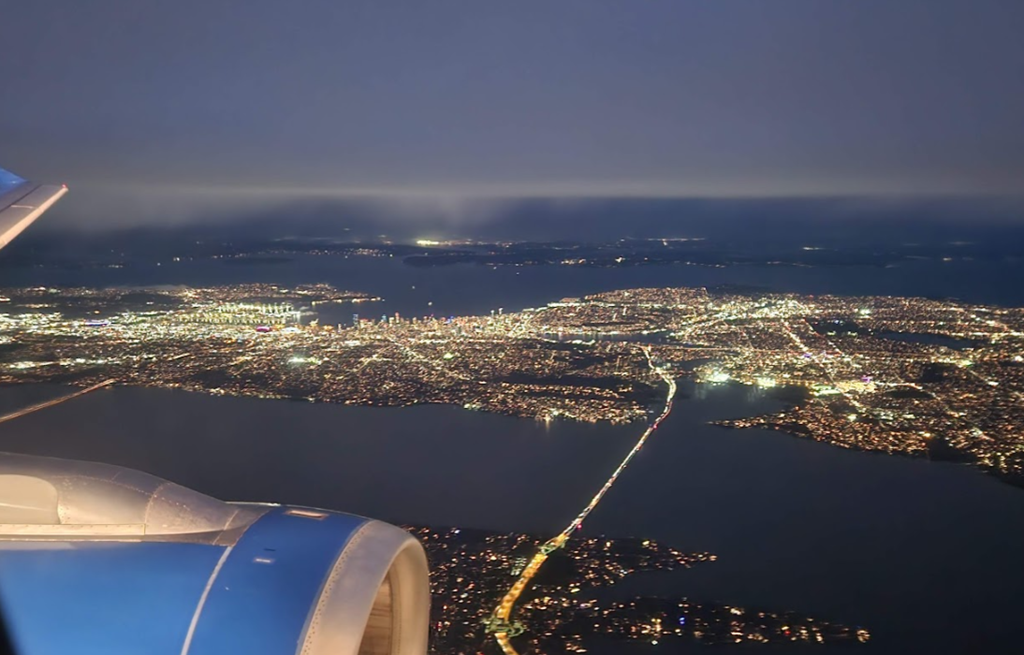
It’s also neat when I come into SEATAC from the Northside. This was the pass going North before turning to come back. You can see Seattle in the upper left, including the stadiums lit up.

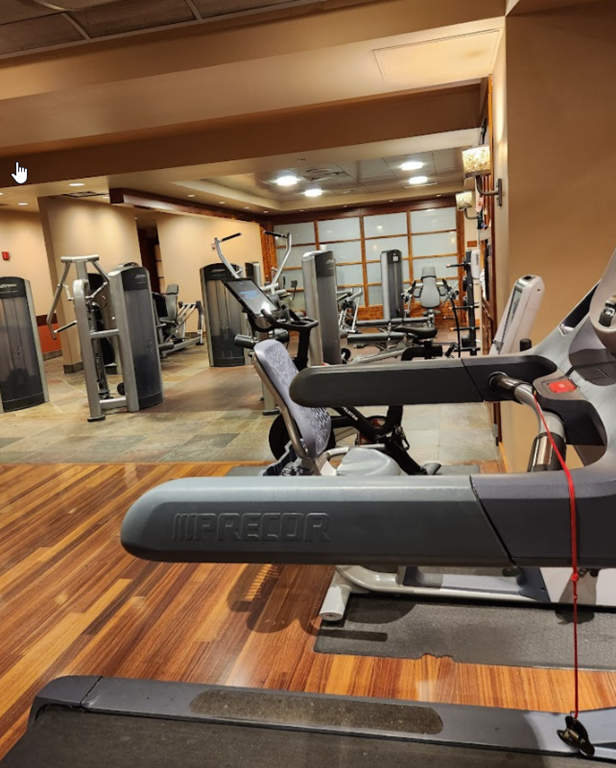
I got in relatively late and wasn’t up for going out. I did hit the gym for a bike ride and I appreciate being in a hotel with a nice gym. It can be hit and miss but both the Sheraton (last year) and Hyatt (this year) have good facilities. I prefer the Homewood, though their gym isn’t great.

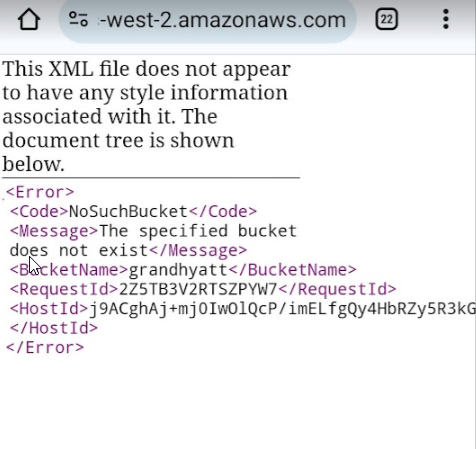
I then tried to order room service from the QR code in the room. That didn’t work well.

Fortunately on a side table, I found a real paper menu and got some food and relaxed watching the NFL game while doing a little work. I had a great view, which was nice. I wish my wife had come with me, but it didn’t work out for this trip.
Monday morning I met a friend for Breakfast at Ludi’s. Actually we went to the Biscuit Bitch (their choice), but it was so crowded, we walked a block away. They enjoyed Ludi’s, which I love. The ILocos Silog is fantastic and the staff is great.
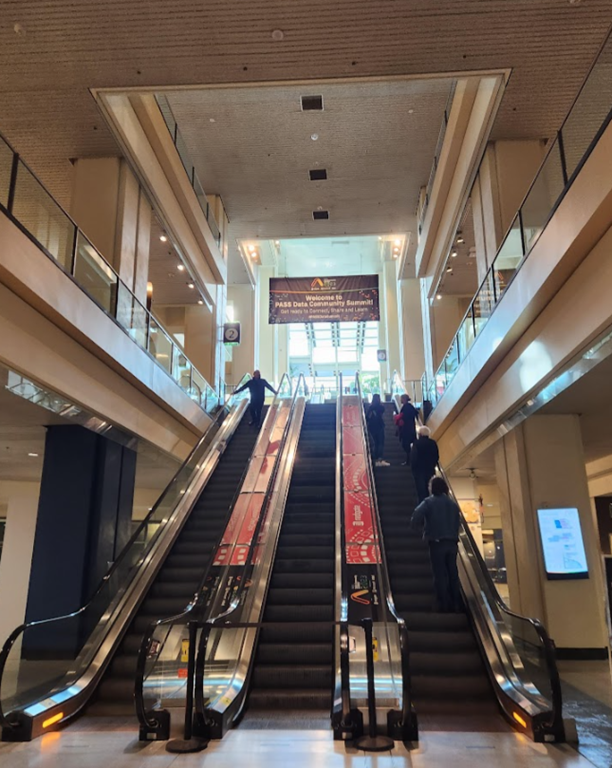
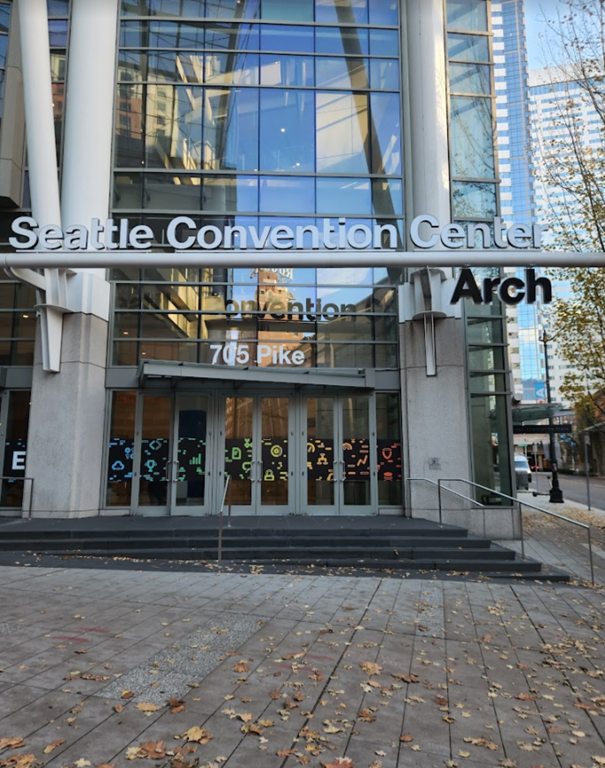
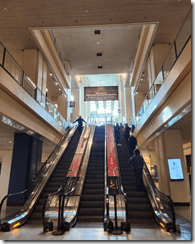
Afterwards we walked a bit and then headed to the convention center to register. I have gone up and down these escalators so many times over the years. However, it’s always exciting to head up in the morning, excited for the day.
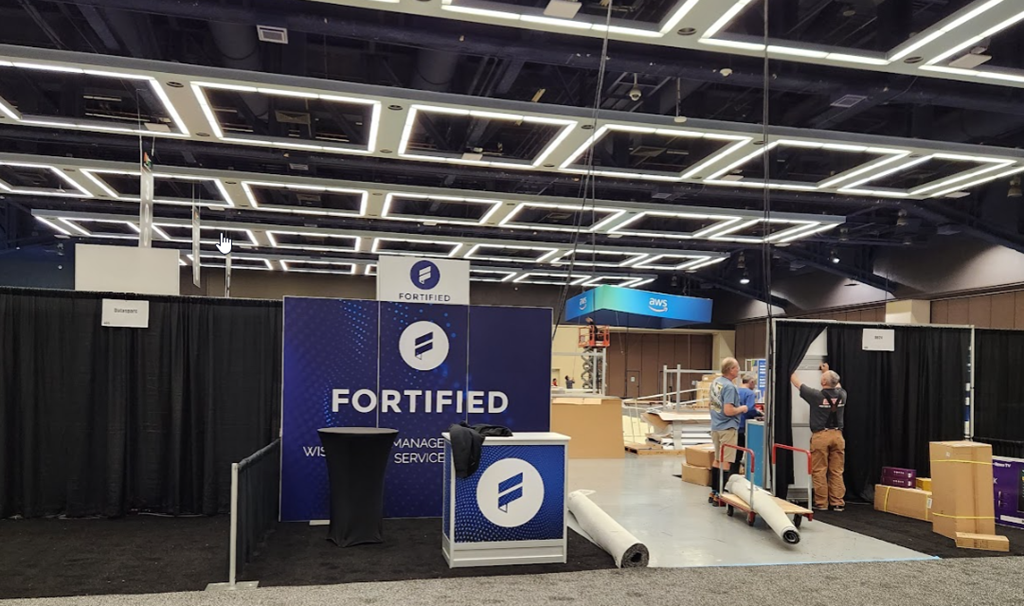
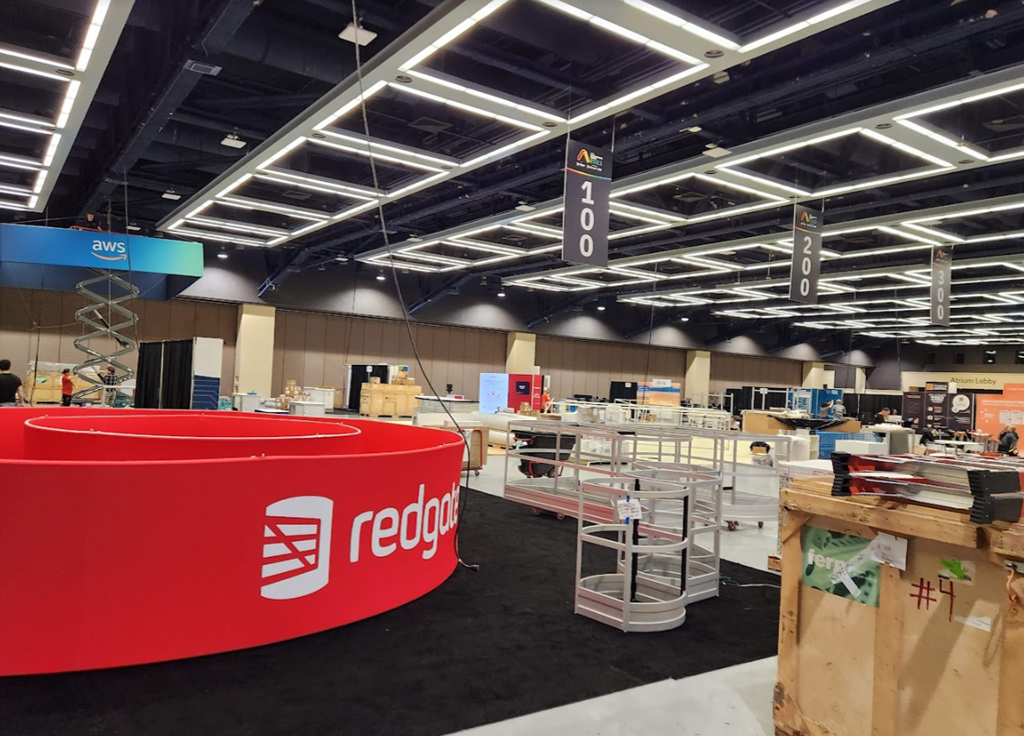
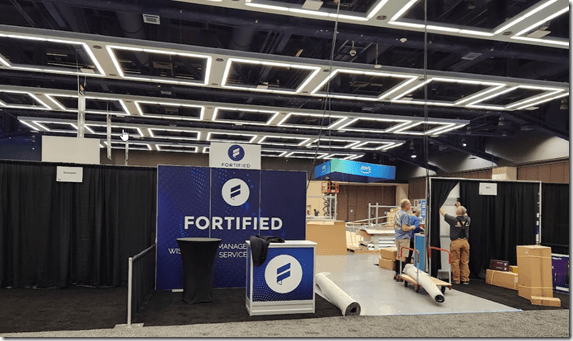
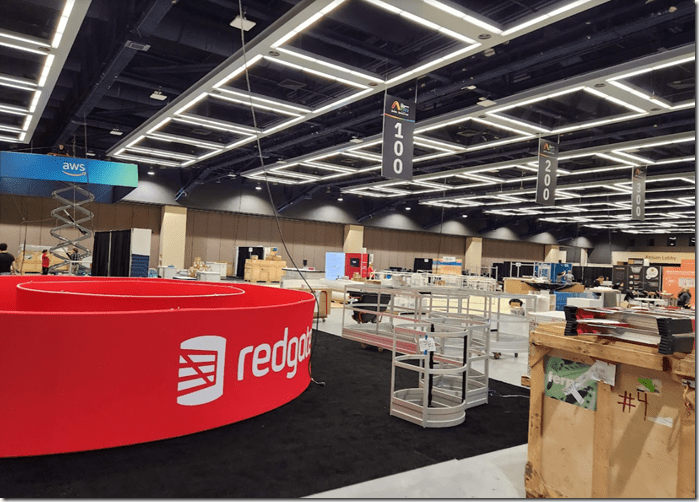
I had an Exhibitor’s badge, so I could get into the Expo Hall as it was set up. A lot happens in a short time to transform an empty space. You can see a couple shots of the setup.
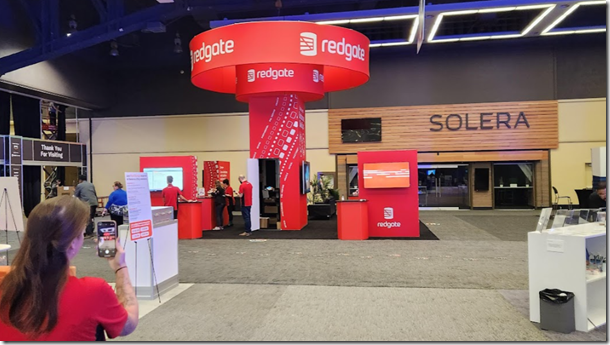
I wasn’t sure what these round things from Redgate were at first, but you’ll see later these are hanging banners.
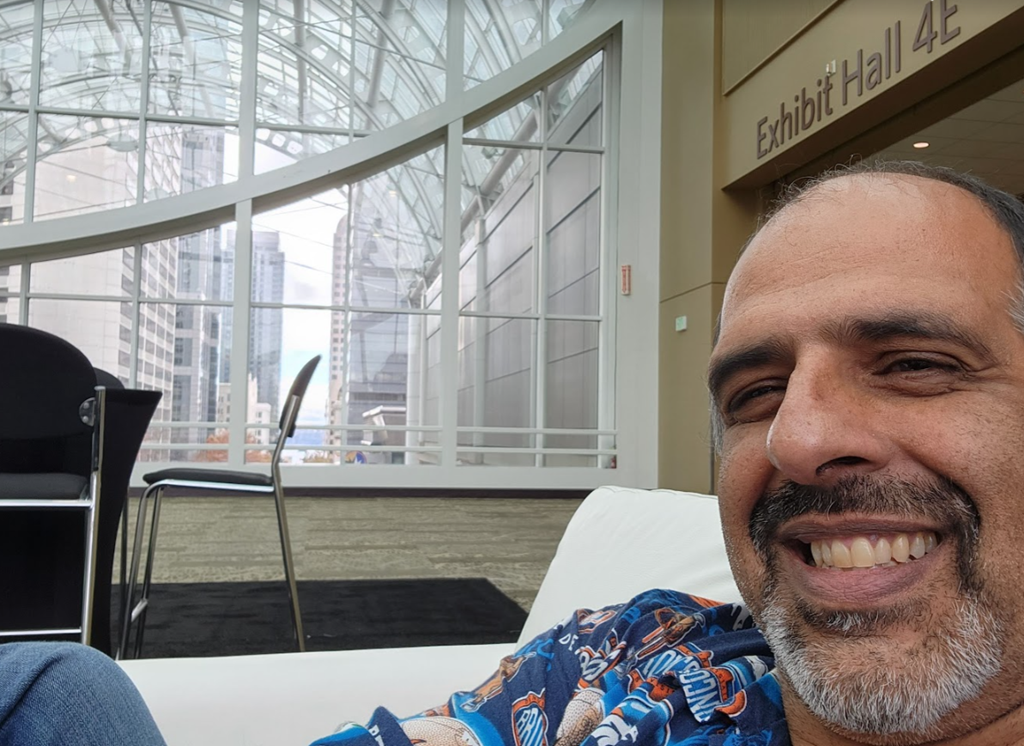
The Skybridge in the Arch building is one of the cooler things Seattle added. This connects the older convention center building with a newer one (TUCC?) across the street. It’s elevated 4 floors above the street with glass on all sides looking to the water and up the hill. I love hanging out here, and it’s been a great spot for the Community zone for a few years.
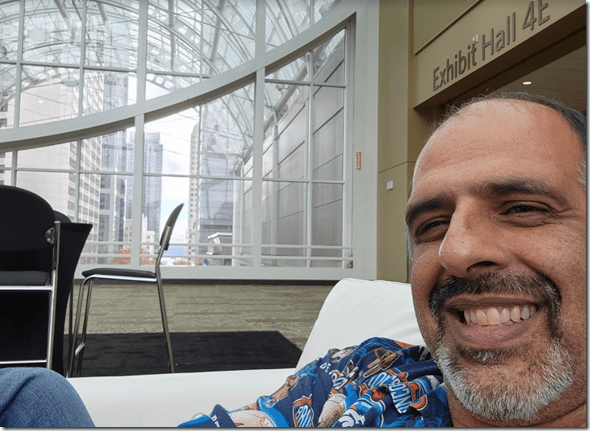
Even on a quiet Monday, I sat there and had a few people come up and chat with me. There was a plug, so I charged my phone and met a couple people I didn’t know as well as had time with some friends from years past.
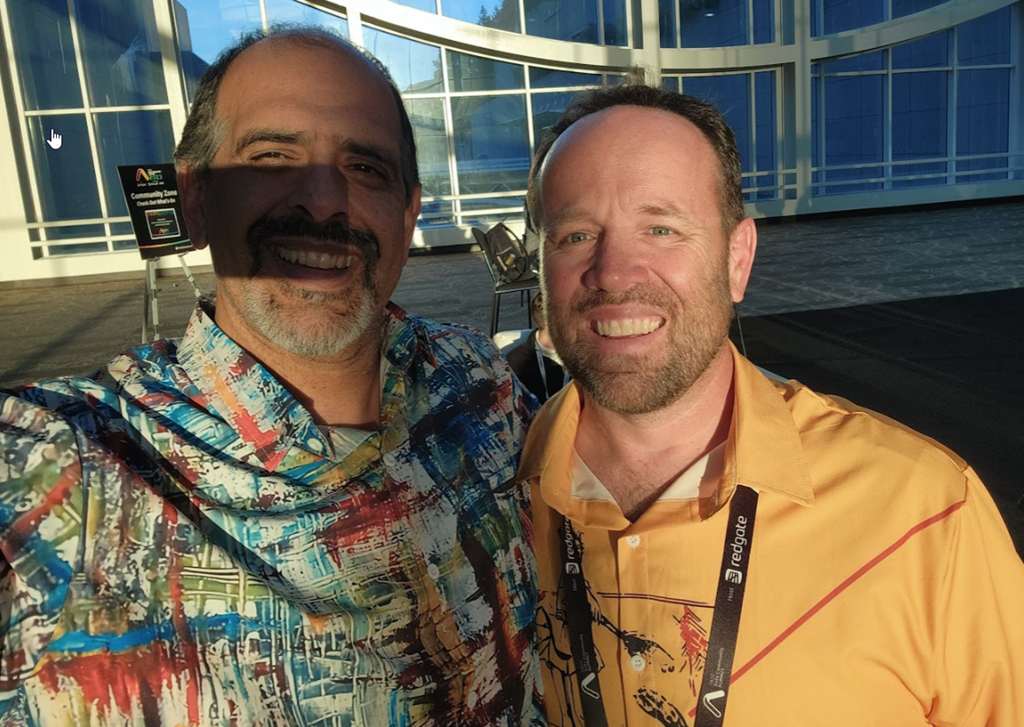
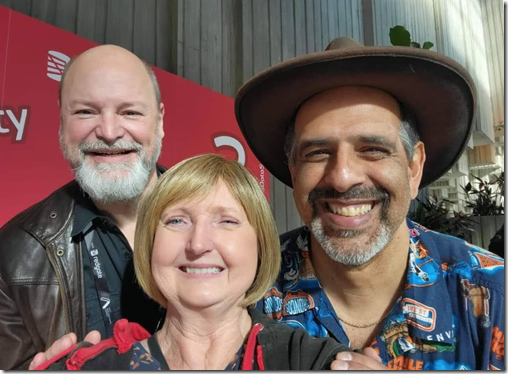
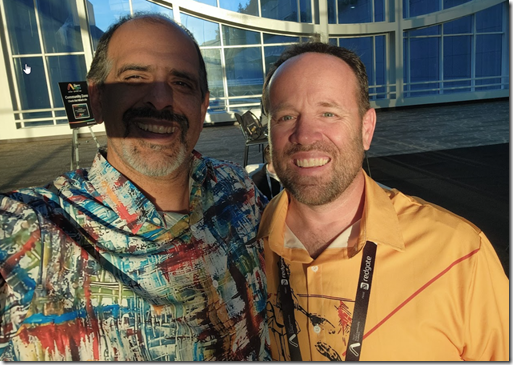
Walking out I grabbed a selfie with Kathi Kellenberger and Kevin Kline, who I’ve seen at this event for many years. I always think to try and grab some of these as I never know when this might be the last picture I get with some friends. This was Kathi’s own selfie.
A lot happens to make sure the event runs. I’ve been in the Slack channels for the event, for marketing, and for the program. Every week leading up to the event I see things posted that I would never have thought of.
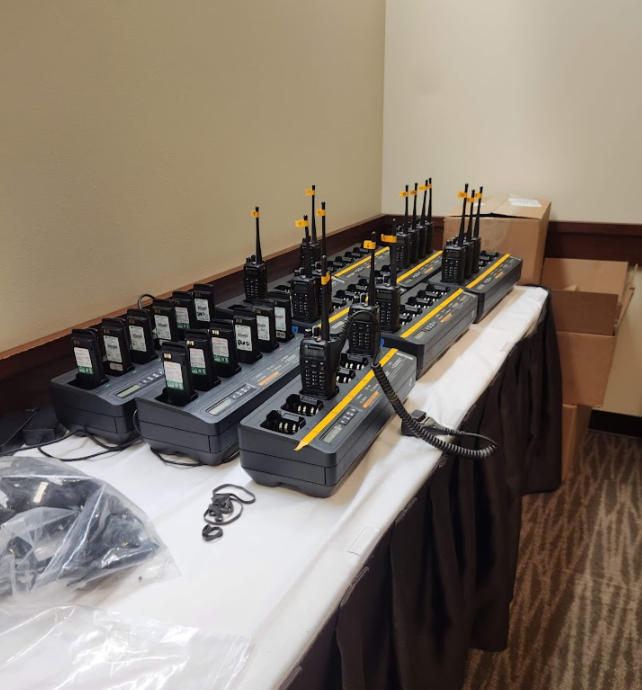
There’s a big staff, and keeping in touch with cell phones doesn’t work great, so we give out a lot of radios. All of which are charged overnight or when not in use.
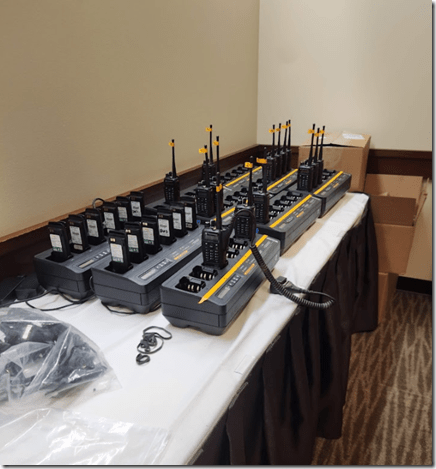
Just tracking who has which radio is a challenge.
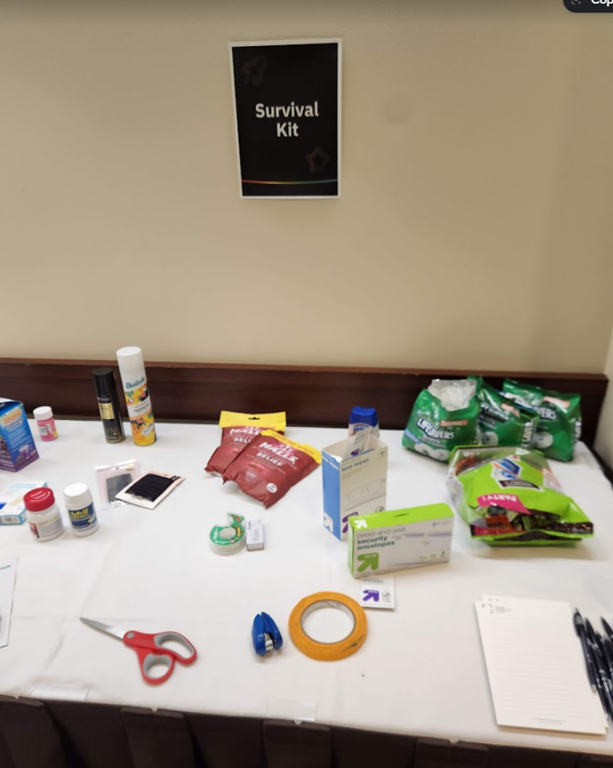
There’s also plenty of random stuff people need. The staff has learned through the years that these things are hard to procure on demand, so lots of supplies are in staff areas.
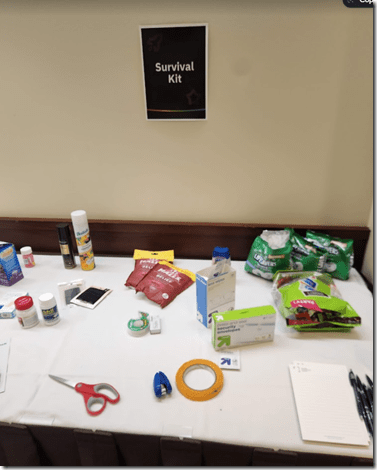
Running out to grab aspirin or envelopes can eat up a lot of time.
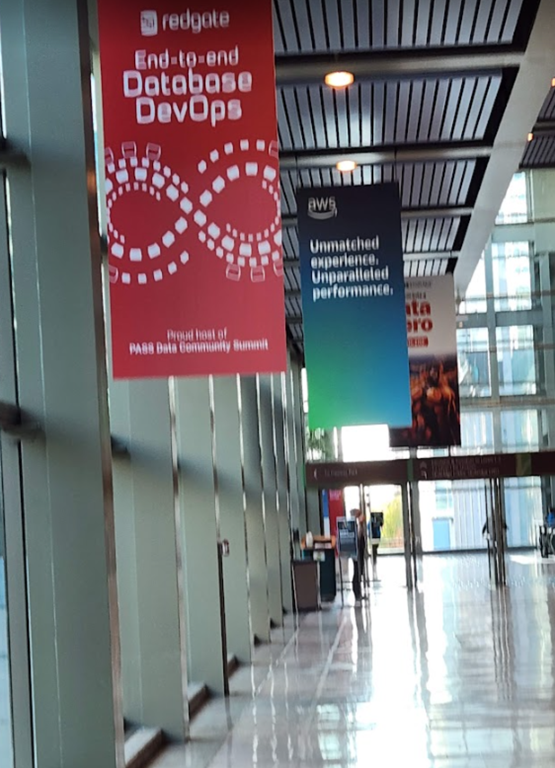
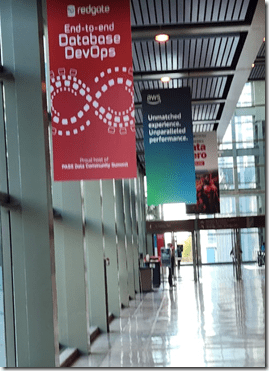
Slightly blurry, but I love the new messaging from Redgate. Good to see a variety of other sponsors as well.
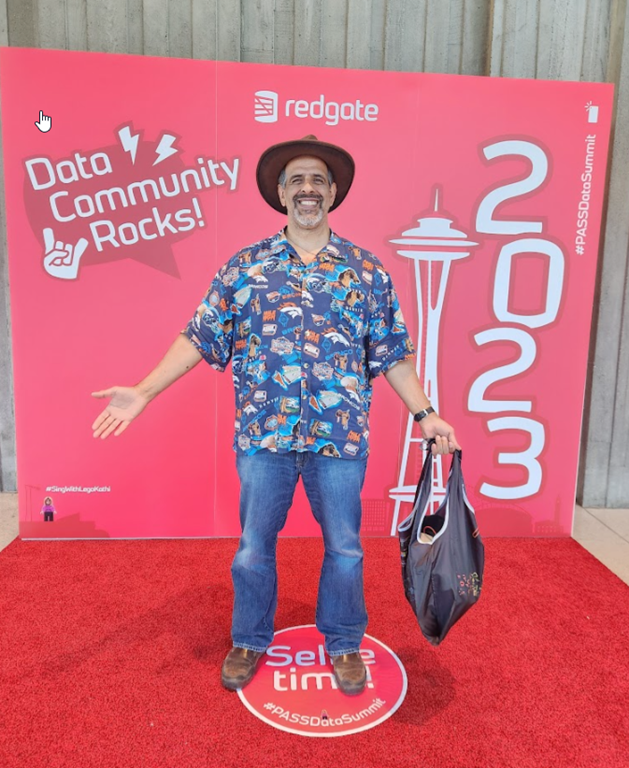
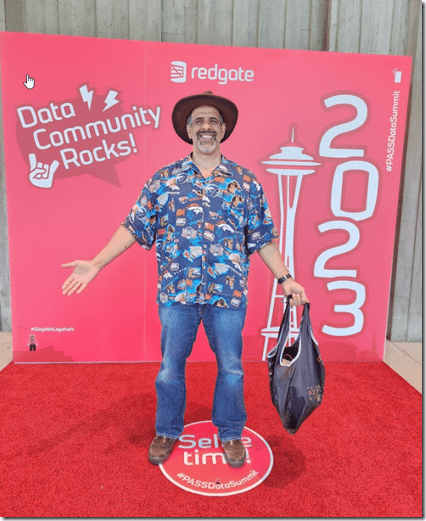
As I wandered around, I was going to take my own selfie, but a staff guy walked over and took a few for me. We had a fun conversation as he is from Denver. First, I asked him if Denver stood a chance playing the Bills in the NFL Monday night. I had my shirt on and he was hopeful. I wasn’t, but glad I was proven wrong. I caught the end of the game after dinner with a friend.
Second, I asked him how he liked Seattle after Denver. Denver is so sunny (300+ days a year) and Seattle isn’t. However, he said he’d lived in NYC, and Seattle was nicer than there, weather-wise. He missed Denver, but enjoys Seattle.
I like those conversations, getting other people’s views, which make me think about my own views and why I think/believe/etc. one thing over the other. I don’t do a lot of random talking to strangers, but I do some and it always enriches my life. Whether I agree with them or not.
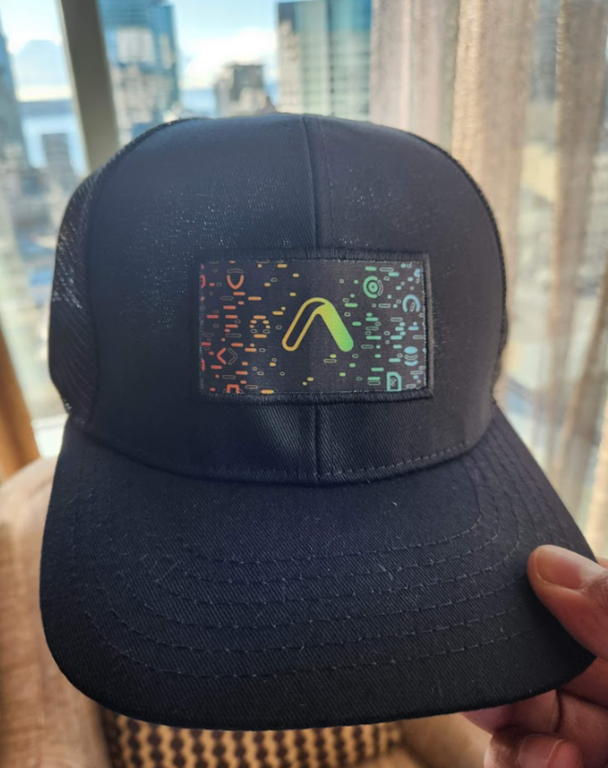
Every year there’s a discussion on what SWAG to get. I weigh in sometimes, and I’ve had some nice gifts, including a 2011 backpack I still use. This year we got a trucker hat. Not my favorite thing (wrong style of hat), but I like the logo.
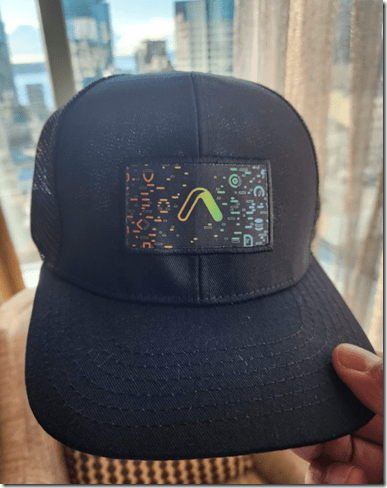
A number of people asked me to sign theirs, which was cool. I think memorable items like this are great. I regretted leaving mine in the hotel all week and not getting some signatures.
Tuesday I headed to the convention center. Seattle is a beautiful city, and I enjoy it. The buildings are neat, and it’s been a place that I haven’t felt unsafe. A fall walk, on an unusual sunny day, up to the center is nice. This building has been renamed the Archi building as there’s a third, newer building, called the Summit. We’ll be there next year.

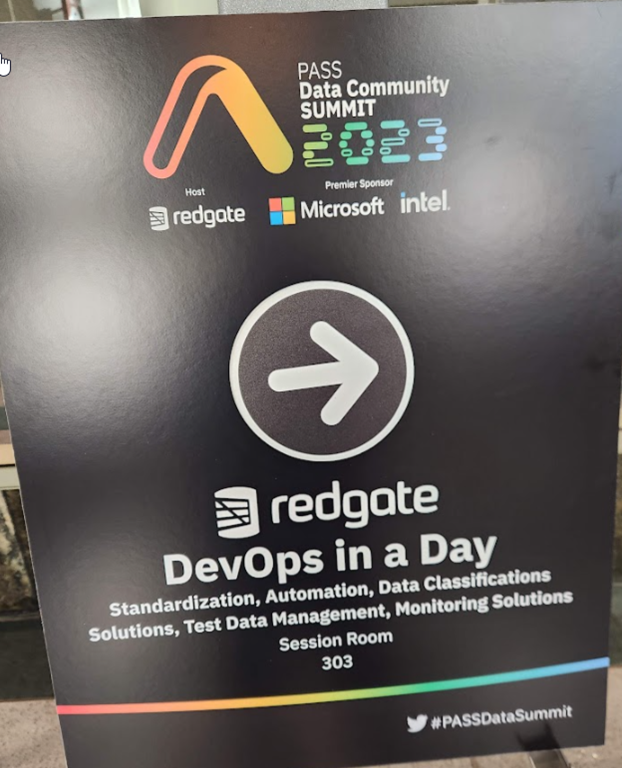
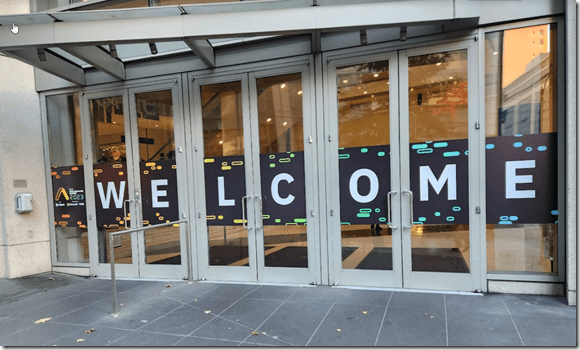
Someone has to design all these signs, then get them produced, then get them applied. knowing how many, where, etc. is one of those things I never thought about until I was behind the scenes.
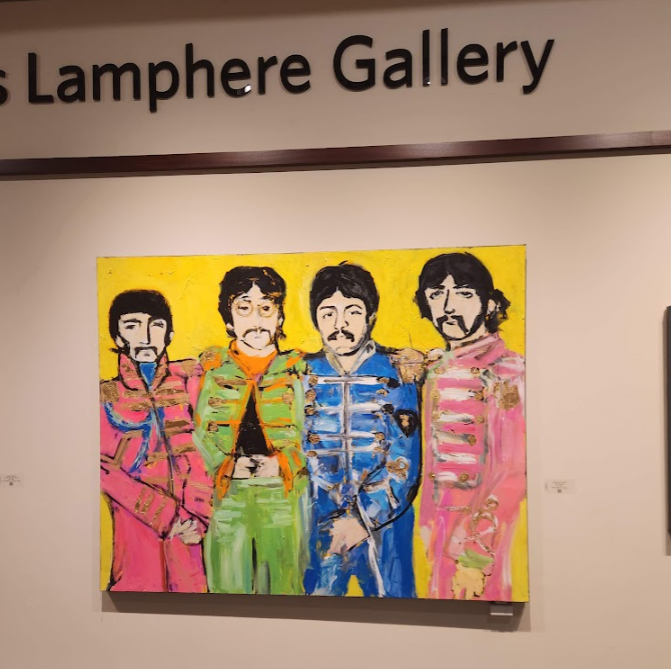
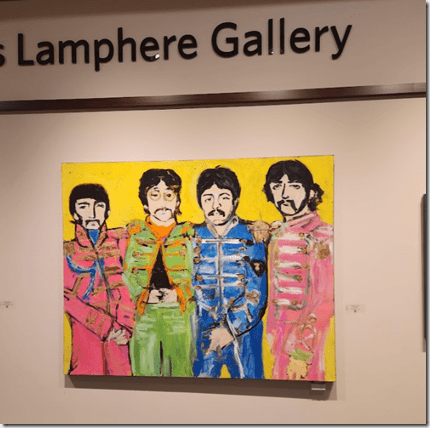
There’s artwork in the convention center. This piece is on the 2nd floor, which you can see from the escalators. I grabbed a shot since I love the Beatles.
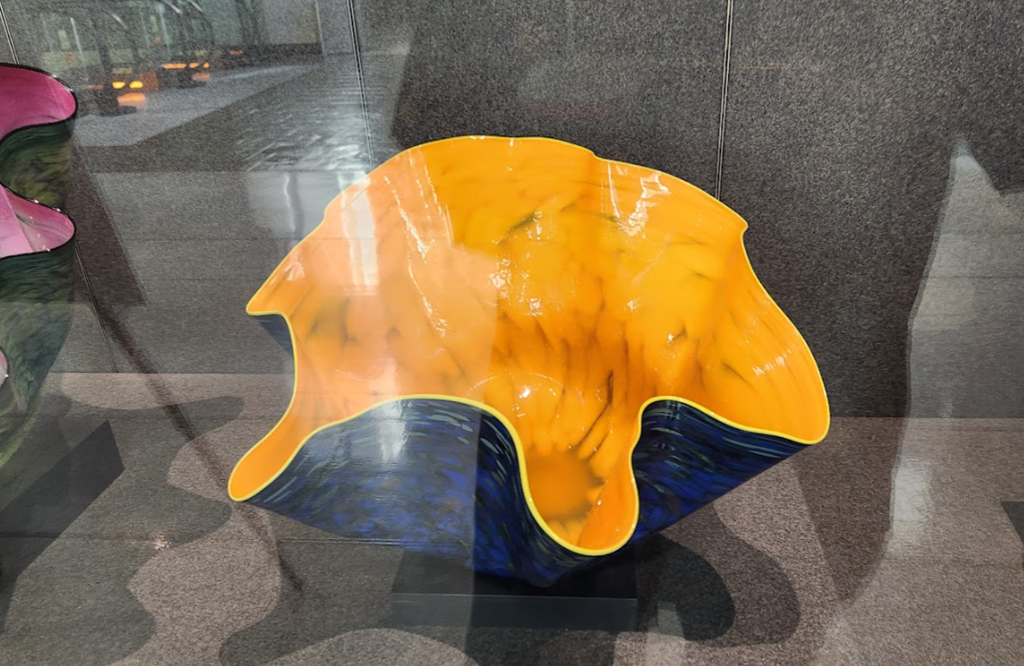
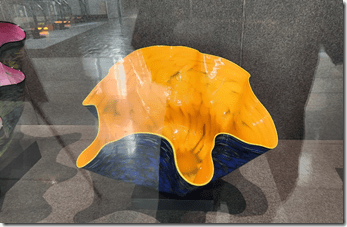
My daughter does ceramics, so I grabbed a few shots of these. The lighting wasn’t great, but she liked them.
My Tuesday was the close out of the Database DevOps Rocks Roadshow. I loved doing these and am looking forward to doing more in 2024.
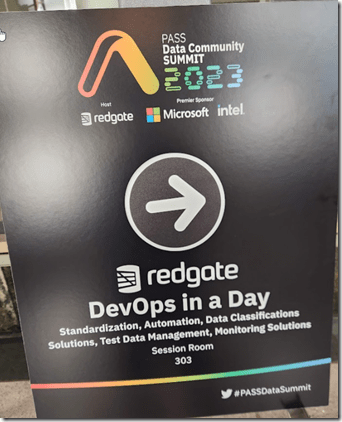
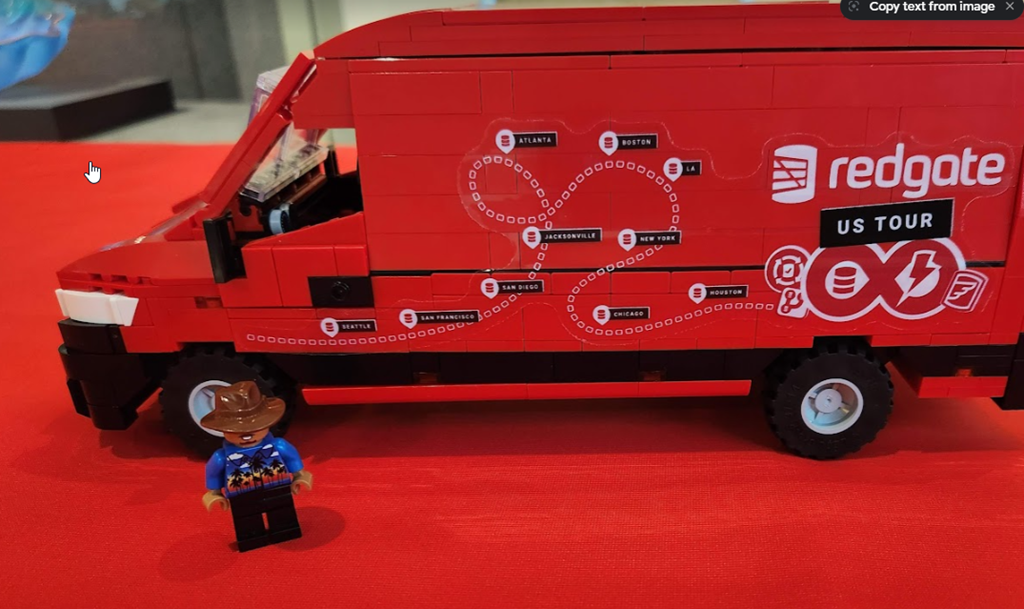
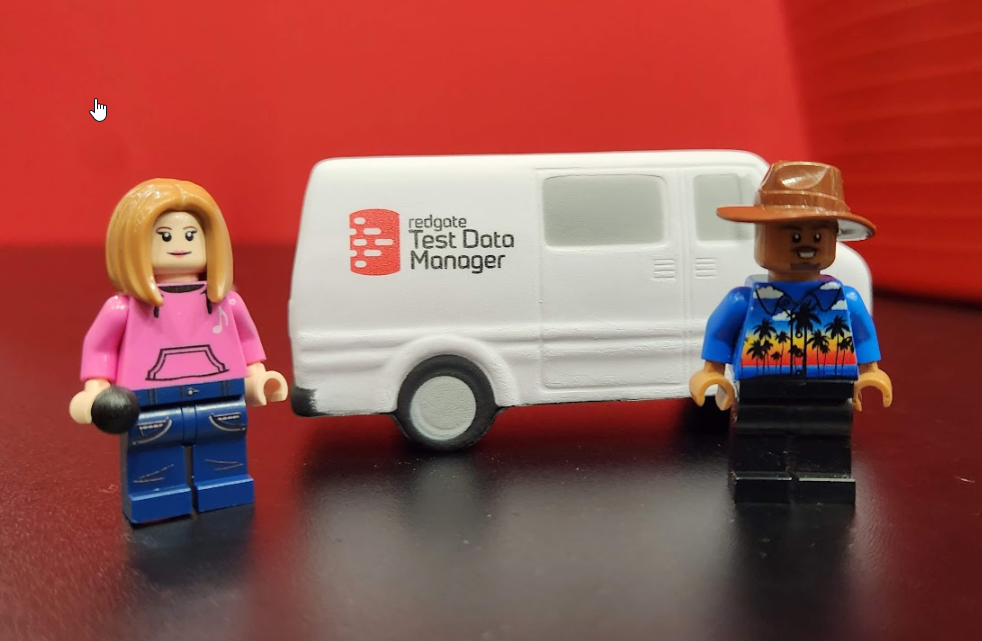
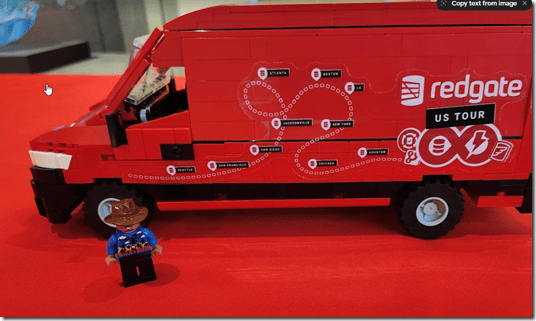
We had a van, we had costumes, and for the Summit, someone produced a Lego replica, which was given away as a prize.
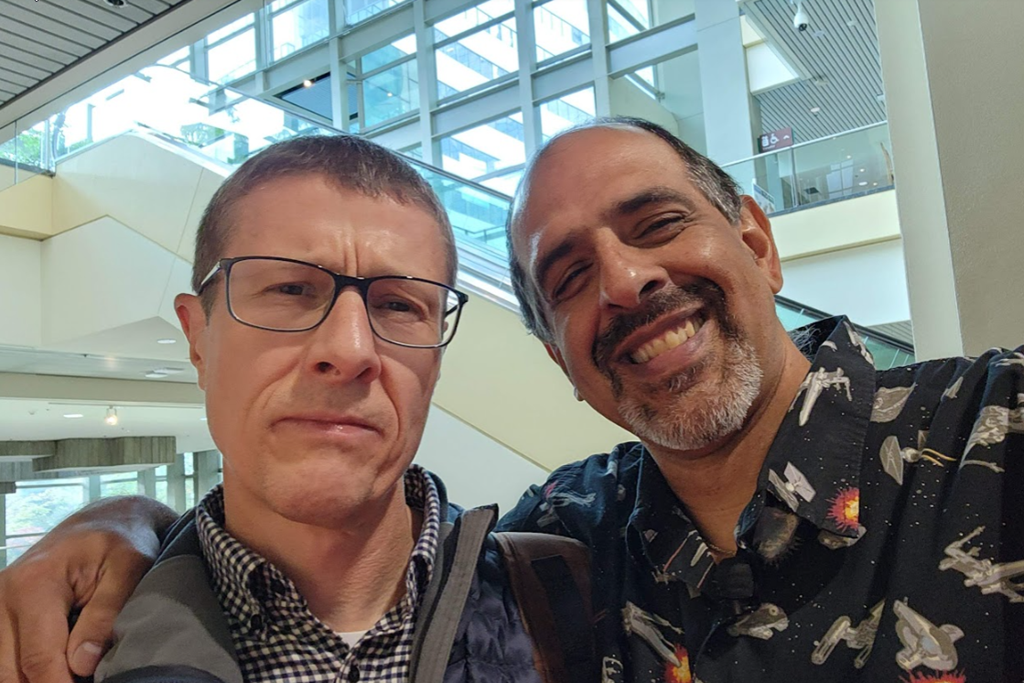
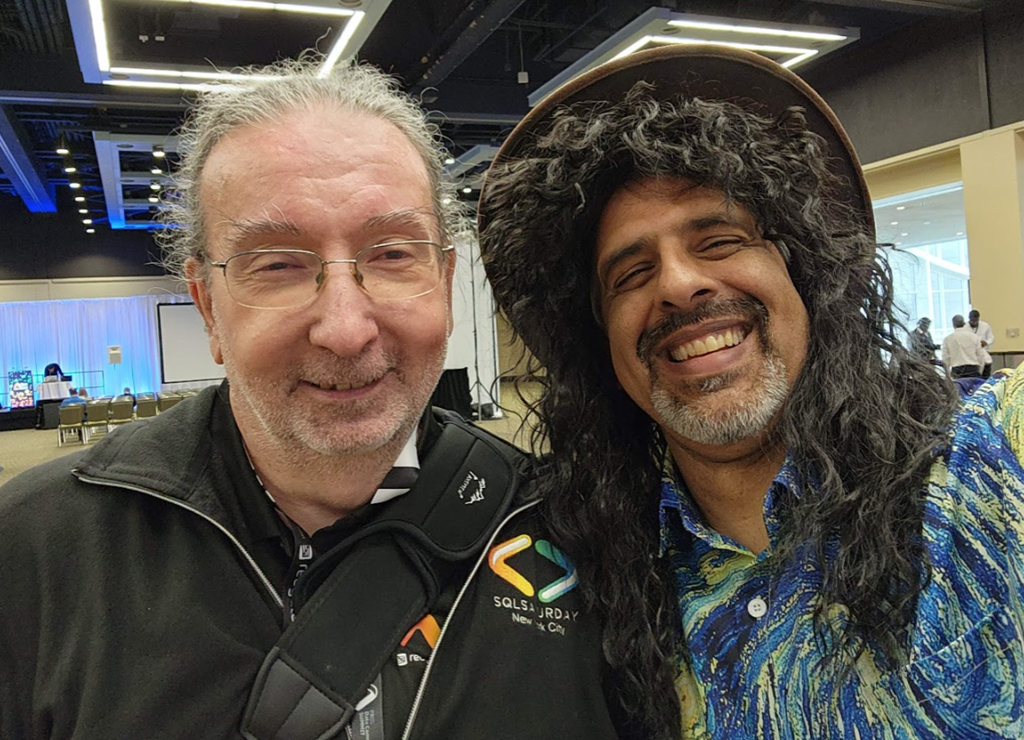
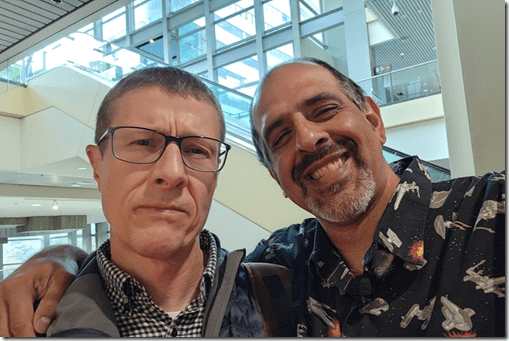
As we were setting up, Tony Davis, original editor of Simple Talk and a friend for 17 or 18 years walked up. Reluctantly he took a picture.
I also got one with #LegoSteve from last year. I’ve carried this around for a year now, with pictures all over the world.
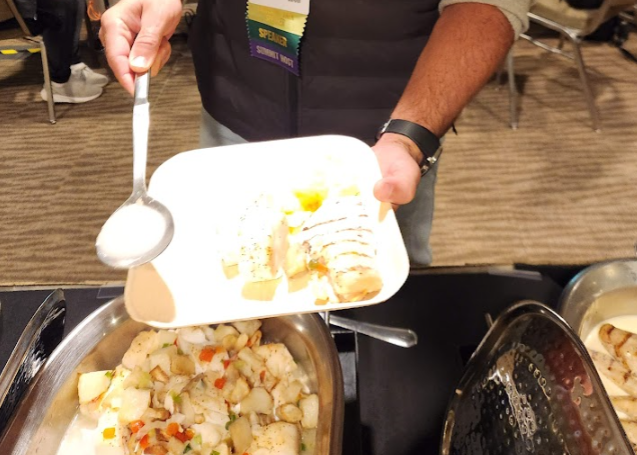
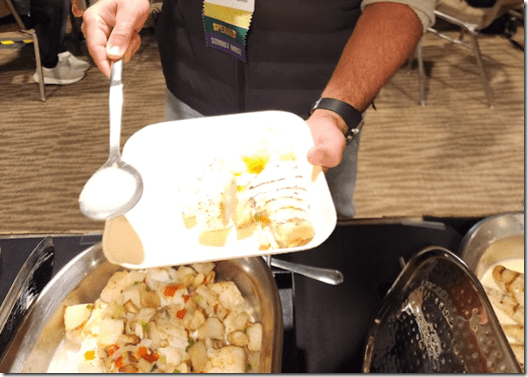
I struggle with my diet at times, but I try to do good. It’s always interesting to me when I see someone that avoids vegetables. My problem isn’t always with choice, more with volume. Sometimes choice though. I gave someone a hard time (a friend) about their yellow and beige lunch. No greens!
After our day, I ran into Hamish Watson on the Skybridge. I hung out there a bit, and this is one person I’ve missed. We’ve had a few video calls and webinars, but I don’t think I’ve seen him since 2018 or 2019. New Zealand locked down and then neither of us has crossed the Pacific since.
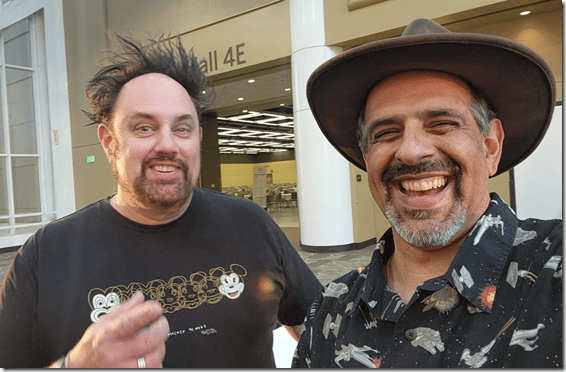
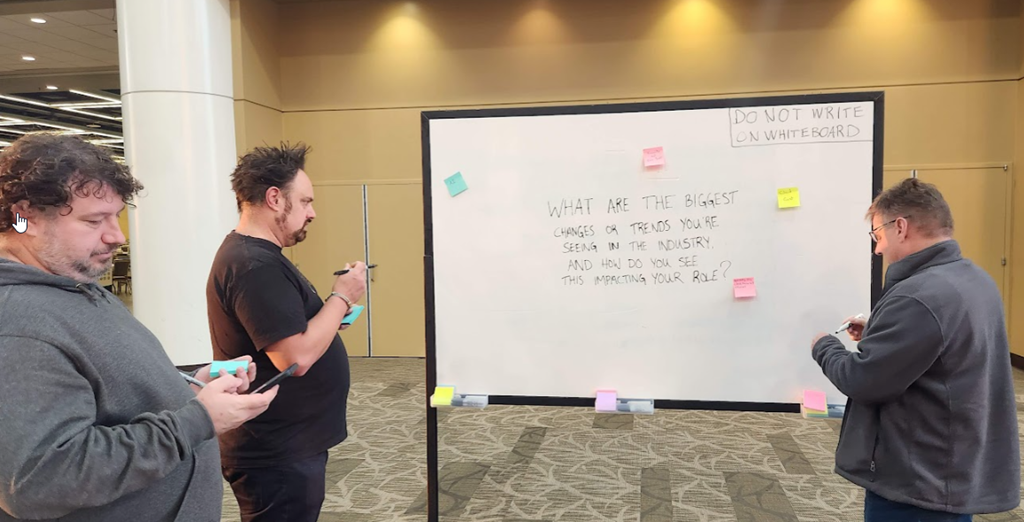
John Martin and Rob Volk also wandered up. Always good to see them and I spent a few minutes with Rob getting SQL Saturday Atlanta 2024 launched. Then they started to prime the daily question in the community zone. I like that there are things like this for people to add thoughts, or use as icebreakers for a conversation.

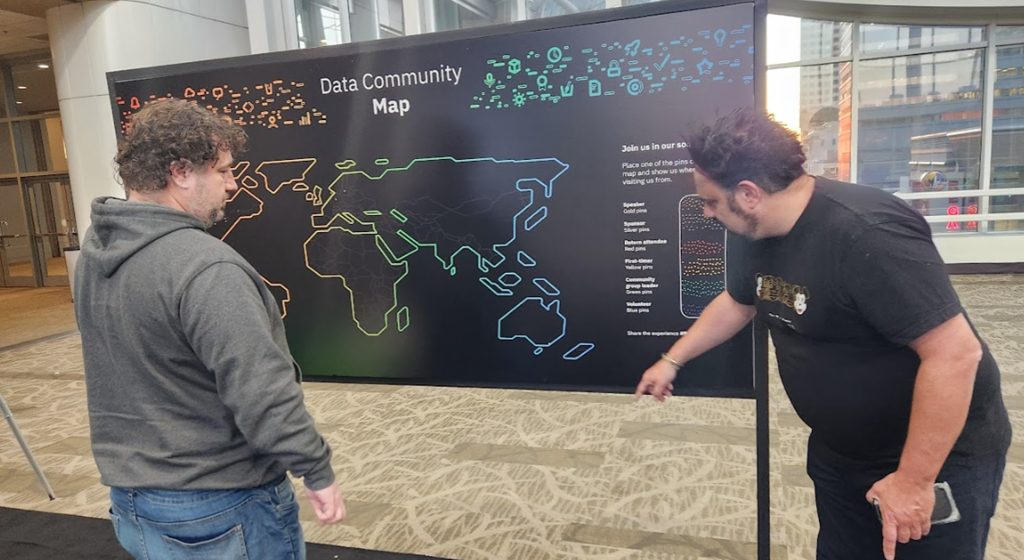
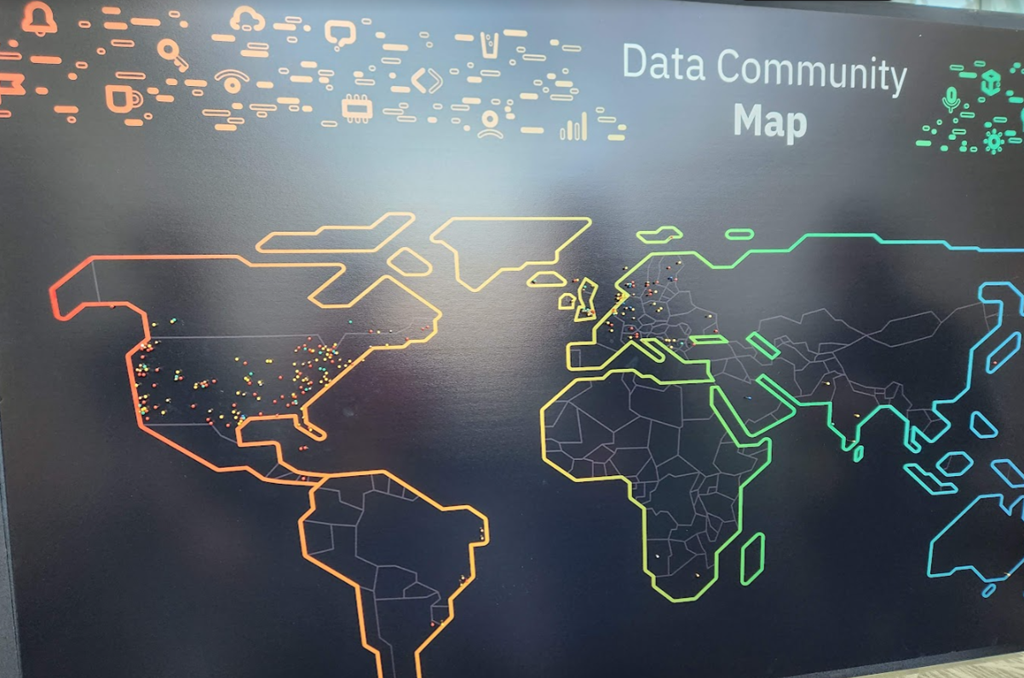
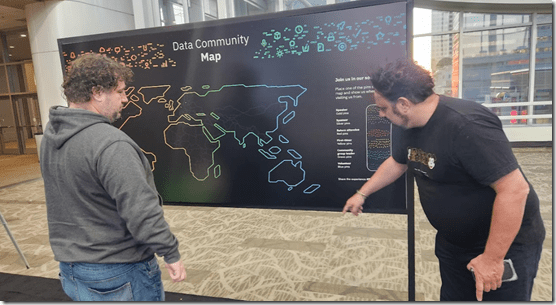
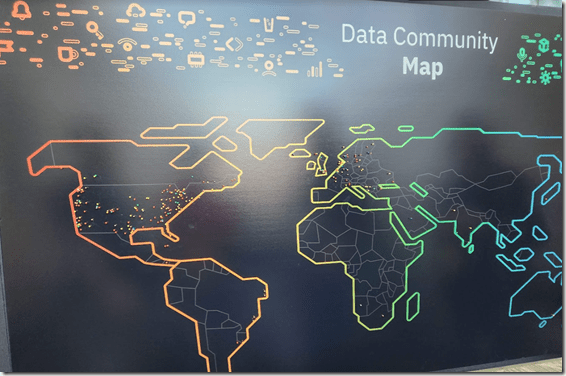
The map was a neat idea. Not enough people did this, as this is the original one on Tuesday. Hamish was not pleased with the orientation of New Zealand. It’s more North-South than that.
Here’s the final one Friday lunchtime. I left after that, but not sure it changed much.
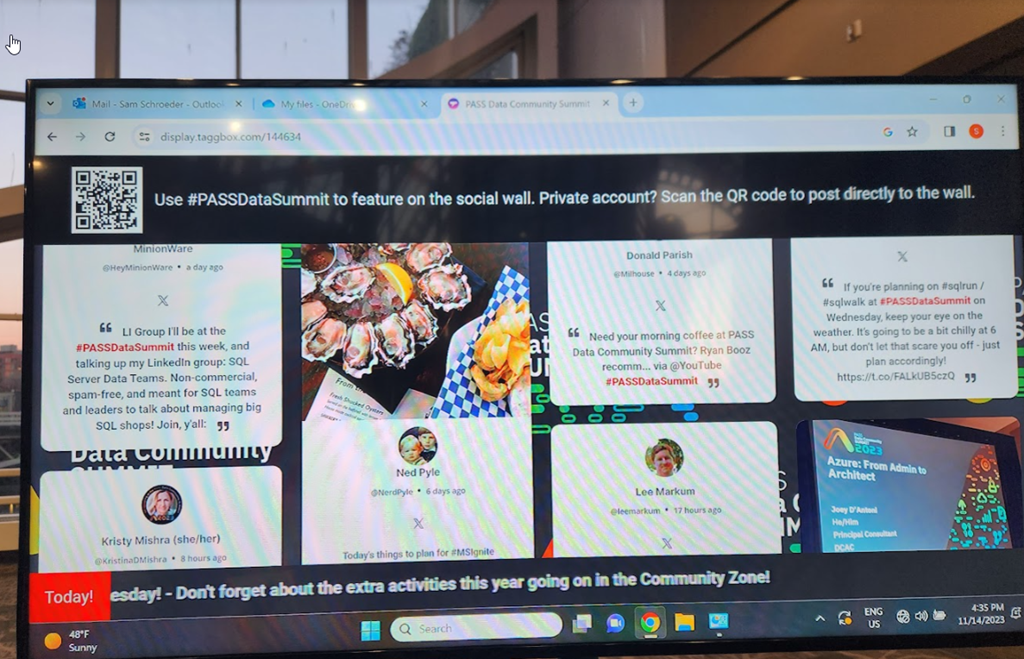
There was also a cool screen that grabbed posts from Twitter and other places with the #PASSDataCommunity hashtag. I heard this went well and we didn’t need to delete any from here.

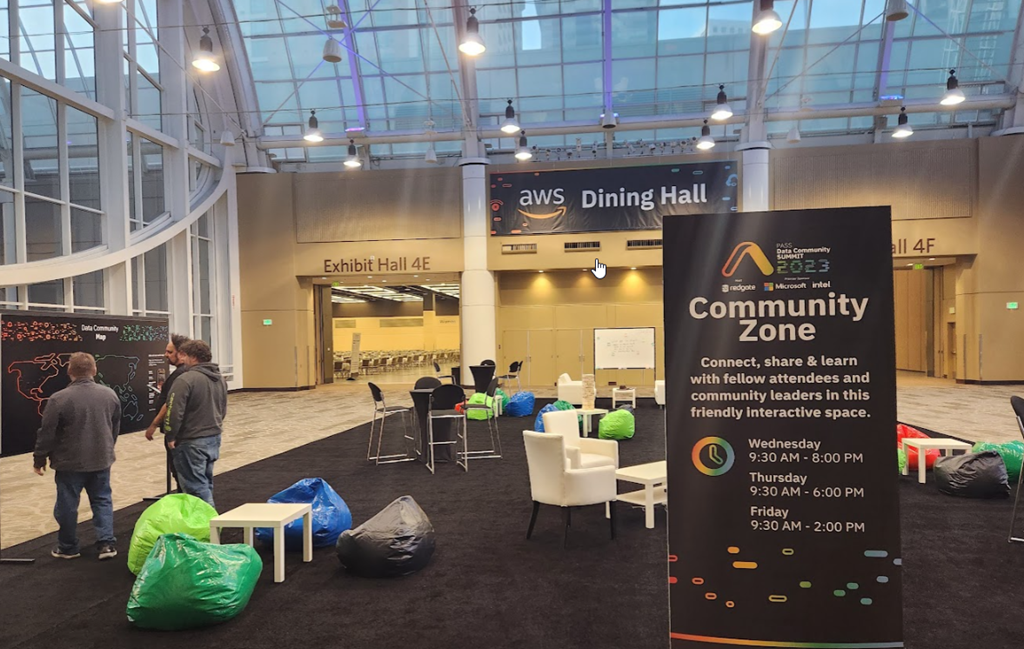
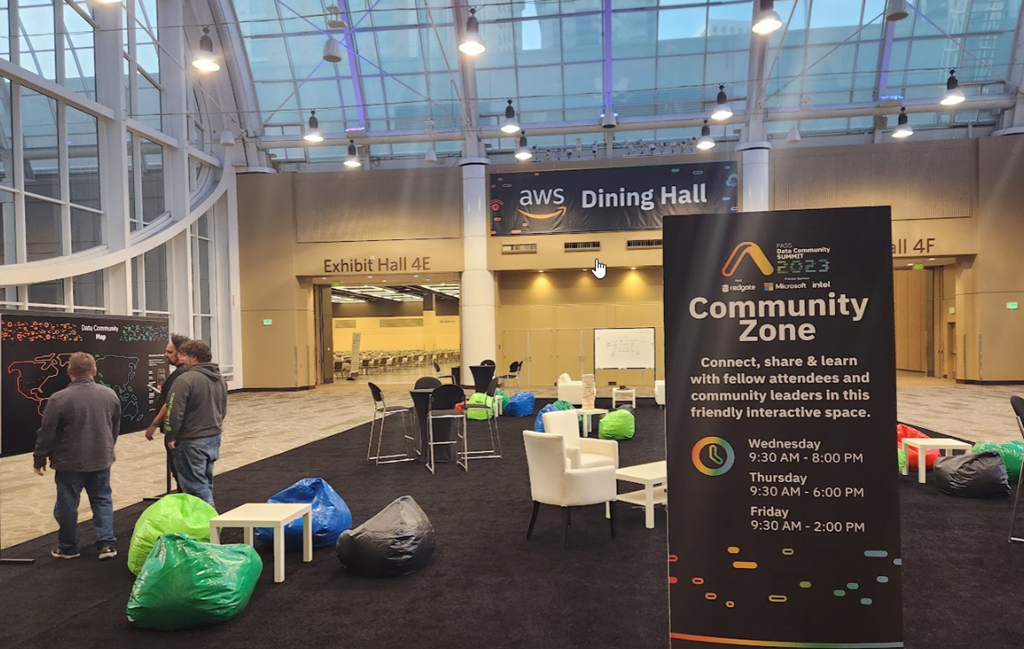
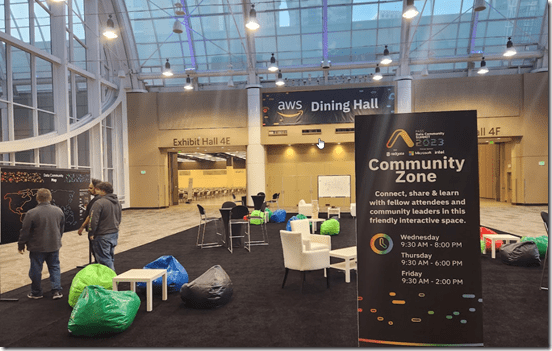
The full community zone, sans people.
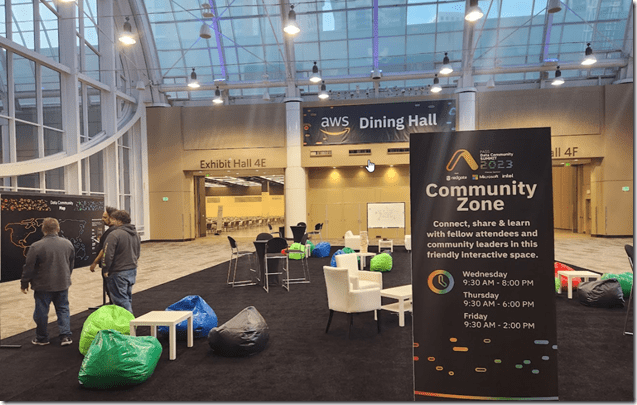
I dropped my stuff in the hotel and came back. I appreciated being close as I went back and forth a few times.
When I came back, it was time for the welcome reception. Last year we did a first timer’s meeting before, which was OK, but made the night hectic. I like things being simpler, so I thought skipping that one event was good. Talking over, the crowds grew, as did my excitement. I was looking forward to seeing quite a few people.
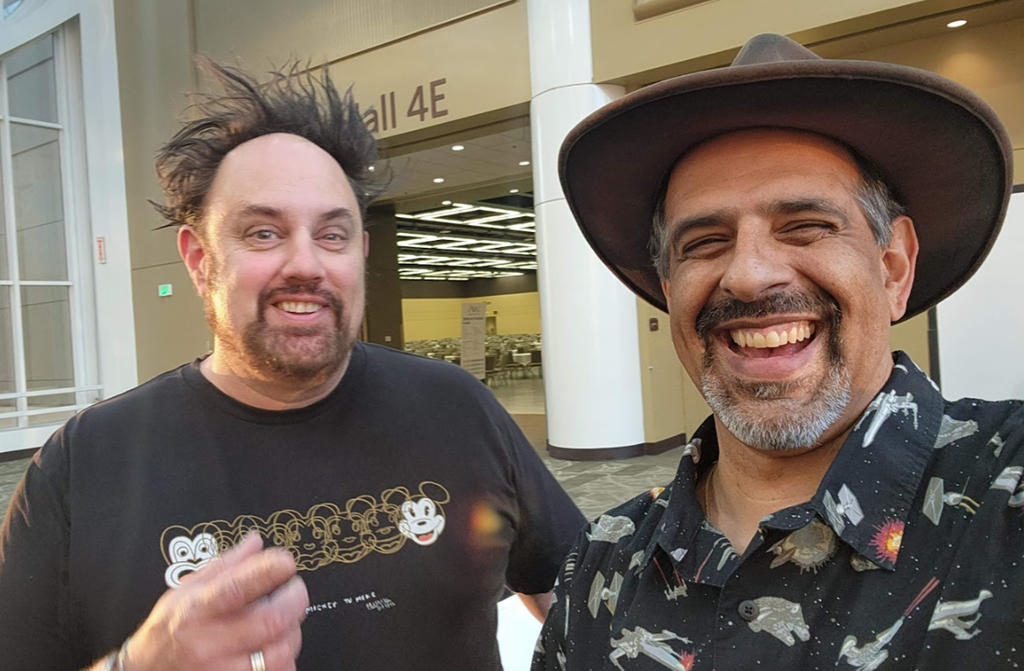
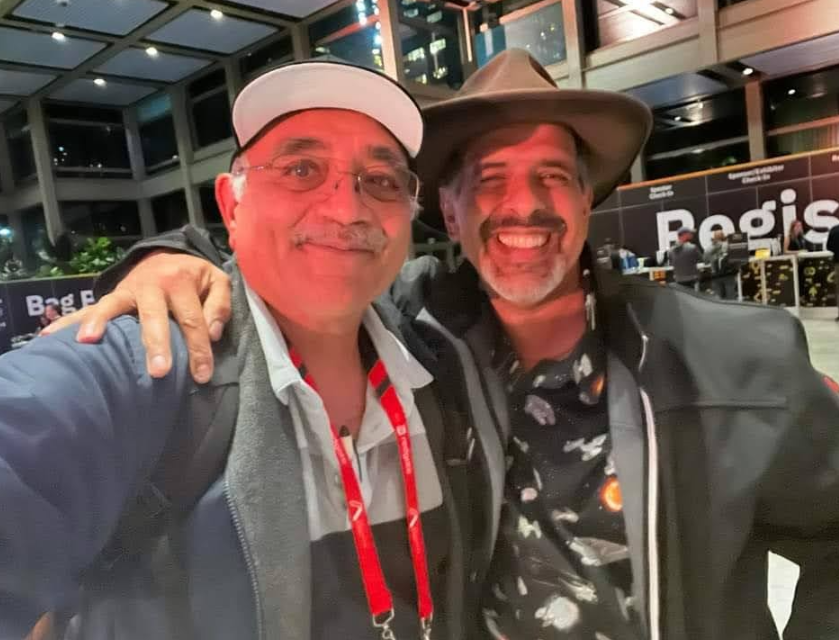
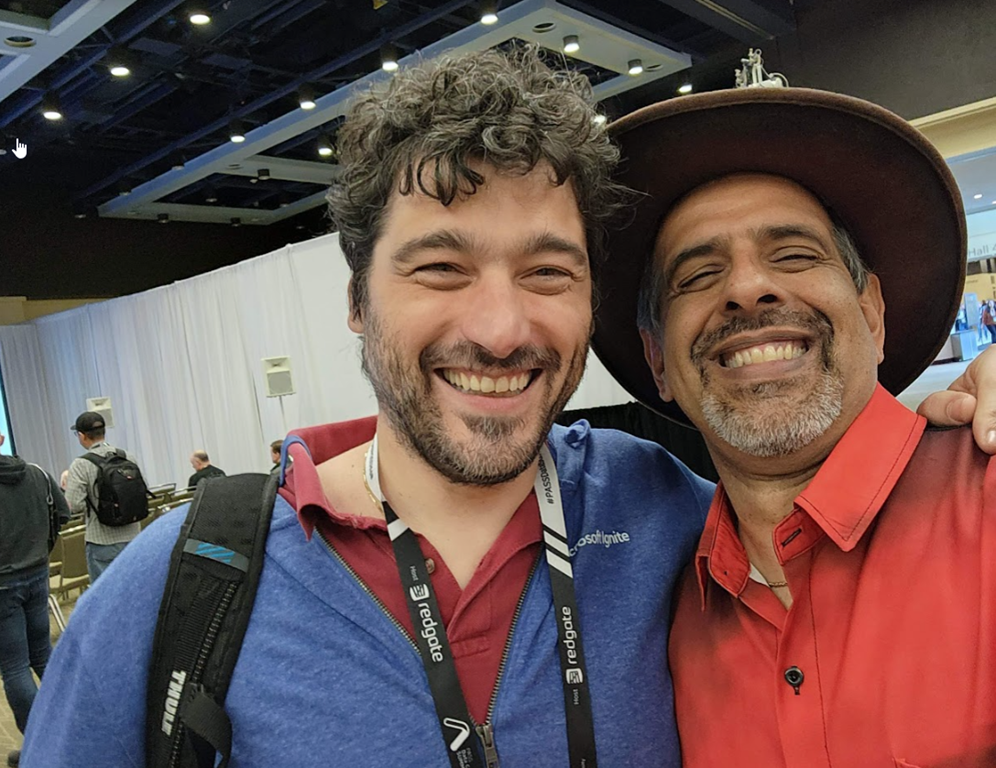
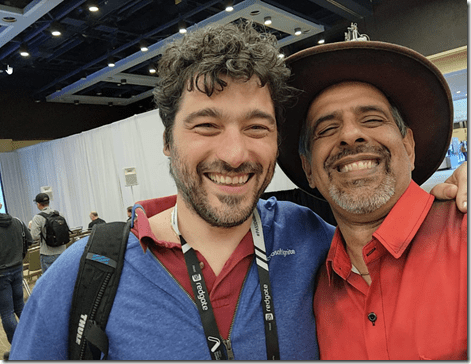
Jay is someone I’ve known for a lot of years and seen at many events. One of many selfies over the years.
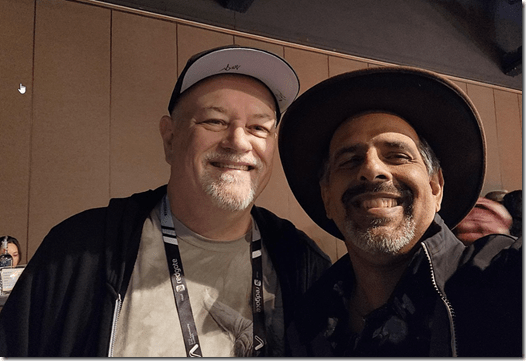
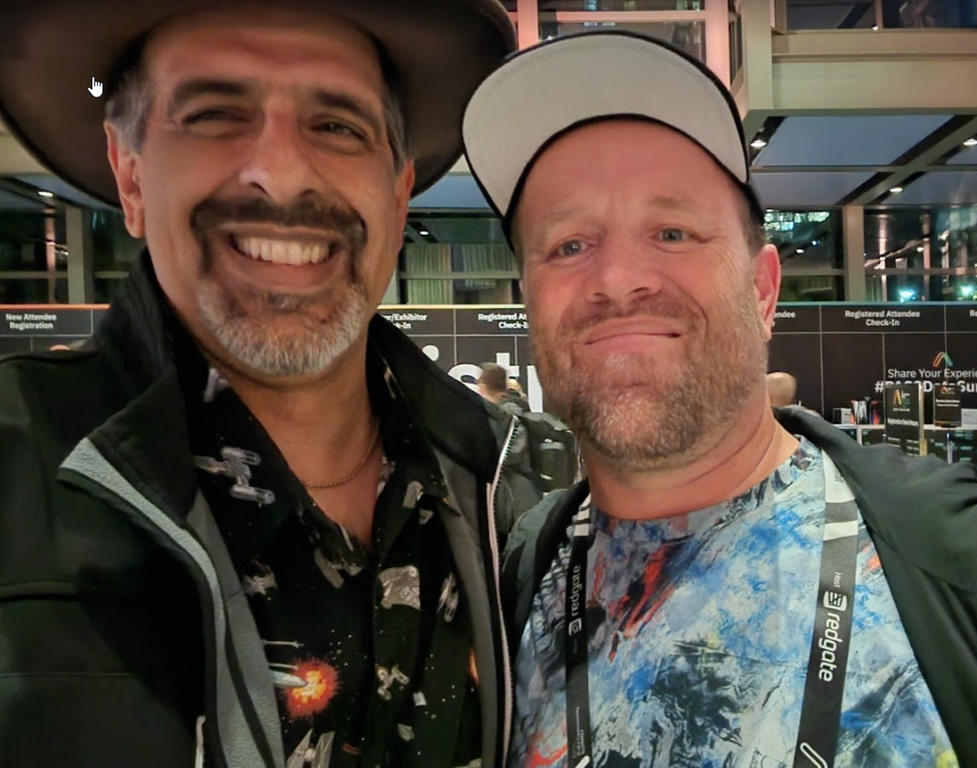
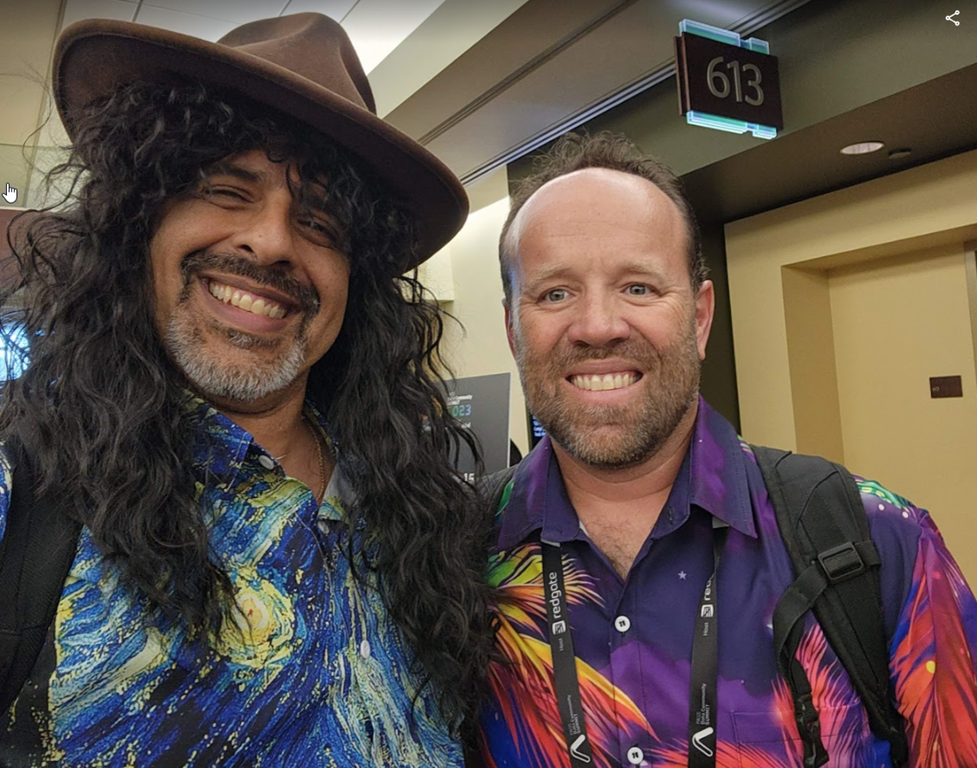
Paresh and I started taking selfies a couple years ago at different events. I think this is the 3rd one we have this year.
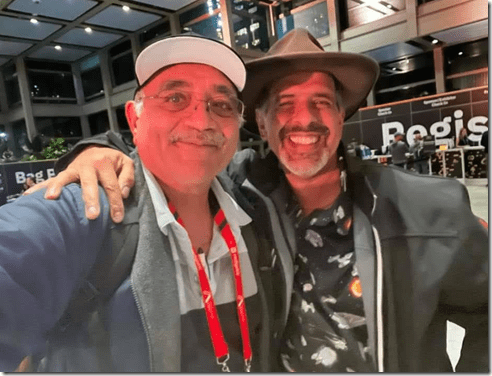
Louis looks surprised, I think because I interrupted his selfie with mine.
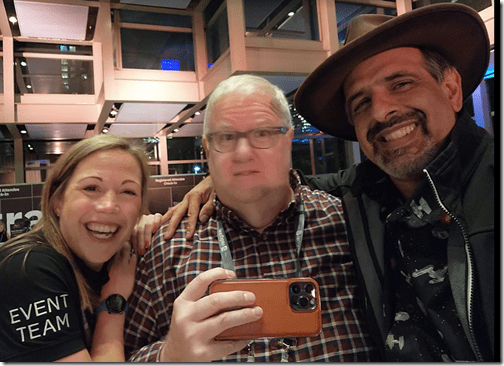
I inspired TJ, and he wore a different Hawaiian shirt this year each day.
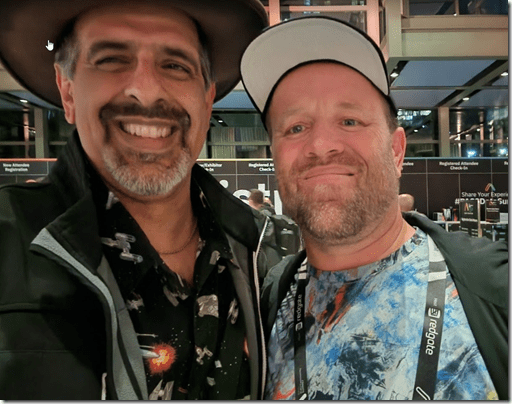
It was slow getting into the event, since I kept seeing people I knew, but that’s part of the excitement. I don’t see that at many other events, except if I see really good friends. At most events, people just walk around and lightly chat. This is really a close friend, neighborhood party feel.
I actually didn’t grab pictures inside, getting busy talking with so many people. Plus the lighting wasn’t great with the karaoke band. It was also hard to hear. As much as it was fun, I do wish we had a quieter space. The registration lobby was nice for some, but it didn’t have a food or drink space.
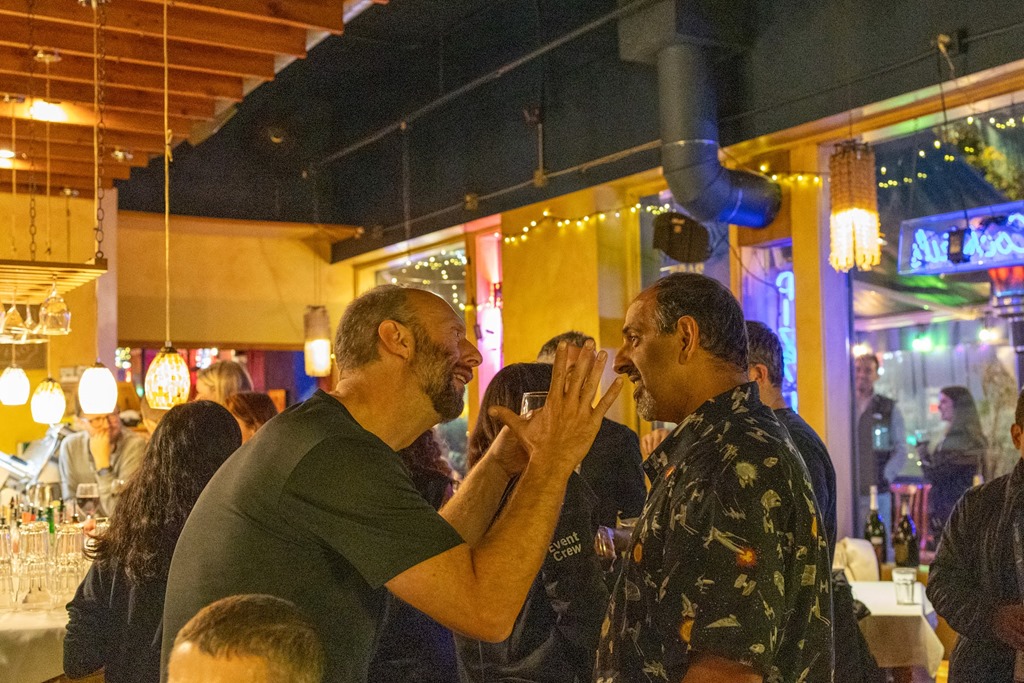
Afterwards, the Redgate crew had a dinner, where I had the chance to chat with people I’ve known and meet some new people. Someone else took pictures, but I love this one. Not sure what Simon was explaining to me, but a lot of our chats go like this. Very expressive.
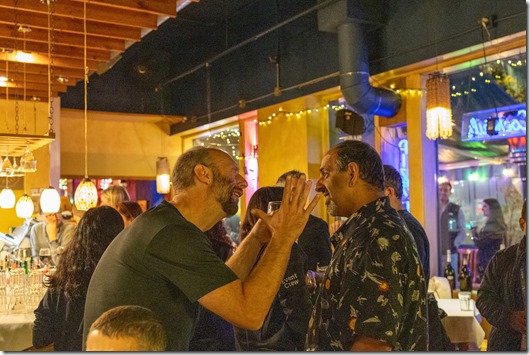
Simon founded Redgate, and he was my first customer at SQL Server Central back in 2001. I’ve known him every since and I always appreciate the time we get together. Usually just once or twice a year for a meal, but something I look forward to when it happens.
The Conference
Monday and Tuesday were a lot, and those aren’t really part of the conference. I guess the Welcome Reception is, but the event really starts for many people Wednesday morning.
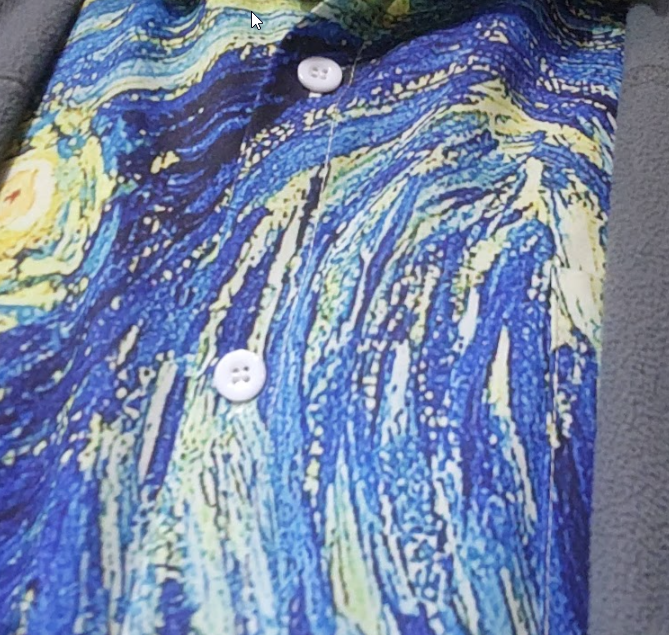
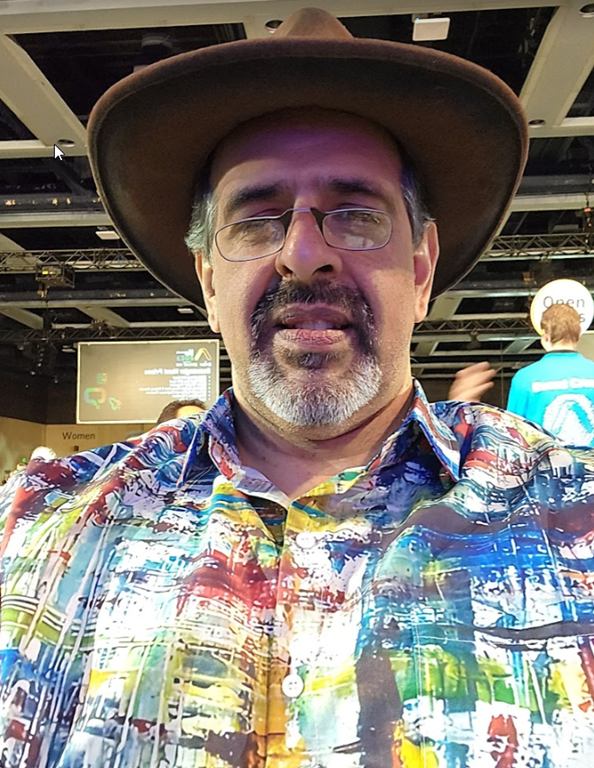
Obligatory shirt du jour shot, which my kids enjoy.
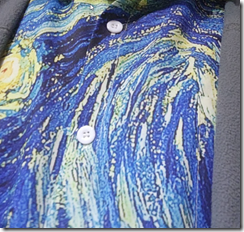
Inspired by my daughter, the Fine Arts major.
The day opened with a short intro by the Redgate CEO, Jakub Lamik, followed by Microsoft’s keynote. It was a long set of announcements and really a laundry list of changes. One thing I think has been lost in many keynotes is trying to cram too many things in to satisfy different marketing people.
I dropped into the Expo Hall, which was shaping up. I can imagine as I walk through what this will be like for the party on Wednesday. I also think about how many other Expos in the past have been held here, with various Redgate booths and other vendors across the years.
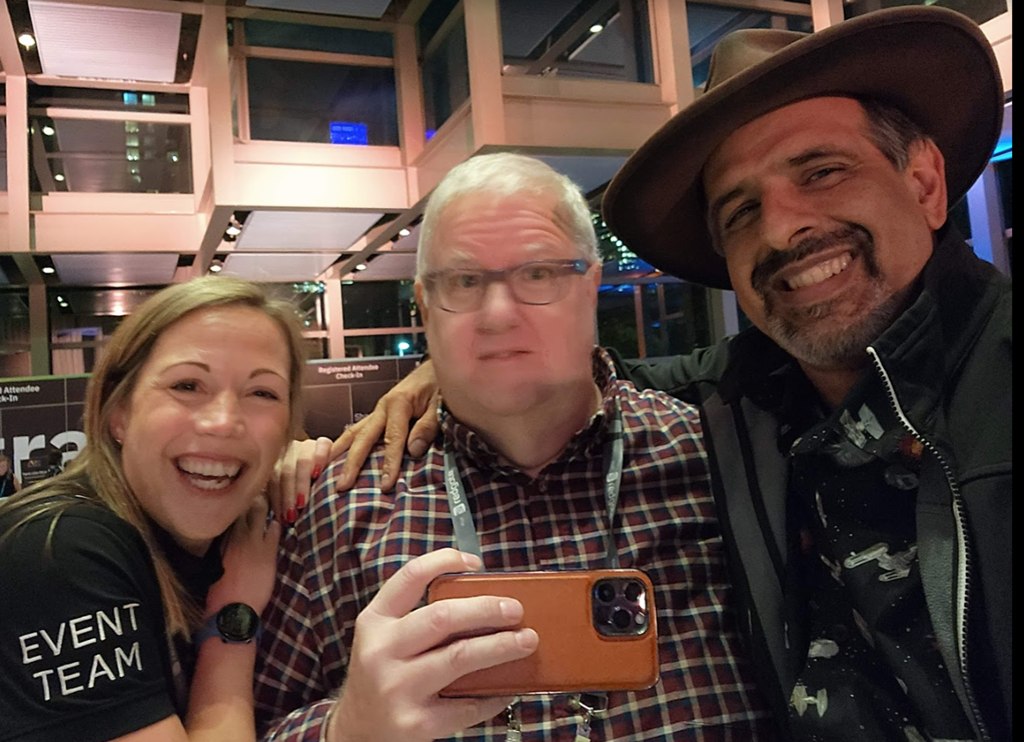
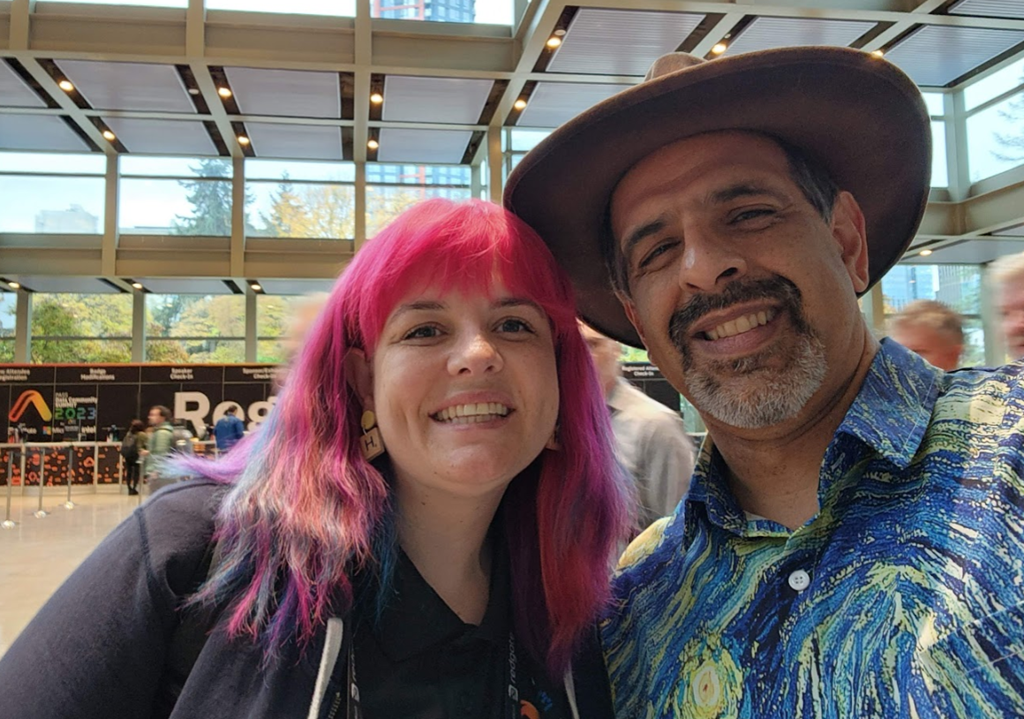
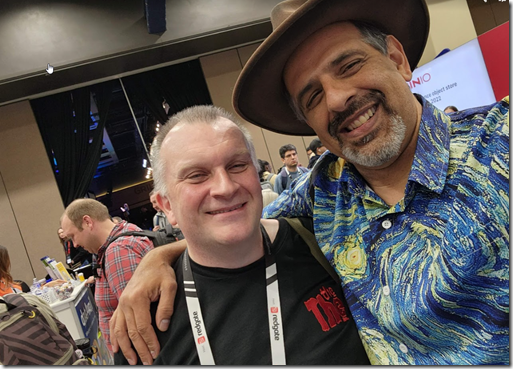
As usual, I had a number of selfies. Heidi from Australia caught me walking around. As usual, a new hair color from the last time I saw her.
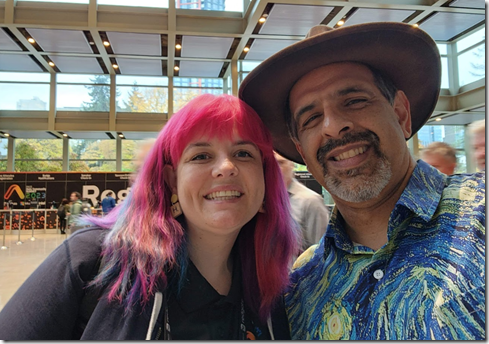
I also caught up with Rodney, who I’ve seen at events all over. He’s usually taking pictures, but this time he was relaxed and just enjoying the event. Extra kudos because I got to give him a hard time after beating him in our Fantasy Football matchup.
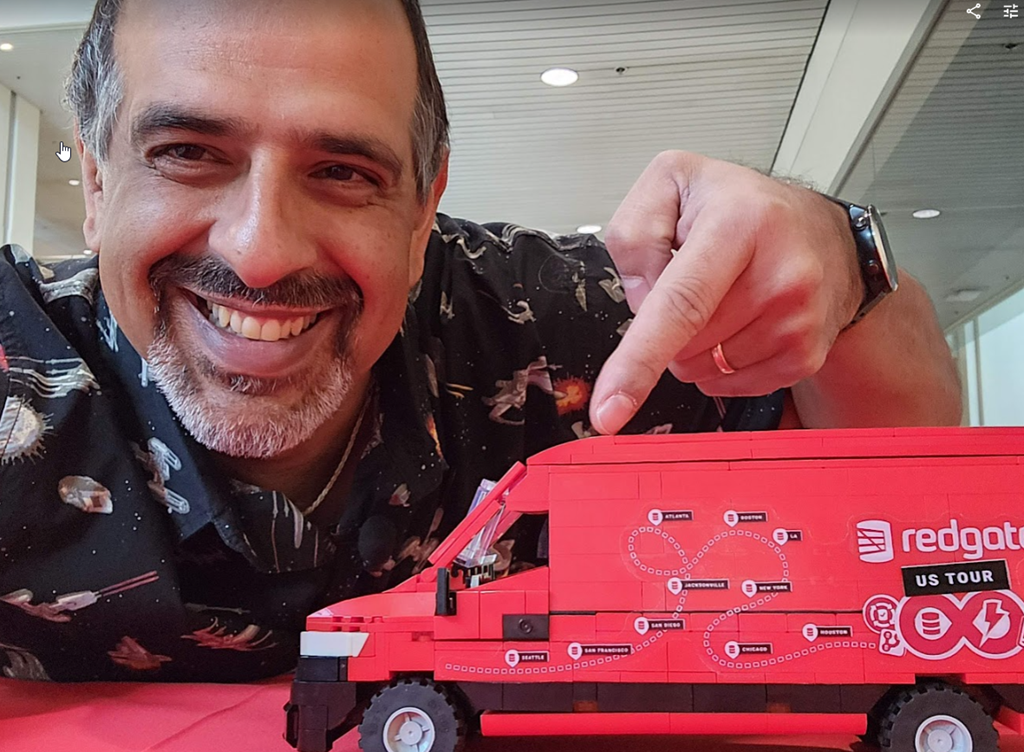
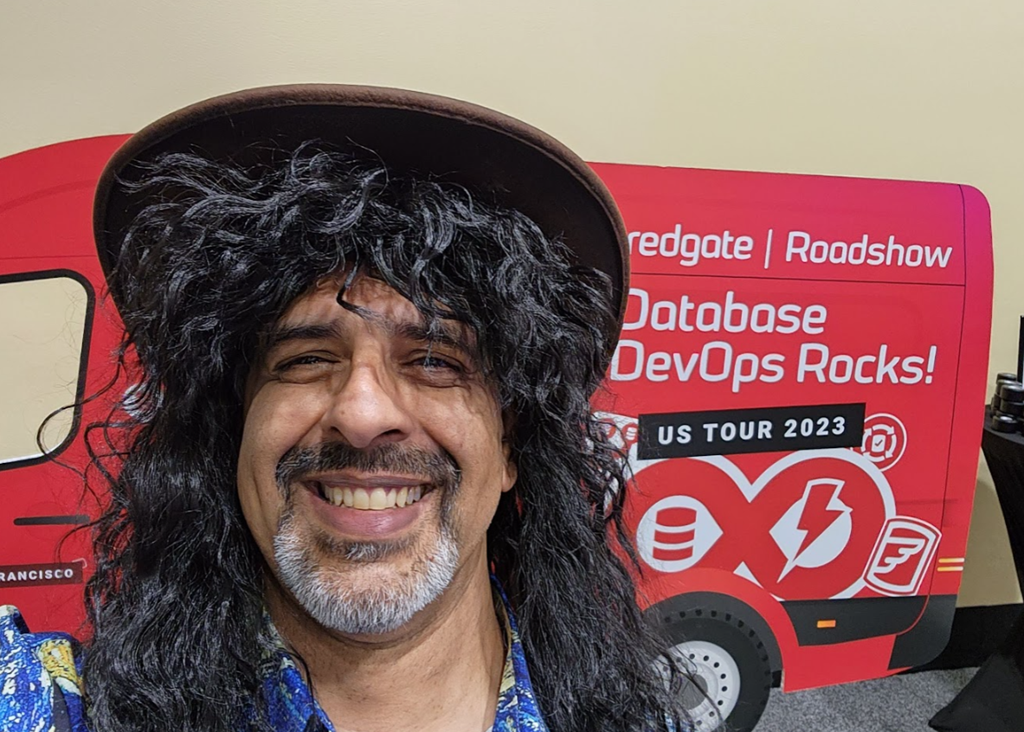
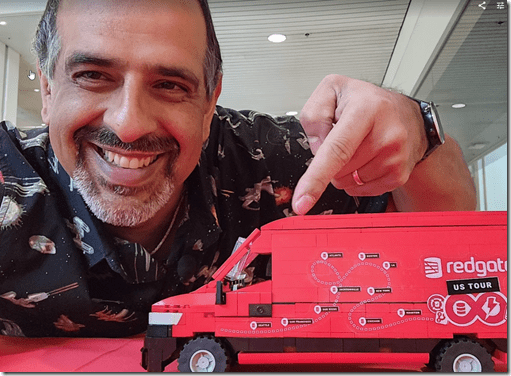
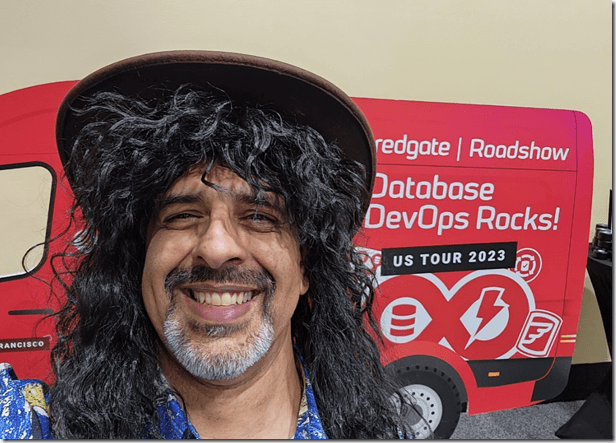
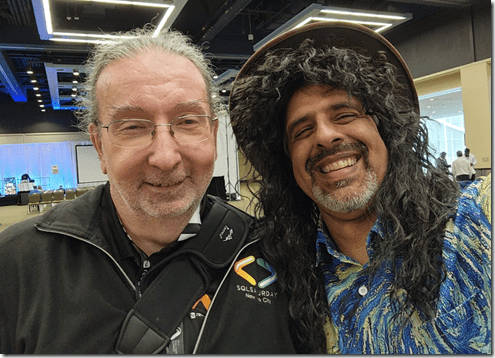
We wanted a the real tour van in the convention center, but there are all sorts of fire codes and restrictions needed, so we skipped it. Instead, we got a mock up for pictures. I got one, with the hair that someone got for the tour.
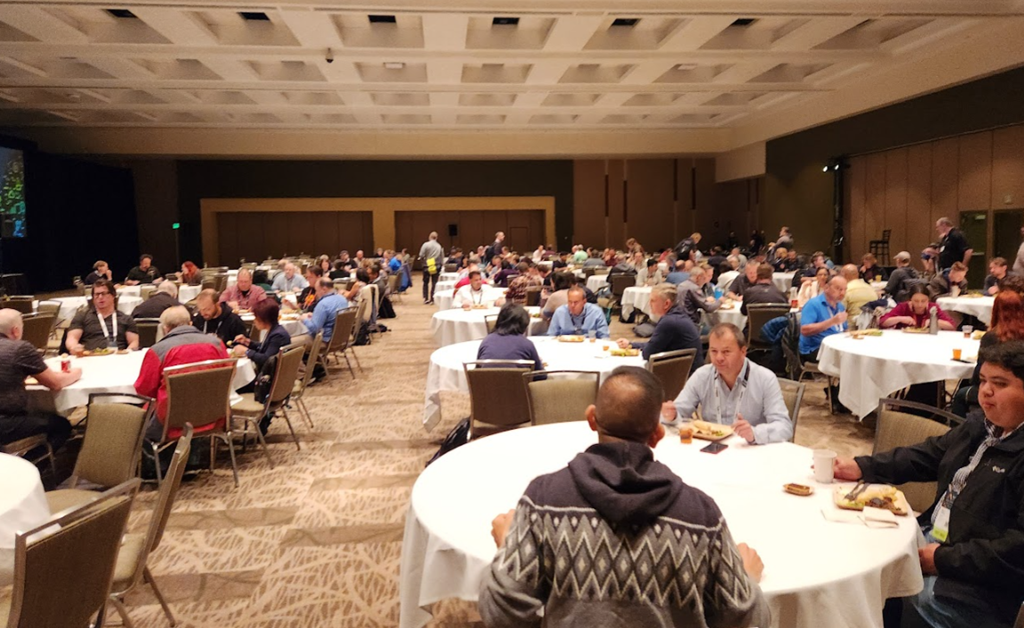
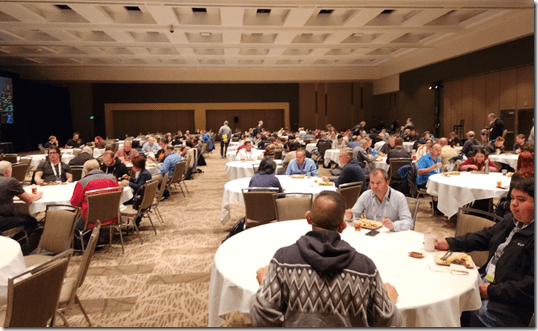
One thing I really liked this year was the break after the keynote before the first session. We used to have 15 minutes, which had people scurrying through the Expo Hall and throughout the convention center. This year there was a 45 minute break, which is good for vendors, but it makes things more relaxed. A few people wished the time were shorter, and maybe 30 would be good, but I think more time for people to interact and network is better.
I had a short break, but then a lunch panel. I hurried to eat with other vendors, then headed up and found a busy lunch room.
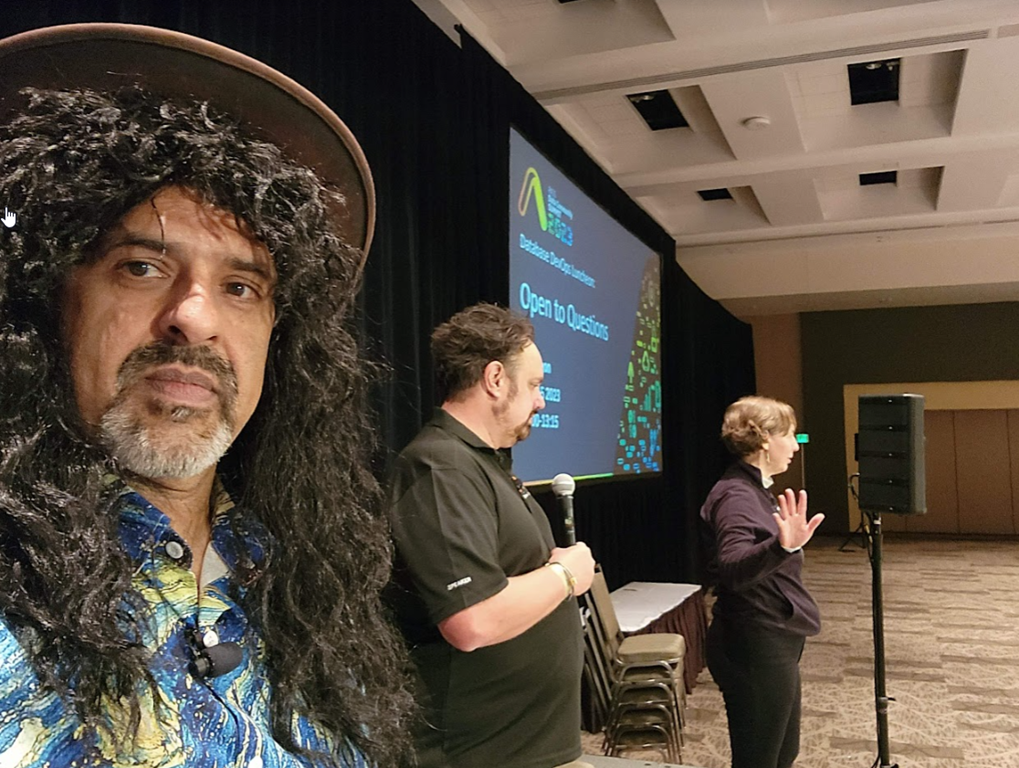
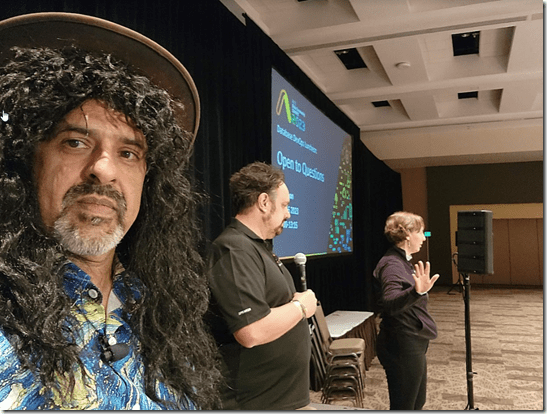
The panel was fun, and I actually grabbed a selfie during the session.
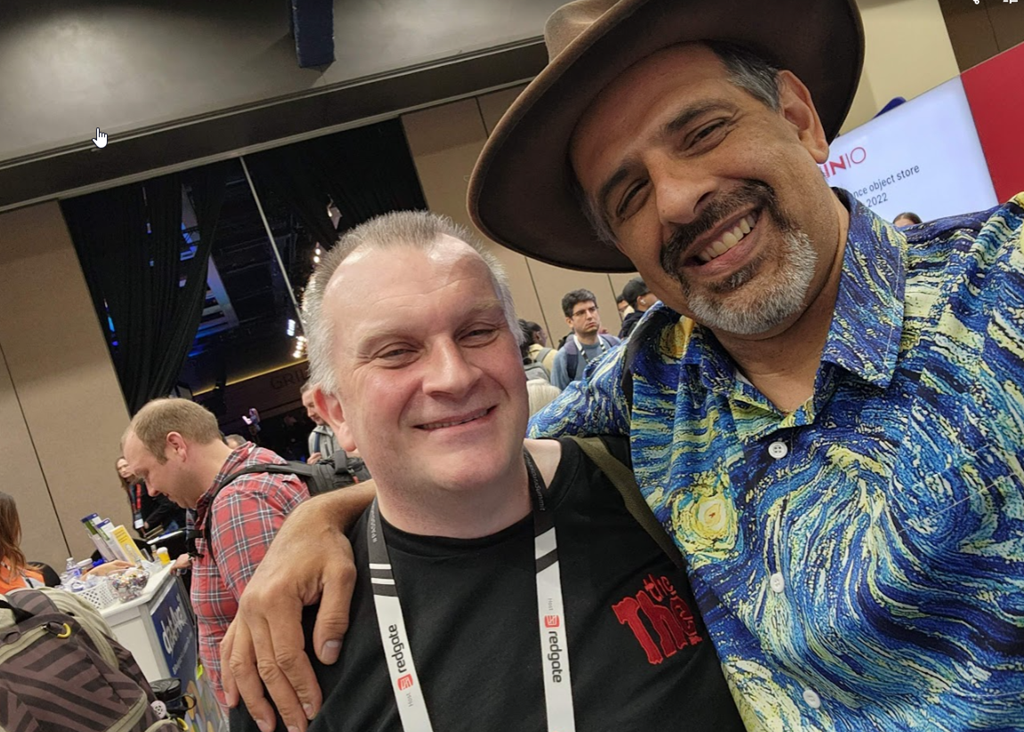
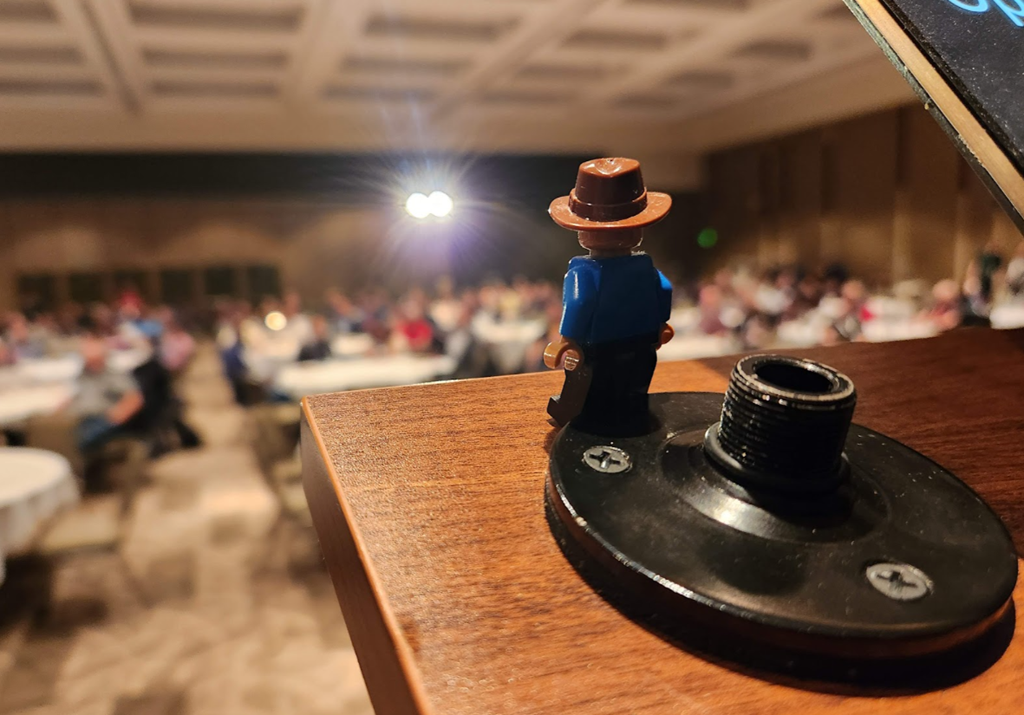
Got one with Lego Steve as well.
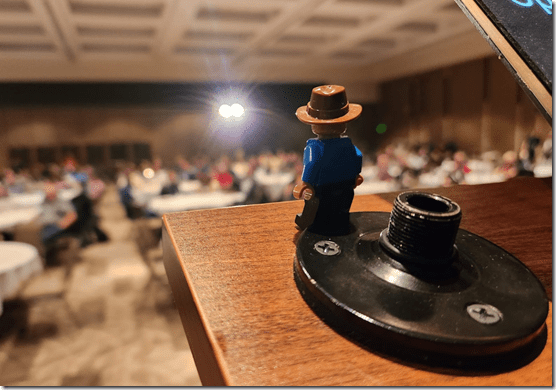
After this session, I had to head to another panel, where I asked a bunch of questions and led a discussion on how to better build software. Not a lot of people, but I enjoyed the discussion. That was my 30th session of the year, and I was glad to be done. After that one, I could relax.
I did spend more time in the Community Zone, meeting more people, including one of the smarter people I know, MVP Thomas Grohser. I enjoy our conversations because Thomas deals with problems that almost no one else I know works on. He has PB of data, which is fascinating. Nothing I want to work on, but interesting to hear about.
I took a quick break and hit the gym, since I missed Tuesday. I used to stress about working out every day,but I’ve learned to be kind to myself and also to understand that I get more tired. I can’t get up at 6:00am and workout every day because I’ll be worn out later in the day. However, I am trying to find time every other day.
The Expo reception is always fun. It’s a good time to see vendors, meet others, and enjoy some food and drinks together. Another selfie with TJay with new shirts.

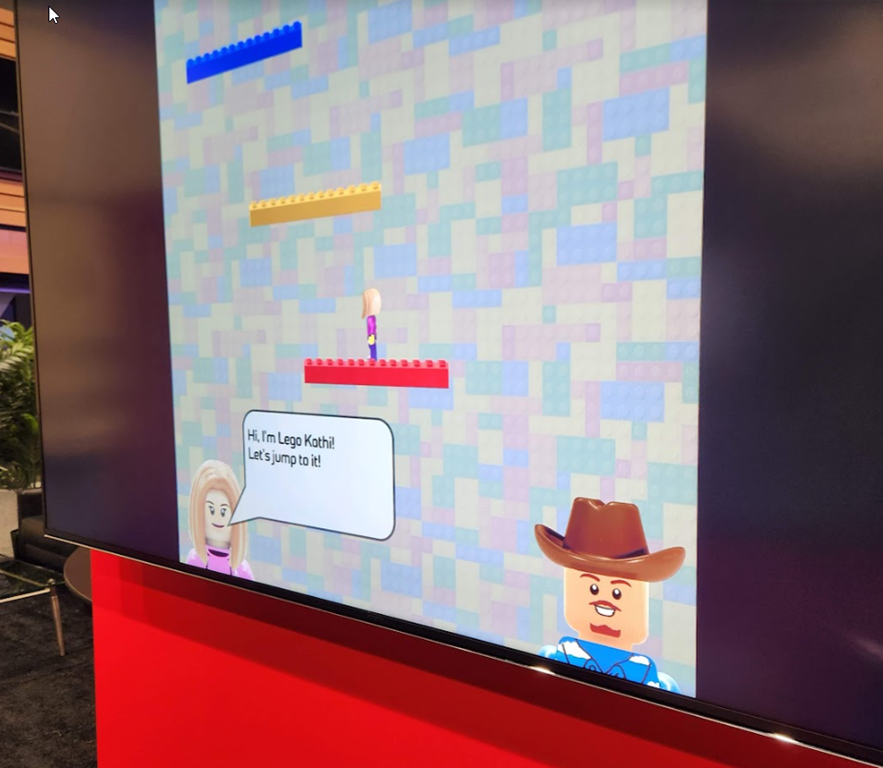
I mostly hung out at the Redgate booth, helping others talk to customers and answer questions, but I had some fun with the game that they made. Did you play? It was easy, but made to launch our new Test Data Manager product.
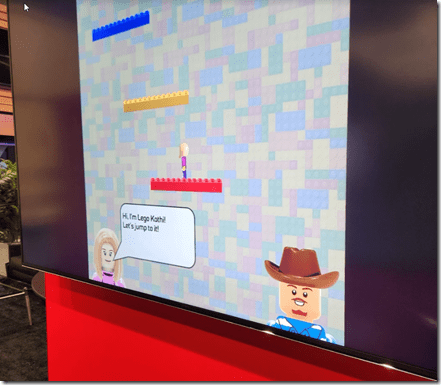
I saw quite a few people playing it. I also got shots of LegoSteve and LegoKathi

Most of the evening was a blur for me, lots of conversations with others around a little food. I ended up chatting with one of the other Redgaters at the end of the night. We were standing at the booth when they started to turn out the Expo Hall lights. I think it was 9pm, and I’d been on my feet most of the day.
I ended up going for a quiet drink with a friend, getting to bed around 11p. I ha wanted to check out Games Night, but I was too worn out. It was a long day.
Thursday was a bit more relaxing for me. The Redgate keynote was interesting. I had no part of it, and hadn’t been a part of the work, so it was new to me. I think it was better than day 1, but still a little fragmented in the storytelling. I would like to see something interesting and focused as a keynote, with fewer people and a common theme.
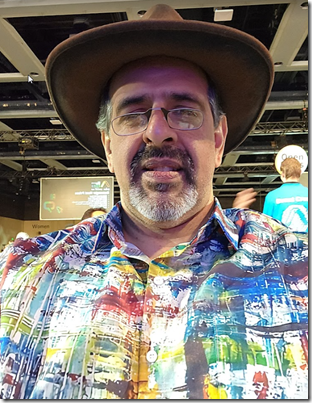
Shirt du jour.
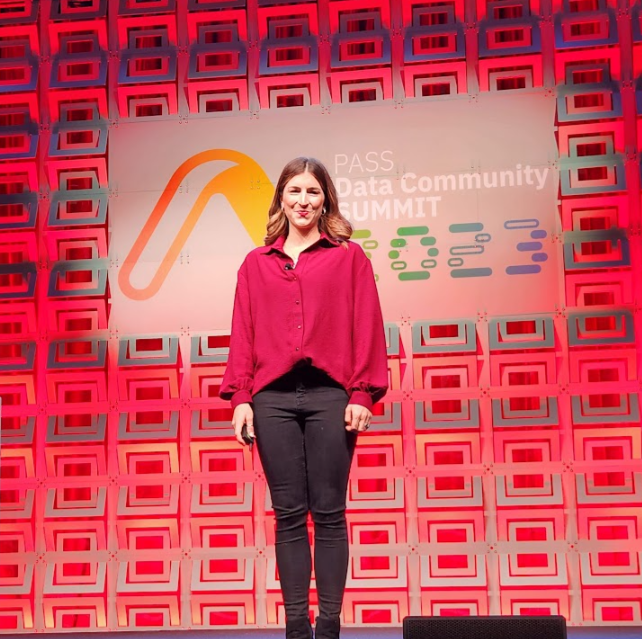
I was glad to see Carly open the day. She has overseen the event this year with our head of Events out on maternity leave most of the year. I’ve known Carly for over a decade and she’s been a joy to work with and a very valuable and productive co-worker. I don’t know if she enjoyed this or will do it again, but I think she did an amazing job pulling together all parts of Redgate to execute the conference.
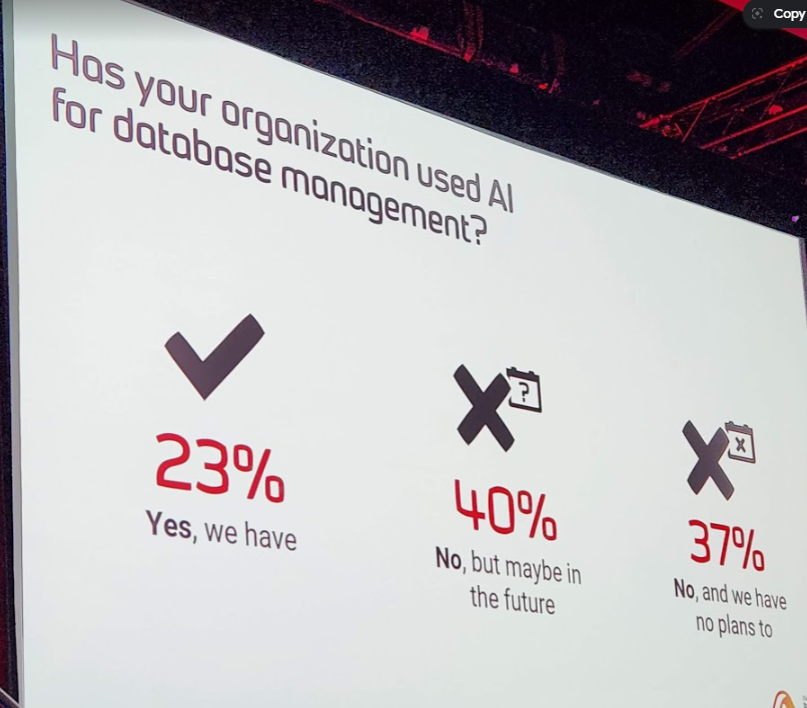
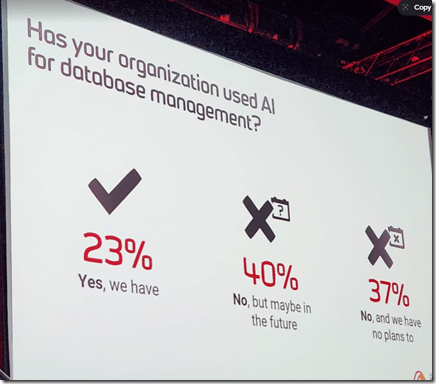
In the keynote, I liked a few of the slides. The use of AI was interesting. I think this has been a fad, but 23% having tried it was interesting.
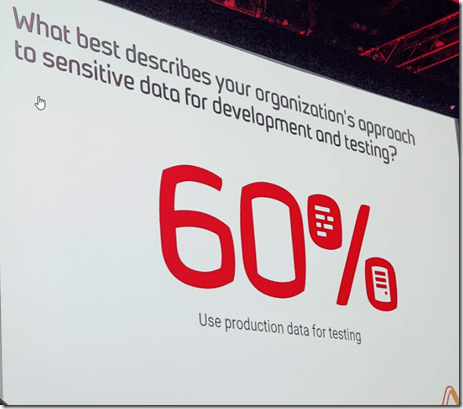
I think this is low, but maybe not. I think a lot of people use tiny amounts of dev data for testing, and certainly a lot of people restore prod databases to dev/test. It’s been interesting to me to see Redgate trying to help make this part of software better, though I think changing our habits is really hard.
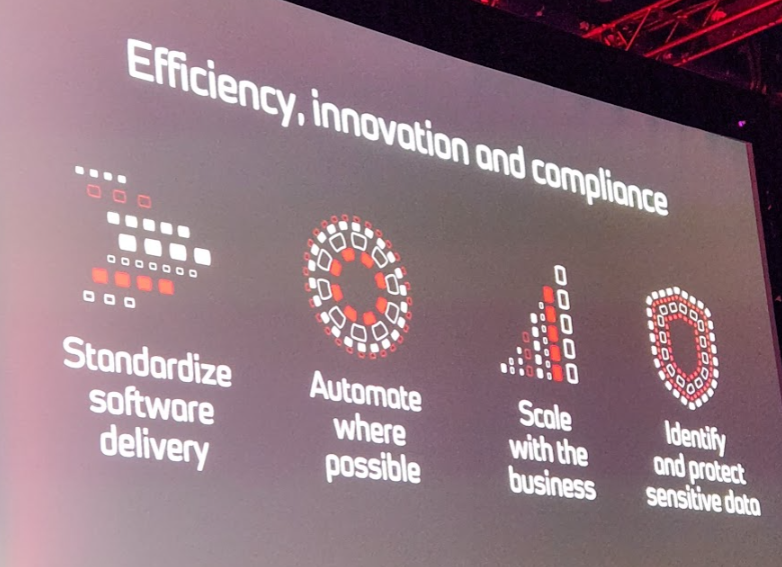
I also noticed all the databases in this slide, which I think it very creative of our artists.
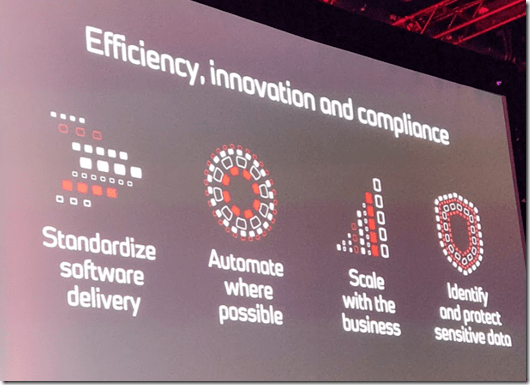
Most of the day for me was hanging out and talking with people. I had no real responsibilities, so I took advantage of that. It was a long day walking around, but I was glad to see lots of people.
Another TJay selfie, with this shirt that he actually sent me as a gift.
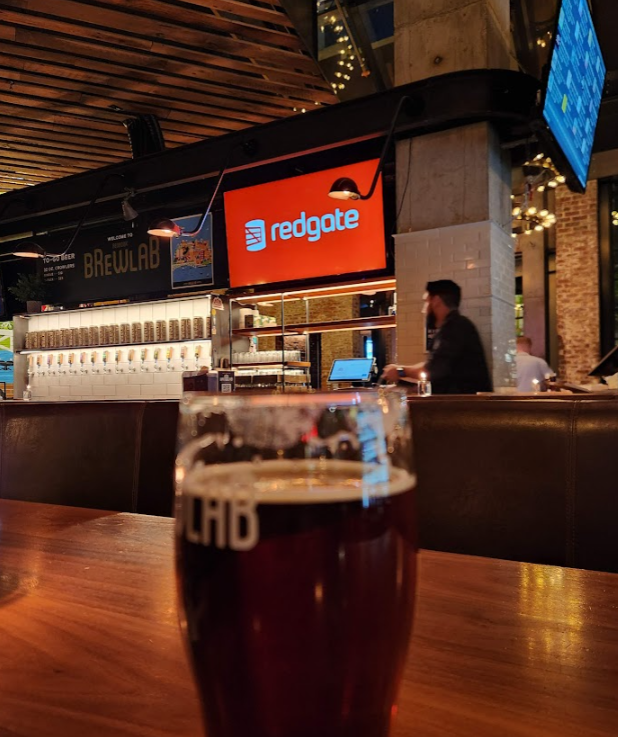
I left early to attend the Redgate party Thur night. I got a ride with the crew setting things up, and since they said they didn’t need me, I grabbed a booth and relaxed, watching some of the Thursday night NFL.

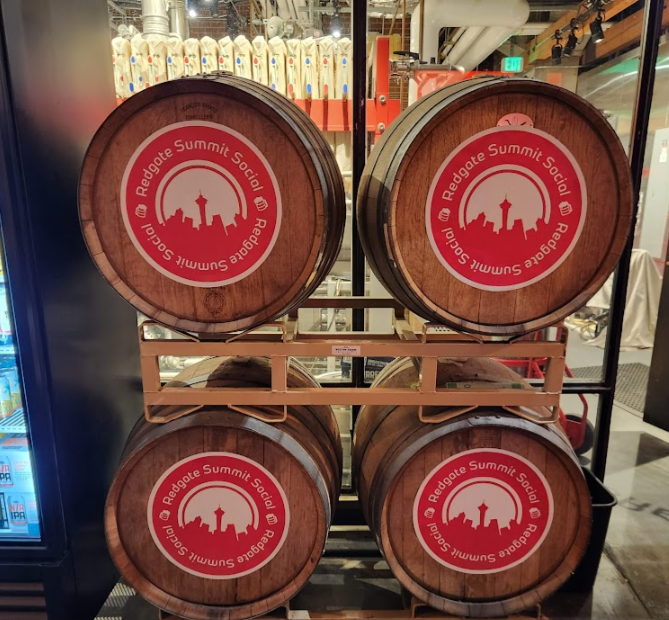
It was cool watching them brand and set up the bar for the party. We had coasters
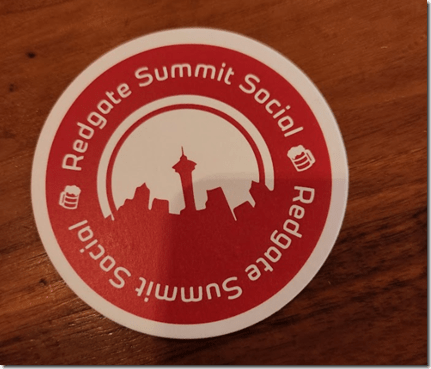
and stickers

The creativity of people who think of this, get artists to build stuff, and then get it put up is cool. I had missed this last year since my wife was in town and I spent Thur night with her at a quiet(er) dinner.
I didn’t snap shots, but had a great time with Kimberly Tripp and Paul Randal and others. I basically sat in a booth and never moved all night until we left. It was especially fun since I knew we had a surprise for Kimberly.
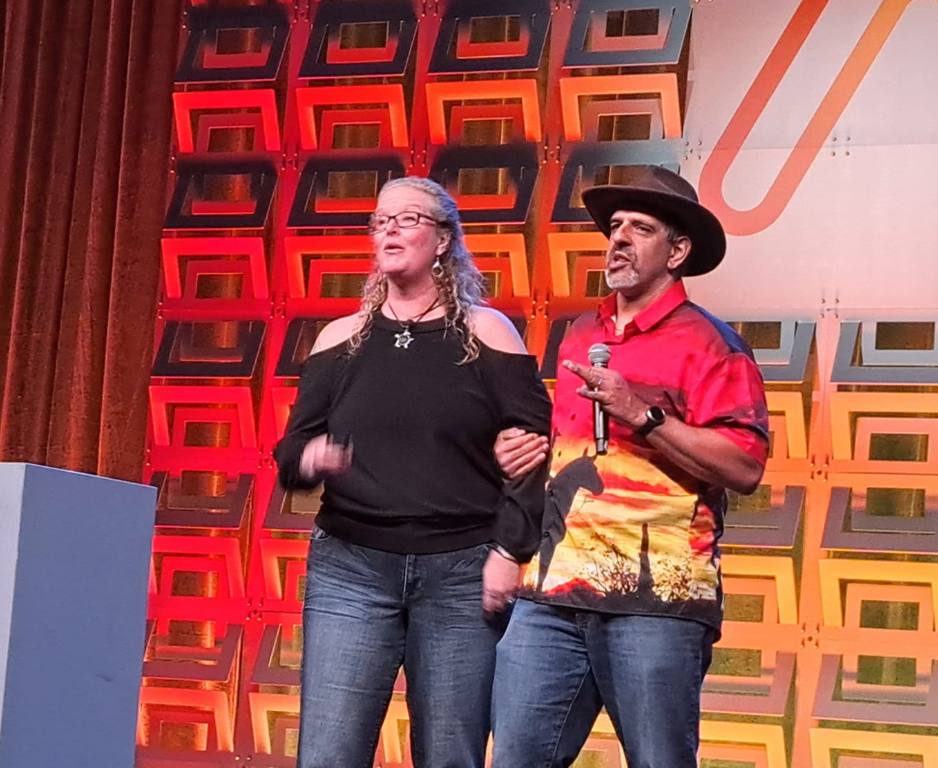
She announced her retirement a few months ago, and the Summit staff started planning something. A number of them have known her for years and they arranged for a beautiful gift. I was asked to interrupt her keynote opening on Friday and give it to her, which was fun.

I ran into Joe Webb and Kevin Kline earlier in the week, two people who were on the board of PASS and helped shape the conference years ago. I asked them to come out with me and they agreed. It was a fun morning.
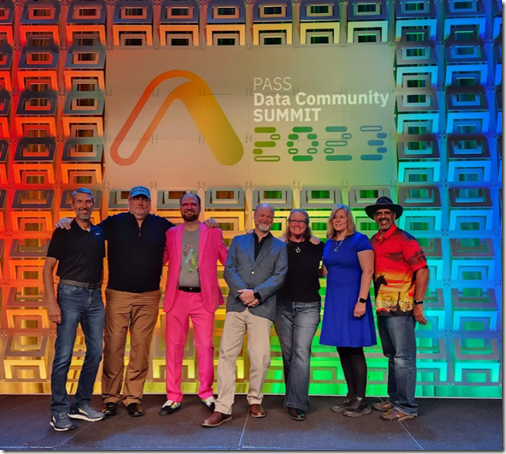
Afterwards it was going back to the hotel to pack and check out. Then I came back and said goodbye to a few Redgaters, spending an hour with staff and then an hour in the Community Zone seeing a few friends.
One final selfie with Davide Mauri, who I seem to see at almost every event. I had to leave around 1230, since I had a 400p flight and didn’t want to get caught in traffic
Leaving Seattle.
This was one of my favorite Summits, since I had relatively few commitments, I was relaxed (after Wednesday) and I had some quiet dinners with friends. It was a nice end to a very busy year of travel for me.
I do wish I could have stayed Friday afternoon and evening and had my wife with me, but that’s for next year. After over 100 nights on the road this year, I really needed to cut things short and go home.
Hopefully many of you really enjoyed the event, and those that couldn’t go, I hope to see some of you in 2024.