The event has a great schedule (scroll down) with quite a few sessions that I will try to watch. Take a minute and flip through the list. If anything catches your eye, block your calendar and register today.
A few years ago SQL Prompt added a command palette to let you search the commands available. This is similar to the same concept in Visual Studio Code, ADS, and various other tools. This post looks at how to get to this tool in SSMS.
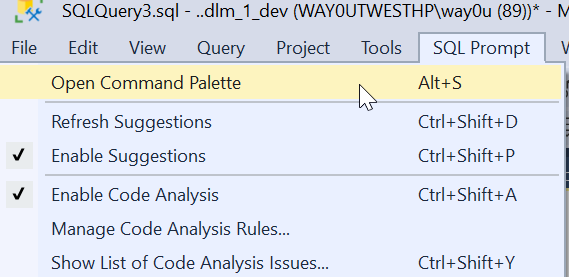
You can also open the Command Palette from the menu. In the SQL Prompt menu, it is the first item. You can also see there is a shortcut of ALT+S below here.
When I click this, I’ll see the full list of palette commands. This is a large window, and across the top I can filter things. In the complete list, you see various things: objects, snippets, and refactoring commands. We also have the Prompt behavior settings as well.
For example, I could look for things with “brackets”. I see a few things that are relevant. I can pick any of them if I want that apply to my code or change the behavior of the tool
Adding to the Menu
If you can’t remember the shortcut. or don’t want to use the menu, you can add this as a button in the toolbar. Here’s the easy way. When you installed SQL Prompt (or the Toolbelt), there is a Redgate toolbar added. Mine looks like this:
I clicked the “Add or Remote buttons ” and got a list of buttons on this toolbar. I can click “Customize if I like. That opens the dialog below.
Now click “Add Command”. That gives you a list of items in all the menus in SSMS. Pick the SQL Prompt menu on the left (first one). Then scroll down and find “Open command palette” in the right side. Select it and click OK.
Now you have this in your toolbar.
Now one click, and you have the palette.
FWIW, you can use this trick to add any menu item to a toolbar that you want.
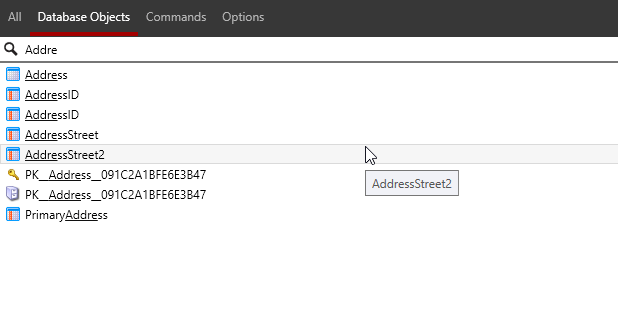
UPDATE: A comment asked about partial matches, and you can see I see partial matches for “Addre”.
Flyway is a command line tool with lots of options and parameters. Working with those is a pain, but we’ve made this easier in Flyway Desktop 6.5+. In this tip, see how you can add parameters to your Flyway command.
I’ve been working with Flyway Desktop for work more and more as we transition from older SSMS plugins to the standalone tool. This series looks at some tips I’ve gotten along the way.
Flyway Options
There are a lot of options in Flyway that you can use, and we added a dialog in Flyway Desktop to make it easy to construct a command line call. However, we also made the FWD tool work better recently, removing the need to save your changes.
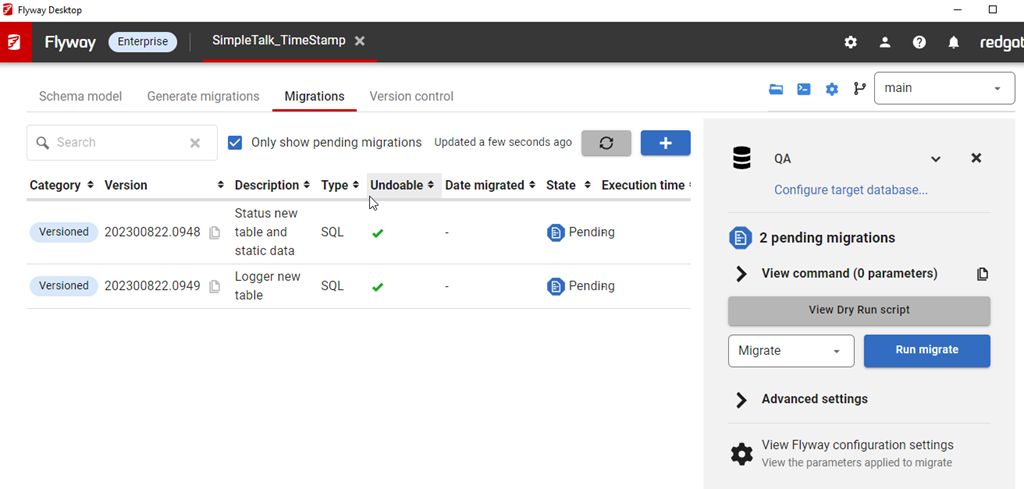
In the migrations tab, I have all my migrations listed, and on the right side, I can see the command that would be run with the Flyway CLI.
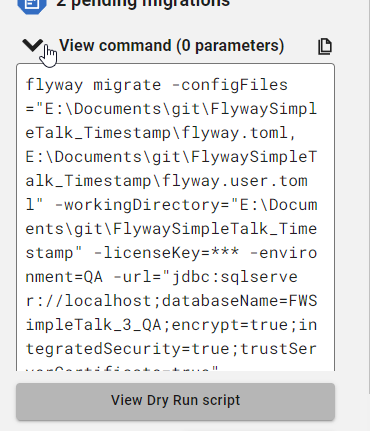
If I click “View command”, I can see this command, which has a number of parameters by default.
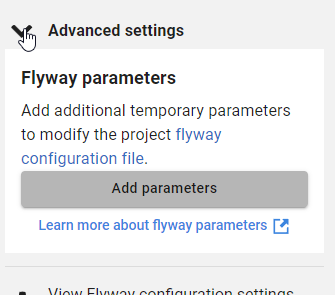
However, often I want to add other parameters. Below this dialog is the Advanced settings area, which is where we add parameters.
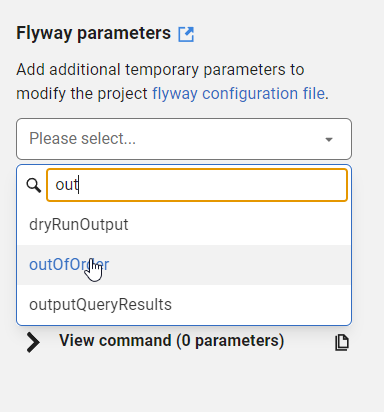
If I click Add parameters, I get a list of all the parameters, and I can type in the list to filter them down. For example, I often want outOfOrder, so if I type “out” I see this listed.
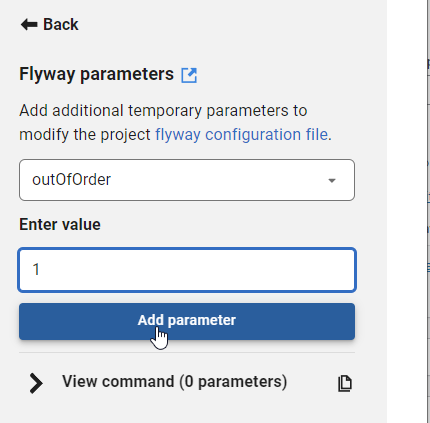
I can select this and then enter a value for the parameter. I showed in a previous tip how you can easily copy migration numbers, which is handy for using in some of these parameter values.
Once I enter a value, I can click “Add parameter”. Of course, if I’ve done something silly, like enter an integer for a true/false value, the GUI tells me.
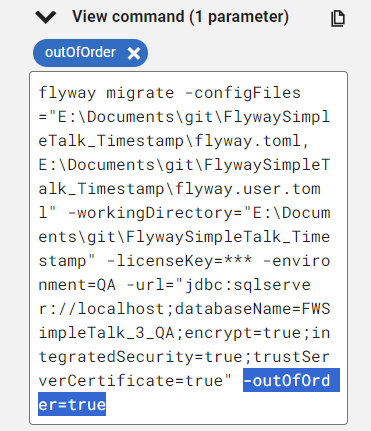
If I add this, then it’s reflected in the command, which is what I’d copy and paste into some deployment tool like Azure DevOps, GitHub Actions, Octopus Deploy, etc.
Try it out today. If you haven’t worked with Flyway Desktop, download it today. There is a free version that organizes migrations and paid versions with many more features.
wildred –adj. feeling the haunting solitude of extremely remote places – a clearing in the forest, a windswept field of snow, a rest area in the middle of nowhere – which makes you feel like you’ve just intruded on a conversation that had nothing to do with you, where even the gravel beneath your feet, and trees overhead are holding themselves back to a pointed, inhospitable silence.
I rarely find myself in a remote place. Except on planes, then I love looking at the remoteness of the world. I was flying back from Austin to Denver and snapped this shot. I have no idea where it is. Somewhere between Austin and Denver. Texas? Oklahoma? SE Colorado? I didn’t expect this.
I enjoy some remoteness. I find myself craving the feeling of wildred, hoping for the chance to be in a place without people, without structures, without anything nearby.
Mostly I get this these days when I have to be somewhere early and no one is up and about. It does happen in winter, snowboarding down trails on a Wednesday in the trees with no one around. I can’t wait for that this next season.




 Voice of the DBA