Tag: syndicated

  • Daily Coping 10 Jan 2023

    Today’s coping tip is to make time to do something kind for yourself.

    Learning to better take care of myself is something that I’ve been working on throughout the pandemic and continuing as we move to an endemic.

    Last year I had ankle surgery, and it went well, but I stopped progressing in my recovery. I’ve struggled with balance and a little pain the last few months. I decided to take some time to work on this and try to get my body more healthy for the long term.

    January is PT month for me. I’ve scheduled some physical therapy sessions that will help (hopefully) strengthen and improve my ankle. Taking a couple sessions a week, as well as daily exercises, to work on this for myself.

    I started to add a daily coping tip to the SQL Server Central newsletter and to the Community Circle, which is helping me deal with the issues in the world. I’m adding my responses for each day here. All my coping tips are under this tag.

  • T-SQL Tuesday #158–Implementing Worst Practices

    tsqltuesdayNot that I’m looking to do this, but that’s the invitation from Raul Gonzalez this month.

    This is the monthly blog party where we write on a topic chosen by the host. All topics are tracked at T-SQL Tuesday, and if you want to host, you need a blog and then ping me.

    Just Do a Little

    I’m going to tackle two sides to this, the administrative/sysadmin side and the development side. I think it’s easy to implement worst practices, especially in busy environments, if you haven’t gained some knowledge and prepared yourself to do better.

    The main thing I’ll point out is that it can be hard to implement best practices, or sometimes even decide what is a best practice. However, you ought to be able to avoid the worst practices.

    Worst DBA Practices – Poor Setup

    One of the things that has often been done in technology, especially in the Microsoft-based world, is accept defaults, get software up and running, and forget to tackle ongoing practices. In particular, there are two things that I consider worst practices: backups and sysadmin.

    First, no backups. Above all, even above security, we need backups for our data. If we have those, at least we can recover. When you set up a new database, you ought to ensure you have backups implemented. Right away. I’m saddened that Microsoft hasn’t made it easy to implement this as a part of setup. While you can use unattended setup or dbatools or something, it takes a little prep.

    At the very least, schedule Ola’s backup solution in each instance that is set up. At least with USER_DATABASES set, this will pick up new dbs as a backup.

    Second, don’t use sa/sysadmin or any privileged account for applications or even DBA scripts. Set up another account that can be disabled, password changed, or some other security measure. Too often people never set up another account and get used to using sa.

    Truly a worst practice.

    Worst Developer Practices – Starting with SELECT * and NOLOCK

    Aaron Bertrand has a number of bad habits posts, which I think are worth reading. If you can’t adopt his best practices, at least avoid the other issues.

    Two worst practices I think create technical debt and later problems are SELECT * and NOLOCK. If you can’t do anything else, at least avoid these.

    The first (SELECT *) leads to issues with extra data movement across the wire, extra reads in SQL Server, and in general problems with refactoring items as you never know where an application requires certain columns. I know we won’t get perfect, but don’t use SELECT * in any production code. The only place for this is when you want a SELECT TOP 10 * to get a feel for what data is in the table. Every other query in an application ought to specify what columns it needs.

    Note: Using SQL Prompt and getting all columns is just as bad. Pick the ones you need.

    Secondly, NOLOCK should not be a default item. There are data integrity issues, which can cause you problems down the road. Putting this in often means everyone is terrified of removing it. Don’t start here.

  • Creating a PostgreSQL Docker Container with a Volume on Windows

    This post looks at how to set up a PostgreSQL container on Windows using Docker for Windows. I’ve seen a few posts, but I had to cobble together some instructions from places, so I decided to make my own post to help me remember and keep things simple.

    tl;dr: do this:

    • Create a folder c:\docker\pgdev
    • get the Docker image: docker pull postgresql:latest
    • Run the container, command below:
    docker run --name pgdev -e POSTGRES_PASSWORD=Str0ngP@ssword -d -p 5432:5432 -v C:\Docker\pgdev:/var/lib/postgresql/data  postgres

    That’s it. Then you have a PostgreSQL instance running on port 5432 (default) with a user, postgresql, and a password, Str0ngP@ssword.

    More detailed instructions below

    Create a place for data

    Containers are ephemeral, which isn’t what we want for a database. We want to keep data around, so let’s make a place for this. This will be a volume for our container, which we will map to a particular location inside the container. Then if the container dies, we can map this to another PostgreSQL container and have our data appear.

    Create a c:\Docker folder on your machine. This is a good spot for any Docker related volumes.

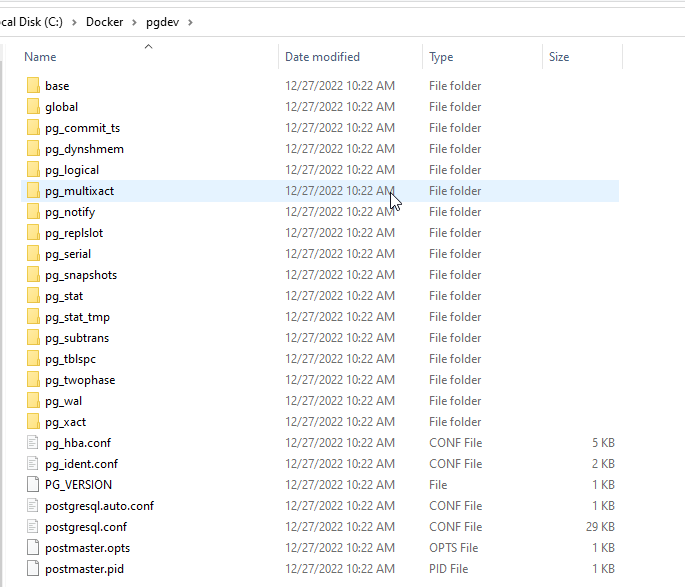
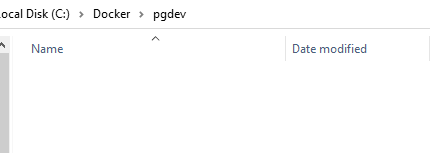
    Now create a pgdev folder under c:\docker. This is the place we’ll keep data for this PostgreSQL container. It should be empty.

    2022-12-27 10_04_37-pgdev

    Get the Image

    Container images are available from Docker. I won’t cover installing Docker or setting up Linux containers, but you do need to do this. I used Windows 10, and I have WSL v2, as you can see:
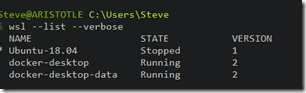
    2022-12-27 10_06_23-cmd

    Docker Desktop is running Linux containers. You can see that since it say “Switch to Windows containers”.
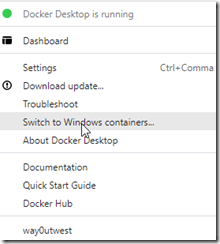
    2022-12-27 10_07_40-

    Next, use Docker Pull. I assume you are working with the default Docker registry, so this command should work:

    Docker image pull postgres:latest

    This will start downloading the image.

    2022-12-26 13_16_43-cmd - docker  image pull postgres_latest

    When this completes, move on.

    Starting the container

    Once we have the image, we can start the container. You could do this without the folder above, but your data would be in the container and if the container were ever deleted, then the data is lost.

    The basic command for starting the container requires a few parameters. Here is a list of what I provided in the command at the beginning:

    • –name – This is a name you can use in docker commands to refer to the container. You can put anything. I chose “pgdev”.
    • The password in the database system for the postgres user. This is a default user and you send this in as an environment variable with -e. The password I used here is: Str0ngP@ssword
    • -d runs this detached, rather than interactively. This means your command shell can return command to you. Otherwise, all output from the container appears in the shell and you can’t type anything.
    • -p is the port mapping. This is host:container. In this case, we map 5432 on the host (where we use some postgreSQL driver to connect) to 5432 inside the container. You can choose any unused port for the first number, but 5432 is needed for the second number as the postgresql service is listening on 5432.
    • -v is the volume mapping. Here we map our host folder to a container folder (host:container). We enter the folder we created above and then map this to the place where postgresql stores data. That’s in /var/lib/postrgresql/data
    • postgres is the image name.

    Here is the command again:

    docker run --name pgdev -e POSTGRES_PASSWORD=Str0ngP@ssword -d -p 5432:5432 -v C:\Docker\pgdev:/var/lib/postgresql/data  postgres

    Once this executes, we should see a long hex code returned, which is the container identifier.

    2022-12-27 10_22_58-cmd

    We also see our folder is now filled with postgresql specific data files and folders:
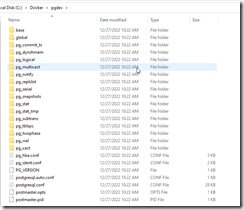
    2022-12-27 10_23_05-pgdev

    That’s it, our container is running.
  • Daily Coping 9 Jan 2023

    Today’s coping tip is to look back at a previous coping tip that required planning and evaluate how it helped.

    One of my tips in December was to listen to new music. I downloaded the four sets of music for my trip and listened to them. I was surprised how I felt.

    • This is Santana – A good mix, which I enjoyed. #2 on this list. I listened a few times to this playlist.
    • Blessings and Miracles – newer music, but not as enjoyable as I thought. I listened once and then part of a second time and gave up. #4
    • The Pinkprint – New, and I’ve enjoyed some Nikki Minaj on other playlists. However, I didn’t enjoy this one apart from a couple songs. I did listen a couple times, but found myself drawn to the other album. #3.
    • Beam Me Up Scotty – I found myself listening to this a number of times, maybe 5-6 between my airline trips to London and Lisbon. #1 on this list.

    I started to add a daily coping tip to the SQL Server Central newsletter and to the Community Circle, which is helping me deal with the issues in the world. I’m adding my responses for each day here. All my coping tips are under this tag.