In a previous post, I got Flyway installed as a CLI utility (command line interface). This post will look at the first connection to a database.
If you need to install Flyway on Windows, see my previous post.
Concepts
Flyway is a command line executable that takes various parameters to control what it does. Essentially, these are command verbs and decide what action is running. The previous post looked at the version command.
There are also parameters that can be included before the command. There are lots of parameters.
However, much of the way Flyway works is controlled by the flyway.conf file, which is inside a conf folder where you installed Flyway. If this file is found in the current folder, then Flyway will use configuration parameters from this file.
Note, the inline parameters should override those in the conf file.
Configuration
I find it much easier to use the configuration files. While you can specify this with the configFiles parameter, I often ensure that I run Flyway from within a particular folder that has a flyway.conf file. This has worked well.
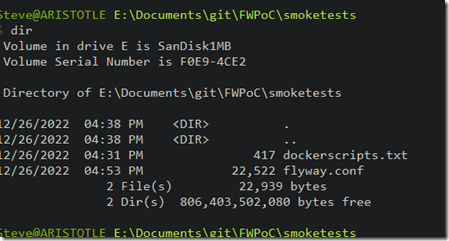
Copy your flyway.conf from your install folder (under conf) to a new folder where you will experiment. For me, I set up a new folder called “smoketests” where I’m doing a little experimenting. As you can see, I only have two files in here:
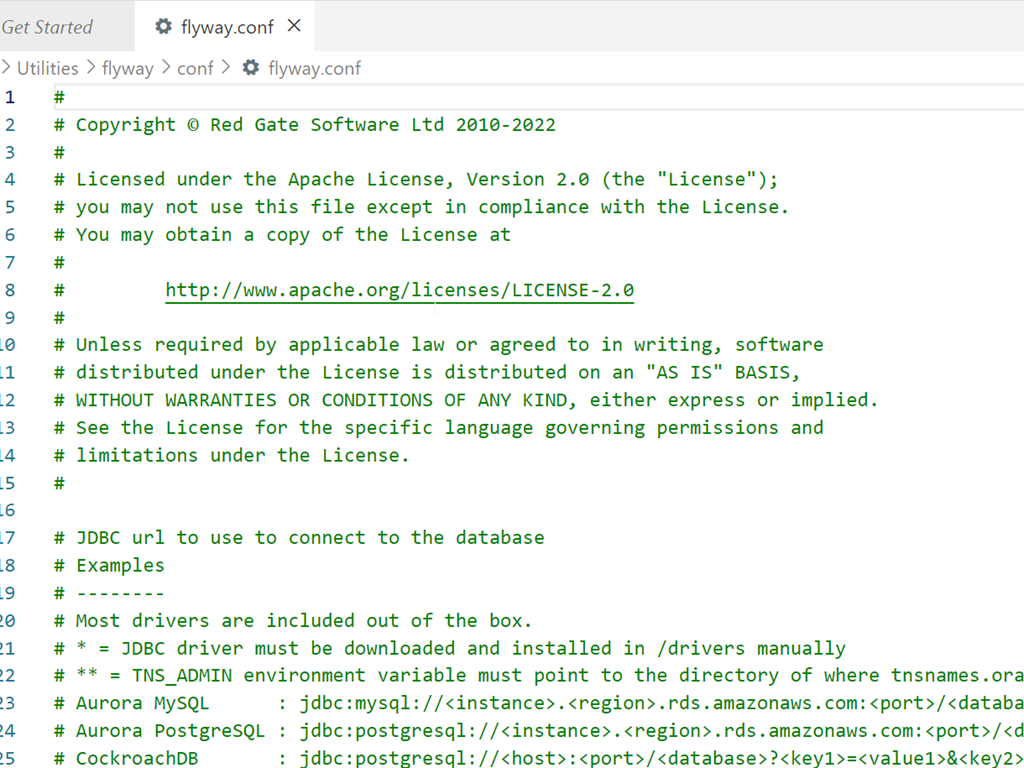
The default conf file can get a little confusing. It’s full of many options, which are somewhat documented. My default looks like this when I open it:

Most everything is commented out, which makes it harder to figure out what to do.
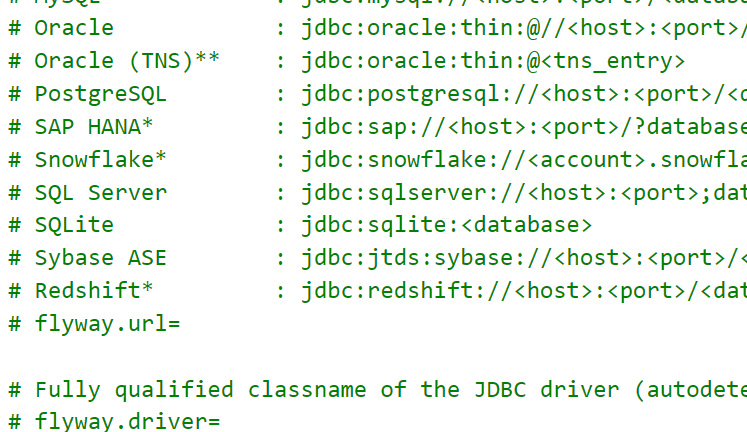
The thing to remember is that you uncomment those settings that you want to set. For example, the drivers section is extensive. Some of theses are included, some you need to download. Since this are all Java based JDBC drivers, it can look strange to a SQL Server person.
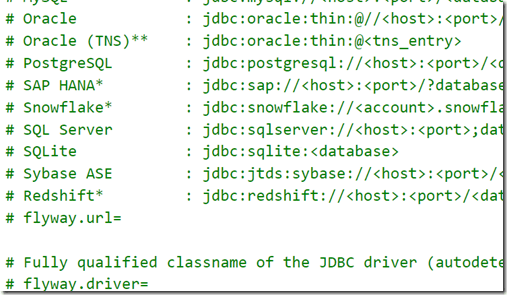
The thing that gets lost in here for me is that I don’t comment out the line that starts with SQL Server. Instead, I need to copy and paste the jdbc part to the flyway.url= line. My valid connection would look like this:

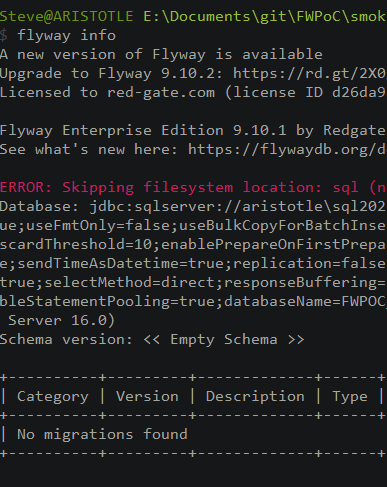
Let’s try connecting with the info command. When I run Flyway info, I get asked for a user and password. Annoying, but not that bad. However, I then get an error:

This is a secure connection error. I do have TCP/IP enabled, which I know Java needs. This is more about a change the SQL Server team made, which requires secure connections.
Let’s add this to our connection string: ;trustServerCertificate=true
This gives me this string:
flyway.url=jdbc:sqlserver://aristotle\SQL2022;databaseName=FWPOC_1_Dev;trustServerCertificate=true
Now when I connect, things work. I still have to enter a name and password, but I can connect and I get back something.
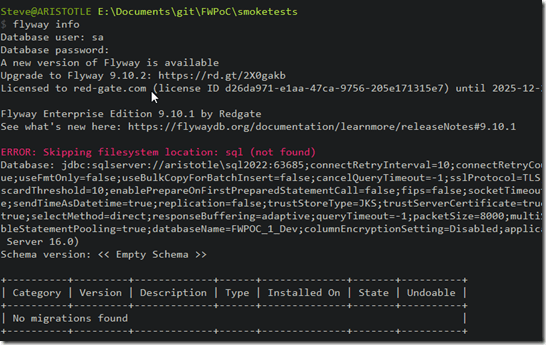
I see some info on flyway versions. There’s a new version available. I’m also licensed for Flyway Enterprise.
Then I see the filesystem folder, sql, is missing. This is where the migrations are stored, so if I want to add migration scripts, I need to add a folder.
Next, I get the complete connection string. Lots of options here, of which most are defaults.
Then I see the schema is empty. Flyway works off schemas, which is what many platforms require. We get lazy in SQL Server and often just use dbo, but most other platforms want schemas set up.
Finally I see that there are no migrations run in this database, and I see an empty status table.
That’s a lot, and I connected to the database. Nothing changed in the database, and no flyway_schema_history table was added. This essentially let me know Flyway was working.
The last thing I’ll do is add this to my connection string: integratedSecurity=true
This lets get away from the name and password on Windows, but using Windows Auth for SQL Server.
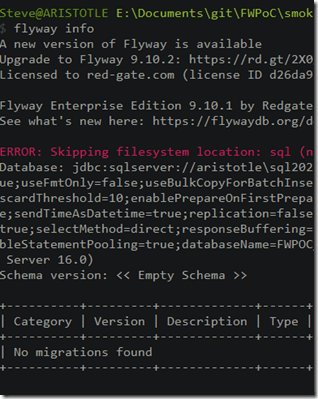
That’s it. I’ll keep working on different commands in Flyway and getting to know the CLI.




 Voice of the DBA