Tag: syndicated

  • Limiting Database Permissions for DLM Dashboard

    I was talking with some of our support people recently about permissions on DLM Dashboard. A client was having issues, and we weren’t sure what was wrong. As a result, I decided to dig in a bit and see how limited I could be with permissions for the login/user that is used to track changes.

    My first step was to create a new login in SQL Server, giving the public server role and then granting very limited permissions in master and the Redgate database. Those permissions were:

    • master – VIEW ANY DEFINITION
    • master – execute on dbo.RG_SQLLighthouse_ReadEvents
    • RedGate – SELECT ON SQLLighthouse.DDL_Events

    That’s a nice, limited set of permissions. You do need sysadmin for setup, but after that, you can set these permissions for the user that you’ve configured in DLM Dashboard. The permissins are documented on the DLM Dashboard documentation site.

    In my case, I have a login/user, DLMDashUser, configured in the tool.
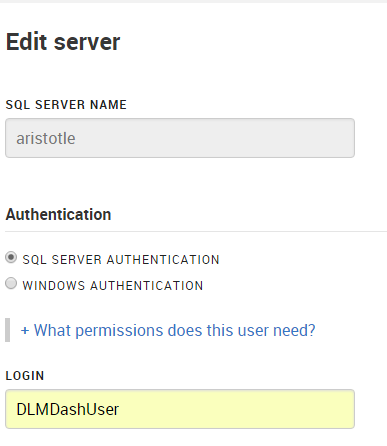
    2016-02-04 17_32_21-New notification

    I then went to add a new database on my local instance.  However since this login isn’t mapped to a user, nor has any high server privileges, I got an error.
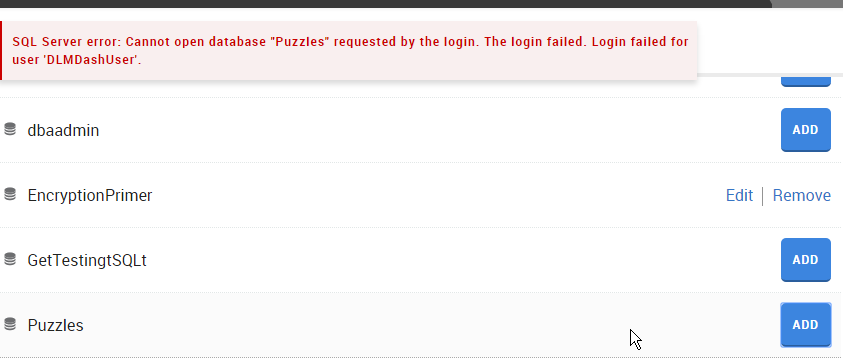
    2016-02-04 17_08_18-Movies & TV

    To fix this, I connected to my instance and modified the user. Scripting is a better way to do this, and in my case, I used this script:

    USE Puzzles
    GO
    CREATE USER DLMDashUser FROM LOGIN DLMDashUser;
    GO
    GRANT SELECT ON sys.sql_expression_dependencies TO DLMDashUser
    GO

    This grants the necessary permissions to a new user in this database. You can save this script, which is especially handy for production systems where we don’t want monitoring tools to have elevated permissions.

    Now when I go to add the database, I click add and it works.

    2016-02-04 17_09_02-Movies & TV

    And I can then see the database in my monitoring dashboard.

    2016-02-04 17_09_23-Start

    The principle of least privilege should apply everywhere, certainly in production, but also in development. If you limit permissions in development, you might cause a few headaches, but you’ll understand the issues and solve them early on. More importantly, if you have security flaws, they aren’t in production systems where data is exposed.

    SQL Server security isn’t that hard, but it can be cumbersome. Set it up properly in development, keep your scripts (even from the GUI), and then use those scripts for your production systems.

    NOTE: Typically I’d create a role for this system, which is perhaps what I should do. Having a role like this would make switching users in DLM Dashboard at some point much easier.

    CREATE ROLE Monitoring
    GO

    GRANT SELECT ON sys.sql_expression_dependencies TO Monitoring

    GO
    ALTER ROLE Monitoring ADD MEMBER DLMDashUser

    In fact, I just changed to use this role, and added the role to the other databases so that my dev system is propery set up.

  • CROSS APPLY v InLine Functions

    While working on the Advent of Code problems in SQL, I ran across something interesting. Day 4 involves hashing, which is done with the HASHBYTES function in SQL Server. This is a computation and given the problem, there is no good way to do this without brute force. The problem says

    • hash a specific string + an integer.
    • If the leftmost digits are 0 (5 or 6 of them), stop
    • increment the integer
    • repeat

    Since a hash doesn’t lend itself to a pattern, you can’t start with 100,000 and determine if the integer you need is higher or lower. Instead you need to work through the integers.

    I decided to try this with a tally table and hashing with TOP 1. BTW, TOP 1 makes a huge difference.

    However, my structure was to query my tally table like this:

    SELECT n
         , HASHBYTES(‘MD5’, ‘iwrupvqb’ + CONVERT(VARCHAR(15), n))
              FROM cteTally

    This was in a second CTE, and in the main query I then use a WHERE clause to filter the list down to the entry with leading zeros. When I ran this, I noticed it was rather slow at first, at least, what I considered slow. I checked with a few other people that had solved the problem, and I found their times were faster than mine.

    I wasn’t sure the brute force technique would benefit from a TOP clause, but I added a TOP 1 to the outer query. This made the entire process run much quicker, which is interesting. Apparently the filtering is collapsed across the tally table join with the hash computation and as soon as a valid match is found, this ends the calculations. My average went down by a factor of 10.

    However, I wondered if moving the calculation to a join, with CROSS APPLY, would be quicker. I couldn’t imagine why, but I decided to try this. I moved the calcuation by changing the HASHBYTES calculation to a SELECT statement in a derived table for the CROSS APPLY and then taking the result of that as part of my column list. This changed my CTE to this:

    SELECT n
         , hb.hashvalue
      FROM cteTally
       CROSS APPLY (SELECT HASHBYTES(‘MD5’, ‘iwrupvqb’ + CONVERT(VARCHAR(15), n))) AS hb(hashvalue)

    That resulted in a slightly faster query time. When I added a TOP to this, the times improved slightly from using HASHBYTES in the column list with a TOP. Intuitively this doens’t make sense, as it would seem the same number of function calls need to be completed, but the CROSS APPLY handles them a bit more efficiently. I’m sure someone has a much more in-depth understanding of the query optimizer here, and I won’t try to explain things myself. The times are close enough that I suspect some minor optimization from CROSS APPLY.

    As a comparison, I also ran a brute force loop, with this code, that calculates the values sequentially until the result is determine. This should be equivalent to the results from TOP 1, and we find that they aren’t. The tally table solution with CROSS APPLY is much quicker.

    DECLARE @t BIT = 1;
    DECLARE @i INT = 0;
    DECLARE @start DATETIME = GETDATE();
    WHILE @t = 1
    BEGIN
       IF LEFT( CONVERT(VARCHAR(50), HASHBYTES(‘MD5’, ‘iwrupvqb’ + CAST(@i AS VARCHAR(10))), 2), 6) = ‘000000’
         BEGIN
           SELECT @i
           SELECT @t = 0
         end
       SELECT @i = @i + 1
       –IF @i > 10000000
       — SELECT @t = 0
    END
    SELECT starttime = @start
         , seconds = DATEDIFF(SECOND, @start, GETDATE())
    ;

    Here’s a summary of the code timings (averaged across 5 executions), for the second part of the puzzle, which looks for 6 leading zeros and has a result in the 9million range.

    Query Timings (sec)
    Hashbytes in column list, no TOP

    185.6

    CROSS APPLY, no TOP

    182.3

    Hasbytes in columns list, TOP

    17.8

    CROSS APPLY with TOP

    16.0

    Brute Force, WHILE loop

    33.8

    Conclusion

    The conclusion I’d take here is that CROSS APPLY ought to be a tool you keep in the front of your toolbox and use when you must execute a function for each row of a set of tables. This is one of the T-SQL  techniques that I never learned early in my career (it wasn’t available), and I haven’t used much outside of looking for execution plans, but it’s a join capability I will certainly look to use in the future.

    However, if you are using UDFs instead of system functions, I’d certainly recommend you read Adam Machanic’s post on Scalar Functions and CROSS APPLY, and perhaps you can change to ITVFs and get some great performance gains.

  • Loading a Text File with a Line Feed

    Loading text files is a skill that probably every DBA needs. I know that the import wizard is available, but there are times that you might want to automate this without using SSIS. In those cases, it’s nice to know how to load data from a programmatic standpoint.

    I had the need to do this recently with a text file that looked normal. When I opened it in my editor, it looked like a normal text file, one column of data.

    2016-01-28 17_44_07-Start

    I thought this would be easy to load, so I created a simple table:

    CREATE TABLE MyTable ( teststring VARCHAR(100))

    I then ran a simple BULK INSERT command.

    BULK insert MyTable
         from ‘C:\SampleFiles\input.txt’

    And I received this:

    Msg 4863, Level 16, State 1, Line 3
    Bulk load data conversion error (truncation) for row 1, column 1 (mychar).

    That’s not good. I suspected this was because of the format of the file, so I added a row terminator.

    BULK insert MyTable
         from ‘C:\SampleFiles\input.txt’
    with ( ROWTERMINATOR = ‘\r’)

    That didn’t help. I suspected this was because of the terminators for some reason. I also tried the newline (\n) terminator, and both, but nothing worked.

    Since I was worried about formatting, I decided to look at the file. My first choice here is XVI32, and when I opened the file, I could see that only a line feed (0x0A) was used.

    2016-01-28 15_43_19-Settings

    However, I wasn’t sure how to get this in my code.

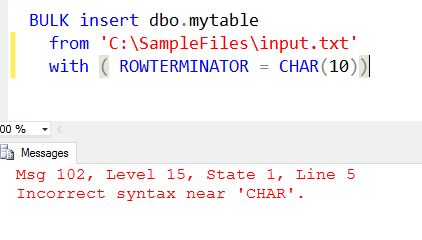
    I tried CHAR(), and that didn’t work.

    2016-01-28 17_58_47-Cortana

    I could look to edit the code with XVI32, but that seems odd. However, let’s try that.

    2016-01-28 17_57_28-Settings

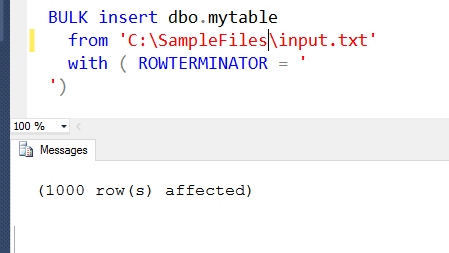
    I replaced the \r with 0x0A and then deleted the r. Once I saved this, and reloaded into SSMS (do not normalize to CRLF), I could run this.

    2016-01-28 17_58_09-Start

    I suppose I could also do this with the ALT key, and a number pad, though I couldn’t get that to work on my laptop. I need to try that on my desktop, but it’s not a great way to code. Easy to forget that characters are in the code.

    I tried searching a bit and found that SQLDenis had a solution. He used dynamic SQL, but with a little formatting, the code is still easy to read, and this works fine.

    DECLARE @cmd VARCHAR(8000)
    SELECT @cmd = ‘BULK insert Mytable
                    from ”C:\SampleFiles\input.txt”
                    with ( ROWTERMINATOR = ”’ + Char(10) + ”’)’
    EXEC(@cmd)

    I executed this and loaded my file just fine.

    It’s not often you might need to do this, but it’s a handy little trick for those files that might be formatted from other OSes.

  • Loading a Text File from T-SQL

    Another post for me that is simple and hopefully serves as an example for people trying to get blogging as #SQLNewBloggers.

    One of the interesting things I’ve had to work on with the Advent of Code puzzles is loading files into SQL Server. Some of the inputs are large strings, but many are files with lines of code that need to be loaded into SQL Server.

    I thought this might be a nice, simple SQLNewBlogger post. Do you know how to load a text file? Certainly the Import/Export wizard can work, but can you quickly load a file from T-SQL itself?

    If you can’t, go work that out. If you get stuck, come back or search for help.

    Loading a Text File

    Obviously you need a place to load the file. I created a table for each puzzle, and here is the table for Day 2.

    create table Day2_WrappingPresents
    ( dimensions varchar(12)
    )
    go

    Now ordering doesn’t matter for this puzzle, so I have a very simple table. If ordering mattered, I’d have to do this differently.

    To load this file, I’ll use the BULK INSERT command. This takes a table as a target, and optionally has a number of parameters.  Since this is a simple load of a simple file with one column of data to a table with one column of data, I can use the defaults.

    bulk insert Day2_WrappingPresents
    from ‘C:\Users\Steve\Documents\GitHub\AdventofCode\Day 2 – Wrapping\input.txt’

    In this case, the insert will load all 1000 rows into the table. A simple query shows this works:


    Now I can get on with the rest of my puzzle solution.

    SQLNewBlogger

    This is a great example of a simple thing that we might not need to do often, but we may need to do at times. Knowing how to do this, a simple operation, showcases that you are improving your SQL Server skills. This post took me about 5 minutes to write.