Tag: syndicated

  • The Easy Phone Restore

    This is hardware week for me, with a new phone coming in the mail. This was a warranty replacement for one whose battery is dying. I can start the morning at 7am with 100% charge and by noon my iPhone is asking to go into Low Power Mode at less than 20%. Fortunately I have a warranty program with my carrier, so they just sent me a new one.

    I was a bit amazed (again) at how easy it is to move and replace an iPhone. To be fair, my wife got a replacement for her Nexus, and it was about as simple. Both of us use cloud backups, and with an easy restore, the vast majority of our phones are back in service, icons, apps, settings the way they were. Switch SIM cards, and the new phone just works.

    Of course there are some passwords to re-enter and new authentication, but it’s very minimal and once I get my password manager running, things go smoothly.

    I wish it were as simple to upgrade a laptop. Instead there are numerous applications to install and get configured. Fortunately I’ve got a process that worked well last year, and I’m getting the chance to refine slightly this year. I’ll be posting a bit about that as I move forward.

    Now I’m hoping that this phone works a little better than the last one and gets me through some of those long, SQL Saturday days.

  • CONVERT and HEX

    Another post for me that is simple and hopefully serves as an example for people trying to get blogging as #SQLNewBloggers.

    In working through the Advent of Code and solving some of the problems in SQL, I found that I needed to take hex values and convert them to strings. In other words, I had a value like this:

    select @hex = 0x3c044139f4fe36d7df0f4e87f948fc52

    and I needed to determine if the first few characters (5 or 6), were 0s. In other words, I wanted to look at this part of the data above as a string.

    3c044

    I thought this would be simple. I tried this

    select @value = CAST( @hex as varchar(50))

    That’s my default, as it reads nicely. However the returned this:

    <A9ôþ6×ßN‡ùHüR

    That’s strange. I then tried CONVERT:

    select @value = convert( varchar(50), @hex)

    I got the same result. Why am I not getting the same value as a string? I looked at a few other code samples from others, and they looked the same, so I checked the documentation for CONVERT. I saw this:

    Binary Styles: When expression is binary(n), varbinary(n), char(n), or varchar(n), style can be one of the values shown in the following table. Style values that are not listed in the table return an error.

    Under the table, the information for 1 or 2 as a style has this:

    If the data_type is a binary type, the expression must be a character expression. The expression must be composed of an even number of hexadecimal digits (0, 1, 2, 3, 4, 5, 6, 7, 8, 9, A, B, C, D, E, F, a, b, c, d, e, f). If the style is set to 1 the characters 0x must be the first two characters in the expression. If the expression contains an odd number of characters or if any of the characters are invalid an error is raised.

    The characters 0x will be added to the left of the converted result for style 1.

    All of that essentially means that if I use the default, 0, or have nothing, I get the binary data converted to to the binary bytes in ASCII. If I use 1 or 2, I get the string. Here’s a shot of the difference:

    2016-02-02 11_00_14-Settings

    Two lessons. First, learn the data types and how they convert. Second, read the documentation carefully when things don’t work as expected.

  • T-SQL Tuesday #75–Power BI

    This month’s host is Jorge Seggara, the @sqlchicken, who works for Microsoft. A busy schedule caused a slight delay, so we’re posting the third Tuesday of this month, but that is OK. This is a great topic for T-SQL Tuesday.

    Power BI Data

    While Power BI is a great visualization tool, you can’t do anything without data. That means you need to find data, which is both easy and hard. Easy if you’re working within your own organization on a specific project. Slightly more complex if you want to look at data out in the world.

    However I saw this in a talk last year and I was amazed. This is the type of thing I’ve written before, and it’s cumbersome and problematic. I would think that SSIS would have made things this simple years ago.

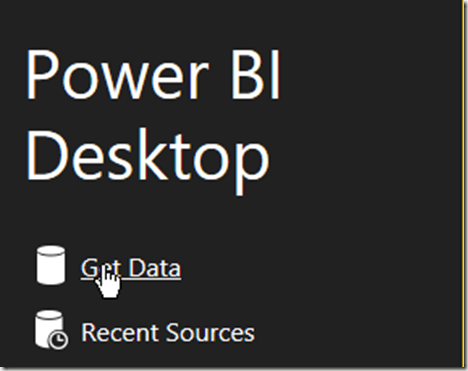
    I love sports, and wanted to play with some sports statistics awhile back. Finding good data is tough, at least in a format like CSV, that you can easily import. However Power BI makes this easy. Start up the desktop and you’ll see this:
    2016-02-10 14_07_40-Calendar

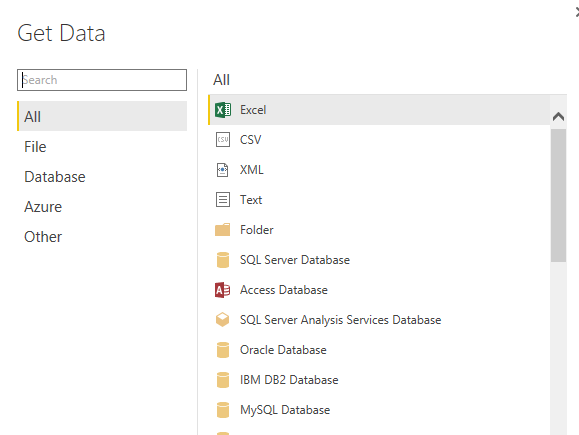
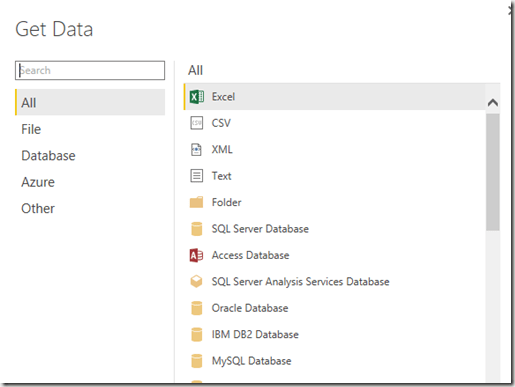
    Right away Power BI wants to get data. Click on this and the Get Data dialog opens, with lots of choices.
    2016-02-10 14_07_57-

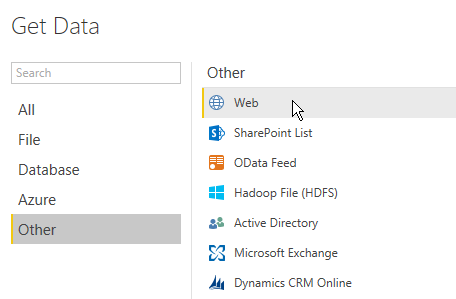
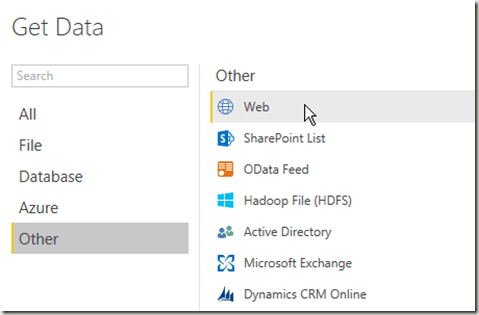
    However if you pick “Other”, you’ll see one more that I love. Web.
    2016-02-10 14_13_55-Calendar

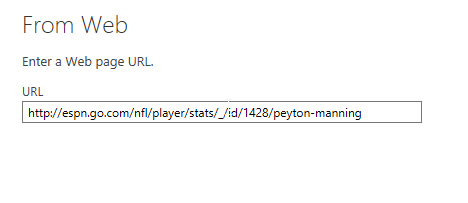
    Click this. You get asked for a URL. Any URL.

    2016-02-10 14_14_35-Calendar

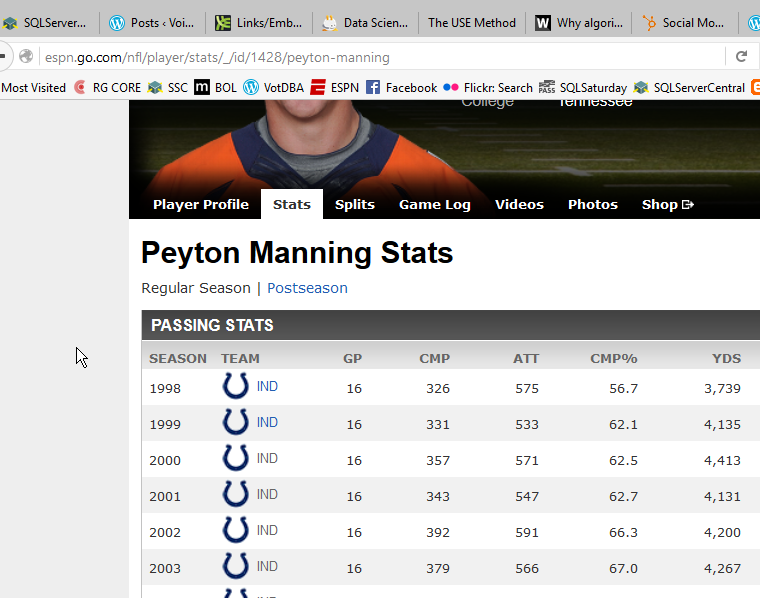
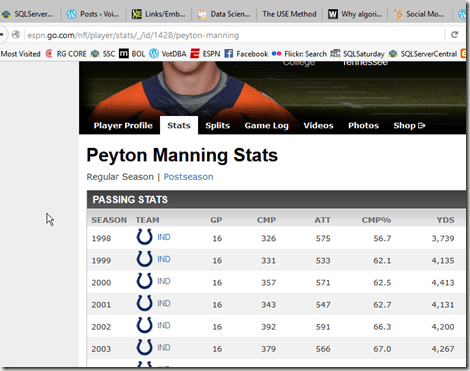
    I happen to have one handy. After the win for Denver in Super Bowl 50, I thought I’d look back at Mr. Manning’s career.
    2016-02-10 14_14_44-Calendar

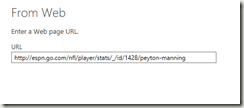
    I take that URL and drop it in the dialog.
    2016-02-10 14_14_52-Calendar

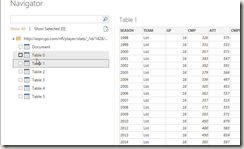
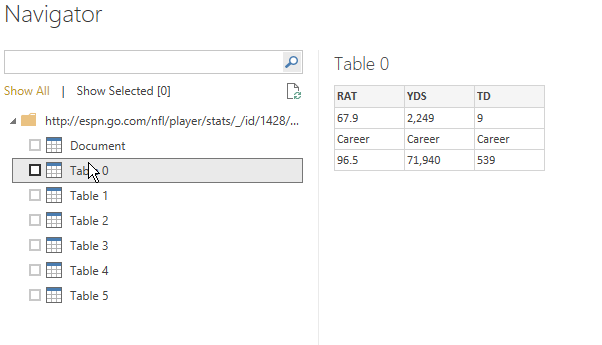
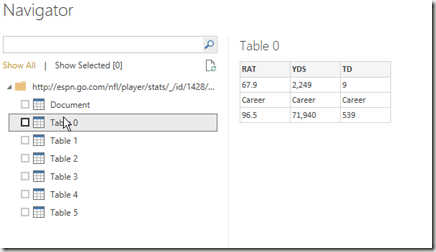
    Once I click OK, this will analyze the URL for tables of data. In this case, I get quite a few.
    2016-02-10 14_16_32-Calendar

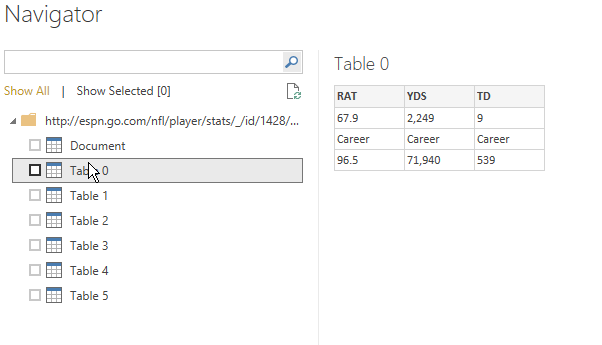
    Now, I can click each one to see what data this is. This isn’t what I want
    2016-02-10 14_16_32-Calendar

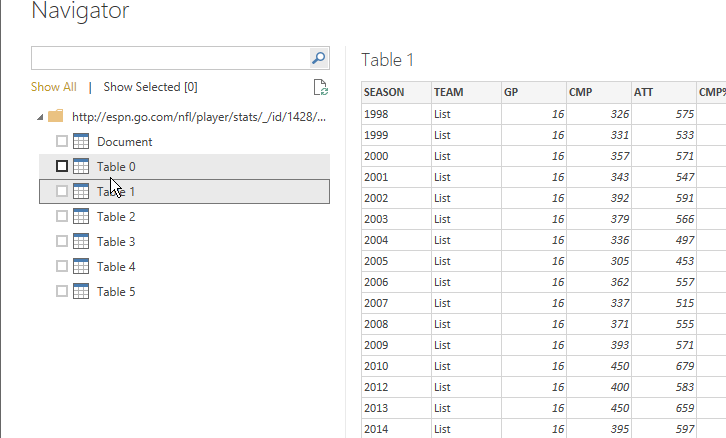
    But this is.

    2016-02-10 14_16_37-

    I now click “Edit” at the bottom to clean my data. I could just load it, but there are a few issues.

    2016-02-10 14_16_47-Untitled - Power BI Desktop

    I see all the data in the designer, and I have lots of options for working with this data.
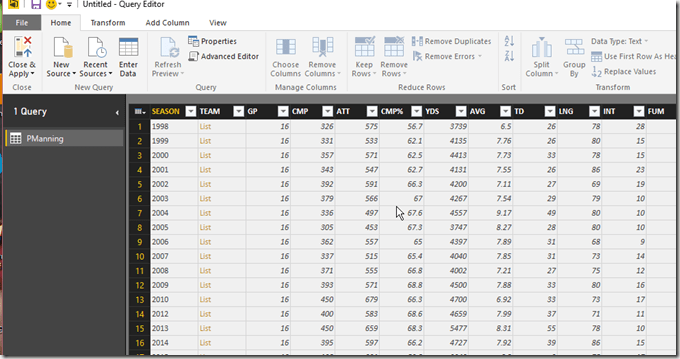
    2016-02-10 14_17_11-Calendar

    First, since I’m going to do a comparison, let me rename the table.
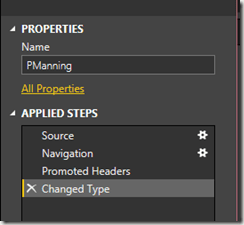
    2016-02-10 14_17_02-Untitled - Power BI Desktop

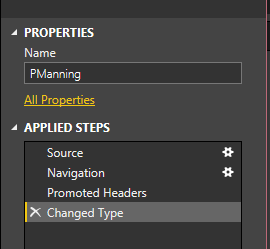
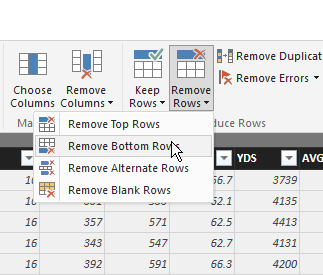
    Next, I see the steps below the name. I’ll add more steps, but I’ll do this in the designer GUI. First, let me remove the last row, which is a career summary.
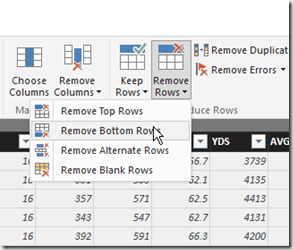
    2016-02-10 14_19_28-Calendar

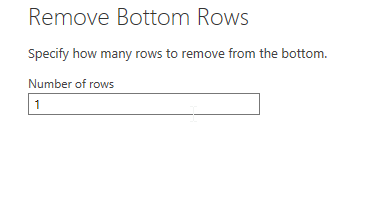
    In this case, I’m only removing one row.
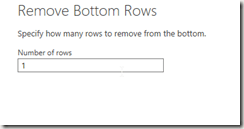
    2016-02-10 14_19_36-Calendar

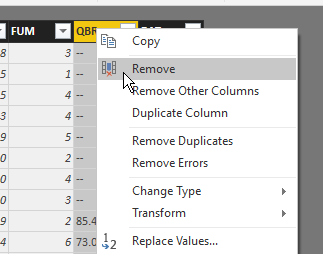
    Now, I want to remove a couple columns. In my case, I don’t care about a few of the data items, so I’ll pull them away. I can right click a column or choose “Remove Colums” in the ribbon. Either way, I get rid of QBR and Team.
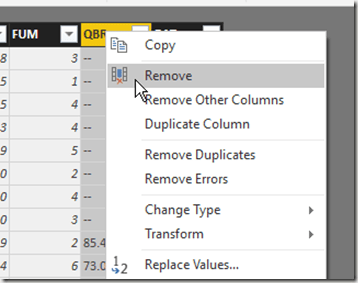
    2016-02-10 14_20_50-Untitled - Query Editor

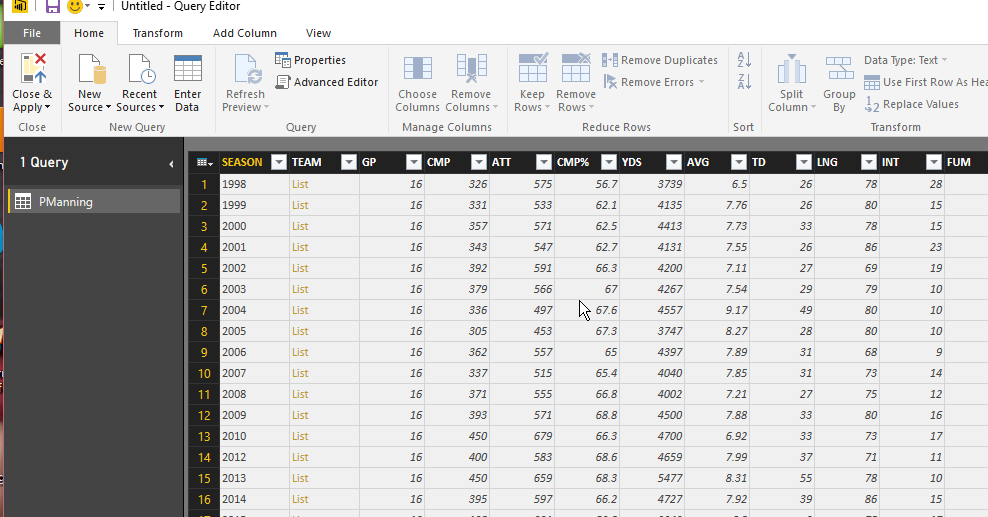
    Now I’ve got a nice year by year summary of Peyton Manning’s career. When I close and apply the query, my data is loaded into a data set for use by my Dashboard. I can then repeat this, and I’ll have two sets of data.

    And, here’s my PowerBI Dashboard. It’s not terribly useful, or interactive, but it’s got data from the web that I didn’t have to copy or move.

    https://app.powerbi.com/view?r=eyJrIjoiMWNmYzBiYjUtMTU3Yi00NWFhLWFiZjQtNTY0NzY4NDRkZTJmIiwidCI6IjY2NjBkOGZkLTJjNmItNDg0Mi1iZmZmLTcxOTY1YzE2NTczYSIsImMiOjN9


  • Quick Tests–Function Returns

    I ran across a neat piece of code recently from Gail Shaw. She answered a question on returning the base path from a path in a string. Meaning if I had this string:

    c:\Users\Sjones\Documents\text.txt

    I’d want to return this:

    c:\Users\Sjones\Documents

    Her code looked like this, which is a nice, simple, elegant way of finding the path, no matter how many backslashes.

    LEFT(@FullPath, LEN(@fullpath) – CHARINDEX(‘\’, REVERSE(@fullpath)))

    Of course, you can easily add the last backslash with a slight change to the math.

    However I wanted to add some tests. Does this really work? What if I don’t have a backslash? I thought the best way to do this was with a few tSQLt tests, which I quickly built. The entire process was 5-10 minutes, which isn’t a lot longer than if I had been running random tests myself with a variety of strings.

    The advantage of tests is that if I come up with a new case, or another potential bug, I copy the test over, change the string and I have a new test, plus all the regressions. I’m not depending on my memory to run the test cases.

    I first put the code in a function, which makes it easier to test.

    CREATE FUNCTION GetParentPath
      ( @fullpath VARCHAR(4000)
      )
    RETURNS varchar(4000)
    AS
    BEGIN
      RETURN LEFT(@FullPath, LEN(@fullpath) – CHARINDEX(‘\’, REVERSE(@fullpath)))
    END

    Here’s my base test:

    EXEC tsqlt.NewTestClass ‘StringTests’;
    go
    CREATE PROCEDURE [StringTests].[test simple path with one backslash]
    AS
    BEGIN
    — Assemble
    DECLARE @input VARCHAR(4000) = ‘c:\myfile.txt’
       , @expected VARCHAR(4000) = ‘c:’
       , @actual VARCHAR(4000)

    — Assert
    EXEC @actual = dbo.GetParentPath
      @fullpath = @input

    — Assert
    EXEC tsqlt.AssertEquals
      @Expected = @expected
    , @Actual = @actual
    , @Message = N’Incorrect Path’
    END
    GO

    I can easily copy this and add new inputs with different paths, and matchout outputs, to test new cases. For example, my first cut produced five tests for these inputs:

    • c:\myfile.txt
    • c:\
    • c:
    • c:\Documents\myfile.txt
    • c:\Users\sjones\Documents\myfile.txt

    There are certainly other tests, but this 5-10 minutes of work gives me repeatable testing, and if I needed to include this function in a larger project, I already have a series of tests that can be run in my CI process.

    What’s more, if I replaced this with a CLR function, such as something with SQL#, I could still use these tests.