Tag: syndicated

  • Converting SQL Backup Files to MTF

    I got a copy of some backup files recently and needed to restore them. However, I don’t have SQL Backup installed on all my instances. It’s not a big deal to install it, but since this is a one-off, I decided to just decompress the files.

    The documentation for SQL Backup Pro notes that you will have the file converter installed with your SQL Backup installation. The path given is the default, but if you’re like me, you need to track down the actual path. Mine is actually on my e: drive, which means I need to use the full path to call the program.

    The converter is a command line tool, so I need to open a command prompt and then type the path to the file. I could to this many ways, but I started by going to the folder with my .sqb files. I then typed this:

    2016-02-16 11_45_50-Netflix

    This actually worked, but it then put the decrompressed files in the folder with the SQL Backup utility. I then adjusted the command to this:

    “E:\Program Files\Red Gate\SQL Backup 7″\sqbconverter FULL_
    INS1_SQLServerCentral_20160210_000500.sqb H:\SQL Server\Backup\sqlservercentral_20160209.bak MyPassword
    This command actually is seen in the help if you type sqbconverter with no parameters. The format is the .exe, then the input file (the .sqb), the output file (the .bak) and the password.

    The utility gives you the progress as the files are decompressed.

    2016-02-16 10_12_23-Netflix

    Depending on the threads used, you’ll end up with multiple files. In my case, 7 files.

    Now I can restore each of these as a normal, striped backup.
  • Restoring a Striped Backup–#SQLNewBlogger

    Another post for me that is simple and hopefully serves as an example for people trying to get blogging as #SQLNewBloggers.

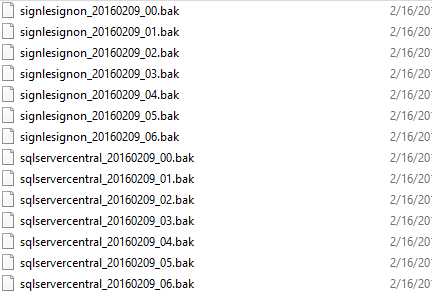
    Recently I uncompressed some SQL Backup Pro files. Since multiple threads were used to make the backup, I ended up with multiple files in my file system, as shown here:

    2016-02-16 11_58_57-Backup

    Each of these is part of a striped backup, a piece of a backup file. To restore the backup, I need all the files to reassemble the backup. This is fairly simple, but you should be aware of how this works and how to perform a restore.

    In my case, you can see I have 7 files for each database. They are the same name with an _0x at the end, with x being the number of the file.

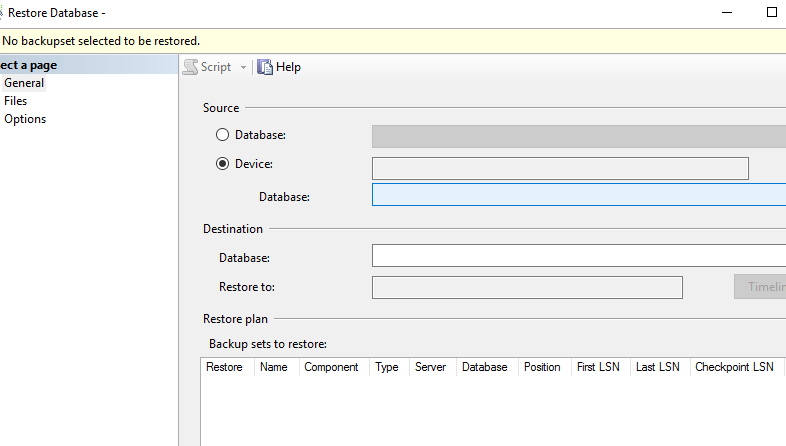
    To restore these, I go to SSMS and click the restore choice. That gives me my restore database dialog, where I can select that I’m restoring from devices. As you can see below, no devices (files) are selected.

    2016-02-16 12_00_56-Restore Database -

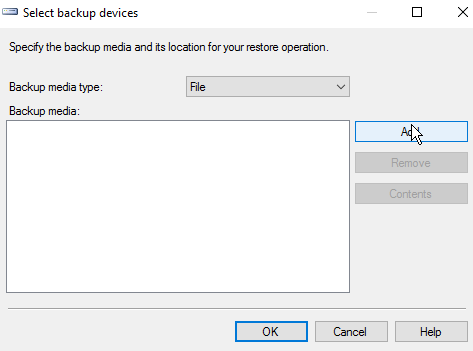
    I then click the ellipsis to get a dialog allowing me to add files.

    2016-02-16 12_01_03-Select backup devices

    Hopefully you’ve done this before, and you can click “add” to add files. You need to naviate to the location of your backup files if it isn’t the default.

    2016-02-16 12_02_02-Locate Backup File - JOLLYGREENGIANT_SQL2014

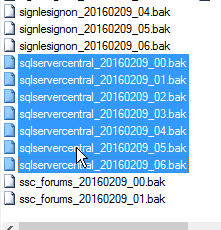
    Next you can select the files. Holding down CTRL, I can multi-select files.

    2016-02-16 12_02_12-Locate Backup File - JOLLYGREENGIANT_SQL2014

    Once I pick them, I click OK and then I see them all in the device dialog.

    2016-02-16 12_02_19-Select backup devices

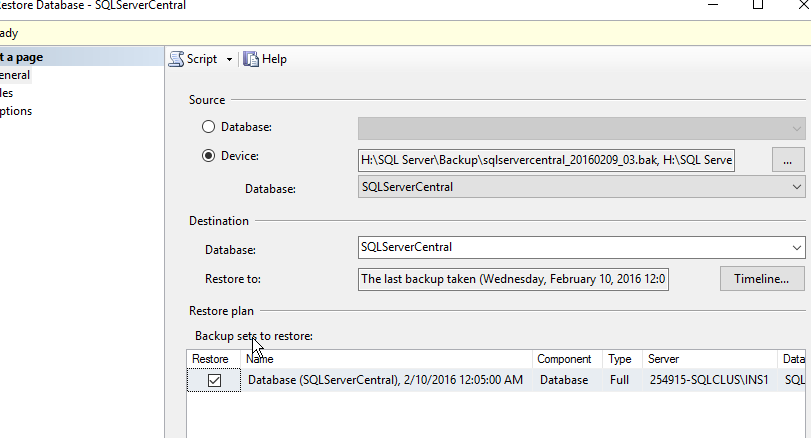
    Now I click OK and SQL Server reads the headers, and I end up with a single database to be restore, as shown below.

    2016-02-16 12_04_24-Restore Database - SQLServerCentral

    Now, I can click OK, and often do in development areas. HOWEVER, if you are doing this in production, please, please, please, click the Script button instead. You’ll get a new query window, and you can cancel out of this dialog to see the code.

    2016-02-16 12_16_07-SQLQuery7.sql - JOLLYGREENGIANT_SQL2014.master (JOLLYGREENGIANT_sjones (59))_ -

    From here, you should click “Save” and save this, then execute it.

    As you can see above, the statement is simple. List each disk file, separated by a comma. Then the rest of the RESTORE statement is a standard restore.

    SQLNewBlogger

    This is a fairly simple task, one I’ve done dozens of times, but it’s worth practicing. If you want to write about it, what happens if you’re missing a file? What if you change the order of files? This was a 10 minute blog, and it’s a good chance to play and practice your restore skills, which are as important as anything you do as a DBA.

  • PowerShell–Don’t Use Write-Host

    I’ve written a few scripts and programs lately, mostly just for fun. In those scripts, I’ve used Write-Host to return output. To me, it’s been like “Print” in various languages where I can get output of a program. Often I’ll use a method/function to get info and then use print to output that to the caller.

    However a few people noted that in my last script, Write-host wasn’t necessary. When I asked why, both Mike Fal and Drew Furgiule responded. I got these two items:

    I learned something new today. I had assumed that I’d need a way to get the output to the screen and manage output with my own logic. I’ve had this before

    $debug = 1

    if $debug  = 1 { write-host $somevariable}

    However a quick check shows this isn’t really what I want. Instead, I’d use Write-Debug or Write-Verbose. A quick test shows I can do this:

    2016-03-02 12_10_16-Windows PowerShell ISE

    That’s much better than passing in a debug parameter or changing a value as I run scripts.

    Looks like I have some refactoring to do.

  • Quick Folder Size with PowerShell

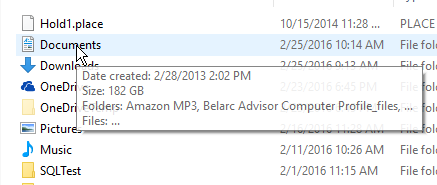
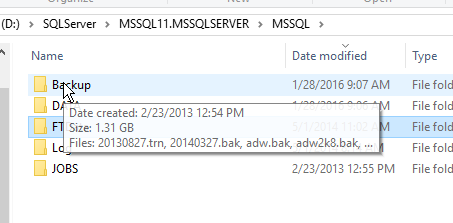
    This is a fairly simple idea, and one I’m sure many people have done in the past. Personally, I have tended to just hover a mouse over a folder when I want a size. That seems to work fairly well, but not only is it slow, it’s not programmatic.

    2016-02-25 10_24_01-Settings

    I saw Jose Barreto write a quick OneDrive size script in PowerShell (PoSh), and thought it was interesting. It didn’t work for me as I’ve moved the OneDrive folder to my D: drive, so I had to alter this to get information. However in doing so, I decided to play with a function.

    Here’s the code I used, altering Jose’s slightly.

    UPDATE: Thanks to Mike Fal, one of my go-to PoSh experts, I’ve removed the aliases for Dir and %.

    function Get-FolderInfo($folder) {
    $OneDrives = $folder
    Get-ChildItem $OneDrives | ForEach-Object {
    $Files=0
    $Bytes=0
    $OneDrive = $_
    Get-ChildItem $OneDrive -Recurse -File -Force | ForEach-Object {
    $Files++
    $Bytes += $_.Length
    }
    $Folders = (Get-ChildItem $OneDrive -Recurse -Directory -Force).Count
    $GB = [System.Math]::Round($Bytes/1GB,2)
    Write-Host “Folder ‘$OneDrive’ has $Folders folders, $Files files, $Bytes bytes ($GB GB)”
    }
    }

    Note that I’ve passed in the folder name and then kept Jose’s code. This worked fine for me, as you can see below.

    2016-02-25 10_24_11-Windows PowerShell ISE

    The next step for me was to make this programmatic and useful. All that text isn’t helpful. What I really want is just a size. I guess I need a folder name as well, so I built a function to return that information. I merely changed the last line to:

      Write-Host “$GB”

    I also moved this to the end of the function, rather than for each subfolder. With this change, I can now call this for a folder and get the size in GB returned.

    2016-02-25 10_31_22-Windows PowerShell ISE

    And this checks out from Windows

    2016-02-25 10_31_16-Settings

    I know there are better ways to write this function, but this was more of a programming exercise. This was really a 10 minute chance to practice and experiment a bit with PoSh and work on skills.

    BTW, I used dot sourcing to load this as a function I could callIn love

    2016-02-25 10_33_42-Jump List for VMware Workstation Pro