Tag: syndicated

  • Quick Tips–SQL Prompt Aliases for Every Table

    I love SQL Prompt, and think it’s a great productivity tool. Even before I worked at Red Gate, I love the tool and had a copy before Red Gate bought the technology from the original developer. Recently I’ve run into a few people that weren’t aware of some of the ways in which it can help you. This is a quick look at one of the ways I use SQL Prompt.

    Aliases

    Aliases are used to make code more readable, and shorten the amount of code that one needs to write. Typically we use these to give a short name to a table. Instead of:

    aliases_12

    We could use an alias. Note the “p” after the table below and the change in the column list.

    aliases_13

    Automated Aliases

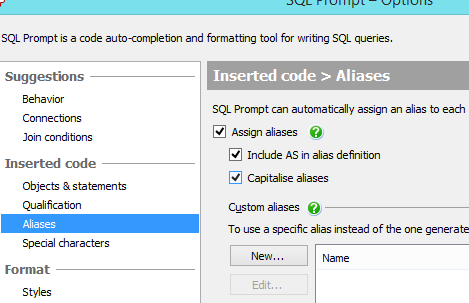
    SQL Prompt can automate aliases for me. Under the Options dialog, there is an Aliases selection (shown below).

    aliases_1

    Note that I’ve checked the “Assign Aliases” box. This is not checked by default, but once I check it, I get aliases. Let me write a query.

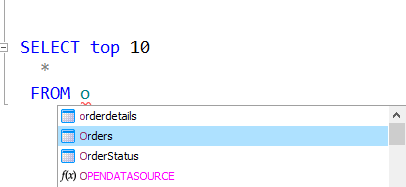
    aliases_3

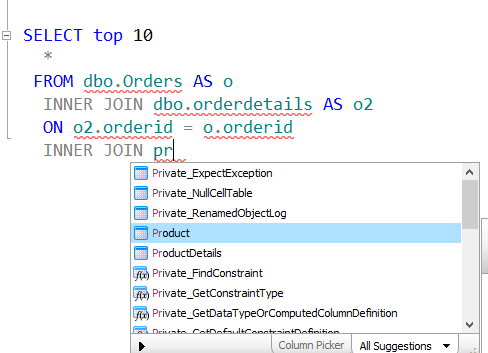
    I’m about to select my Orders table from the Prompt drop down. Once I click Tab, I’ll get this:

    aliases_34png

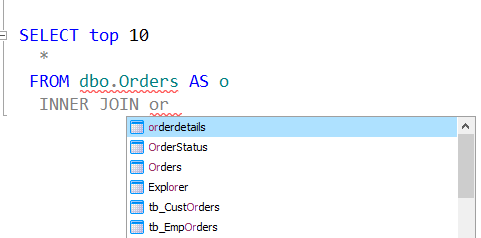
    SQL Prompt has added the alias for me. It’s a lower case “o”. If I add another table:

    aliases_5

    I hit tab at this point and I get:

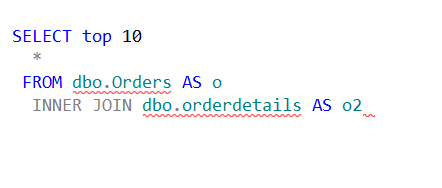
    aliases_6

    I have a new alias of “o2”. Not terribly creative, but it works.

    I have some options for changing these around. Suppose I want to make these upper case to stand out. I can change this in options:

    aliases_2

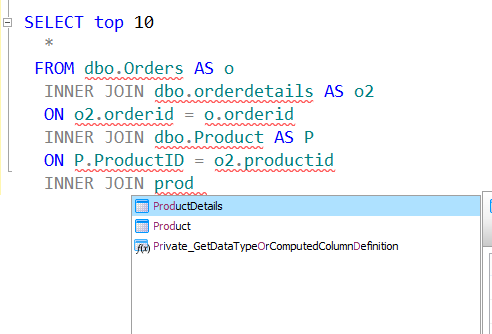
    Now I add a third table:

    aliases_7

    I hit tab:

    aliases_8

    My new alias is an upper case “P” for the Product table. That gives me a bit of differentiation for my tables.

    I, however, do not like the “AS” keyword. I typically just space my alias after the table. I can change that in options:

    aliases_9

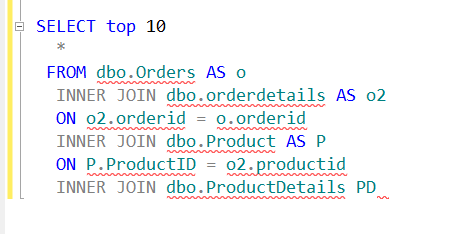
    I’ve unchecked the box and now I add a new table.

    aliases_10

    When I hit Tab, I’ll get a new alias, upper case, but no AS.

    aliases_11

    These are not terribly intuitive aliases, but this does at least clean up your code a bit, so when you see all the column names they aren’t spread way to the right with table names like “ProductDescriptions”.

    aliases_14

    You can see a complete list of SQL Prompt tips at Redgate.


  • Attaching All Databases with PowerShell–Refactoring out Write-Host

    Someone posted a note to me on Twitter that noted that Write-Host is not recommended for your scripts. I checked the link to an MSDN blog on Write-Host Considered Harmful, and it made some sense. Basically it says that since Write-Host always goes to the console, any output sent through Write-Host can’t be consumed in a pipeline by other PoSh commandlets or processes.

    At first I thought, what does that have to do with my script? I’m really just noting status information. However, the more I thought about it, the more I realized that it’s a minor change, and who knows? Maybe I’ll chain this in some other process, or more importantly, maybe someone else will.

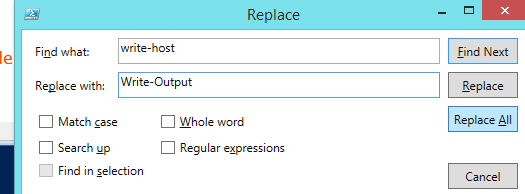
    Today I popped open the script in the PowerShell ISE and did this:

    posh_a

    That’s an easy fix. Just write the output to the pipeline, and if there’s nothing consuming output, I get it on the screen.

    I also refactored a bit more. I added a “Debug x:” line to each Write-Output command, with x replaced by the appropriate debug level I’d checked for. This way I know what debugging output is being returned to the calling screen.

    I also found a few lines that were just output, using “Attaching as…” code. I replaced those with Write-Output.

  • Is PowerShell worth the time?

    This is a good question for me to ask. I’ve been learning it, and working through examples in my PowerShell Challenge, but it wasn’t until months later that I found a real reason to try PowerShell.

    When I realized I had lost 12 databases, I could have spent around 10 minutes attaching them all manually. That felt like a pain, and a waste of time. I could have probably scripted something in T-SQL, specific to this situation, in about 15-20 minutes tops.

    However scripting something general, like an attach T-SQL script that figures out which databases to attach based on a path, would have taken me an hour, perhaps more. It would have been a bit of a chore to test and debug, and I’d worry it wasn’t rock solid because I’d be trying to work inside, and outside, of T-SQL.

    Powershell felt like a better fit, and this seemed like something built for PowerShell and SMO. I spent around 3 hours one night searching around and writing the script. This included some false starts, and some experimenting with things. I spent at least 30 minutes trying to restore the mdf before I realized that I should be attaching it. Then it took me a bit to work through some examples I’d seen about attaching that didn’t make sense. Part of it was my unfamiliarity with PoSh.

    However at the end, 3 hours+ in, I had a script that attached databases quickly. I tried it on a few VMs and it worked great. I dropped it on GitHub, so it’s always available to me on multiple machines, and I can clean it up over time.

    I can also share it. When I googled around, I didn’t find a good, generic script like this. I also had to compile information from multiple places. Writing this series of posts allows me to potentially help others, but also it allows me to showcase a bit of knowledge and double check myself. As I broke the main script down, I also rewrote pieces, cleaned it up, practiced a bit of programming, and learned more about PoSh. I bet if I had to re-write this script, it would take me an hour to 90 minutes, tops.

    Was it worth it? If I never run this again, that’s debatable. However if I ever need it again, I think it’s easily worth it. Especially with the knowledge gained.

  • Attaching All Databases with PowerShell–Attaching Missing Databases

    I wrote a PowerShell script recently to actually accomplish a task I that I needed. What’s more, this was the first time I thought that Powershell might prove more useful than other methods. This series looks at my script, and this part examines the first part that I wrote.

    In the last post, I had a script that matched up databases with the mdf files in a folder. That’s good, but that’s actually the opposite if what I want to return. I want to return the files that aren’t matched up.

    To do this, I add a few variable to my script, re-setting it for each loop of a file in my folder. I do this inside my test for the extension (shown), so I’m not executing this if I don’t need to.

    if ($file.Extension -eq ‘.mdf’)
    {
    if ($debug -eq 1)
    {
    write-host “MDF Files: ”  $file.name
    #end debug
    }

        # Reset our flag for each file
    $found = 0

    The last two lines are what I added. We set this to 0, or false, because we assume we haven’t found a database that matches this file by default. That way when we do find a file, we can trip the flag.

    The next step is to set that tripwire. Inside the loop, where we check for the file matching a database file, we add a reset of this flag.

    if ($file.FullName -eq $dbfile.FileName)
    {
    $found = 1

    Since we will check this file against every database, this logic allows the flag to be set, and it doesn’t get reset for this physical file. Any databases we check that don’t match this file won’t reach this point.

    The last step is the other end of the file loop. After we’ve left the database loop, we check to see if our file was found. If it’s not ($found is still 0), then we can do work. I’ve included the end of the foreach and the end of the mdf test for reference.

        # end foreach
    }

    if ($found -eq 0)
    {
    # attach this file
    if ($debug = 7)
    {
    Write-Host $file.Name “not found”
    #end if debug
    }

    #end if found = 0
    }

    There’s a comment placeholder in there to show the action we need to take, and there’s a debug to print things. Let’s set debug to 7 and run this.
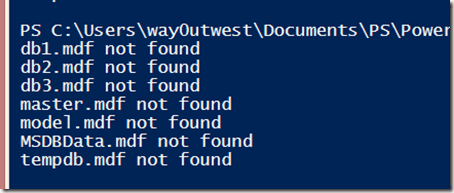
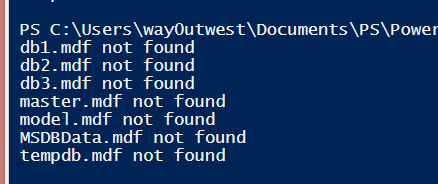
    attach_n

    That’s bad. Certainly I noted that my test databases (db1, db2, db3) were detected. These I detached manually to play in a test environment. However why are my system objects there?

    I looked through the code and realized it’s because I had this line:

    | Where-Object {$_.ISSystemObject -eq $false}

    I’m ignoring system objects in my scan, but I don’t want to do that. I actually have these databases, so I removed that Where-Object call. Then I get this:
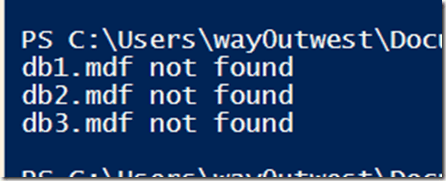
    attach_o

    That’s what I want to see. Now I have a list of files to attach, let’s work inside SQL Server.

    Attaching Database Files

    I have my .mdf files, but I also want my ldf files. I know these fit a pattern from looking at the files. Since I haven’t changed anything from the defaults, I can exploit that pattern. If you change things on your systems, make sure you keep a pattern.

    I did some googling, and found that the AttachDatabase method takes a few parameters. However one of them is a StringCollection so I need to create that.

    $dbfiles = New-Object System.Collections.Specialized.StringCollection

    Once I have this variable, I can then add my mdf file. The FullName property includes the path, and I call the Add() method.

    $dbfiles.Add($file.FullName) | Out-Null

    Now, I need a few more things. I need the log file and the database name. The database name is first, mostly because I thought of it first.  The BaseName is just the name of the file. I found that out by using my debug clause and writing out the various properties until I got the one I wanted.

    #get database name
    $dbname = $file.BaseName

    The next step is to get my log file. I can use the basename, along with my folder path, and include my log pattern. Once I build this file, I add it to the collection.

    # get log file, assuming same basename as mdf
    $logfile = $folder + “\” + $file.BaseName + “_log.ldf”
    $dbfiles.Add($logfile) | Out-Null

    I added a logging item, which will always run, to my script as this is output I’d want to see.

    “Attaching as database (” + $dbname + “) from mdf (” + $file.FullName + “) and ldf (” + $logfile + “)”

    Now we attach the database. I’ve seen some code that had other parameters, but this worked well for me. I captured this in a try..catch block, mostly because it failed early on and this allowed me to see the whole exception. Some of what was shown from PoSh was truncated, so this helped me to realize I needed to add the “_log” to my filename.

    try
    {
    $server.AttachDatabase($dbname, $dbfiles)
    #end try
    }
    catch
    {
    Write-Host $_.exception;
    #end catch
    }

    That’s it. I run it and get some output.

    attach_q

    A slight issue in my debug code. I had $debug = 7 and needed $debug –eq 7. Still, it records each database as being attached, with the catch block not executing. If I check SSMS.

    attach_p

    My databases are back.

    It’s not a perfect script, and there are probably improvements, but it does get me my databases back easily.