Tag: syndicated

  • Quick Tips–SSMS Select a vertical block

    I saw this years ago in a presentation from Aaron Bertrand. At the time I thought it was super cool and I’d use it all the time, but I haven’t found many uses. However since I needed to do this recently, this helped.

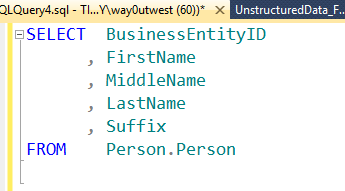
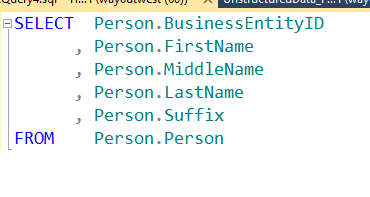
    Imagine that you have this:

    blockselect_a

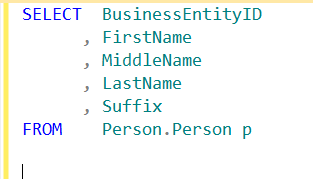
    A normal select statement. Perhaps you’ve qualified columns with SQL Prompt, or you’ve used some tool to enter this (or you’re a typing masochist). Now you add an alias for the column because you don’t want to type the full name everywhere. That causes SSMS to complain.

    blockselect_b

    You can’t run this because once you use an alias, you need to use it elsewhere. The full table name isn’t valid anymore.

    Now you could do a search and replace (CTRL+H), but that presents other problems, not the least of which is replacing the table in the FROM name. Unless you want to go through and approve or deny every replacement. You could also edit Person to “p” on each line manually.

    Hey, this is programming, we don’t do things over and over when we can avoid them.

    Enter Block Select

    If you place your cursor here, shown with the arrow as my capture tool missed it.

    blockselect_c

    Now I can click ALT+Shift and hold them down while I move my cursor to the lower right of the block I want to select. In this case, it’s between the “n” and period on the last line of the column list, above the FROM clause. Look at the image below.

    blockselect_d

    I’ve now selected a block, and I can hit delete. This gives me:

    blockselect_e

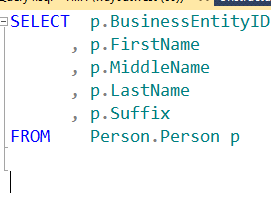
    Notice that my selection is a thin cursor still visible. I can actually type here. Imagine I typed “sn” now. This is what I’d get.

    blockselect_f

    I fixed the alias before I shot this, and once I moved the cursor, I lost my selection, but a simple ALT+Shift, lets me highlight, select, and type in a vertical block.

    Handy when trying to correct a number of items on separate lines.

  • Quick Tips–SQL Prompt Qualifying Columns

    I love SQL Prompt, and think it’s a great productivity tool. Even before I worked at Red Gate, I love the tool and had a copy before Red Gate bought the technology from the original developer. Recently I’ve run into a few people that weren’t aware of some of the ways in which it can help you. This is a quick look at one of the ways I use SQL Prompt.

    Qualifying Columns

    One of the things that’s a good programming practice for T-SQL is to qualify your columns. Imagine that I have this query:

    qualify_a

    Note that my column names are listed with just the column name and don’t include the table from which they come. Not a big deal here, but as I enhance this code over time, I may add another table to a join, perhaps one that includes BusinessEntityID in it. In that case, I’ll get an ambiguous column error, and a squiggly in SSMS (shown below).

    qualify_e

    SQL Prompt tries to make writing code quicker and easier, and if I look back to my first query, Prompt can qualify those columns for me.

    If I press CTRL+B, CTRL+Q, I’ll get this (from the first query).

    qualify_b

    Note that every column now includes the table names.

    It also works for aliases. If I have this (note I’ve added an alias)

    qualify_c

    CTRL+B, CTRL+Q gives me this:

    qualify_d

    As I add tables and modify this code, anytime I find columns unqualified, I can use this quick shortcut to fix my code.

    Note: If you have ambiguous columns, Prompt can’t fix them (yet).

  • Attaching All Databases with PowerShell–Checking All Databases

    I wrote a PowerShell script recently to actually accomplish a task I that I needed. What’s more, this was the first time I thought that Powershell might prove more useful than other methods. This series looks at my script, and this part examines the first part that I wrote.

    I wrote an overview of this process, and then a script to loop through files. The next step is to connect to a SQL Server and loop through databases. I’ll also compare these against the MDF file names.

    The first step is to connect to a database. First, I need to add a variable (eventually a parameter) that will hold the name of my instance.

    $instance = ‘Tiny’

    With this, I need to now open a SQL Server connection. I start with some assemblies I need. I saw a post that noted I need these assemblies. I’m not sure if I need them all, but this is where I started.

    [System.Reflection.Assembly]::LoadWithPartialName(“Microsoft.SqlServer.SMO”) | Out-Null
    [System.Reflection.Assembly]::LoadWithPartialName(“Microsoft.SqlServer.SmoExtended”) | Out-Null
    [System.Reflection.Assembly]::LoadWithPartialName(“Microsoft.SqlServer.ConnectionInfo”) | Out-Null
    [System.Reflection.Assembly]::LoadWithPartialName(“Microsoft.SqlServer.SmoEnum”) | Out-Null

    The next step is to create a server object and connect. Note that as I add this code, I’ll run F5 to be sure things still work.

    $server = New-Object (“Microsoft.SqlServer.Management.Smo.Server”) $instance

    That works fine, and now I need to see if I can get information from the server.

    if ($debug -eq 2
    {
    “Database List”
    “————-”
    foreach($sqlDatabase in $Server.databases)
    { write-host “DB:” $sqlDatabase.name
    }
    #end debug
    }

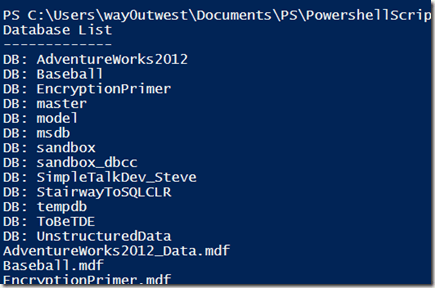
    I add this right after the connection so that I get a list of databases. I use a new debug value so that I don’t see all files. What I expect is a list of databases, and then a list of mdf files (from the previous article).

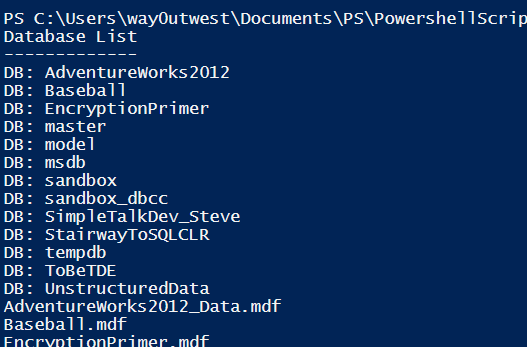
    This works by setting a variable to each of the items in the databases collection of the SQL Server instance. I then write out the name. When I do this, I see:
    attach_k

    Success!

    Now I want to alter this a bit more. I want to move this loop inside of the file loop. My plan is to take each file and use that to loop through each of the databases for a matching name.

    However I’m not sure that a name match here is enough. What I want to note is if any of these MDF files are being used by SQL Server. Meaning that the MDF file is being used by one of the databases. To do that, I need to find the file and path of each database mdf file.

    I do this by looping through each filegroup with this code. Note that I only worry about default filegroups. I’m torn on that, but it works for me.

    $sqlfg = $sqlDatabase.FileGroups
    foreach ($fg in $sqlfg| Where-Object {$_.ISDefault -eq $true})

    Once I have this, I sub-loop inside this to check each of the files.

    foreach ($dbfile in $fg.files | Where-Object {$_.ISPrimaryFile -eq $true} )

    In here, I go through the files, pipe those to the Where-Object command and look for a property of ISPrimaryFile set to true. The result of this is run through the foreach loop. This gives me this code:

    # loop through each  of the databases
    foreach($sqlDatabase in $Server.databases)
    {

        $sqlfg = $sqlDatabase.FileGroups
    foreach ($fg in $sqlfg | Where-Object {$_.ISDefault -eq $true})
    {
    foreach ($dbfile in $fg.files | Where-Object {$_.ISPrimaryFile -eq $true} )
    {

           if ($debug -eq 4)
    {
    write-host “DB MDF File: ”  $file.name
    #end debug
    }

          #end foreach db file
    }
    #end foreach filegroup
    }

       # end foreach
    }

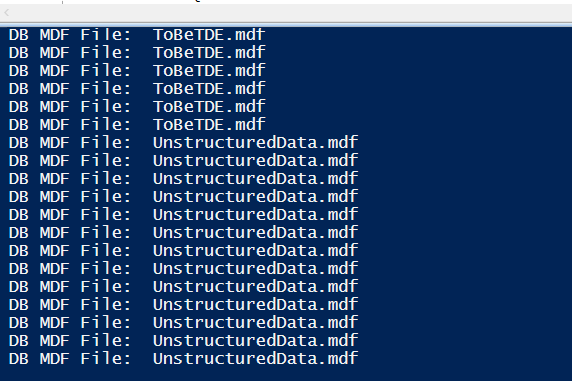
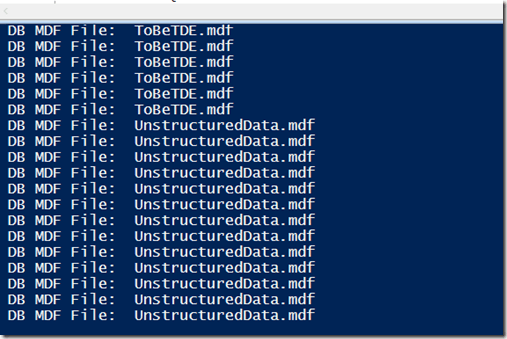
    and this result
    attach_l

    That seems funny until you think about it. In this case, I’m taking the file and checking against each database, which means that I’m getting a loop inside a loop. Not the most efficient, but when this runs, it will be attaching these databases ones, so this should be OK.

    What I want to do now is test if I get a match of the file. To do that, I need to get the full path. I’ll check to the FullName property to get the path and file. I then compare that to my mdf file with. Now I add an IF statement below my database loop.

    if ($file.FullName -eq $dbfile.FileName)
    {
    if ($debug -eq 5)
    {
    write-host “Match ” $file.FullName ” = ” $dbfile.FileName
    #end if
    }
    #end if
    }

    That gives me (with the proper debug value:

    attach_m

    I can see my files (the first value) matching the file for my database (second value).

    That concludes this post. At this point, I can tell what matches, The next step is to track those files that don’t match, and those will be the ones I attach. We’ll tackle that in the next post.
  • Attaching All Databases with PowerShell–Finding My MDF Files

    I wrote a PowerShell script recently to actually accomplish a task I that I needed. What’s more, this was the first time I thought that Powershell might prove more useful than other methods. This series looks at my script, and this part examines the first part that I wrote.

    The overview contains information about my strategy and breakdown, and this post looks at the first item.

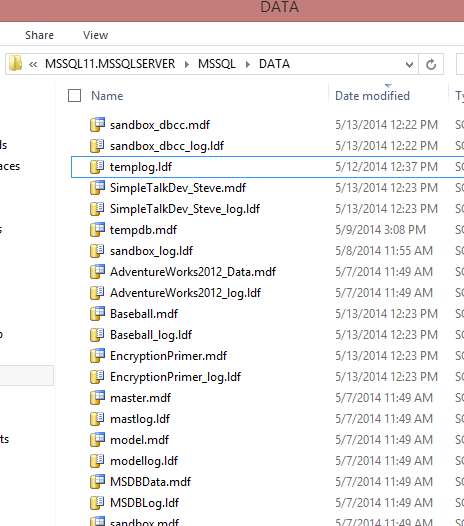
    When I decided I was going to use Powershell for this task, the first thing I decided to do was find all the MDF files in my folder. When I examined my folder, I saw lots of files.

    attach_c

    Actually, my instance had no files, but I copied over all my mdf/ldf files (apart from system databases) from my original install to the \Data folder for my new instance. I had created these databases for various tests and experiments, and as such, they tended to use the default naming from SQL Server. This meant:

    • The database name was used as the mdf file, i.e. the Baseball database has Baseball.mdf as the file.
    • The log file is the database name with _log.ldf. As in Baseball_log.ldf.

    To start the script, I began by noting I’d need some parameters for the script, as in the folder where the data was stored. I decided to start with a variable, which I can then turn into a parameter.

    $folder = ‘D:\mssqlserver\MSSQL11.MSSQLSERVER\MSSQL\DATA’
    $debug = 0

    I include a “debug” variable that I can use to print out information if needed.

    I started with the  Get-ChildItem command using the folder. I can use this in a foreach loop to run through all the child items.

    # loop through each  of the file
    foreach ($file in Get-ChildItem $folder)
    {

    # end for loop of files
    }

    Note that when I build these loops, I close the brackets first, and include a comment that helps me figure out where this item ends. Before I go further, I decided to start outputting information. I added a debug statement.

    # loop through each  of the file
    foreach ($file in Get-ChildItem $folder)
    {
    #Debug
    if ($debug -eq 1)
    {
    write-host $file.name
    #end debug
    }

    # end for loop of files
    }

    This will output all the files in the folder. I can change the debug value to 1 and then I’ll get this output:

    attach_g

    I see all my .mdf and .ldf files, along with my Filestream storage folders. Now I need to limit things to a specific type of file.

    There’s an Extension property for the items in a folder that I can use. I’ll add that.

    if ($file.Extension -eq ‘.mdf’)
    {
    if ($debug -eq 1)
    {
    write-host $file.name
    #end debug
    }

    # end if
    }

    When I run this, I get this output, and immediately see a problem.

    attach_h

    My output runs together. I need to differentiate which log output is being printed. I do that with a message before each file name.

    write-host “MDF Files: ” + $file.name

    With this added (and customized) for each debug message, I get this:

    attach_i

    That gets me the list of MDF files. If I turn off debugging, and add just a print, I see just my MDF files.

    attach_j

    That’s a good loop. I’m sure there are easier and shorter ways to do this, but this works well, and it gives me flexibility if I’d like to change to another extension.

    This is also the basis of moving forward, where I’ll need to connect to SQL Server and check this list of files against the databases on the server.