Tag: syndicated

  • Starting with Git for Database Development

    One of the tools that Red Gate Software makes is SQL Source Control. It’s a plug in to SSMS that allows you to hook your database up to version control. I’ve used it a few times in the past in conjunction with Subversion to demo the product. However I hadn’t really used it for my own scripts since it’s primarily a single server system and not distributed. My own demos were on VMs with limited connectivity to the world.

    A few weeks back, I was flipping through the https://www.simple-talk.com/Simple Talk newsletter, and saw an article on Continuous Integration for SQL Server using Red Gate Tools, Atlassian Bamboo, and Github. I’ve had many people over the last few years ask me about Git support for SQL Source Control and I was curious to see how well we supported things. I read the article and started downloading things.

    The first thing I downloaded was GitHub for Windows. I installed it and wasn’t thrilled to see it not working. However what was unclear in the article and the installation was that this is just a GUI for your Git installation. Since I hadn’t installed Git, I needed to do that. Once I had done that, and set up a Github account, things worked fine.

    I have numerous databases that I use for talks, but I usually create and destroy them with scripts during the talks. Not quite the way that SQL Source Control is designed to work. It works with objects, not scripts. However I wanted to test things, so I decided to build a database with the objects in it already. I wasn’t sure this would work for demos, but it would be a good test.

    git_a

    As you can see above, there are a few objects in my database.

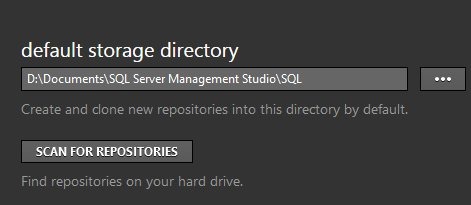
    My next step was to pick a place on my local drive where I could store my Git data. Since I do a lot from Management Studio, and use quite a few VMs, I wanted a standard location I could use easily and chose a folder under my SSMS installation.

    git_b

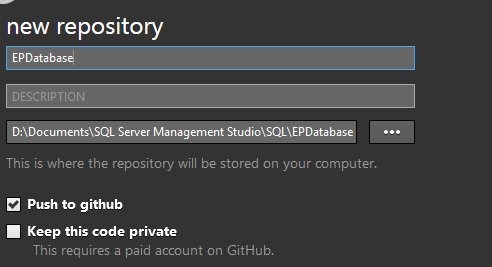
    Once this was setup, I created a new repository on my drive.

    git_c

    This was the place I’d keep all my code. With a free GitHub account, you can’t keep your code private, but that’s OK for this project since I give all my code away after talks.

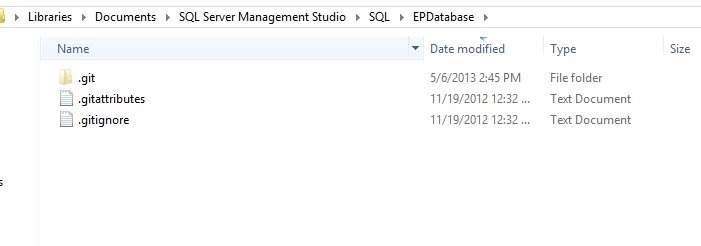
    Once I’d created this, Git put the folder on my drive.

    git_d

    Inside the folder was nothing, just a few Git files.

    git_f

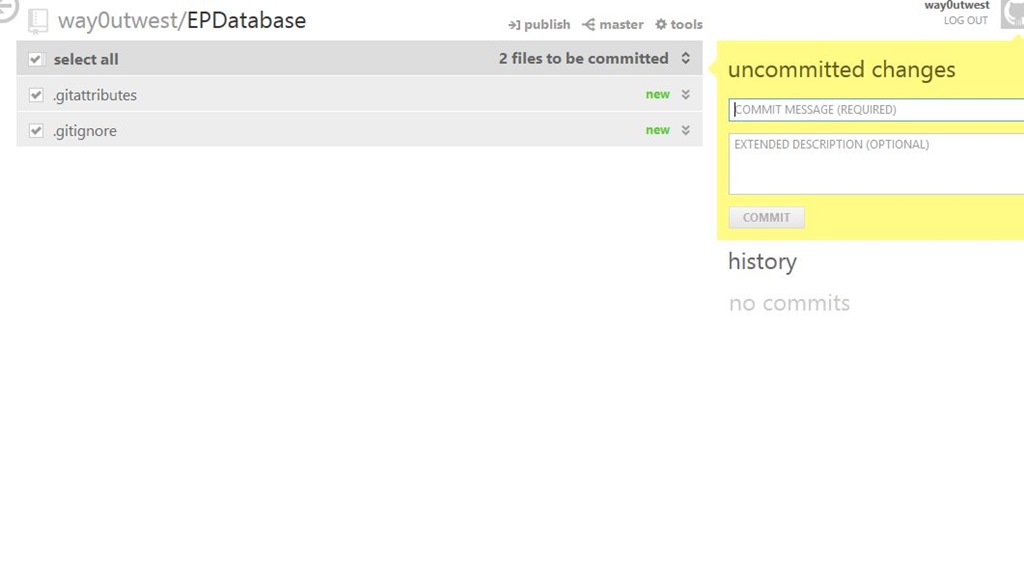
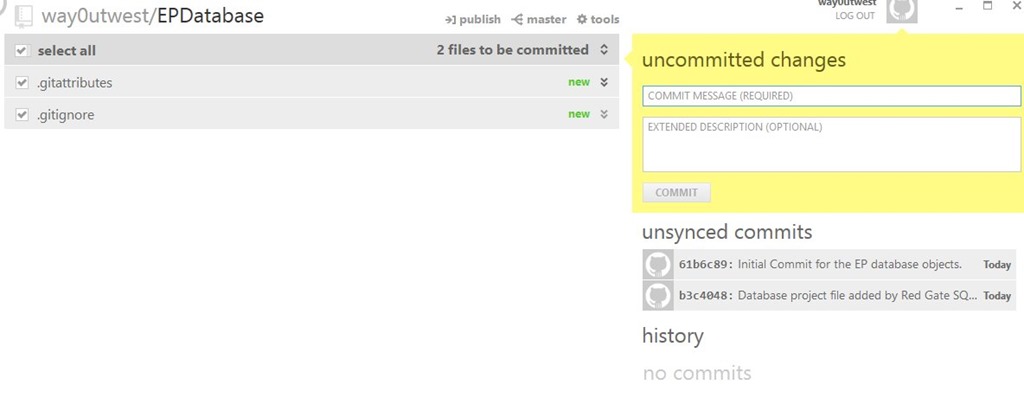
    And in my Github interface, there was nothing to commit.

    git_e

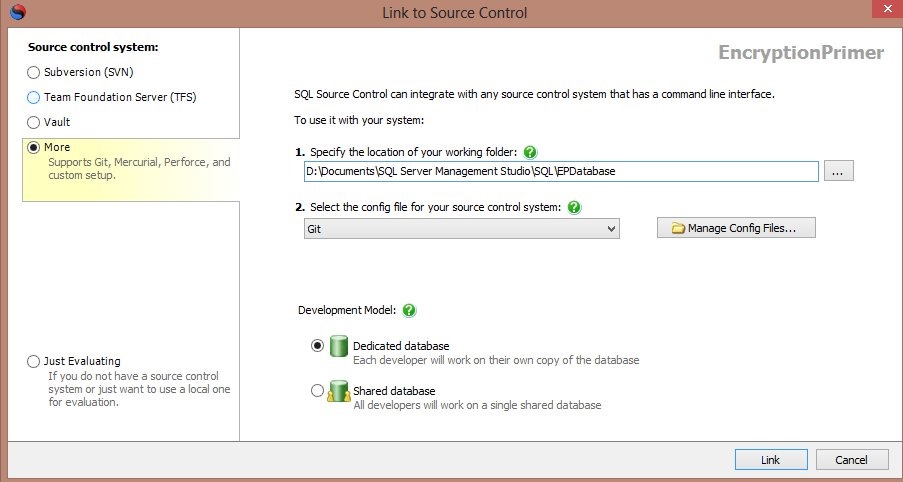
    The next step was to link this with Git. After selecting my database in the Object Explorer, I switched over to the SQL Source Control tab to link my database to source control. I entered the path of my Git folder (from above) and selected Git as my VCS.

    git_

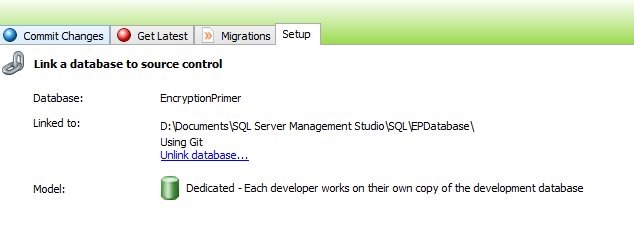
    I chose a dedicated database, meaning this is just my database. The Shared database model can work, but I don’t like it for teams, or even solo.

    Once this was done, I could see my database linked in SSMS.

    git_h

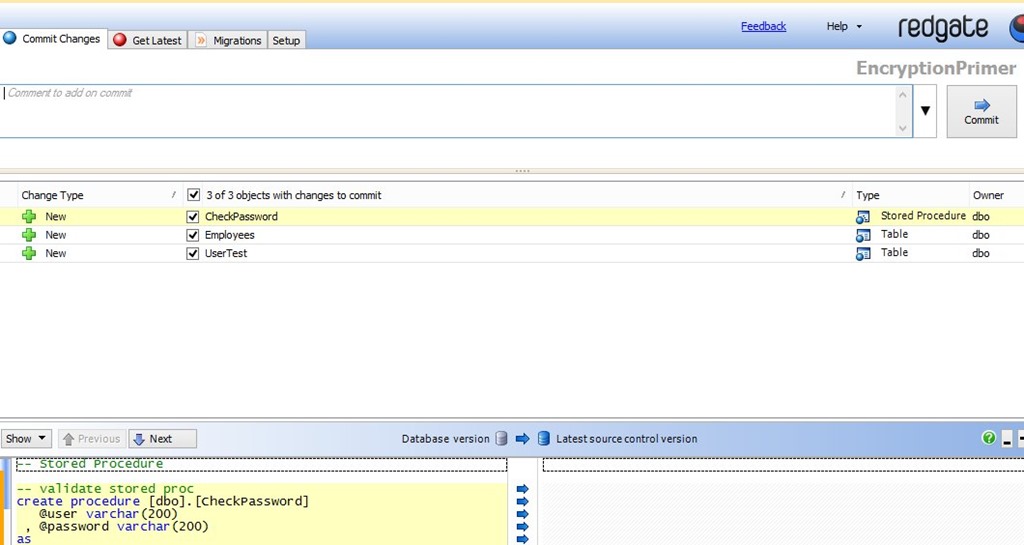
    I clicked the “Commit Changes” tab, and could see my three objects listed there as new items to commit.

    git_i

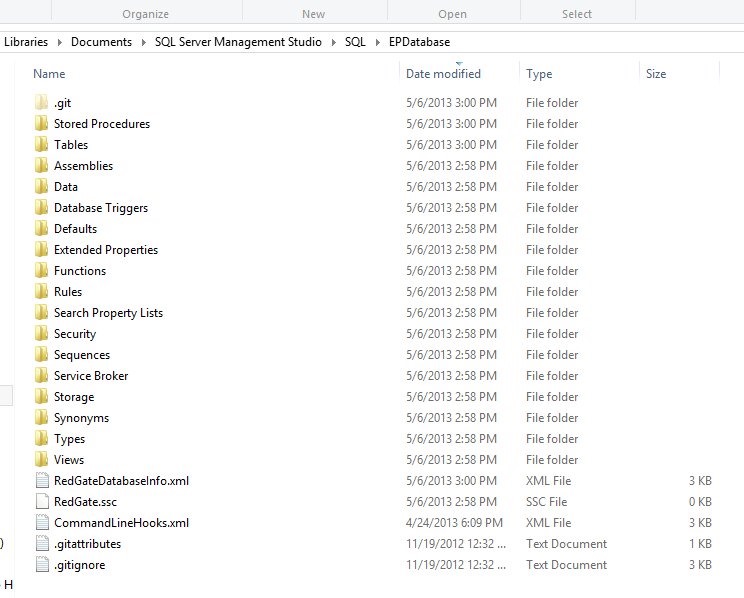
    If you have an existing database, this is the situation you’ll find yourself in most of the time. You link it, and commit all the changes. Once you enter a comment (please enter real comments you’ll understand), and press Commit, the objects are added to your folder. If I look at the folder, I see more stuff:

    git_j

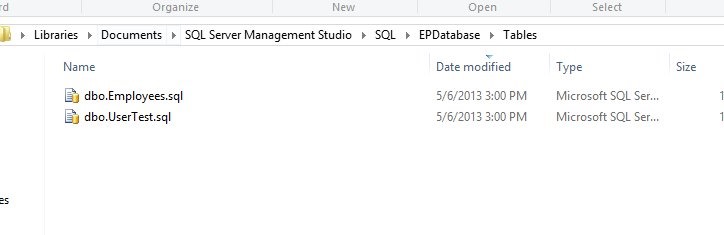
    Only a few folders have objects, and those contain the .sql files for those objects.

    git_k

    If I look at Github, I see my comment and the changes are committed, but unsynced. If I press the “publish” button at the top, these are sent to Github.

    git_l

    That’s it. Any changes I make to objects, which I’ll show in another post, will commit to Git, and I can sync them to GitHub.


    Come learn more about these topics on the SQL in the City 2013 tour.

    sitc

  • Donating for a little kid

    One of my authors sent me this note:

    I know you only know me as a writer for SQLServerCentral, but I have a friend whose son is really bad. He is at the hospital and the cannot pay it. It is very expensive. The family is desesperate. They live in Bolivia.

    I am collecting some money for the Family. The sickness is: multiple sclerosis or disseminated sclerosis.

    If you would like to donate: http://cuentitosdeltio.blogspot.com/2013/04/donacion-alejandro.html

    I created a form in one of my blogs to receive donations. 10 $us or whatever donation is welcome.

    Thanks for reading this email

    I doubled the author’s payment out of my account and donated. If you feel like doing so, please feel free to participate. If not, please think about others in your life that might benefit from some charity and give back to the world when you can.

  • Adding Data to Filestream with T-SQL

    I’ve written on how to enable Filestream and how to add a filegroup, but I haven’t touched the Filestream impact on your tables. This post will look at the table side of Filestream and how you get your binary data into the database.

    Let’s assume you have a filestream enabled database. If you look at my File and Filegroups post, you’ll see how to do this. Given that, we now need to create a table and add data to it.

    Creating a Table with Filestream

    Filestream doesn’t have a separate entity like Filetables. Instead, the Filestream attribute is added to a column in a table, much like the identity property.

    I’ll create a simple table that holds Filestream data.

    CREATE TABLE FSDemo
    (
        id UNIQUEIDENTIFIER ROWGUIDCOL NOT NULL UNIQUE
      , name VARCHAR(20)  
      , jpg varbinary(MAX) FILESTREAM
    );
    go

    Here we are creating a basic table that has an ID and name, which are essentially meta data for our filestream data. You could have any amount of information in this table, but the Filestream data is stored in the jpg field, where we have a varbinary(max) datatype, and the FILESTREAM attribute on the table.

    I could have a more complex schema, such as the Production.Document table in Adventureworks2008 (shown below)

    CREATE TABLE [Production].[Document](
        [DocumentNode] [hierarchyid] NOT NULL,
        [DocumentLevel]  AS ([DocumentNode].[GetLevel]()),
        [Title] [nvarchar](50) NOT NULL,
        [Owner] [int] NOT NULL,
        [FolderFlag] [bit] NOT NULL,
        [FileName] [nvarchar](400) NOT NULL,
        [FileExtension] [nvarchar](8) NOT NULL,
        [Revision] [nchar](5) NOT NULL,
        [ChangeNumber] [int] NOT NULL,
        [Status] [tinyint] NOT NULL,
        [DocumentSummary] [nvarchar](max) NULL,
        [Document] [varbinary](max) FILESTREAM  NULL,
        [rowguid] [uniqueidentifier] ROWGUIDCOL  NOT NULL,
        [ModifiedDate] [datetime] NOT NULL
        );


    Adding Data

    To add data to this table, we have a variety of choices using T-SQL. It’s possible to use an application, and pass in parameters that are streamed to the table, but for the simplicity of this example, let’s show two ways in T-SQL.

    First, let’s look at a direct insert. I can CAST my data to varbinary, and then insert it into the table. I have a small image that looks like this:

    circle

    It’s a simple circle, very small. The actual data in this image is this:

    0xFFD8FFE000104A46494600010101006000600000FFE100684578696600004D4 D002A000000080004011A0005000000010000003E011B00050000000100000046 01280003000000010002000001310002000000120000004E00000000000000600 000000100000060000000015061696E742E4E45542076332E352E313000FFDB00 43000201010201010202020202020202030503030303030604040305070607070 706070708090B0908080A0807070A0D0A0A0B0C0C0C0C07090E0F0D0C0E0B0C0C 0CFFDB004301020202030303060303060C0807080C0C0C0C0C0C0C0C0C0C0C0C0 C0C0C0C0C0C0C0C0C0C0C0C0C0C0C0C0C0C0C0C0C0C0C0C0C0C0C0C0C0C0C0C0C 0C0C0C0C0CFFC0001108000A000D03012200021101031101FFC4001F000001050 1010101010100000000000000000102030405060708090A0BFFC400B510000201 0303020403050504040000017D010203000411051221314106135161072271143 28191A1082342B1C11552D1F02433627282090A161718191A25262728292A3435 363738393A434445464748494A535455565758595A636465666768696A7374757 67778797A838485868788898A92939495969798999AA2A3A4A5A6A7A8A9AAB2B3 B4B5B6B7B8B9BAC2C3C4C5C6C7C8C9CAD2D3D4D5D6D7D8D9DAE1E2E3E4E5E6E7E 8E9EAF1F2F3F4F5F6F7F8F9FAFFC4001F01000301010101010101010100000000 00000102030405060708090A0BFFC400B51100020102040403040705040400010 277000102031104052131061241510761711322328108144291A1B1C109233352 F0156272D10A162434E125F11718191A262728292A35363738393A43444546474 8494A535455565758595A636465666768696A737475767778797A828384858687 88898A92939495969798999AA2A3A4A5A6A7A8A9AAB2B3B4B5B6B7B8B9BAC2C3C 4C5C6C7C8C9CAD2D3D4D5D6D7D8D9DAE2E3E4E5E6E7E8E9EAF2F3F4F5F6F7F8F9 FAFFDA000C03010002110311003F00E97FE0E87FF82CA7ED35FB04FED85E09F03 FC2BD6A5F87BE1097408B5C4D523D2ADAF1BC41746795248CBDC4722F970848C1 8940399373E43478FD75FF00827CFC68F177ED17FB0FFC2AF1D78F3461A078C7C 59E19B2D4F57B110B42B14F244199846DF346AFC384392A1C024E335E95E2EF87 BE1FF880968BAF687A3EB6B612F9F6C2FECA3B916F27F7D3783B5BDC60D6C5007 FFFD9

    I can insert this data directly into my table:

    INSERT INTO FSDemo(ID, name, jpg) 
    Values (NEWID()
          , 'circle.jpg'
          , 0xFFD8FFE000104A46494600010101006000600000FFE100684578696600004D4D002A000000080004011A0005000000010000003E011B0005000000010000004601280003000000010002000001310002000000120000004E00000000000000600000000100000060000000015061696E742E4E45542076332E352E313000FFDB0043000201010201010202020202020202030503030303030604040305070607070706070708090B0908080A0807070A0D0A0A0B0C0C0C0C07090E0F0D0C0E0B0C0C0CFFDB004301020202030303060303060C0807080C0C0C0C0C0C0C0C0C0C0C0C0C0C0C0C0C0C0C0C0C0C0C0C0C0C0C0C0C0C0C0C0C0C0C0C0C0C0C0C0C0C0C0C0C0C0C0C0C0CFFC0001108000A000D03012200021101031101FFC4001F0000010501010101010100000000000000000102030405060708090A0BFFC400B5100002010303020403050504040000017D01020300041105122131410613516107227114328191A1082342B1C11552D1F02433627282090A161718191A25262728292A3435363738393A434445464748494A535455565758595A636465666768696A737475767778797A838485868788898A92939495969798999AA2A3A4A5A6A7A8A9AAB2B3B4B5B6B7B8B9BAC2C3C4C5C6C7C8C9CAD2D3D4D5D6D7D8D9DAE1E2E3E4E5E6E7E8E9EAF1F2F3F4F5F6F7F8F9FAFFC4001F0100030101010101010101010000000000000102030405060708090A0BFFC400B51100020102040403040705040400010277000102031104052131061241510761711322328108144291A1B1C109233352F0156272D10A162434E125F11718191A262728292A35363738393A434445464748494A535455565758595A636465666768696A737475767778797A82838485868788898A92939495969798999AA2A3A4A5A6A7A8A9AAB2B3B4B5B6B7B8B9BAC2C3C4C5C6C7C8C9CAD2D3D4D5D6D7D8D9DAE2E3E4E5E6E7E8E9EAF2F3F4F5F6F7F8F9FAFFDA000C03010002110311003F00E97FE0E87FF82CA7ED35FB04FED85E09F03FC2BD6A5F87BE1097408B5C4D523D2ADAF1BC41746795248CBDC4722F970848C18940399373E43478FD75FF00827CFC68F177ED17FB0FFC2AF1D78F3461A078C7C59E19B2D4F57B110B42B14F244199846DF346AFC384392A1C024E335E95E2EF87BE1FF880968BAF687A3EB6B612F9F6C2FECA3B916F27F7D3783B5BDC60D6C5007FFFD9
          );
    go

    The other method I can show is a direct insert, streaming from the OPENROWSET command. Here I’ll pic an image on my system and insert it.

    INSERT INTO FSDemo(ID, name, jpg) 
    Values (NEWID()
          , 'uma.jpg'
          , (SELECT * FROM OPENROWSET(BULK N'C:\Users\Steve\Documents\SampleData\Uma.jpg', SINGLE_BLOB) AS CategoryImage)
          );
    go

    Now if I query the table

    SELECT
      id, name, jpg
     from FSDemo;
    go

    I see my data.

    Capture_027

    When I look at this in Management Studio, I see the actual hex data, which isn’t easy to understand. I need another way to extract this data and render it. However I can show one more quick demo here. Let me take an XML document and insert it:

    declare @list XML
    select @list = '
    <Lists>
      <Groceries Store=''Safeway''>
        <Item>Milk</Item>
        <Item>Eggs</Item>
        <Item>Bread</Item>
      </Groceries>
      <Drinks Store=''Tipsys''>
        <Drink>Fat Tire</Drink>
        <Drink>Klinker Brick Cabernet</Drink>
        <Drink>Patron</Drink>
      </Drinks>
      <Ranch>
        <Item>electric fence ribbon</Item>
      </Ranch>
    </Lists>'
    ;
    INSERT INTO FSDemo(ID, name, jpg) 
    Values (NEWID()
          , 'sample.xml'
          , CAST( @list AS VARBINARY(MAX))
          );
    go

    Once this is done, the data is in binary, as I see from the selection from the table.

    Capture_029

    However if I cast this result back, I get the data as expected.

    Capture_028

    Hopefully this helps you to understand how to insert data into a Filestream table. In another post, I’ll look at how you can extract this data for rendering.
  • Does TDE really work on MDF files?

    Yes, it does. However, let’s prove it. First let’s create a database, a table, and enter some data:

    -- create a database
    CREATE DATABASE TDE_Primer
    ;
    GO
    -- create and populate a table
    USE TDE_Primer
    go
    CREATE TABLE MyTable
    ( myid INT
    , myname VARCHAR(20)
    , mychar VARCHAR(200)  
    )
    ;
    go
    DECLARE @i INT = 65;
    WHILE @i < 92
     begin
      INSERT mytable SELECT @i, 'Steve Jones', REPLICATE(CHAR(@i), 200);
      SELECT @i = @i + 1;
     END
    ;
    GO
    SELECT * FROM Mytable;
    go

    If I look at the table, I see my name with lots of data:

    Capture_030

    Now let’s detach the database and examine the results with a hex editor:

    -- detach database
    USE [master]
    GO
    EXEC master.dbo.sp_detach_db @dbname = N'TDE_Primer'
    ;
    
    GO

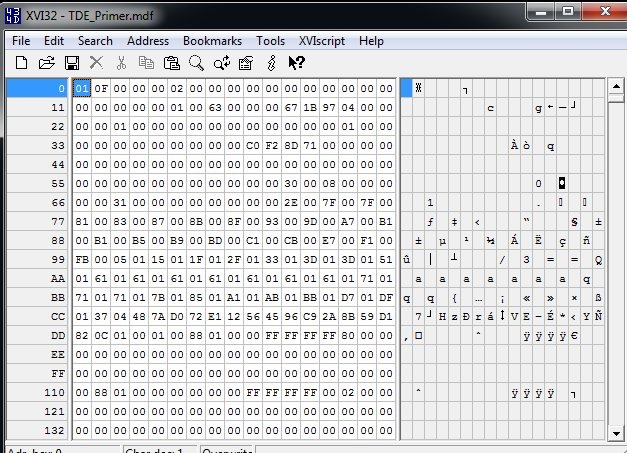
    I use XVI32 as an editor. It’s free, and you can download it. If I open up my MDF in this utility, here’s what I see:

    Capture_031

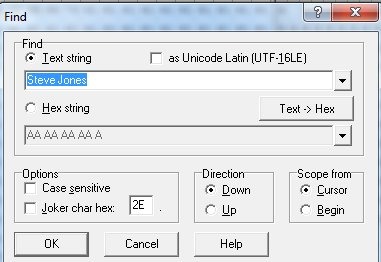
    If I search for my name:

    Capture_032

    I find it:

    Capture_033

    This is what I expect, and you should as well. Even without SQL Server, your data files are readable, which is why you must protect them.

    Now let’s attach the file and enable TDE.

    USE [master]
    GO
    CREATE DATABASE [TDE_Primer] ON 
    ( FILENAME = N'C:\Program Files\Microsoft SQL Server\MSSQL11.MSSQLSERVER\MSSQL\DATA\TDE_Primer.mdf' ),
    ( FILENAME = N'C:\Program Files\Microsoft SQL Server\MSSQL11.MSSQLSERVER\MSSQL\DATA\TDE_Primer_log.ldf' )
     FOR ATTACH
    GO
    
    USE TDE_Primer
    go
    SELECT * FROM mytable
    ;
    go
    
    -- begin encryption setup
    -- from http://msdn.microsoft.com/en-us/library/bb934049.aspx
    USE master;
    GO
    -- create master key for master
    CREATE MASTER KEY ENCRYPTION BY PASSWORD = 'AlwaysU$eaStr0ngP@ssword4This'
    ;
    go
    
    -- create certificate to secure TDE
    CREATE CERTIFICATE TDEPRimer_CertSecurity WITH SUBJECT = 'TDE_Primer DEK Certificate';
    go
    
    USE TDE_Primer;
    GO
    -- Create DEK
    CREATE DATABASE ENCRYPTION KEY
    WITH ALGORITHM = AES_128
    ENCRYPTION BY SERVER CERTIFICATE TDEPRimer_CertSecurity;
    GO
    
    -- backup TDE cert
    USE master
    ;
    go
    BACKUP CERTIFICATE TDEPRimer_CertSecurity
     TO FILE = 'tdeprimer_cert'
      WITH PRIVATE KEY (
                   FILE = 'tdeprimer_cert.pvk',
                   ENCRYPTION BY PASSWORD = 'AStr0ngB@ckUpP@ssw0rd4TDEcERT%')
    ;
    go
    
    -- check encryption status
    SELECT
        db.name,
        db.is_encrypted,
        dm.encryption_state,
        dm.percent_complete,
        dm.key_algorithm,
        dm.key_length
    FROM
        sys.databases db
        LEFT OUTER JOIN sys.dm_database_encryption_keys dm
            ON db.database_id = dm.database_id;
    GO
    
    -- enable encryption
    USE TDE_Primer
    ;
    GO
    ALTER DATABASE TDE_Primer
      SET ENCRYPTION ON;
    GO
    -- check encryption status
    SELECT
        db.name,
        db.is_encrypted,
        dm.encryption_state,
        dm.percent_complete,
        dm.key_algorithm,
        dm.key_length
    FROM
        sys.databases db
        LEFT OUTER JOIN sys.dm_database_encryption_keys dm
            ON db.database_id = dm.database_id;
    GO
    -- TDE_PRimer and tempdb encrypted
    
    -- detach database again.
    -- detach database
    USE [master]
    GO
    EXEC master.dbo.sp_detach_db @dbname = N'TDE_Primer'
    ;
    
    GO

    I won’t go into all the code, but this encrypts the database, backs up the certificate and then detaches it again. There are a few other things, but I cover them in another post.

    Now let’s open up the file in the hex editor again.

    Capture_034

    It looks the same. It’s not in the image, but just below this you can see the database name. There is a header, which is not encrypted. However when I search for my name, it fails.

    Capture_035

    If you scroll further around, you’ll see that most of the file is now encrypted.

    Capture_036

    Play with this and prove to yourself that TDE does really encrypt things.