Tag: T-SQL

  • Remember the N

    Another post for me that is simple and hopefully serves as an example for people trying to get blogging as #SQLNewBloggers.

    I saw a post recently from someone that was having trouble with Chinese characters being inserted into a SQL Server table. I’m not sure if they were using an application or just SSMS, but they inserted this:

    insert into mytable select ‘<IDC>亮块(DS3或DS4)-清理/维修显像滚筒</IDC>’

    And they got this in the table:

    <IDC>??(DS3?DS4)-??/??????</IDC>

    That’s a problem that I can see, even if I can’t read Chinese.

    Someone else posted a note that when you insert, you need to let SQL Server know your string is Unicode. That means prefixing your string with an N’.

    I looked in Books Online, and found this note under the nvarchar section:

    “Prefix Unicode character string constants with the letter N. Without the N prefix, the string is converted to the default code page of the database. This default code page may not recognize certain characters.”

    I think this means that the N’ isn’t necessarily required, but it depends on the default code page of your database. For most of us, if we don’t include it, I believe our data gets converted to UTF-16, which might not be what we want.

    SQLNewBlogger

    I ran across the post and spent 5 minutes researching things and looking in BOL. This really took about 5 more minutes to write.

    Reference

    NVarchar –  https://msdn.microsoft.com/en-us/library/ms186939.aspx

  • Creating an SQL Databases – New Portal

    Another post for me that is simple and hopefully serves as an example for people trying to get blogging as #SQLNewBloggers.

    I was looking to do some testing recently, but needed a v12 SQL Azure database. The test system that I have in Azure is v11, and I needed an upgrade. I clicked the upgrade button, and it was really slow to change from v11 to v12.  It’s easier now because I think all new databases you create are v12.

    I was impatient, and ended up creating a new one. I decided to do a quick walkthrough of the process.

    Getting Started

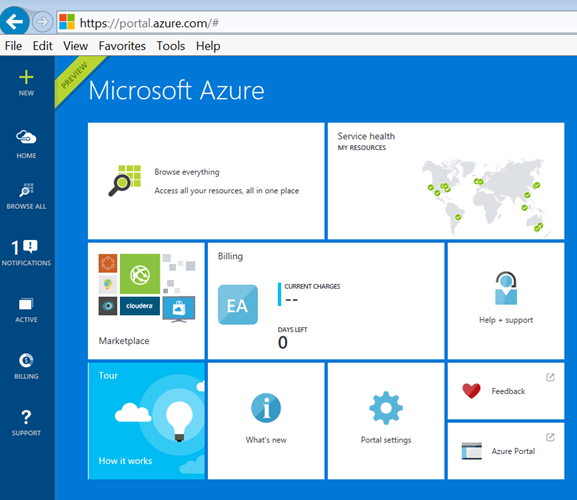
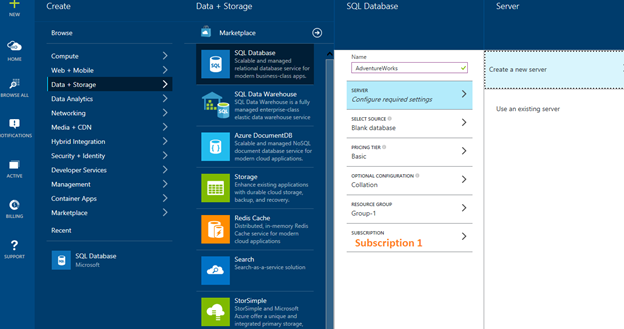
    I connected to Azure and went into the new (Preview) Portal. I couldn’t find anything in the old portal, so keep tat in mind. Since “old” and “new” are very relative terms in Azure, and I hate them, I’ve included lots of screenshots. Here’s the portal I used:

    paas_a

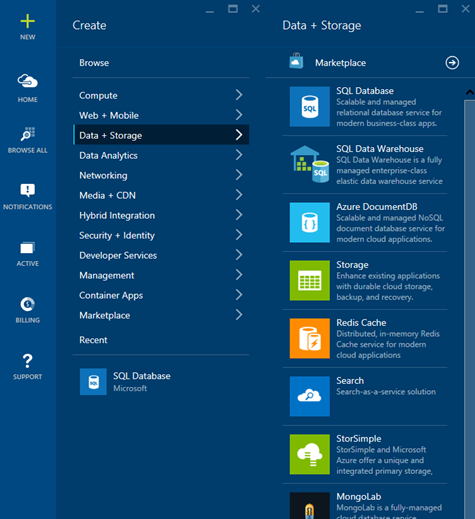
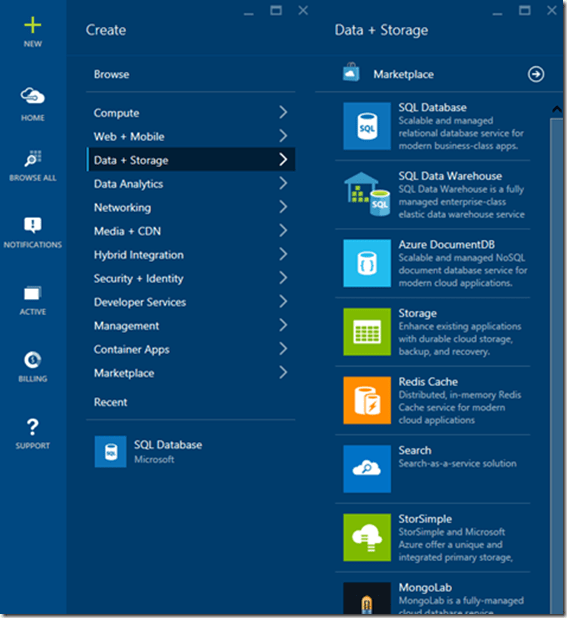
    My first step was to go to the “Create” item and select Data + Storage. As you can see, there are all sorts of options. For this post, let’s create a new database.
    paas_b

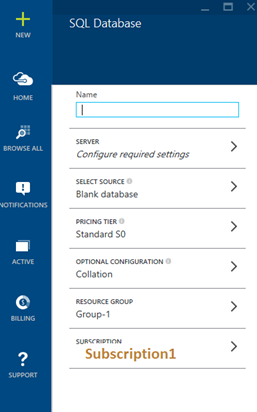
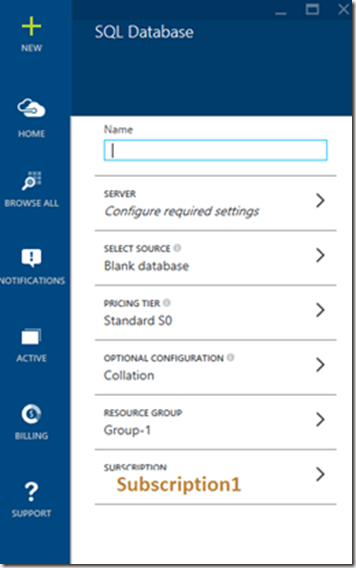
    Selecting “New SQL Database” gives me this set of options. The name is the big item here.
    paas_c

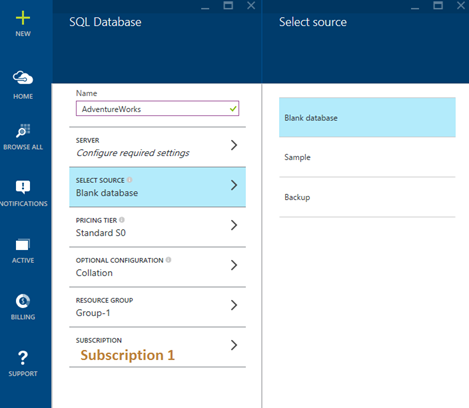
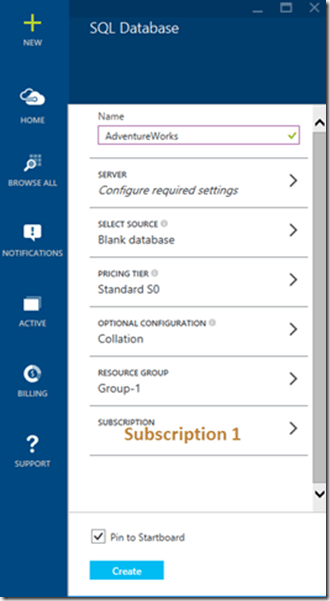
    Obviously I wasn’t very creative with the name:
    paas_d

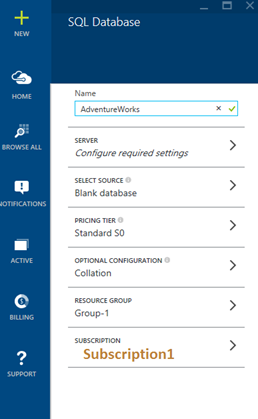
    Next I decided to make this one blank. I wanted to do some testing, so I selected that. It’s nice to be able to create a database from a backup, especially if you are recovering from a “Whoops” mistake.
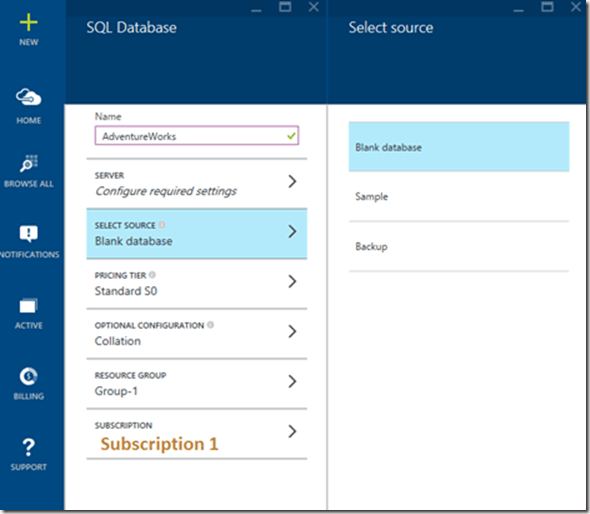
    paas_e

    With that selected, I had this:

    paas_f

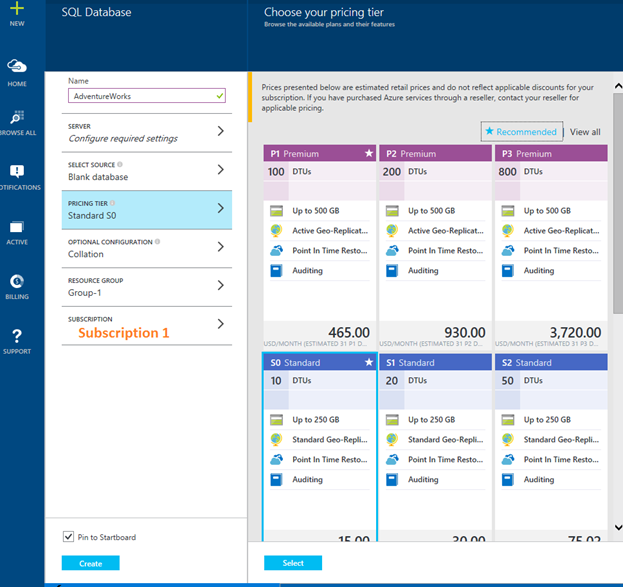
    Now on to the pricing tier. You can go crazy here.
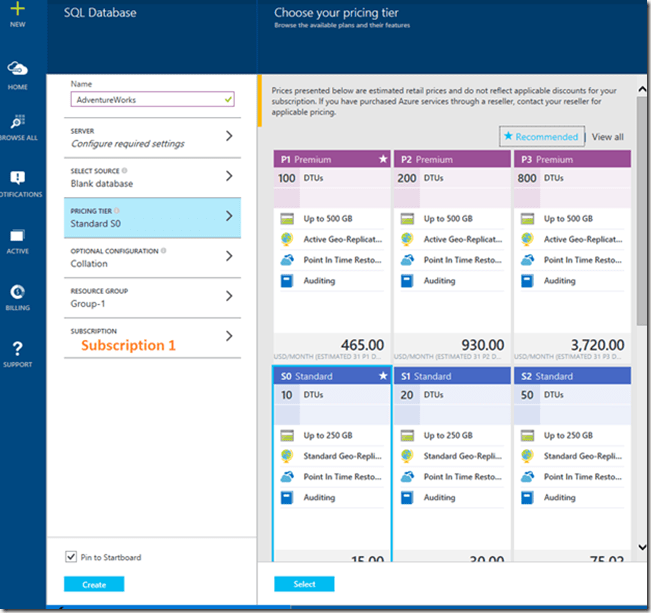
    paas_g

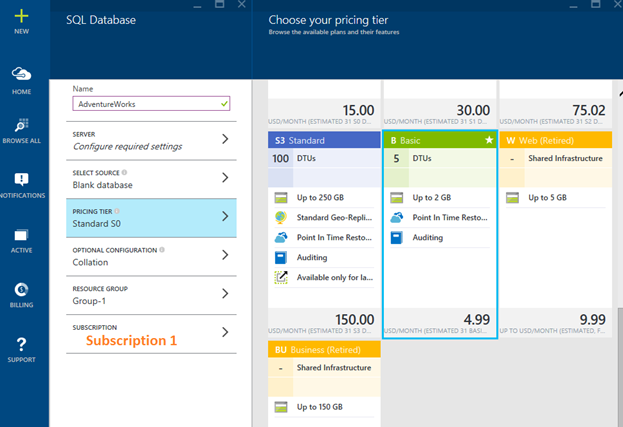
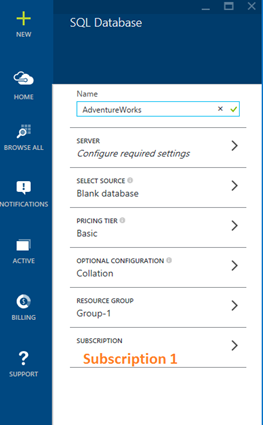
    I went down to a Basic level, since that’s what I really need. A basic, small database for testing. It’s $5/month, but I have credits from my MSDN subscription, so to date, I haven’t paid for any of my testing on the low tier systems.

    paas_h

    At each stage, I can see what I’ve selected. This is a good way to get started, but if you needed to do these are any scale or repeatability, learn to do it through PoSh.

    paas_i

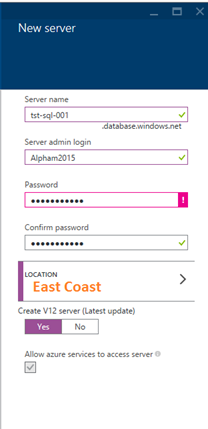
    My next step is to decide where this database lives. I need a server, which is strange to me. I want a database as a platform, but I think this is legacy for connection purposes, so I’ll make a new one.
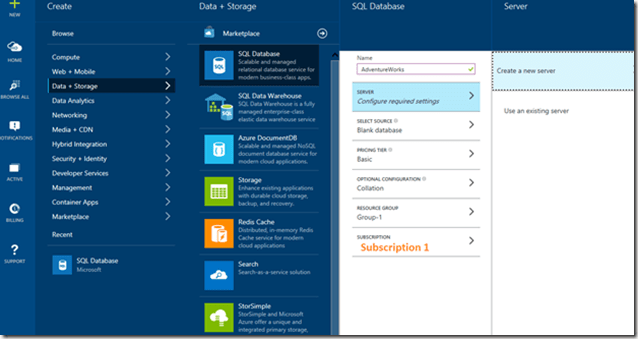
    paas_j

    I decided to make up some generic, boring name. I wasn’t feeling very creative today. I entered a password, but like with any password, I generated this in PasswordSafe first, then entered it here.

    <securityrant> Please use a password manager, use strong passwords, and use separate ones for services. Using the same one for all your Azure stuff and other accounts is a bad idea. </securityrant>
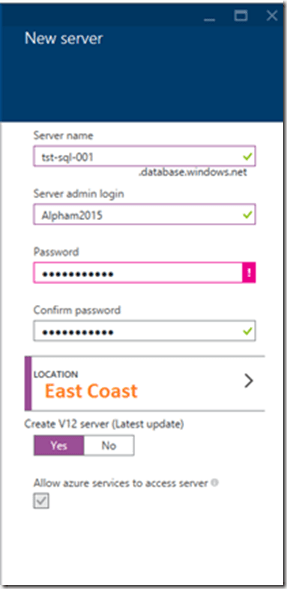
    paas_m

    Once I complete this, it’s listed under my SQL Database as the location for my data.
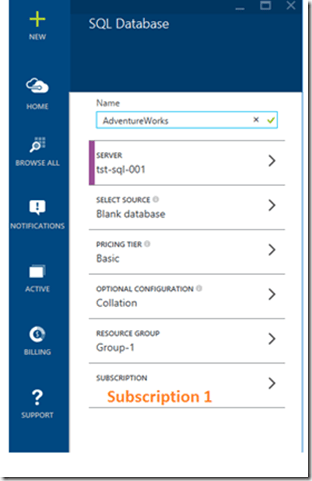
    paas_n

    Change your collation if you like, but since I’m a unilingual American, this is what I choose.
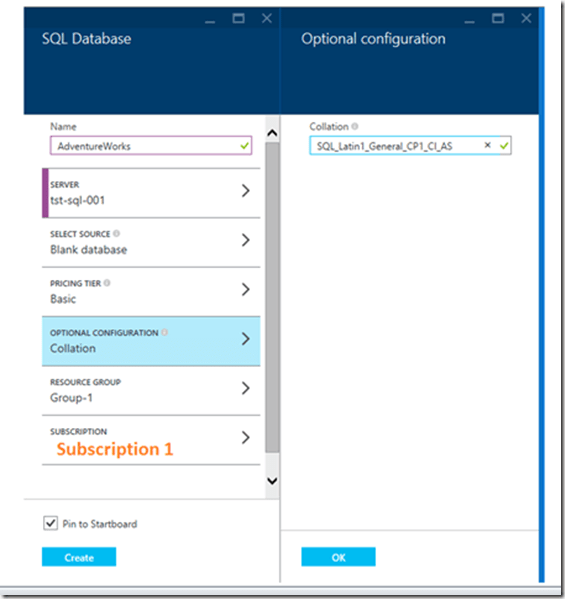
    paas_o

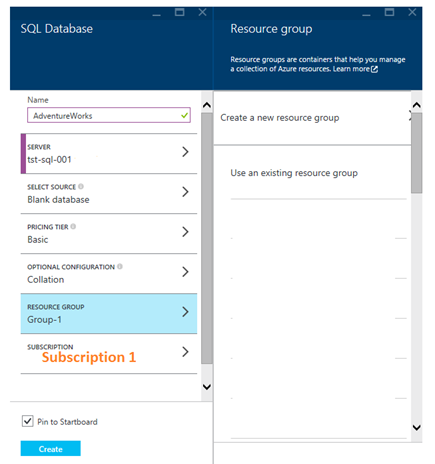
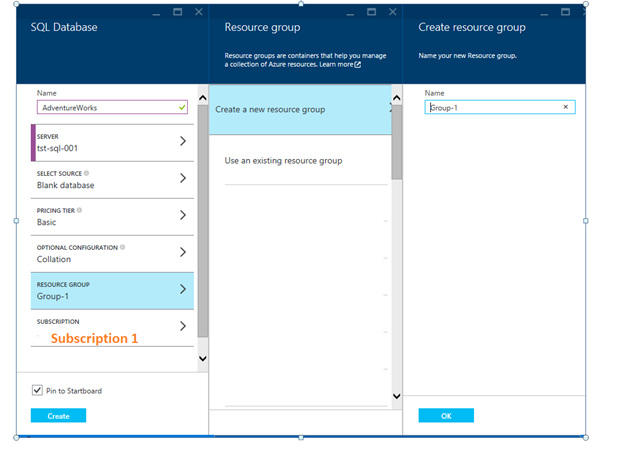
    I also need a resource group. I don’t have any, so I’ll need a new one.

    paas_p

    Again, not creative. If you are doing this for something more than fooling around, spend 2 minutes thinking of some way you’ll classify stuff and use a name that makes sense.

    paas_q

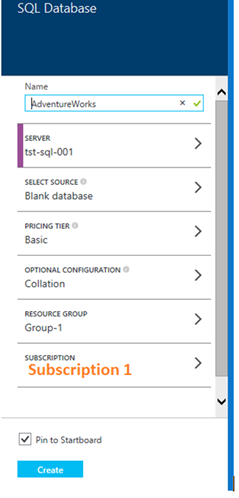
    I think we’re ready to go. Click “Create”.
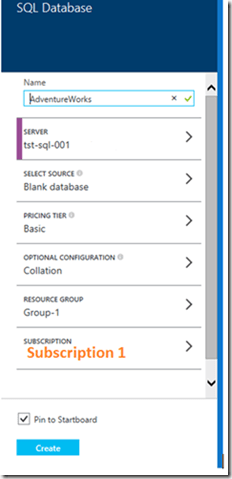
    paas_r

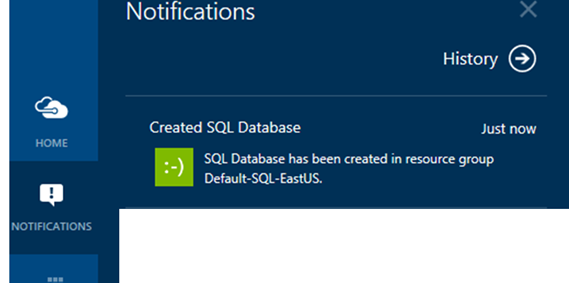
    Once it’s done, you’ll get a notification in the main portal. I do like that the notifications come up at the bottom, but they’re also annoying when they stack up. I’ll sometimes close them because I’m doing something else and not pay attention. However, that’s a “me” problem.paas_s
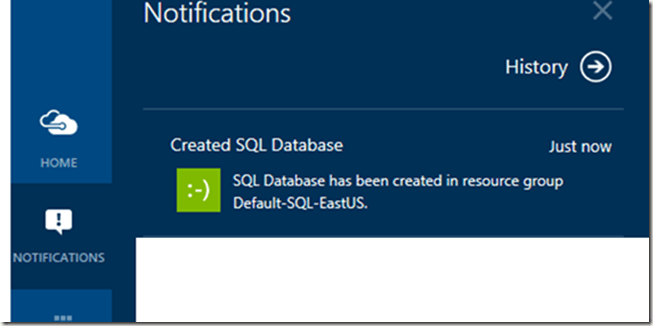
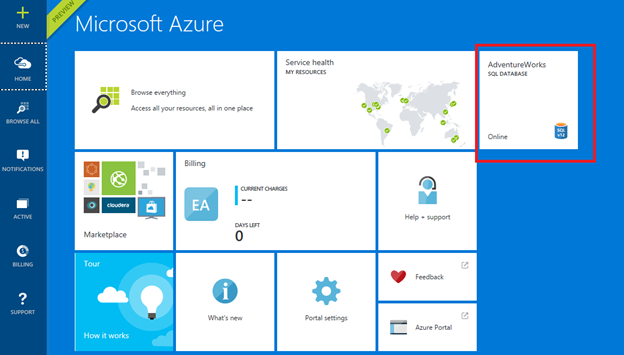
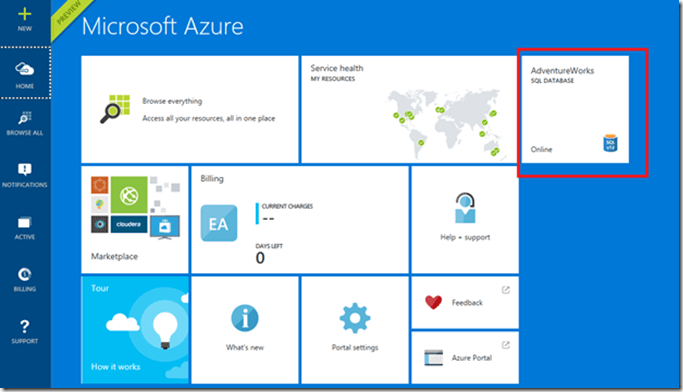
    I allowed this to create a pin for me, and I can easily see my database here. If you have lots of stuff, you won’t want pins for most of them.
    paas_t

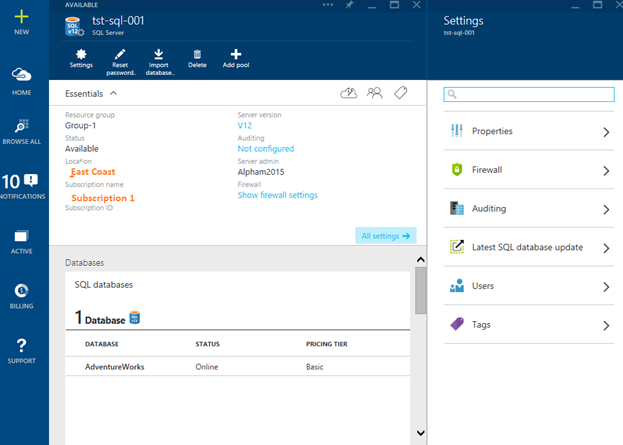
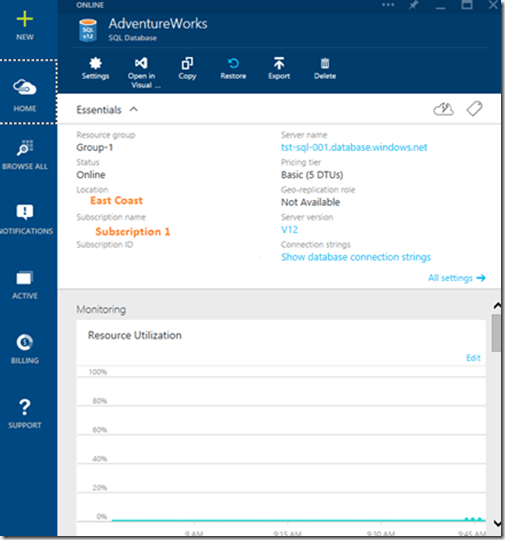
    If I select the database, I can see details.
    paas_u

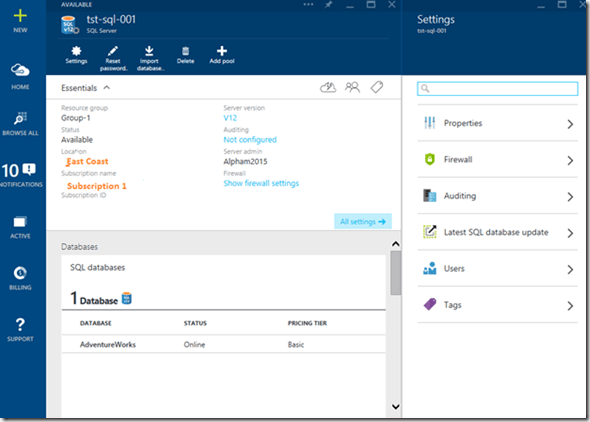
    I can select “Settings” at the top and get more options. One of which is what I need. Note that the version is v12.
    paas_v

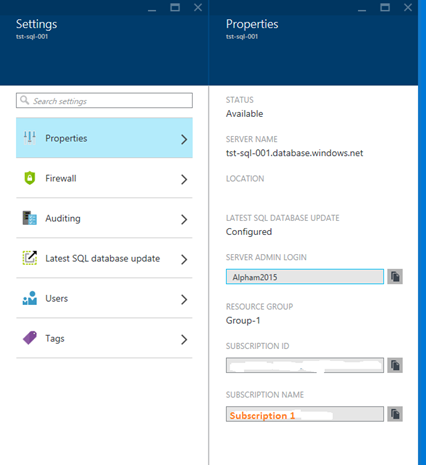
    The Properties item gives me the ability to change a few things.

    paas_w

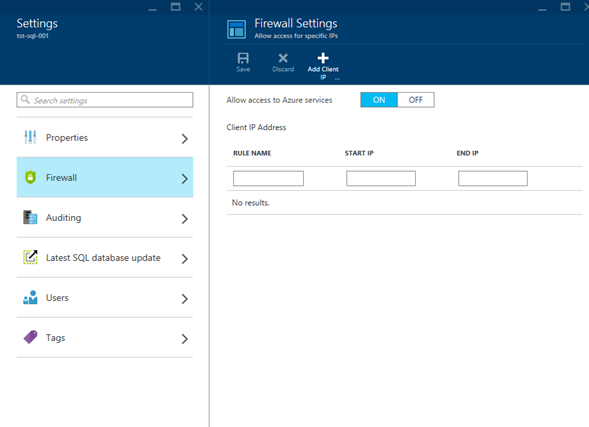
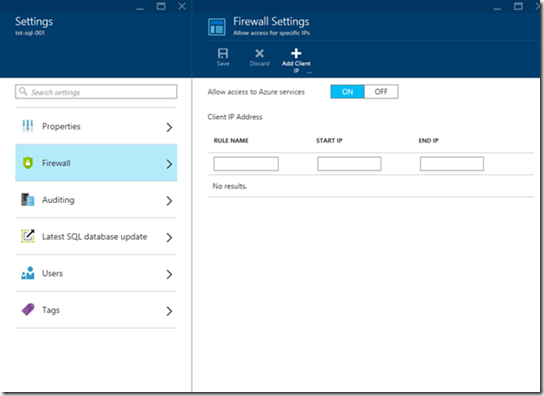
    The Firewall allows me to limit access to specific hosts.
    paas_x

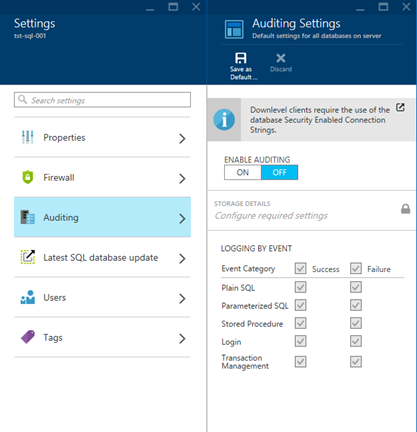
    Auditing has the ability to let you audit by events, success of failure
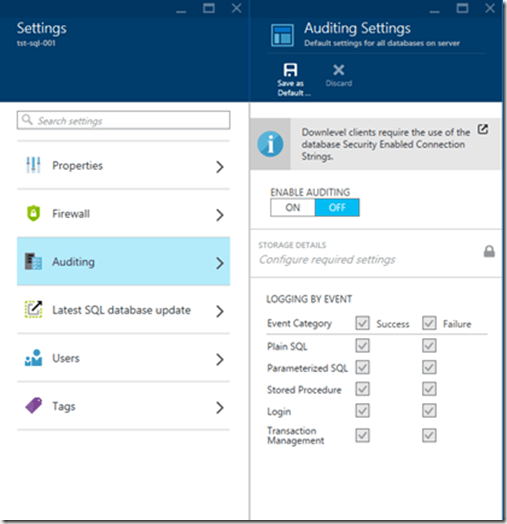
    paas_y

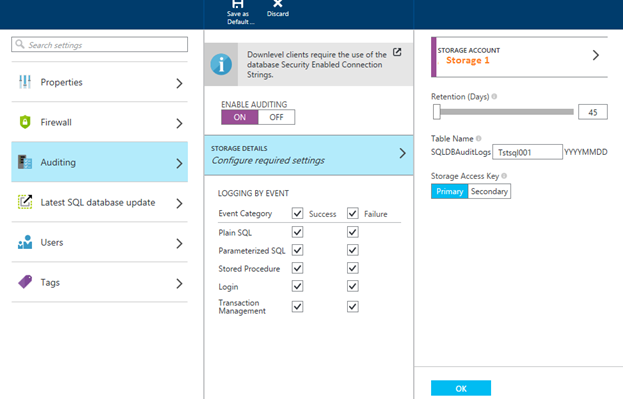
    If I want to audit things, I need a place where I can store the audit data. The cloud charges by everything, so be aware.
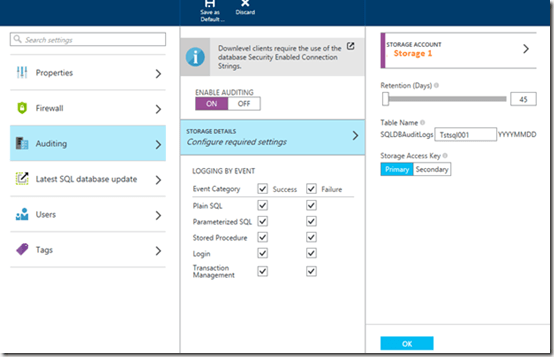
    paas_z

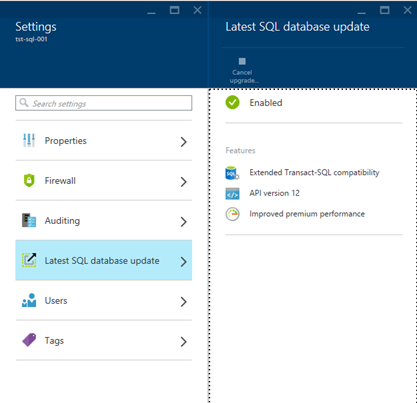
    The item I really care about is the “Latest SQL database update” item. When I pick that I can see the items that will be enabled.
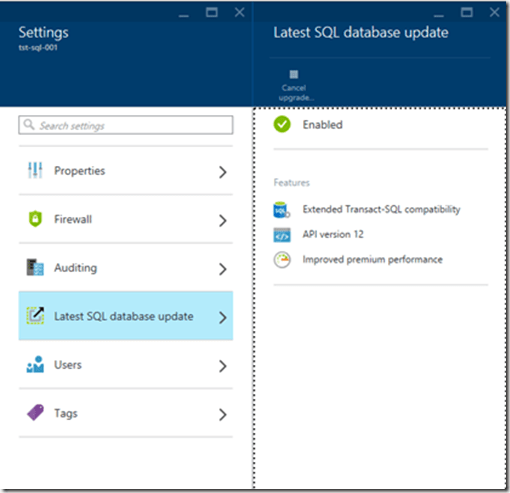
    paas_zc

    If I pick Users and tags, I can specify accounts and labels, but that’s not really important for a test system. Really it’s me using it, so I’ll leave those alone.

    It’s really easy to set up, and worth practicing if you want some cloud experience. You can connect from SSMS and work with the system, which is really SQL Server, but if you have other stuff in the cloud, or an app, you can connect and see what is possible.

    Be aware, however, that you get charged for this stuff. Use your MSN subscription and keep an eye on usage. It’s pretty cheap, but no one wants an unexpected bill. Be especially careful about VMs. Those can really rack up charges.

    paas_zf


    SQLNewBlogger

    This one took awhile. After I completed the process, I immediately deleted the database and started to take screen shots as I went through the steps. The steps don’t take too long, but refreshes on the Portal are sometimes slow.

    This actually sat in my drafts folder as a single sentence (creating an Azure db) and a bunch of pictures. It took me about 20 minutes to load the pictures into Live Writer and then work my way through them, adding notes. I also created a new database as I was writing this to walk through the same steps again (and then deleted it).

    References

    None I used. I’ve done this before and didn’t bother to look around. The Portal does a good job of leading you along.

  • The Tally Table

    I saw a someone post a question recently about solving a T-SQL problem. One of the answers given used a tally table, which the original poster didn’t understand. A few follow up links pointed them in the right direction, but it got me wondering.

    How many of you know what a tally table is and how to create one? I bet a few of you don’t, which might mean you’ve never had the need. Or it might be a hole in your skill set and you didn’t realize that a tally table can be very useful in solving a number of problems. Anything from generating dates to splitting strings. There are plenty more ways to use one, and feel free to mention more in the comments that others might not have tried.

    I’m not sure the tally table is a core T-SQL skill, but I think it’s an important one you should learn as you grow your skills. After you’ve mastered the basics (Insert/update/delete, aggregates, outer joins) Adding in an understanding of window functions, the APPLY operator, and CTEs are also important to allow you to become better at solving the problems you run into with more efficient T-SQL.

    Steve Jones

    The Voice of the DBA Podcast

    Listen to the MP3 Audio ( 1.7MB) podcast or subscribe to the feed at iTunes and LibSyn. feed

  • T-SQL Tuesday #69–Encryption

    TSQL2sDay150x150This is a good T-SQL Tuesday topic for me. This month Ken Wilson asks everyone to write on encryption, which is a topic I’ve presented on quite a few times.

    You can participate, too. Take a few hours, learn something, and tell us what you learned. Let everyone know how you view this topic and grow your blog with a little new knowledge.

    T-SQL Tuesday is a great chance to force you to write a post on a specific topic. Your post needs to publish on the second Tuesday of the month, Aug 11 this month, to be included in the roundup from the host. However feel free to write about this topic anytime, and even include the T-SQL Tuesday title.

    CASTing Results

    A short post this month, as I’m a bit buried in a few things, but this is one of those encryption notes that I didn’t see well documented when I started working with the subject, and I’m hoping I can save you a few minutes of frustration.

    If you encrypt your data, it will be stored as a binary type. This is because encrypted data is supposed to be random, and not easily decrypted.

    Let’s imagine I have some simple setup like the code below. I’ll create a key, open it, and use it to encrypt some data that I’ll insert into a table.

    CREATE TABLE MyEncryptionTest( intsource INT, charsource VARCHAR(50), intencrypt VARBINARY(max), charencrypt VARBINARY(max));
    CREATE SYMMETRIC KEY Mykey WITH    ALGORITHM = AES_128 ENCRYPTION BY PASSWORD = 'M$test78';
    GO
    OPEN SYMMETRIC KEY MyKey DECRYPTION BY PASSWORD = 'M$test78';
    
    INSERT dbo.MyEncryptionTest
            ( intsource ,
              charsource ,
              intencrypt ,
              charencrypt
            )
    VALUES  ( 7, 
              'Spike' , 
              ENCRYPTBYKEY(KEY_GUID('MyKey'), CAST(7 AS VARCHAR(10))) ,
              ENCRYPTBYKEY(KEY_GUID('MyKey'), 'Spike')
            );
    
    SELECT top 20
     * FROM dbo.MyEncryptionTest;


    The results of this are that I get binary data:

    2015-08-04 22_10_22-SQLQuery1.sql - ARISTOTLE.sandbox (ARISTOTLE_Steve (76))_ - Microsoft SQL Server

    Now, the decryption routine for T-SQL doesn’t need to specify the key. That means instead of a *, I can use the DECRYPTBYKEY function and pass in the column.

    SELECT TOP 20
            intdecrypt = DECRYPTBYKEY(intencrypt),
            chardecrypt = DECRYPTBYKEY(charencrypt) ,
            intencrypt ,
            charencrypt
    FROM    dbo.MyEncryptionTest;


    This gives me this:

    2015-08-04 22_12_22-SQLQuery1.sql - ARISTOTLE.sandbox (ARISTOTLE_Steve (76))_ - Microsoft SQL Server

    Not quite what I want. What if I cast this back to an integer? After all, the output of the function is listed as an nvarchar.

    SELECT TOP 20
            intdecrypt = CAST(DECRYPTBYKEY(intencrypt) AS INT),
            chardecrypt = DECRYPTBYKEY(charencrypt) ,
            intencrypt ,
            charencrypt
    FROM    dbo.MyEncryptionTest;


    I see:

    2015-08-04 22_18_10-SQLQuery1.sql - ARISTOTLE.sandbox (ARISTOTLE_Steve (76))_ - Microsoft SQL Server

    Again, not what I wanted. However, since I know something about conversions, I realize the output is close to what I want. In fact, what I need to do is perform a different CAST before I perform my final one. Here I’ll decrypt the results as NVARCHAR first, then as an INT.

    SELECT TOP 20
            intdecrypt = CAST(CAST(DECRYPTBYKEY(intencrypt) AS NVARCHAR(30)) AS INT),
            chardecrypt = DECRYPTBYKEY(charencrypt) ,
            intencrypt ,
            charencrypt
    FROM    dbo.MyEncryptionTest;


    Now I see:

    2015-08-04 22_15_29-SQLQuery1.sql - ARISTOTLE.sandbox (ARISTOTLE_Steve (76))_ - Microsoft SQL Server

    If I do the same for the character column:

    SELECT TOP 20
            intdecrypt = CAST(CAST(DECRYPTBYKEY(intencrypt) AS NVARCHAR(30)) AS INT),
            chardecrypt = CAST( DECRYPTBYKEY(charencrypt) AS VARCHAR(50)) ,
            intencrypt ,
            charencrypt
    FROM    dbo.MyEncryptionTest;


    I’ll get the correct results.

    2015-08-04 22_17_11-SQLQuery1.sql - ARISTOTLE.sandbox (ARISTOTLE_Steve (76))_ - Microsoft SQL Server

    Note that if I take the character column and cast to nvarchar, I’ll get something different. Try it and see.

    And don’t forget to close your key.

    CLOSE SYMMETRIC KEY mykey;