I bought a new (to me) desktop recently to replace my aging hardware. I’ve had a quad core machine, but it’s about 4+ years old, still running DDR2 RAM, and it’s been slowly failing. That sounds crazy with electrical hardware, but the clock has been flakier the last few months, losing time, which prevents the machine from waking up and I’ve had about 1 blue screen a week.
Note: If you just want to read about Win 8, skip down to Impressions.
The Changeover
I found a friend selling a machine he’d built, but had outgrown slightly. That sounds funny to me since a quad core, 24GB RAM, 2TB of disk is quite a machine and it’s more than I need. My goal was really to get something that allows me to run 5-6 VMs at a time to simulate AlwaysOn and some of the more advanced SQL Server features without slowing down my daily work.
I bought the box and installed Windows 8, which was a breeze. Probably the easiest setup ever. The slowest part was moving a monitor over to the dining room table and tracking down a digital cable to connect it with. Once the OS was installed, I had to wait a few days for a new video card to arrive to handle dual monitors before switching my desktop over.
Changing desktops is never fun. In addition to the OS change, I had to move lots of software over. Well, not lots. There are really only about 20 things I use regularly, so it wasn’t a bit deal, but it was a change. Having read Troy Hunt’s account of how to set up his machine, I was a little worried.
After tracking down a few drivers and getting Windows Update working, I started by pulling down the major things I need: Firefox and Chrome. No offense, but IE has been a POS for years, it fails in strange ways and I have no interest whatsoever in using it. The rare times I use it are for a couple sites that only support it (a few MS ones in there) and when I need my third Google account for something.
The whole process of getting things moved wasn’t too bad. I did install Chocolatey and tried a few things, but I didn’t love it, and since I rarely do this, I’m not sure I’d continue to use it. Maybe I’d script things, but since I don’t need 100 things, I just installed a few things I needed as I ran into them, but I was really moved in a couple hours, most of that time spent copying things from my old machine across the network.
I’m using this in desktop mode, no touch screens. I did go from 4 screens on my old machine to 2, mostly because I’m thinking of sticking with 2 for the future as 4 didn’t work well. Three would be ideal, but I’m testing this out. Other than changing boxes and not connecting 2 screens, my work setup is the same.
Impressions
Windows 8 is interesting. Having used it for two weeks at this point, it mostly feels like Windows 7. I tend to run 5-10 things constantly, rarely reboot, and live on a desktop.
On a day to day basis, the only strange thing to me is trying to find the “Start Menu” in the lower left corner. The first few days I’d hover, getting the start to pop up (see the image below) and then trying to click it. About half the time I ended up moving the mouse sideways too much and clicking on the IE icon. That resulted in a brief bout of cursing before I’d try again.
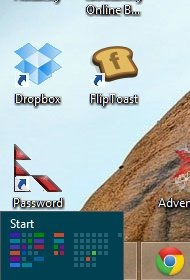
I learned that it’s easier to just press the Windows key on my keyboard and start typing the name of the application Search works very well, and the key to getting Win 8 to run well is using search often.
I am quite used to grabbing items from the taskbar when I want to run them. Usually I have my 5-10 things running down there at any given time. However I learned quickly that the “metro” or full screen apps don’t show up there.
That is maddening.
It’s part of the duality of Windows 8 that makes me slightly angry at the developers. ALT+TAB will find them, and the button on my keyboard that used to give me the thumbnail view of all apps switches between them. Quite by accident I tried sticking my mouse in the upper left corner. That gives me one app (see below).

However if I move my mouse to the left side, slightly lower, I see more.

Perhaps this is more intuitive for people that aren’t used to Windows. However I can’t imagine how well this would work over time. I need to know the upper left v slightly lower? That’s silly. Even if these are nice locations (or gestures on a tablet), why aren’t these items in the taskbar?
However since I don’t hit the start menu often, it’s a minor annoyance in the grand scheme of things. Besides, once I learned how to find the power off button, I’ve gotten used to the right “settings” bar. I even learned the shortcut of Windows+I to bring up the bar in applications. It’s how I find control panel as well.
The performance is great and the shutdown/boot times are wonderful. Lots of my VMs are Win7 or WinS2008 and those are painfully slow after getting used to Windows 8.
I learned a few shortcuts, like Win+I, which are handy. Search, explorer, even the Win+X for hot items isn’t quick for me. I’m a keyboard guy, so the Windows key, C-M-D enter opens a command prompt quicker than clicking on anything.
The one thing that almost made me uninstall Windows 8 was keyboard/mouse flakiness. I’ve had a Logitech K350 keyboard and K510 mouse for a few years. I have liked the Logitech products and I have a Unifying USB receiver. On the old desktop, I plugged this into a front USB port, right next to my setup. It would be about where the little blue LED is below.

When I switched machines, I moved this to the new machine, same position. From minute one, I’d get hesitation on the mouse and some stuttering on the keyboard. I type and move fast, and any hesitation has me replacing the hardware immediately. I almost removed Windows before I tried an old wired keyboard and it worked fine.
I was tempted to buy a new wired keyboard mouse if that was the solution, but first moved the receiver to the back of the machine. That didn’t help.
Then I moved the receiver to a USB hub that I placed next to my keyboard. Literally next to my keyboard.

That worked perfectly. I know this was a hardware change, though I’m surprised this newer hardware would somehow interfere or provide less power to the USB receiver. I don’t know if this is the OS or hardware and don’t care. It works now. I’m happy.
Final Impressions
It’s been two weeks, lots of my daily work on Win 8 and while I’m still fixing some settings and software from the move, that’s normal stuff. It sucks, it stinks that Windows hasn’t figured out how to make this much easier, but I can live with that.
Most of the Start Screen stuff isn’t remotely bothersome to me. I pop it up, type an app (or a few letters) and select it. I learned that the tiles aren’t easy to distinguish for me. I’ve got a bunch of stuff up there, and I’ve moved stuff to the left side, but the colors make it hard for me to tell which app is where.
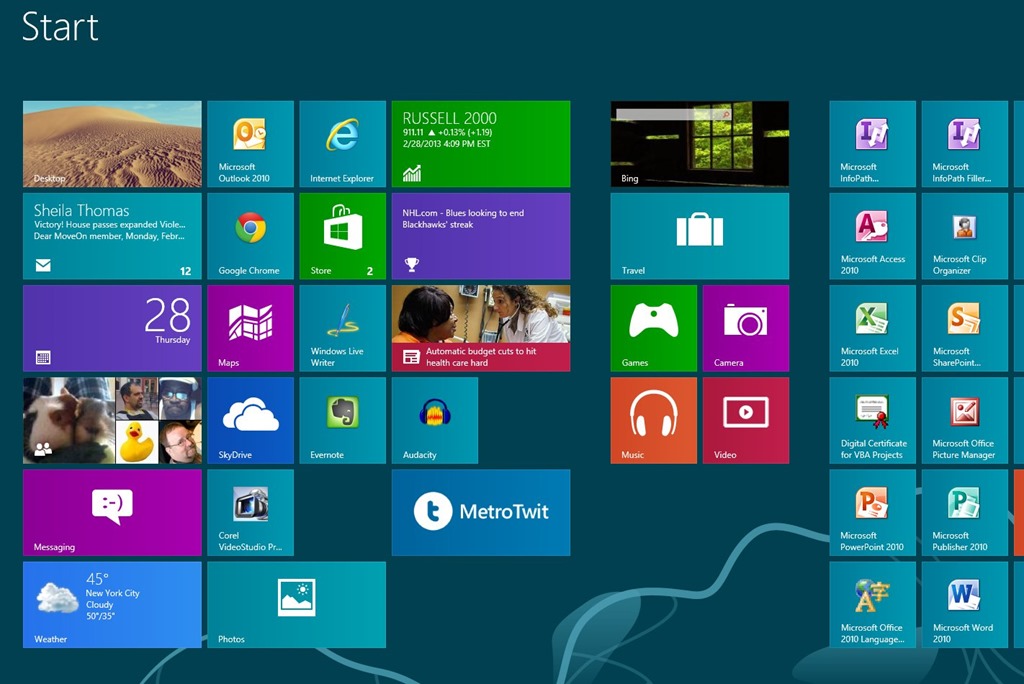
When I look for audacity (the headphones), the icon doesn’t easily trigger for me because there are so many things on the screen. I’m not sure what I’d do differently, and more my, typing the name works well.
In fact, typing the names of things, like “Confi” finds the SQL Configuration Manager 5-10x faster than I might have done with the old style Start Menu structure in Win 7.
I’ll also say that having the task bar duplicated on both of my monitors is excellent. It reduces the need for me to move the mouse all over to find apps.
Right now I love the performance and day to day work on Windows 8. It’s faster and more stable than Win 7 for me. The start screen isn’t in my way and works quicker if I’m typing. I worry about the way this will work when most of my apps are “full screen” styles and the task bar will be useless, but that isn’t a problem for now.
Your mileage may vary, but for me, I think Windows 8 is overall a good change.