Tag: windows

  • Home Backup for the DBA

    I’ve been giving a Prepare for When Disaster Strikes talk at SQL in the City this year, and it’s designed to get you to think about problems before they happen and take steps to mitigate issues. It’s important at work, but it’s also important at home.

    If you read the story of the Amazon/Apple hack, you might worry about the security of your information, and you should. However I was more concerned over the data loss, specifically pictures, when I read that account. I take a lot of pictures, all of them digital these days, along with various writings and videos, and I worry about preserving those for my own memories and for my kids. I don’t trust Facebook/Google/etc, to store them, so I needed my own solution.

    I installed Windows Home Server (WHS) a few years back on an old Dell Dimension E520. It was a good workstation, and plenty powerful to run the previous version of WHS (prior to WHS 2011) on its’ AMD CPU. It worked well, but across two years I had 3 boot drive failures. Each time I needed to not only replace the drive, but reinstall WHS and then copy off and back my files from the data drives. A PIA.

    I’d looked at Drobo, and other NAS type solutions, but none were very automated, rather expensive. I had a desktop, a laptop, my wife’s laptop, the kid’s iMac, and sometimes another machine to back up. After my 3rd boot drive failure, and the server sitting idle for a couple months, I decided to virtualize my WHS.

    I had planned on using Win7 for a host, but the older desktop didn’t seem to want to install it with my new RAID card in it. Rather than futz with it, since it wasn’t critical and isn’t connected to the Internet on my home network, I installed WinXP and then Virtual Box. Inside of Virtual Box, I installed the older WHS software, putting my data on separate virtual drives that were protected by RAID. I used 2 separate arrays, which should give me some protection if any of them fail. The host WHS drive is also on a RAID array, which should give me some protection from drive failures.

    And if my boot drive fails, I replace it, install WXP, Virtual Box, and then run my VM without messing with data.

    I like WHS as a central place for us all to share pictures, video and music, and for backups. I’ve recovered a few files from the system that I had accidently deleted, and I know all our machines are protected right now.

    It’s not perfect, and I really need an offsite solution for a second backup since I’m a DBA. I get a little paranoid about restoring things, and I know one copy isn’t good enough.

  • Change your Windows path

    When you run something from the start menu or in a Windows command prompt, you type the program name to run the executable file. There are three ways in which you can execute something:

    1. the executable is in your current directory/folder
    2. you type the entire path to the executable.
    3. the PATH environment variable contains a value that points to the folder containing the executable.

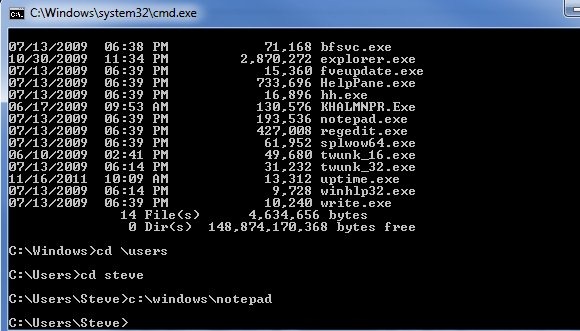
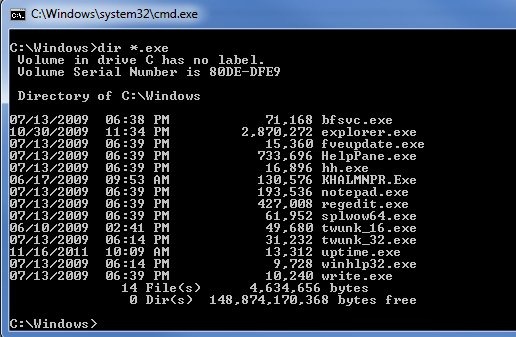
    The first and second items are fairly self explanatory. In a command prompt, if I change to the \Windows folder in Windows 7, I see these executables:

    path1

    If I type notepad (the .exe isn’t required), Windows searches the folder, finds notepad.exe, and runs it.

    If I am in c:\Users\Steve, however, I can run notepad in one of two ways. I can do this:

    path2

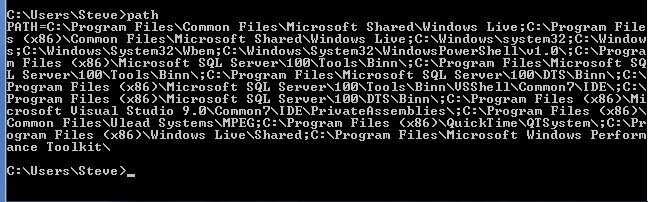
    The other way is that I just type notepad, and it runs. How does this happen? It’s a holdover from DOS (and Unix) for an environment variable called PATH. My current path is returned by typing PATH in a command prompt.

    path3


    There are a lot of folders listed here, all separated by a semi colon.  Most of these are for various programs, and lots of installers alter the path to add their own folder. For example, the Live suite of products added this path

    C:\Program Files (x86)\Windows Live\Shared

    I would have thought most technical people knew how to change the path, but I found a developer recently that did not. I suspect most people don’t need to deal with this in most cases, so they aren’t aware.

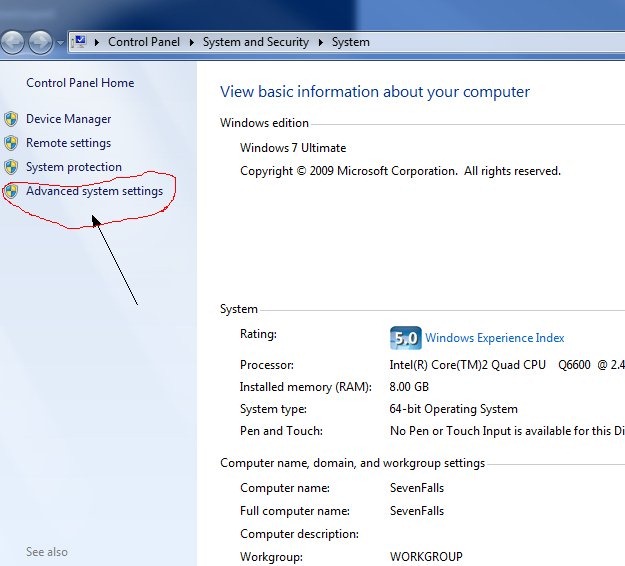
    The way you should change this manually in Windows is this. Go to the properties of your system by right clicking the “Computer” item in the Start Menu and select Properties. You’ll get this screen (in Windows 7)

    path4 

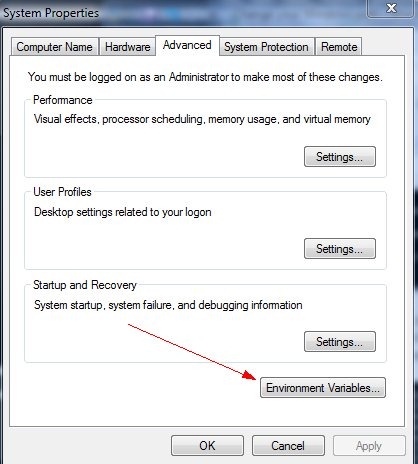
    Select the “Advanced System Settings” in the left side. This is an admin function, so you need the UAC permission. This will open a new dialog

    path5

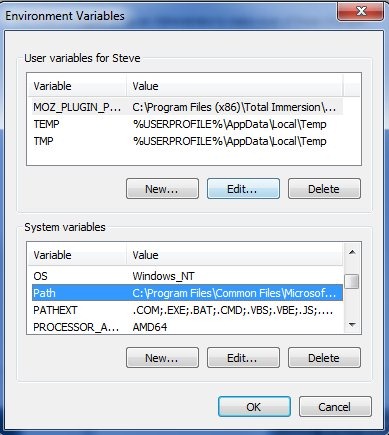
    The Environment variables are accessed through a button on the Advanced tab. Once you press that, it will give you the variables dialog.

    path6

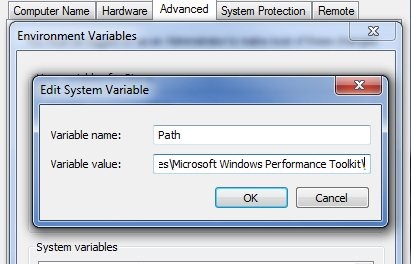
    If you scroll down in the System Variables, you’ll see PATH as an item. Select “Edit” and you can change the path.

    path7

    The path is selected when this opens.

    DO NOT START TYPING.

    Instead hit the right arrow to de-select all the txt and move to the end (as shown in the image above). Add a semi-colon and your path, and OK back out of all dialogs. You’ll have a new path that you can use in your system.

  • Looking to Windows 9

    I haven’t played with Windows 8 yet, and only a little with Windows Phone 7, but I am a little concerned. This set of videos that show an older man, a CPA, a lifelong Windows user messing with Windows 8 and OSX are a bit telling to me.

    The whole start menu/tile thing is a problem to me. It’s no that big a deal in that once you learn it, you understand how it works, but it does seem to be an issue of design. The more I look at the tile/menu design, the more I’m bothered. It’s not a question of ergonomic design. The whole iOS design is something that just works. It was new, different, and it changed the way so many people view computers. For the first time, the majority of stuff you wanted to do just made sense. Not necessarily for us techies/power users, but for most of the world.

    I read through a dozen or so of the design considerations from Microsoft, and I appreciate it’s an impossible task. Or at least a Herculean task. However what it seems like it happening is that they’re still bound by viewing the world the old way. As much as they worry about moving the tile/start menu around to be more intuitive, they’re still stuck with stuff in the corners. If they want to be revolutionary, then think about the fact that our mice are often in the screen, somewhere near the application (a cell in Excel, a portion of a Word doc, or a scrollbar). Make the menu work from that point in time, or without the idea that I’m starting from the lower left.

    I watched this video from cNet with a hands on, and it definitely feels a little cherry-picking on features and ergonomics was shown, but I am looking forward to messing with it at some point. There are things I like about the direction they’re going, though I’m not sure they are going to work in the 1.0 implementation. However I thought I’d look forward to Windows 9 and talk about what I’d like to see.

    For the record. I use a Windows 7 desktop, with 3 monitors, but I travel with a Macbook Air that I love. It’s much better than the last 4 laptops I’ve had, smaller, and OSX Lion is a dream for me. I have an iPhone, which I use constantly. I also have an iPad that I use regularly, but not as much as my kids. I’ve been a Windows user primarily for two decades at work, and I don’t want to see Windows disappear. However I do think there are things Microsoft could do better.

    One Device

    More and more convergence seems to be on the mind of people. When PDAs first came out, I thought we might get there, but a decade of crappy devices that worked in a half-assed way, from the Palm to PocketPCs to Windows 6 smarthphones had me rethinking that. However with my Android G-1 and then my iPhone, I think to a large extent, I can converge. Not to one device, but two.

    I saw this device recently, the ASUS PadPhone, and thought it was pretty cool. It’s a phone, that slides into a tablet, which can attach a keyboard. The idea of getting my phone screen larger at times, would be very handy. Adding a keyboard is a natural step, since the virtual keyboards work OK, but aren’t always great.

    ht_asus_padfone_jp_120227_wblog

    The iPad changed the world and made us think of tablets. I think my iPad is very handy, but it’s not convenient. It doesn’t allow me to do technical work for presentations, which is an issue. It just lacks horsepower. I know for more people that’s potentially not an issue (my Mom loves hers), but it is for some of us. The iPad isn’t what I want.

    For most of us, however, the idea of a phone/tablet makes some sense. We want to use the form factors differently, and much of what I’ve seen in Windows 8 makes sense there, but I’m not sure about the desktop.

    Hot Hardware

    To me, the biggest thing that Windows 9 should have is hot hardware. Not cool, not flashy, but the core hardware ought to change without the OS freaking out.

    Ideally what I’d like is a core OS running on my phone, that I can then plug into another device (docking station, tablet, whatever) and have that docking station add CPUs, Memory, displays, etc. without the OS missing a beat. It might take a minute to sync up, but if I have a dual socket quad core CPUs on my desk, I’d like my OS session to take advantage of them. I want things to speed up. If I have 128GB of RAM on my desk, pick that up and start using it for Powerpivot, editing movies, or anything else.

    Undocking is definitely the harder part. When I lose RAM, what happens? Well, I’d expect that applications using that memory would have to suspect themselves, perhaps even in the other hardware. Or maybe they’d suspend, rebuild their state, and have to reload things from disk (on the phone). Threads on CPUs would be tricky, but there are a few scenarios on how to recover applications, including letting them die, but it could work.

    Potentially we’d start most CPU work as transactional as we do in databases, and only commit the state at known points, so that a drop in hardware would result in a “rollback”. I suppose we could also do something like spawn off threads that are either always on the phone/small device or always on the remote hardware, but there are some smart people in the world that I suspect could come up with a solution.

    I’d expect things might freeze state when I dock/undock, but I’d want them to keep working at some point, even if they went into some background/sleeping state.

    Virtualization

    I’d like to see more virtualization, but at a core application level. Let me essentially sandbox an application into a VM, which thinks it’s on it’s own OS installation, but limit it to very basic interactions, like the clipboard. Can you imagine if Windows did this, and opened up a few VMs from Linux, or even allowed people to get a $29 OSX install running for a few pieces of software? I don’t know the legalities, but it would be a game changer in many ways.

    Think Different

    The best thing Microsoft could do is really think different. Don’t evolve Windows, but really grow it into something that is handy, ergonomic, efficient, and effective. Don’t worry about matching up with older software. iOS showed many people will port their stuff over if you make it popular, so give up on making things backward compatible.

    Break things if you must, but just make it better.
  • Printer Driver Fun

    I bought my new Brother HL-2270DW laser last week and had to set it up. With the need to print something quickly, I plugged my MacBook Air into a USB cable, plugged that into the printer, and wondered what would happen. I had a CD with the printer, but the MBA doesn’t have a CD drive.

    To my pleasant surprise, OSX identified the printer, made a quick search and told me it was downloading a driver inside of 10 sec. A minute later the driver installed itself, added the printer, and when I clicked print from Acrobat, I had a printed document.

    OSX score: 10.

    That’s miles beyond the hassles I’ve had with Windows machines in the past, but I was curious. I grabbed my old Windows 7 laptop, plugged the USB cable into it, and to my surprise it identified the printer, found a driver, and installed it. I was printing a couple minutes later.

    Windows 7 (direct) score: 10

    What about remote access? I had configured the printer for my network and went over to my desktop running Windows 7. I searched for the printer, and it was found on the network immediately. However when I clicked “find driver”, Windows was unable to find a driver. Strange, since the model of printer was identified by the OS.

    I manually added the driver from the CD and the printer worked immediately.

    Windows 7 (remote) score: 6

    What about remote on OSX? I went to the kid iMac and added a printer there. The printer was identified on the network, and once I clicked “add”, the driver was downloaded and installed

    OSX (remote) score: 10

    So far it seems Windows is still iffy with printer drivers, and I’m not sure why. The various hardware configs shouldn’t matter if the OS can identify the printer. It should go find the driver.

    I’m not sure why now, after decades of printing we can’t just have printers work with our operating systems, but I’m hoping at some point this will be rectified.