Tag: windows

  • Disable the Charms Bar – Making Windows 8 Better

    One of the things that’s bothered me is the way the charms bar frequent popping out as my mouse moves to the upper or lower right. I do this as I’m trying to reach the “x” to close a window or adjust time zones. The bar pops out and it’s annoying.

    I initially searched for a way to stop this, but didn’t find one. However I must not have searched correctly as I found an article recently that shows how to do this.

    It’s a registry hack, so hit the Start menu and type “regedt32” and hit enter. Nothing returns in search, but it runs. Follow the instructions, and the charms bar won’t appear as you move your mouse around.

  • Software Design and Schizophrenic Windows 8 Part 2

    I know it’s not schizophrenic, but that sounds better. It’s really a split personality.

    I wrote recently about Windows 8 and what I consider to be poor design in the update system. Today I want to look at another aspect that troubles me.

    Programs

    I’ve gotten used to the taskbar and finding the applications I need. I actually pin 12 applications to my bar because I use them on a daily basis and it’s much easier to start them from the task bar.

    I actually have gotten used to finding applications (other than Windows Update) on the Start Screen by typing the name. I know this worked in Windows 7, and I should always have been doing this, but the design of Win 8 actually forced me to get in the habit of hitting the Windows key and then typing the first 3-5 characters of the application name.

    In any case, here’s my taskbar.

    win8_schizo_3

    I’m running a number of apps, almost all of these are active. If I hover the mouse over any of them, I can find them. It’s no four-finger up swipe in OSX, but it works very well for finding stuff.

    Most stuff.

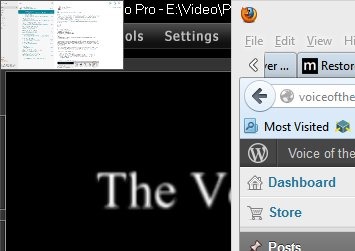
    I actually was running the Mail app in Windows a minute ago, however it’s not on my taskbar. I have to do one of a few things to find it. I can put my mouse in the upper left corner, and I’ll see it as thumbnail.

    win8_schizo_e

    I an alt+tab through my list of stuff and find it there, but that’s slow. I’d also say hovering I the upper left corner to be slow (to me).

    Schizophrenic.

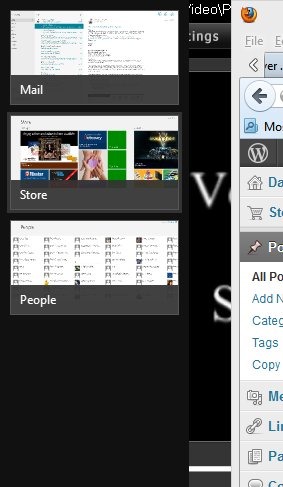
    I also had the People app running. That’s in my alt+tab list, but quite by accident I realized that if I hover my mouse in the upper left and then move it slightly down, I get this:

    win8_schizo_f

    A list of the running metro-style applications.

    Now I have two task bars. One at the bottom of both my monitors (it’s duplicated) and a separate one on the left side of my screen (either one), if I correctly move my mouse along the left side of the screen. I don’t always do it correctly, and so switching to the metro apps becomes a little dicey at times, usually slow, and occasionally maddening.

    I thought we learned a long time ago that two separate menus was poor design.

    I don’t mind the idea of the left hand bar. It’s fine, and if it’s ergonomically better, great. Get people to move that way. However make sure you’ve integrated into the taskbar at the same time. Don’t give me two places that do the same thing for different items. Give me consistency.

  • Schizophrenic Windows 8

    I’ve been using Windows 8 almost exclusively for about 3 weeks. I got a new desktop a couple months back, which has only had Windows 8 installed on it. My new laptop arrived about 4 weeks ago and a week later I finally abandoned my Macbook Air and moved fulltime onto the Windows 8 platform.

    Overall I like Windows 8. It boots quickly, so quickly that I don’t mind the occasional restart when an update requires it. It’s gotten to where I get annoyed at the length of time it takes for me Windows 7 VMs to restart. The restore time from sleep when I open my laptop is OSX-esque. Almost immediately after I open the machine, I can log in.

    There are improvements that make my life easier, like duplicating my taskbar across both my monitors. I’ve learned the Windows+I shortcut, which is really the only one I need. I’ve gotten used to the charms/settings bar on the right, and I rarely invoke it. Overall, this feels like a faster, more complete version of Windows 7.

    Except.

    It’s schizophrenic.

    I know that’s not what I mean. Really I mean it has a split personality, but I like the word schizophrenic.

    Updates

    When I want to update Windows, I need to run Windows Update. I know that this is supposed to be automatic, but I don’t like things breaking, and so I need to run Windows Update and select the updates I’ll apply. If I go to the Start menu and type “windows u”, here’s what I get:

    win8_schizo_a

    That seems strange, because I know there’s an application of sorts for Windows Update. Fortunately I know that Windows+I, and then selecting Control Panel gets me to the main panel. I’ve learned to use search, which I can do:

    win8_schizo_b

    If search is the way to do things, and lots of recommendations say it is, why doesn’t a search on my start menu find "Windows Update? I can search in every Explorer Window. The Start screen starts searching as I type. The Store searches.

    Schizophrenic.

    What’s even worse is that apps I’ve installed from the Windows Store, of which there is a dearth as of this writing, are updated separately. I get a note on the Start Screen for the “Store” tile:

    win8_schizo_d

    Or in the upper right corner if I select Store. I actually missed this a few times when looking for updates. That might be me, and I’m not complaining about updates being here.

    win8_schizo_c

    I’m complaining they are in two different places.

    This is endemic of poor design. Not because of the Start Screen, or the tiles, or the movement of items around in the OS. Because of the lack of integration between the old, desktop style view of the world and the Windows 8 Metro/Tile interface.

  • Windows 8 and Google Calendar

    I use the Google calendar service extensively. I host my domain there and I’ve gotten used to the calendar. When I set up my Windows 8 desktop, I was curious if I could use the built in calendar app instead of living in a web browser.

    A quick search found this link, which worked just fine for me. I added my Google account and I had my various appointments and note appear in Windows 8. Very smooth, and very nice.

    I have tended to use the online calendar from Google, but it’s definitely easy to read the “Metro” interface for the calendar. I haven’t used it a lot, but I may use it more over time since it’s easier to read in full screen format than any of the browsers or Outlook items.

    The downside? On a desktop, getting to the calendar isn’t as simple as I’d like. The hover in the upper left corner doesn’t always work and if I move the mouse wrong, I lose the switch capabilities.