Recently I was doing a demo and a customer asked how I had linked my commit in Azure DevOps to the work item that existed. It’s easy, and tldr; it’s with the commit comment. This post shows how that works.
I’ve been working with Flyway Desktop for work more and more as we transition from older SSMS plugins to the standalone tool. This series looks at some tips I’ve gotten along the way.
Creating a Work Item
In Azure DevOps, there is a board menu. Under here, one of the subitems is Work Items. You can see these below:
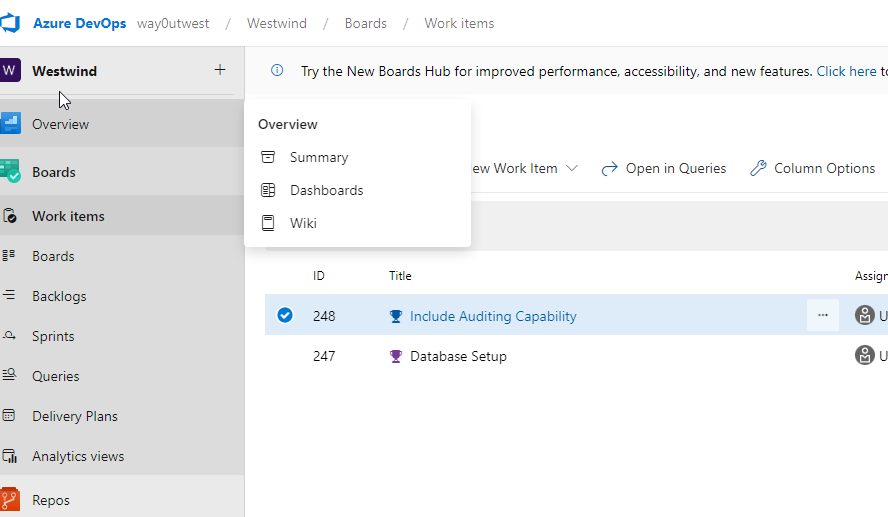
I tend to work from the “Boards” item, which looks like this:
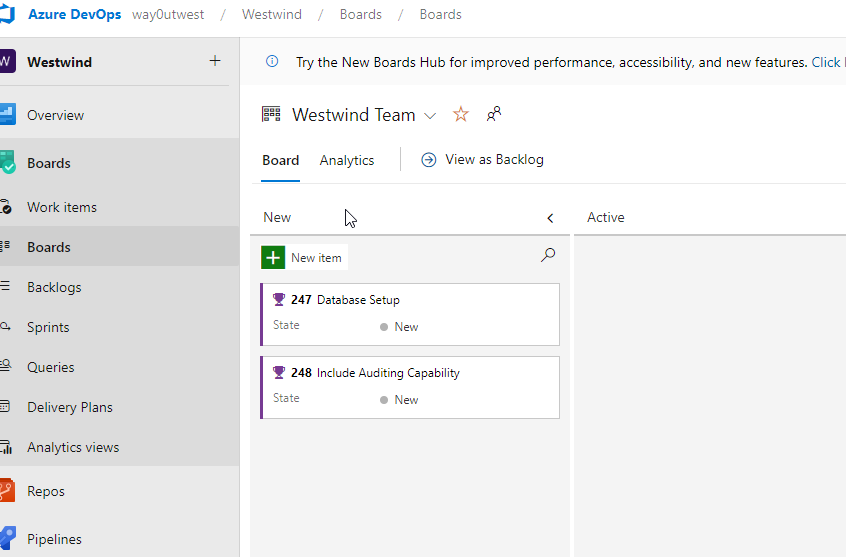
Let’s assume we have a new item, so I’ll click the “New Item” at the top of the left column. This gives me an edit box, which I’ll type in a name.
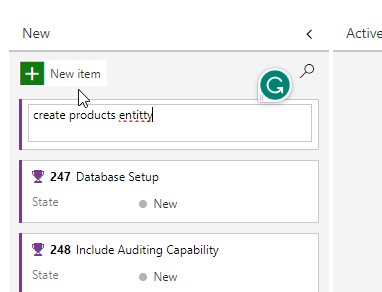
When I hit enter, this gives me a new work item, which you see below, as 250 create products entitty.
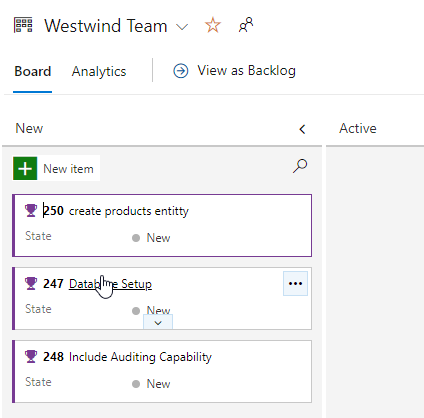
Since I don’t want to leave a spelling error, I’ll edit the title to look better. Now I have a work item.
Linking A Commit in FWD
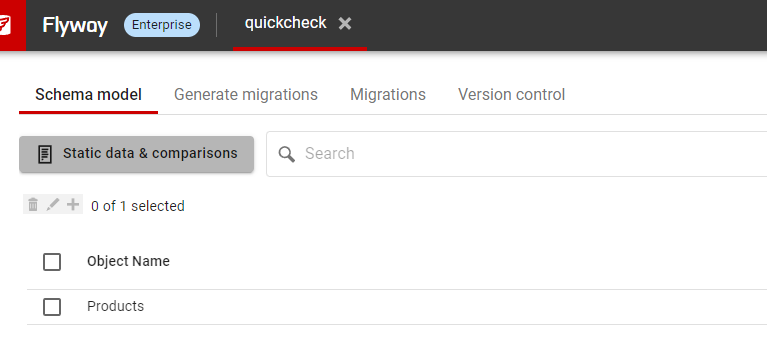
In SSMS, I’ll create the products table. Once I do this, I’ll go to Flyway Desktop and refresh the schema model. When I do this, I see my change. I’ll select this and save to the file system.
Once this is done, I’ll go to the Version Control tab, and I again see my file changed. Here my file is selected, and I’ll enter a commit message, but I’ll include the work item number after a #. This creates a link.
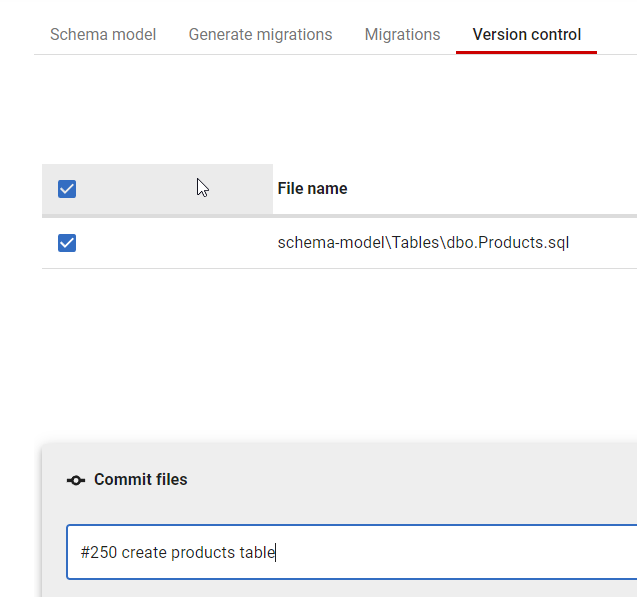
I now click commit and push. In Azure DevOps, in the Repos –> Commit item, I see my commit.
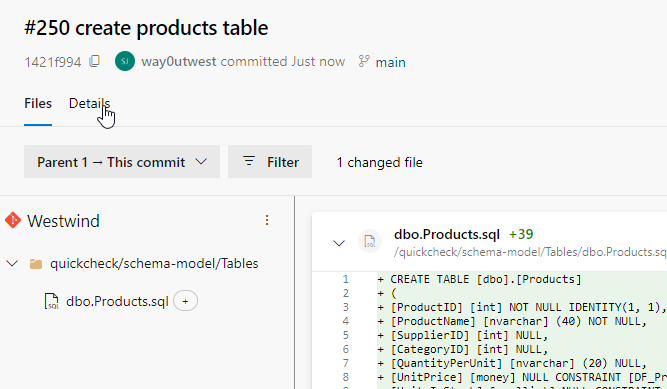
Note the details item under my cursor. If I click that, I see commit details and near the bottom, a link to the work item.
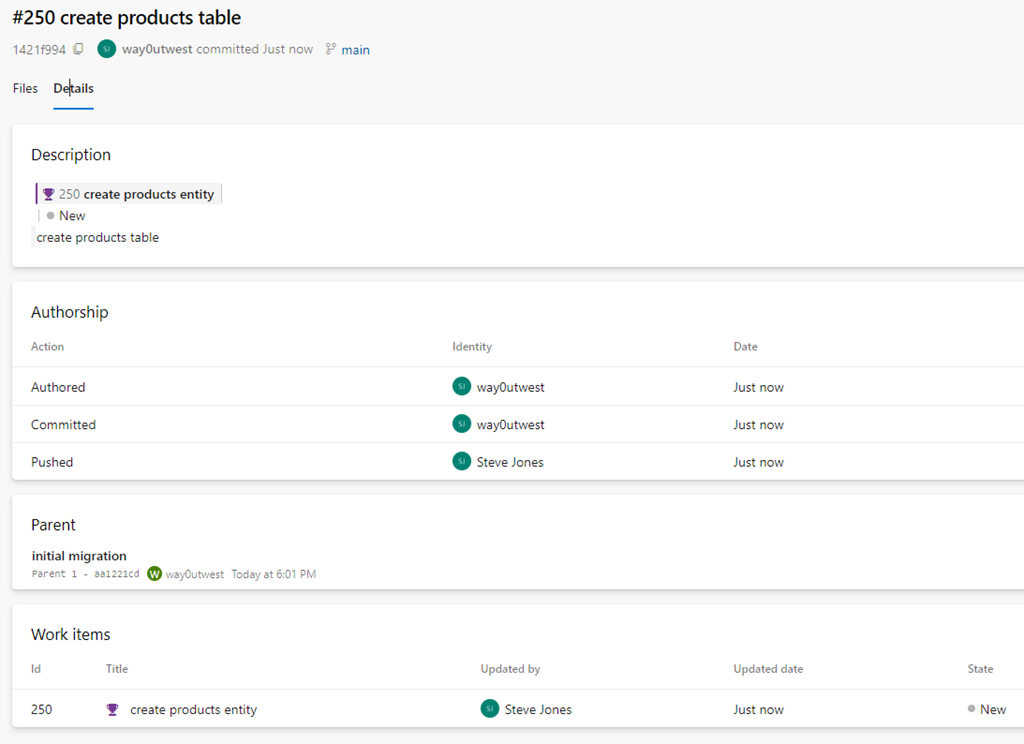
If I click through to the work item, or I access the work item from Boards, I will see my commit linked on the far right of the work item.
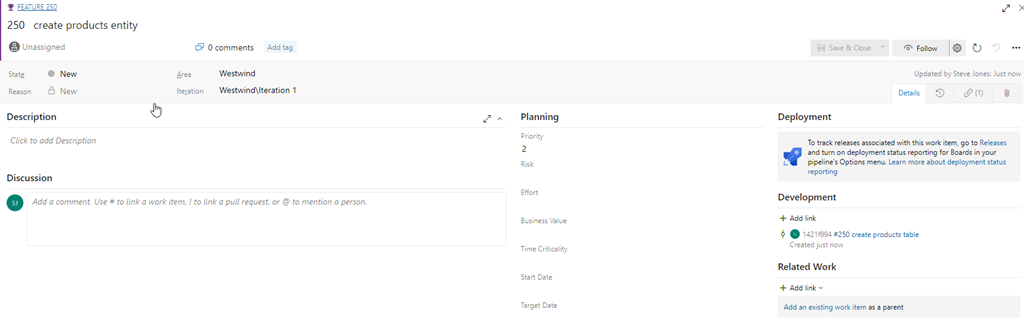
This is very handy to have your actual code linked to the work that it relates to. If I have PRs or multiple commits, as long as you use the #nnn, where nnn is the work item, you’ll have everything linked together.
This is less a Flyway Desktop feature than an Azure DevOps one, but you can access this from Flyway Desktop by writing good commit messages with work item numbers.
Try Flyway Desktop out today. If you haven’t worked with Flyway Desktop, download it today. There is a free version that organizes migrations and paid versions with many more features.
Video Walkthrough
I made a quick video showing this as well. You can watch it below, or check out all the Flyway videos I’ve added: