Tag: Azure Devops

  • Azure DevOps Changing Build Notifications

    I don’t do a lot of team builds in Azure DevOps, but I constantly use it for demos. However, I’m often experimenting with things and I break builds regularly. I used to show the email notifications to audiences years ago, but I think Continuous Integration (CI) has become fairly common and people are used to getting notified on failures.

    These days I find myself constantly getting success notifications, which are annoying. Instead, what I’d like to do is avoid these and only get build failures. This is a quick post of making this change.

    I am doing this for a project, but you could do this for all projects. In my case, I’ll pick the project settings at the bottom of the main page.

    2020-07-09 15_27_58-

    This opens a list of items on the left, one of which is notifications.

    2020-07-09 15_20_03-Settings · Notifications (SimpleTalk DB Demo - Basic) - Settings

    Select this and you see a number of default notifications set up. The top one is in the “Build” section and is for a build completing. We don’t need to know builds complete. In fact, I wouldn’t ever want this notification, even in a team. I assume most complete and only want failures.

    This is enabled, but I’ve clicked the slider to disable this below.
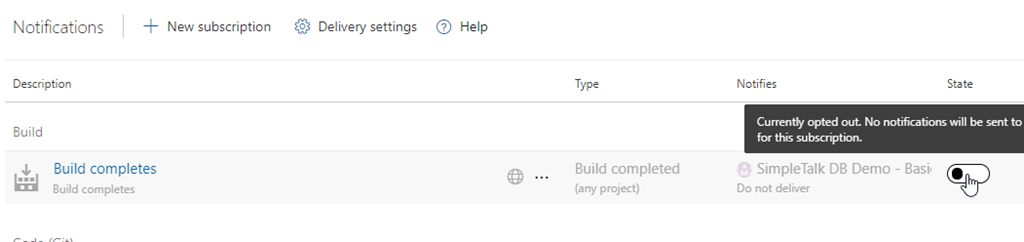
    2020-07-09 15_20_13-Settings · Notifications (SimpleTalk DB Demo - Basic) - Settings

    Now I want a build failure notification. At the top there is a “New Subscription” area to select.

    2020-07-09 15_22_42-Settings · Notifications (SimpleTalk DB Demo - Basic) - Settings

    This opens a list of various subscriptions you can set up. The first item is build, and you can see on the right that I can choose the build complete or failure. I assume this is because I may want to alter the default settings for the completion.

    2020-07-09 15_22_49-Settings · Notifications (SimpleTalk DB Demo - Basic) - Settings

    I pick this and see some settings I can configure. I can change the name, decide who gets notified and even set this for all projects. I like these custom dialogs, letting me pick a number of criteria that I Can link in an and/or fashion.

    2020-07-09 15_23_05-Settings · Notifications (SimpleTalk DB Demo - Basic) - Settings

    That’s it. Now when I run builds, I don’t get notified if there is success. Only failure.
  • Azure DevOps Agent Job Names

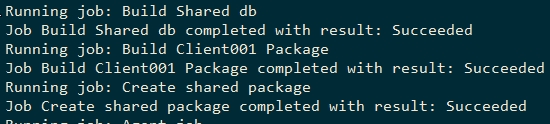
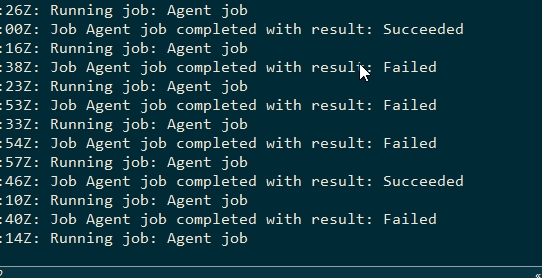
    I’ve been working with some complex builds lately, multi-stage ones, and I’ve been annoyed by the Azure DevOps agent. If you’re like me, you might see this in Agent consoles:

    Azure DevOps agent output

    Notice anything interesting? No? Me, either.

    This is annoying. I’ve renamed the releases and builds, but for some reason, I still get “Agent Job”. Very annoying, but I also see that this does allow for more customization. In Azure DevOps, things are very flexible, but often not obvious or intuitive where they are changed.

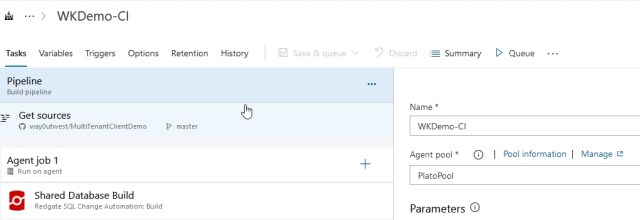
    In this case, I can look at a Build stage. I see something like this:

    ADO Build definition

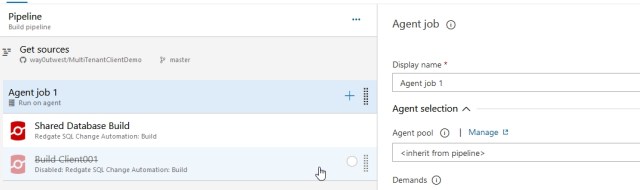
    I’ve renamed the CI, and I see that as the  Pipeline as well. This what I’d hope would get sent to the agent. However, it doesn’t. Instead, I need to click on “Agent Job 1” in this case. Once I do that, I see this:

    ADO Agent Job properties

    Here is where “Agent Job” comes from. In this case, I’d had two at one point, but deleted the other. I can rename this to something else:

    Renaming the agent job title

    Once I do that, I’ll start seeing names that allow me to more easily track what the agents are doing.

    ADO Agent output with proper names


  • Finding the Visual Designer in Azure DevOps Builds

    This post is really a reminder to me, since I don’t create pipelines all that often, and I’ve forgotten a few times how to do this.

    Plus, while YAML is nice when you want to scale things, it absolutely sucks for getting started. It’s a horrible default and, IMHO, is the worst decision of the Azure DevOps team since the VS 2010 Release Management days.

    When you create a new project, and then select Builds in Azure DevOps, you’ll see something like this. It might be slightly different as the product continues to evolve every few months.

    2019-08-26 21_00_07-Builds - Pipelines

    This looks inviting, a pipeline should be easy. When you click New Pipeline, you’ll get a choice. The intention here is that Azure DevOps wants to help you get started.

    2019-08-26 21_00_40-New pipeline - Pipelines

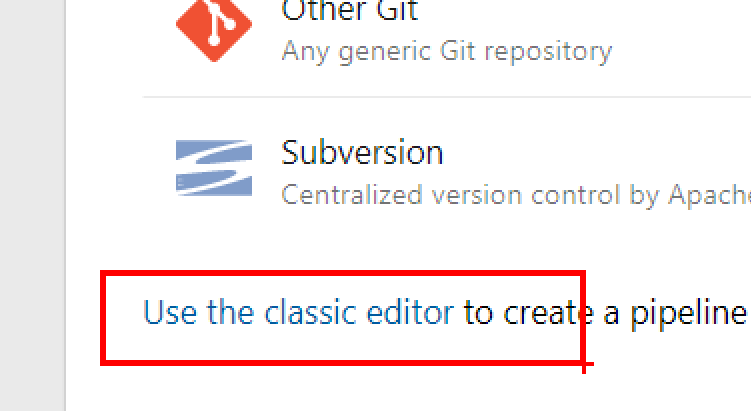
    Don’t be fooled. If you say your code is in GitHub, you’ll get a YAML pipeline and you can’t convert back? Why? Apparently the developers at Azure DevOps don’t want to write GUI interfaces that render YAML code.

    Instead, at the bottom of this section, there’s a “use the classic editor” link. Click that.

    2019-08-26 21_03_29-Zoomit Zoom Window

    Once you do that, you still have all the choices for code repos, and it’s easier to get your build started.

    2019-08-26 21_04_18-Select a build pipeline template - Azure DevOps Services

    Hopefully I’ll remember that next time instead of fumbling around.

  • MSBuild and Azure SQL Database

    I saw a report of a problem building a database with ReadyRoll in Azure SQL Database. This person wanted to use a local Shadow database in LocalDB and target an Azure SQL Database. I hadn’t build that config, so I decided to give it a try.

    Update: ReadyRoll has become SQL Change Automation,and this no longer applies. Contained users are supported with SQL Change Automation projects, which will solve this issue.

    I ended up with this:

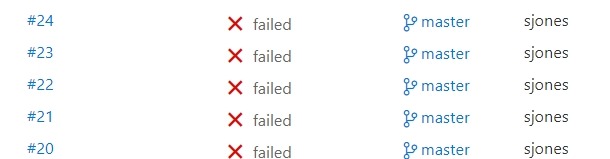
    2017-07-20 10_56_01-builds_azure-CI summary

    which was making me a little crazy. I’ve had most builds work really well. I tried a number of things, but kept getting a few items in the build. There were login errors or network errors, both of which bothered me since I could manually log in with SSMS from the same machine as my build agent.

    I suspected a few things here, one of which was the use of named pipes for the Shadow database and TCP for Azure SQL Database.

    Eventually, I decided to fall back with msbuild, ignoring VSTS, and make sure all my parameters were correct. I started here:

    C:\Windows\Microsoft.NET\Framework\v4.0.30319\msbuild builds_azure.sqlproj /p:TargetServer=”dkranchapps.database.windows.net” /p:TargetDatabase=”SSBuilds” /p:TargetUsername=”dlmdeploy” /p:TargetPassword=”astrongpassword” /p:ShadowServer=”(Localdb)\ShadowSSBuilds7″ /p:GenerateSqlPackage=True /p:SkipDriftAnalysis=True /p:ShadowUsername=”shadowuser” /p:ShadowPassword=”someotherpassword”

    I promptly got a VS build started and then this error:

    C:\Program Files (x86)\MSBuild\ReadyRoll\ReadyRoll.Data.Schema.SSDT.targets(513,5): error : An error occurred while attempting to
    create a patch script: Login failed for user ‘dlmdeploy’. [E:\Documents\Visual Studio 2015\Projects\builds_azure\builds_azure\buil ds_azure.sqlproj]
    Done Building Project “E:\Documents\Visual Studio 2015\Projects\builds_azure\builds_azure\builds_azure.sqlproj” (default targets)
    — FAILED.

    I verified the password in SSMS, verified the firewall and tried again. Same issue. Then I tried this:

    > sqlcmd -S dkranchapps.database.windows.net -U dlmdeploy -P “AStrongPassword”
    Sqlcmd: Error: Microsoft ODBC Driver 13 for SQL Server : Login failed for user ‘dlmdeploy’..

    Hmmm, that’s interesting. Why would this work in SSMS and not SQLCMD? My first thought was some driver setting, maybe ADO v ODBC, but that seems silly.

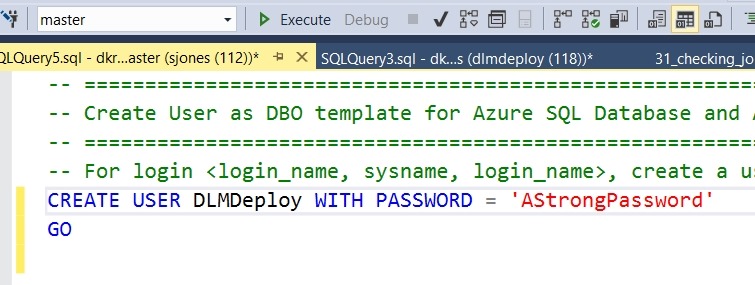
    Eventually I suspected some mismatch in databases, and found this post. It confirmed what I was about to test. I needed the same login/password in the master db as in the particular db I was using.

    I used SSMS and connected to master to create a user there.

    2017-07-20 11_06_42-SQLQuery5.sql - dkranchapps.database.windows.net.master (sjones (112))_ - Micros

    Once I did this, the build ran fine, both in the command line and in VSTS.

    A couple lessons here. First, in Azure, you connect to databases, but since some processes (like MSBuild) might connect to a default, you need the user in your db and in master. If you have multiple databases (as I do), I’d suggest separate accounts for building in each db.

    Second, work with the command line first. That’s the key. Once you have things working from there, it’s easy to move to a tool and automate your command line instructions.