Tag: backup

  • Losing All Traces of Data

    I was reading a thriller recently, in which a businessperson had their child threatened if they didn’t get some data for the criminals. Once the person had retrieved the data, they were told to delete it from the system and from all backups. Of course, they could do this, all in a few paragraphs of a novel. I’m sure plenty of lay people read this passage and accepted it as a possibility

    While I certainly understand how a user might be able to delete data from a system, especially in many third party applications that are poorly written but have sold well. However, could someone actually delete all information from backups? I’d say that in most of the companies I’ve worked in, this wouldn’t be possible. If the information was of any age, it would be stored in multiple locations on different media, some of which would be offline.

    However I haven’t worked lately in some enterprises where companies have moved to using disk backups, with systems connected together and managing versions. I suspect that it is possible in some of these enterprises to actually remove all traces of data from the organization, which isn’t what I’d ever want possible. If for no other reason than this is an incredible attack vector for ransomware, a malicious virus, or some other destructive process (including rm -rf). There’s also the issue of mistakes made by users; should they be able to remove all traces of data?

    There may be valid reasons to remove all copies of data from an organization, especially when some time has passed. However I think this should be a difficult process, have some hurdles to overcome, not the least of which is physical access, and should require multiple people to approve the actions. As we connect more and more systems, and rely on data being available, allowing anyone to permanently remove data without oversight will become a problem.

    Steve Jones

    The Voice of the DBA Podcast

    Listen to the MP3 Audio ( 2.8MB) podcast or subscribe to the feed at iTunes and LibSyn.

  • Multiple Backup Files

    I’ve been writing a little PowerShell lately that will back up databases, move files, and restore them. I’m often testing things, and having scripts to quickly and easily move files is very handy. After one of my posts recently, a reader asked if I’d considered multiple files and how to handle them in scripts. I confessed I hadn’t, mostly because I haven’t had to deal with them.

    In my career, I’ve tended to work with small to medium sized databases. I’ve had young children for a large portion of my SQL Server career and had no desire to babysit multi-hour (or multi-day) restores when things break. I know some people have been through those situations, and good for them. I just know I’ve had enough issues with the low-GB sized database, and haven’t been interested in supporting TB sized systems.

    However that likely wouldn’t be the case in the future. More and more companies are collecting and storing data that reaches into the TB, even in small companies. The rapid advances in sensors, development tools, and cheap storage means that many people are dealing with hundreds of GB in at least one of their databases. That means for a reasonable RTO, making quick backups, and maintaining good performance, multiple backup files are becoming a necessity.

    Is that really the case? Data volumes are exploding, but you many of you using this feature? I wanted to see how many people have implemented, or at least thought of striped backups. The poll this week is:

    Do you have any databases that benefit from backup to multiple files?

    I’ve consulted with clients that accidentally produced striped backups and then lost one of the files. That’s never a good situation, and it’s bad news to have to give as a consultant. However, I’m sure many of you have consciously implemented striped backups because they can perform better than single file backups and make for quicker restores. Others of you may suspect (or have tested) striped backups will help your systems but haven’t gotten around to setting things up.

    Let us know if this is a common feature you use, or is it still something esoteric that you have no need for. And if you have put striped backups in place, have you tested a striped restore? I certainly hope so. Let us know either way.

    Steve Jones

    The Voice of the DBA Podcast

    Listen to the MP3 Audio ( 2.7MB) podcast or subscribe to the feed at iTunes and LibSyn.

  • Powershell – Copy the Latest Backup

    I got an email recently where someone asked me how they can refresh a dev environment with Powershell. I guess I’d written something about this in 2009, though that would have been for testing as Red Gate had already banned me from development on SQLServerCentral by that time.

    I dug around and came up with a few partial scripts and cleaned them up for these posts. This post will look at getting the backup and a later one will examine the restore.

    Finding the Latest Backup

    I’ll assume that you make backups on a known path somewhere. My philosophy is that I want the machines to stand alone as much as possible. That means that I don’t want the source machine (the one making the backup) to be working on refreshing the backup elsewhere. I want a pull system.

    For a high level overview, this process looks like this:

    • Search the backup path for files matching a pattern.
    • Find the most recent one, based on date.
    • Copy that most recent file to another location.

    For the sake of consistency and easy, I want to copy the file with the same destination name every time. That will simplify my restore process, which I could easily then do in T-SQL.

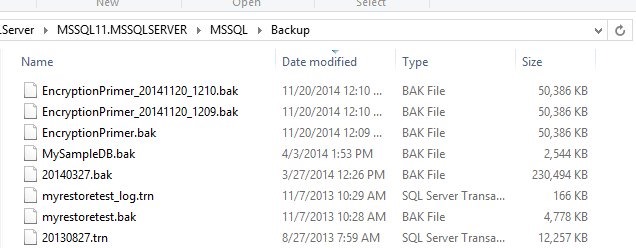
    Let’s examine how to do this. I’ve got a folder with a few backups in it.

    backuplatest

    For my PoSh, I’ll start by setting a variable to the path.

    $backuppath = "D:\SQLServer\MSSQL11.MSSQLSERVER\MSSQL\Backup" 

    Once I have this, I can now look for the files in this path. To do that, I’ll use Get-Children.

    get-childitem -path $backuppath

    This will return to me a list of the files. That’s what I want, but I want to limit the files to a pattern. In this case, I’m looking for .bak files, from the EncryptionPrimer database. All of these

    There’s nothing special about what I do that’s not contained in plenty of places. I don’t have this running on an environment currently as someone else manages that process, but here’s the process I’ve followed in the past:

    • Find the latest backup (whatever the date) in the source folder.
    • Copy this with a set name to the destination folder, overwriting previous backups with the same name.
    • Restore the known name to the development database, moving files as needed.

    I’ll go through each of these steps in my PoSh script.

    Find the Latest Backup

    This is fairly easy. I’ll use the Get-ChildItem method, which I found in a StackOverflow post. I’ll use a variable for the path I need, and then check the path.

    $backuppath = "D:\SQLServer\MSSQL11.MSSQLSERVER\MSSQL\Backup"

    get-childitem -path $backuppath

    That works well, but since I’m building a process for a specific backup type, I’ll add a filter.

    $backuppath = "D:\SQLServer\MSSQL11.MSSQLSERVER\MSSQL\Backup"

    get-childitem -path $backuppath -Filter "EncryptionPrimer*.bak"


    To find the latest backup, we’ll pipe the output through the Where-object filter, removing folders. Then we use sort-object to order things by creation date and select-object to get just the one file.

    $backuppath = "D:\SQLServer\MSSQL11.MSSQLSERVER\MSSQL\Backup"

    get-childitem -path $backuppath -Filter "EncryptionPrimer*.bak" |

        where-object { -not $_.PSIsContainer } |

        sort-object -Property $_.CreationTime |

        select-object -last 1


    The last part of the script is the copy-item command, which is again the recipient of piped output. We give a standard name, and path (another variable).

    $backuppath = "D:\SQLServer\MSSQL11.MSSQLSERVER\MSSQL\Backup"

    $destpath = "d:\SQLServer\Backup"

    get-childitem -path $backuppath -Filter "EncryptionPrimer*.bak" |

        where-object { -not $_.PSIsContainer } |

        sort-object -Property $_.CreationTime |

        select-object -last 1 | copy-item -Destination (join-path $destpath "EncryptionPrimer.BAK")

    Once this is done we can restore things. I learned how to do this from PoSh using this post: http://stuart-moore.com/day-11-31-days-sql-server-backup-restore-using-powershell-basic-restore/

    However, since I have a standard backup file name, I’d probably do this in T-SQL and set a job that I can just run anytime. It’s simpler and easier, and since most of the time I’d want to do this from SSMS, a job works well.

    Here’s the PoSh script.

    Import-Module "SQLPS" -DisableNameChecking

    $sqlsvr = New-Object -TypeName  Microsoft.SQLServer.Management.Smo.Server("JollyGreenGiant\SQL2012")

    $BackupFile = "D:\SQLServer\Backup\EncryptionPrimer.BAK"

    #

    #echo ""

    #echo "Databases"

    #echo "———"

    #foreach ( $db in $sqlsvr.Databases) { write-host $db.name }

    echo " "

    echo "Begin Restore"

    echo "============="

    $Restore = New-Object "Microsoft.SqlServer.Management.Smo.Restore"

    $Restore.NoRecovery = $false

    $Restore.ReplaceDatabase = $true

    $Restore.Action = "Database"

    $Restore.PercentCompleteNotification = 10

    $BackupDevice = New-Object ("Microsoft.SqlServer.Management.Smo.BackupDeviceItem") ($BackupFile, "File")

    $Restore.Devices.Add($BackupDevice)

    $RestoreDetails = $Restore.ReadBackupHeader($sqlsvr)

    $logicalFileNameList = $Restore.ReadFileList($sqlsvr)

    $Restore.Database = $RestoreDetails.Rows[0]["DatabaseName"]

    foreach($row in $logicalFileNameList) {

        $RestoreDBFile = new-object("Microsoft.SqlServer.Management.Smo.RelocateFile")

        $RestoreDBFile.LogicalFileName = $row["LogicalName"]

        $RestoreDBFile.PhysicalFileName = $row["PhysicalName"]

        $Restore.RelocateFiles.Add($RestoreDBFile)

            }

    $Restore.SqlRestore($sqlsvr)

    write-host ("Completed the Database Restore operation on server for Database " +  $RestoreDetails.Rows[0]["DatabaseName"] + " on server $server")


    That’s it. I ran this a few times, and it worked well. A handy script to get the last backup and have it ready in a dev/test environment.

  • Backup Your Certificate for TDE

    If you’ve enabled TDE, you need to be sure you have a copy of the certificate that protects the Database Encryption Key (DEK). If you follow my instructions, then you have one.

    If you didn’t make a backup, or you have just discovered a TDE database, make one now, and secure the password you use with your DR materials (off site).

    How do you make a backup? That’s easy. Use the BACKUP CERTIFICATE command. Here’s the command I use in demos:

    USE master
    ;
    go
    BACKUP CERTIFICATE TDEPRimer_CertSecurity
     TO FILE = 'tdeprimer_cert'
      WITH PRIVATE KEY (
                   FILE = 'tdeprimer_cert.pvk',
                   ENCRYPTION BY PASSWORD = 'AStr0ngB@ckUpP@ssw0rd4TDEcERT%')
    ;
    go


    The certificate for TDE is in master, so you must make sure you’re in master for the backup. The TO FILE option lets you choose the file path. By default, this will be in the DATA folder for your instance, but you can choose other locations. You can give an extension if you like. This file is the certificate (public).

    There is a private key portion of the certificate, which is backed up with the “WITH PRIVATE KEY” portion of the command. This is where you specify the password and provide the protection for your certificate.

    You will need this password on restore, so keep track of it.