Tag: powershell

  • My Second Pester Test

    I should write about my first one, but I just copied Rob’s test, so that’s not so exciting. Instead, I decided to take his advice and write some code, then decide how I test it. This isn’t really TDD, but I need to understand how Posh returns things, so I’ll figure that out first.

    I decided to work with SQL Clone, since that’s an area I’m working in a bit already. SQL Clone has a set of PoSh cmdlets that you can use to create database clones, so I thought that would be a good test.

    What do I test?

    My process is to remove a clone if it exists and then add one back. For testing, I need to consider what actually is happening here.

    • If a cloned database exists, remove it
    • Create a new cloned database

    The result of this process means that I’ll have a Clone, no matter whether I created a new one or had to remove one and recreate a new one. Or, if I had a Clone already and my script failed. This last one is something a tester needs to be aware of.

    In my case, I can determine if there is a new clone by looking at the created date of the database object. If that was later than the beginning of my test, then I could likely assume my clone was new.

    To start with, I created a function that would destroy and create a simple clone. Once I had that, I could now write my Pester test.

    I started with a “describe” element, in which I loaded my function and set a starting time.

    Then in the “it” section, I run my function and then check the instance, getting the CreateDate property of my clone database. If my function has worked, this will be a new clone, created since my test started. I compare that to complete the test.

    I ran this with Invoke-Pester, and it worked.

    2017-11-28 14_58_31-powershell

    This wasn’t simple. I had to test my test a few times, and use PoSh commands to verify it was doing what I thought. I also changed my function with a hardcoded db clone name to ensure the test fails. Results for that one here:
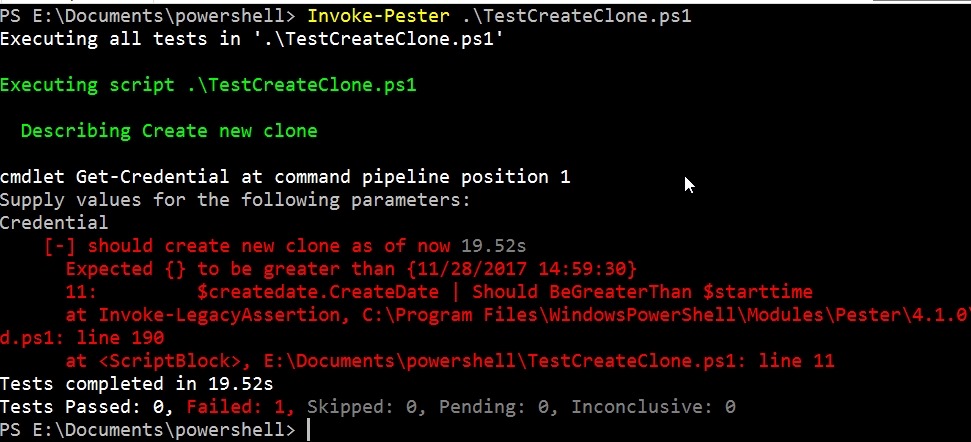
    2017-11-28 14_59_55-powershell

    Of course, I changed things back and tested again. Now, as I update my function to include adding in the instance name and image name,  this test should still pass. Of course, I can add in other tests, or change this one, to allow me to test on different images and instances as well.

    A simple test, maybe a silly one, but I learned a few things about my PoSh code (and how to write it cleaner) as well as Pester and adding in another unit test framework. Now I can expand this to test other PoSh items I have and practice writing better tests that will give me confidence my code works in a variety of situations.

  • Automating SQL Clone Creation with PoSh

    I think SQL Clone is one of the game changing products from Redgate. This product really fits into a DevOps mindset, allowing me to quickly and easily build (and rebuild) a dev database.

    While the agent web pages make this easy, they’re slightly cumbersome and the PowerShell cmdlets fit better with a DevOps flow. In setting up a Query Store demo, I found myself changing some data and needing to reset my database rapidly, so I built a quick PoSh function to do this for me.

    Here’s my function:

    function Add-ADWClone {

    param([Parameter(Mandatory=$true)][string] $CloneName)

    $mycredential = Get-Credential

    Connect-SqlClone -ServerUrl ‘http://socrates:14145’ -Credential $mycredential

    # remove the image if it exists

    $SqlServerInstance = Get-SqlCloneSqlServerInstance -MachineName Plato -InstanceName SQL2016

    $Clones = Get-SqlClone -Location $SqlServerInstance

    if ($Clones.Name -contains $CloneName) {

    $CloneToDelete = Get-SqlClone -Location $SqlServerInstance –Name $CloneName

    Remove-SqlClone -Clone $CloneToDelete | Wait-SqlCloneOperation

    }

    # Create the new image

    $image = Get-SqlCloneImage -Name ‘Adw2014Base’

    $sqlServerInstance = Get-SqlCloneSqlServerInstance -MachineName Plato -InstanceName SQL2016

    $image | New-SqlClone -Name $CloneName -Location $sqlServerInstance | Wait-SqlCloneOperation

    }

    In this function, I’m taking the name of a cloned database. I’ll use that to check if the clone exists, and if so, remove it. I do this by using Get-SqlClone. Once that’s done, I get the image, which is static here (this is a function for a specific project) and then I’ll create the new clone.

    This works great. If I run the command, I’ll get a clone being created. You can see my client in the back creating the clone database.

    2017-11-28 14_46_08-SQL Clone

    If I re-run the command, I’ll see the delete.

    2017-11-28 14_48_22-SQL Clone

    And then the clone create again.

    Changing Development

    When I first saw a prototype a few years ago, I could immediately think back to being a full time developer and the hassles of manipulating my development database, making data changes to test code, trying to reset them, writing scripts to undo changes and more. At some point I tried to perform backups and restores of a standard database, but I’d keep forgetting to update things.

    SQL Clone makes this easier, and together with some way to push/pull code from a VCS to your database, it means that I can quickly reset a database back to a known state. One of the things that I’d like to easily do is whack my development database, recreate a new one, and then move on with writing code. If I make a mistake, I repeat the process.

    Moving On

    This is a basic Proof of Concept, something I just whacked together for a project, so I’ve coded in the image name, and I get the credentials from the user. I could clean this up, and have it as a simple up-arrow, enter from the  PoSh command line that I use as I need to reset my system. Or code in a saved, secure credential that lets me double click some batch file to run this for me.

    Automation speeds up development by removing simple tasks from the developer. SQL Clone makes it easy to reset my database to a known state (the image) and create new databases as needed.

    If you haven’t tried SQL Clone, give it a try today by downloading an evaluation.

  • Installing Pester

    One of the things that I believe strongly in is that we need better testing of software. Actually, what we really need is better habits and understanding of how to test our software. I don’t think we need to test everything, but we do need to know how to test some parts of our software, and we need to test those well.

    Enough on testing. Let’s talk Pester. I saw Rob Sewell (b | t) talk about Pester a few months back, and it’s been on my list to try something, but time and pressure have kept it on the list and not in the code editor. A week ago that changed when I saw Rob write Write Your First Pester Test. That spurred me to devote a few minutes after I read the piece.

    However, I ran into a snag. When I went to run Install-Module Pester, I got an error.

    2017-11-16 13_49_27-cmd - powershell (Admin)

    I tweeted a bit with Rob and Mike Fal (b | t), both of whom are some of my PoSh go-to people. They noted the Force option for install, which did work, but I not by itself.

    2017-11-16 13_51_31-cmd - powershell (Admin)

    As you can see there’s a security check. A good thing, but like many developers, I’m confident the Pester module on the Powershell Gallery at MS is OK. It’s got a different signature than the previous version. I could remove that, but I decided to add the –SkipPublisherCheck and move forward.

    This what I wanted to see.

    2017-11-16 13_51_41-cmd - powershell (Admin)

    Now I can move forward with Rob’s article and try some Pester tests.

  • Finding #dbatools #PowerShell commands

    I really like the dbatools project. This is a series of PowerShell cmdlets that are built by the community and incredibly useful for migrations between SQL Servers, but also for various administrative actions. I have a short series on these items.

    I was reading about Pester from Rob Sewell and saw he talked about a new command I hadn’t seen in dbatools: Find-DBACommand. This is a fantastic idea, and I think it’s my new favorite dbatools command, err, cmdlet.

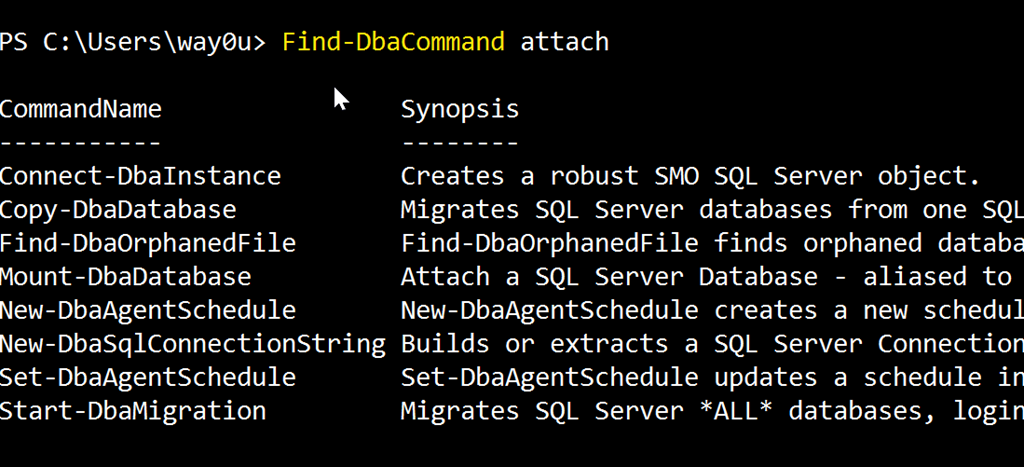
    This is the search cmdlet for dbatools. With this, I can pass in a parameter of something I’m looking at and get results. For example, if I run this with “attach”, I get:

    2017-11-16 08_58_34-cmd - powershell (Admin)

    If I use “security” I get:

    2017-11-16 09_00_15-cmd - powershell (Admin)

    These are the ways that I’d most often use the command, but I can certainly do other things. There are tags on some cmdlets, so I can do this: Find-DbaCommand –Tag job

    2017-11-16 09_03_31-cmd - powershell (Admin)

    This gets me less results than just a search for the string “job”, and these are items focused on jobs themselves.

    I can loo for specific authors with the –Author parameter. I can also look for minimum or maximum versions of SQL Server, though I haven’t found anything that returns here in quick testing. In looking through some help and source code for other commands, I don’t see version tags, but hopefully that comes over time (Submit your PRs here).

    This is a fantastic addition, and certainly better than trying to search all of PoSh help for something like Backup. I might get way more commands I don’t care about there.

    If you haven’t tried dbatools, do it today. It’s a fantastic administration tool for your toolbelt.