Tag: powershell

  • Escaping a Dollar Sign in PoSh–#SQLNewBlogger

    Another post for me that is simple and hopefully serves as an example for people trying to get blogging as #SQLNewBloggers.

    I’ve been working more with PowerShell lately and ran into a problem I thought would be easy, but it wasn’t. So I decided to blog what I learned.

    Assigning a String

    I had a string that I wanted to use in a command. In this case, the Start-Service command. Here’s what I wrote:

    Start-Service -Name “SQLAgent$$SQL2016_QA”

    This didn’t work, mainly because of this error.

    2016-11-15 14_32_20-powershell

    PoSh thinks my string is “SQLAgent\”, not “SQLAgent$SQL2016_QA”. That’s strange, at least to me. Let’s try a variable.

    2016-11-15 14_33_06-powershell

    OK, I know I need to escape the dollar sign. I ran a quick Google search, because that’s way quicker than looking through documentation and found a piece on escaping strings. It mentions the backtick (`) as the character to use. Let’s try that.

    2016-11-15 14_35_41-powershell

    It works. Now to try to start the service.

    2016-11-15 14_38_46-cmd - powershell (Admin)

    No error, but it is it running? Yes.

    2016-11-15 14_39_26-cmd - powershell (Admin)

    This is a quick look at string work in PoSh. The more I try to automate work and get things to run themselves, the handier I find PoSh. Since I tend to work with named instances, this was valuable.

    #SQLNewBlogger

    This was one of those items that I spent about 5-10 minutes figuring out and then another 10 minutes shooting screens and duplicating my work. The writeup was easy, and it will help me remember how to do that in the future.

  • More dbatools–Get-DbaTcpPort

    After the MVP Summit, I was excited to check out more code and features in all aspects of SQL Server, but since I’d had a quick conversation with Aaron Nelson and Chrissy LeMaire, I decided to tackle another part of dbatools.

    BTW, they gave me a cool sticker.

    Photo Nov 11, 5 05 19 PM

    I like using PoSh for some tasks, especially when I don’t have an easy way to do something in SSMS or want to run a task across a variety of instances. In this case, as I glanced through the September updates, I found a good one.

    Get-DbaTcpPort

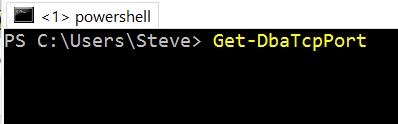
    I don’t love the mixed naming, and I’ll get used to it, but I do love the autocomplete in PoSh. I can type this:

    2016-11-11 17_13_13-powershell

    When I hit tab, I get this:

    2016-11-11 17_13_19-powershell

    So I don’t need to worry about the case, but I can easily use Get-DbaTcpPort. This is one of those quick things I’ve done more than a few times as I troubleshoot connectivity with VMs or new instances. I have learned I can get this from the error log, but that’s a pain.

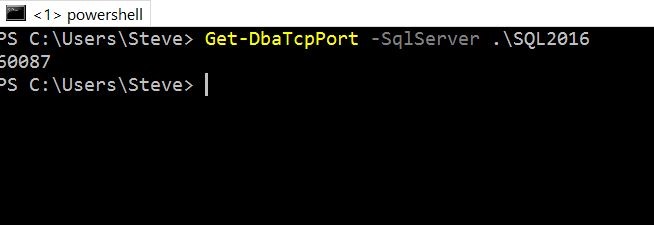
    The main thing I can do here is pass in the SqlServer parameter and get a port. Here’s the ports for an instance on this machine:

    2016-11-11 18_06_24-powershell

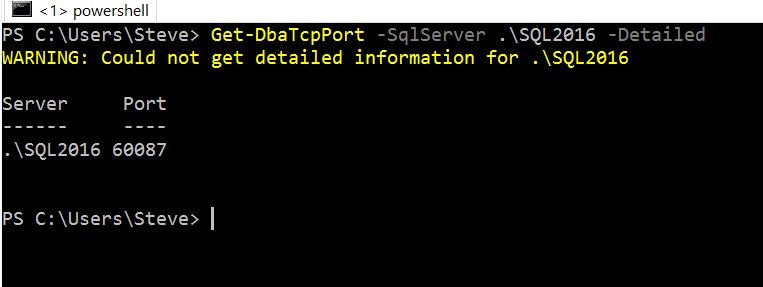
    There is a –Detailed option, which gives me the server name and cleaner results.

    2016-11-11 18_07_57-powershell

    I was expecting the result of whether this was static or now, but it’s not appearing. I see the warning, but am not sure why this doesn’t work. Apparently this works with SqlWmi, but I’d like to know more to troubleshoot things.

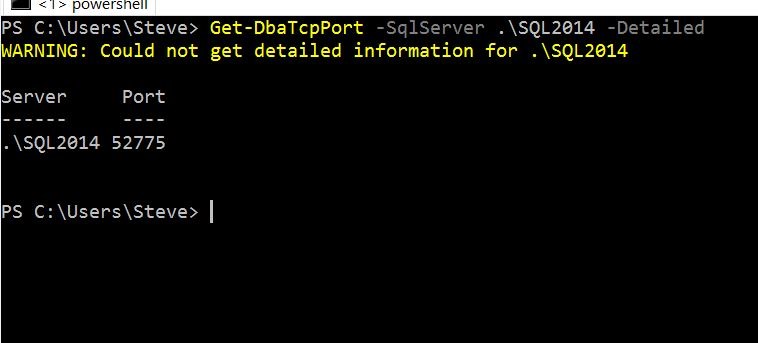
    When I hit one of my other instances, I got this:

    2016-11-11 18_07_02-powershell

    At first I thought this was my remote admin connections setting, which was disabled, but that wasn’t it. I found instead that I’d left TCP disabled by default on this instance. Once I changed that and restarted the instance, it worked fine.

    2016-11-11 18_14_14-powershell

    This isn’t something I’d use often, but it’s a really quick way to check on the status of an instance port if you need to. I’d urge you to give it a try and see what you think.

  • Getting dbatools in Powershell

    I had the chance to watch dbatools in action recently at SQL Saturday Cambridge. I watched a presentation from Chrissy LeMaire (@cl) that was impressive in how easy she made a number of DDL type changes between instances.

    I decided to give some of these new cmdlets a try, since I was impressed with the work done. The first step in trying one is to get the dbatools module. If you go to the dbatools.io site and click the download link, you get great instructions.

    The first thing I did was start a command line as an administrator, then run Powershell. From there, it’s a simple “Install-Module dbatools” command. As you can see below, you’re asked if you want to actually do the install. If you do, then things just work.

    2016-10-17 17_31_00-cmd - powershell (Admin)

    Let’s test.

    First, I’ll type “copy-sql”, as shown here.

    2016-10-17 17_31_50-cmd - powershell (Admin)

    When I hit TAB, I get the first matching item. Hmm, I’ve never seen Copy-SQLAgentCategory. Not that I’d ever done this, but this is certainly going to be simpler than digging through DMVs or reading BOL.

    2016-10-17 17_31_55-cmd - powershell (Admin)

    Hit TAB again and get the next Copy-Sql command.

    2016-10-17 17_32_01-cmd - powershell (Admin)

    In fact, there are lots of Copy-, Export-, Test-, Get-, and more cmdlets. It’s a very handy list, and the types of things I’m stunned Microsoft just didn’t provide.

    I’ll be digging in a bit more and looking at how some of these items work, as I suspect these will be invaluable for DBAs that need to manage and migrate various settings at any scale across systems.

  • Rename a Server with PowerShell

    I’m sure many people are experimenting with VMs and SQL Server. If you’re like me, many of you just default to installing Windows 7/10 or Windows Server xx Standard for your testing. Those systems work fine, but I’ve been trying to build slimmer systems, which means looking at Server Core. Installing Server Core is much the same as other versions, though you end up with only a command line. If you’re like me, using VMWare, you also might end up with a server name like “WIN-LKR3R4FfL5T”.

    I want to change that. It’s a fine name if I’m working locally. It’s not to much fun connecting across a network. This post looks at how to rename that machine.

    Get the Name

    The first thing is to get the name. I’ve always just right clicked the Computer in Explorer, but that’s not possible in Core. Instead, I decided to use PowerShell, since I know how to do that.

    First, start PowerShell, which is simple.

    2016-10-02 12_39_57-SQL2016Alone - VMware Workstation

    Next, use the environment variable, $env:computername, to find the name. You can see me do that here:

    2016-10-02 12_42_20-SQL2016Alone - VMware Workstation

    Rename-Computer

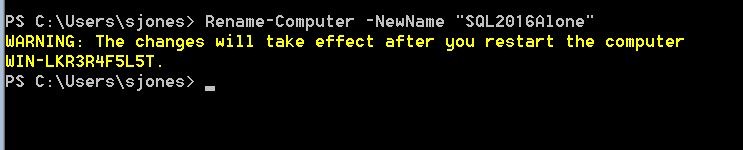
    Technically I don’t need the name to rename the system, but I wanted to know what it was. Plus, I’ll want to verify things work. There is a cmdlet, Rename-Computer, that does exactly what you’d expect. It renames a machine.

    There are various parameters, but the only one I really need is “NewName”. I haven’t joined a domain yet, so no reason to worry about that security. I could include the Restart parameter, but I wanted the screenshot below.

    2016-10-02 12_45_09-SQL2016Alone - VMware Workstation

    That’s really it, other than a restart. Intuitively enough, Restart-Computer works fine.

    And on restart, I log in and can see my rename worked fine.

    2016-10-02 12_48_37-SQL2016Alone - VMware Workstation

    Now, on to SQL Server installation.