Tag: powershell

  • PowerShell–Don’t Use Write-Host

    I’ve written a few scripts and programs lately, mostly just for fun. In those scripts, I’ve used Write-Host to return output. To me, it’s been like “Print” in various languages where I can get output of a program. Often I’ll use a method/function to get info and then use print to output that to the caller.

    However a few people noted that in my last script, Write-host wasn’t necessary. When I asked why, both Mike Fal and Drew Furgiule responded. I got these two items:

    I learned something new today. I had assumed that I’d need a way to get the output to the screen and manage output with my own logic. I’ve had this before

    $debug = 1

    if $debug  = 1 { write-host $somevariable}

    However a quick check shows this isn’t really what I want. Instead, I’d use Write-Debug or Write-Verbose. A quick test shows I can do this:

    2016-03-02 12_10_16-Windows PowerShell ISE

    That’s much better than passing in a debug parameter or changing a value as I run scripts.

    Looks like I have some refactoring to do.

  • Quick Folder Size with PowerShell

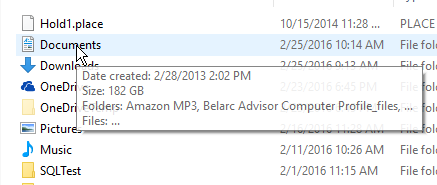
    This is a fairly simple idea, and one I’m sure many people have done in the past. Personally, I have tended to just hover a mouse over a folder when I want a size. That seems to work fairly well, but not only is it slow, it’s not programmatic.

    2016-02-25 10_24_01-Settings

    I saw Jose Barreto write a quick OneDrive size script in PowerShell (PoSh), and thought it was interesting. It didn’t work for me as I’ve moved the OneDrive folder to my D: drive, so I had to alter this to get information. However in doing so, I decided to play with a function.

    Here’s the code I used, altering Jose’s slightly.

    UPDATE: Thanks to Mike Fal, one of my go-to PoSh experts, I’ve removed the aliases for Dir and %.

    function Get-FolderInfo($folder) {
    $OneDrives = $folder
    Get-ChildItem $OneDrives | ForEach-Object {
    $Files=0
    $Bytes=0
    $OneDrive = $_
    Get-ChildItem $OneDrive -Recurse -File -Force | ForEach-Object {
    $Files++
    $Bytes += $_.Length
    }
    $Folders = (Get-ChildItem $OneDrive -Recurse -Directory -Force).Count
    $GB = [System.Math]::Round($Bytes/1GB,2)
    Write-Host “Folder ‘$OneDrive’ has $Folders folders, $Files files, $Bytes bytes ($GB GB)”
    }
    }

    Note that I’ve passed in the folder name and then kept Jose’s code. This worked fine for me, as you can see below.

    2016-02-25 10_24_11-Windows PowerShell ISE

    The next step for me was to make this programmatic and useful. All that text isn’t helpful. What I really want is just a size. I guess I need a folder name as well, so I built a function to return that information. I merely changed the last line to:

      Write-Host “$GB”

    I also moved this to the end of the function, rather than for each subfolder. With this change, I can now call this for a folder and get the size in GB returned.

    2016-02-25 10_31_22-Windows PowerShell ISE

    And this checks out from Windows

    2016-02-25 10_31_16-Settings

    I know there are better ways to write this function, but this was more of a programming exercise. This was really a 10 minute chance to practice and experiment a bit with PoSh and work on skills.

    BTW, I used dot sourcing to load this as a function I could callIn love

    2016-02-25 10_33_42-Jump List for VMware Workstation Pro

  • Hash Tables in PowerShell–Advent of Code Day 3

    I continue to work on solving the Advent of Code puzzles in both PowerShell and T-SQL after completing them in Python.

    When I hit day 3 in PowerShell, it was a few new tricks to learn, one of which was reading a large string from a file. However the interseting thing for me was learning to work with hash tables.

    The Day 3 puzzle looks at moving Santa around on a grid. We don’t know the size or shape of the grid, just that we get directions in 1 of 4 ways (^<>V) and then must move to a new house. The first puzzle asks how many houses get one present.

    This is interesting, and naturally to me the first thing that occurs is a dictionary. I used one in Python, adding new elements as I received new coordinates. I wasn’t sure how to do this in PowerShell, and ended up searching a bit about two dimensional arrays, thinking I could perform a count there, adding indexes as needed. However I ran into hash tables while searching, and this was a better solution for me.

    The short part of working with hash tables is that you declare them with a simple command. In my case, since I had a delivery at coordinates (0,0), I wrote this:

    $houses = @{“0,0” = 1}

    This uses the @{} syntax to set up a key value pair. Essentially a dictionary. From here, I computed new “keys” from the directions, and could add new values like this:

    $houses.Add(“1,1”, 1)

    Of course, I had to check for existing values, and if there were existing values, I had to increment them.

    $houses.Set_Item(“1,1”, $houses[“1,1”] + 1)

    With that code, I could easily solve the puzzle. However I was struck by the various ways I work with the hash tables. I use braces, {}, to declare the table. I use brackets, [], to access elements and then parenthesis, (), when calling methods. All of that makes programming sense, but it’s something to keep in mind, especially as those three marks mean different things in Python.

    I also learned how to search with ContainsKey and ContainsValue, as well as how to Set_Item and Get_Item, which didn’t appear to work with the ISE Intellisense.

    All in all, it was interesting working with a hash table and good to learn PowerShell supports them. They are very handy constructs when building up a set of data that you’ll need to work with, and you need more than the simple buckets an array provides.

  • Advent of Code Day 1, Puzzle B

    As I continue through the Advent of Code, albeit slowly, I’m solving each puzzle 3 days. I worked through 6 of them in Python before moving on to other languages, and this is my chance to catch up with both PowerShell and T-SQL. I likely won’t post all solutions, but I was having fun rewriting code, so here are the ways I looked at things.


    Note: You should try this on your own. I logged into the AventofCode with GitHub and things worked great for me.


    Go on, give it a try.


    I’ll wait.


    Solutions coming.


    Python

    I started here, using iterations, which are very powerful in Python. In this case, I took advantage of the multiple variable assignment in Python to enumerate the array and get each value and index. I think use a comparison to determine if I add or subtract one. Finally, an IF returns the current index if I hit –1. I should probably have a break in there for efficiency as well.

    def calculate_negative(directions):
    start = 0
    for i, c in enumerate(directions):
    if c == '(':
    start += 1
    else:
    start -= 1
    if start == -1:
    print(i)

    PowerShell

    This was a bit trickier for me. I wasn’t sure how to work with a string and pull out values. I did some searching and ran across the .ToCharArray function. That doesn’t feel like the best way to do this, but I decided to use it.

    The rest of the function is similar and gave me the correct answer, so there you go.

    $count = 0
    $floor = 0
    foreach ($c in $input.ToCharArray())
    {
    if ($c -eq '(') {$floor += 1}
    elseif ($c -eq ')') {$floor -= 1 }
    $count += 1
    if ($floor -eq -1)
    {
    $count
    break
    }
    }

    T-SQL

    A more complex situation here, given that we need to work through a string, calculating a running total. I broke the input up using a tally table and a splitter with substring. This was fairly easy, and not complex as I was just getting individual charaters.

    Then it was a simple running total of the CTE to get me the totals at each point in time. This worked well, but I needed the first –1 total.

    Finally, I used the outer query to get the min value out of the code and use that, which gave me the lowest value where the –1 occurred.

    WITH tally (n)
    AS
    ( SELECT ROW_NUMBER() OVER (ORDER BY (SELECT NULL))
    FROM (VALUES (0), (1), (2), (3), (4), (5), (6), (7), (8), (9)) a(n) -- 10
    CROSS JOIN (VALUES (0), (1), (2), (3), (4), (5), (6), (7), (8), (9)) b(n) -- x 10 = 100
    CROSS JOIN (VALUES (0), (1), (2), (3), (4), (5), (6), (7), (8), (9)) c(n) -- x 10 = 1000
    CROSS JOIN (VALUES (0), (1), (2), (3), (4), (5), (6), (7), (8), (9)) d(n) -- x 10 = 10000
    )
    , direction (n, d)
    AS
    (
    SELECT tally.n
    , d = CASE WHEN SUBSTRING(@input, n, 1) = '(' THEN 1 ELSE -1 end
    FROM tally
    ), currfloor
    as
    (SELECT
    d.n
    , 'currentfloor' = SUM(d.d) OVER (ORDER BY d.n ROWS UNBOUNDED PRECEDING)
    FROM direction d
    )
    SELECT MIN(currfloor.n)
    FROM currfloor
    WHERE currentfloor = -1