I’m in the Redgate Software New Jersey office today (actually yesterday as well) for the first time. This is a new location for us, and Grant, Ryan, and myself are trying to visit the offices regularly to meet with other employees, do some training, and help them become more successful in their jobs. Regularly seems to be 1-2x a year in each office, but that’s better than zero.
We also do some company wide training, and we’re doing this month’s from New Jersey, which is kind of cool. While lots of attendees are virtual, it’s always nice to have a few people in the room.
I’m also going to spend a few hours at a PostgreSQL conf in New York, which isn’t something I’ve done. Redgate is doing more cross-db platform work, so this is a new area for me.
I’m also taking advantage of the opportunity to take Friday off and go see my daughter in upstate New York. I’ll be back next Wed
We’ve been doing some events as part of the Redgate Roadshow, and at one of the events, we had a customer ask about something that we demo’d. This post looks at quick access to snippets.
When typing a query in SSMS, I can hit the CTRL button and get the palette on the side. Here’s a basic query:
I might want to add the begin and end around my code in the proc. If I highlight some code and hit CTLR, I see this:
On the left, I have opened the palette where I can down arrow to pick something relevant or search for a command that helps me. As you can see, the first one is the very common “add begin end” to the code. If I pick this, it will surround my code with begin end, as seen here:
I can also get other helper code, like the CTE outline, as you can see below:
A few years ago SQL Prompt added a command palette to let you search the commands available. This is similar to the same concept in Visual Studio Code, ADS, and various other tools. This post looks at how to get to this tool in SSMS.
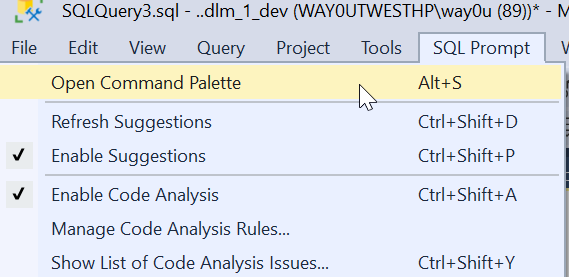
You can also open the Command Palette from the menu. In the SQL Prompt menu, it is the first item. You can also see there is a shortcut of ALT+S below here.
When I click this, I’ll see the full list of palette commands. This is a large window, and across the top I can filter things. In the complete list, you see various things: objects, snippets, and refactoring commands. We also have the Prompt behavior settings as well.
For example, I could look for things with “brackets”. I see a few things that are relevant. I can pick any of them if I want that apply to my code or change the behavior of the tool
Adding to the Menu
If you can’t remember the shortcut. or don’t want to use the menu, you can add this as a button in the toolbar. Here’s the easy way. When you installed SQL Prompt (or the Toolbelt), there is a Redgate toolbar added. Mine looks like this:
I clicked the “Add or Remote buttons ” and got a list of buttons on this toolbar. I can click “Customize if I like. That opens the dialog below.
Now click “Add Command”. That gives you a list of items in all the menus in SSMS. Pick the SQL Prompt menu on the left (first one). Then scroll down and find “Open command palette” in the right side. Select it and click OK.
Now you have this in your toolbar.
Now one click, and you have the palette.
FWIW, you can use this trick to add any menu item to a toolbar that you want.
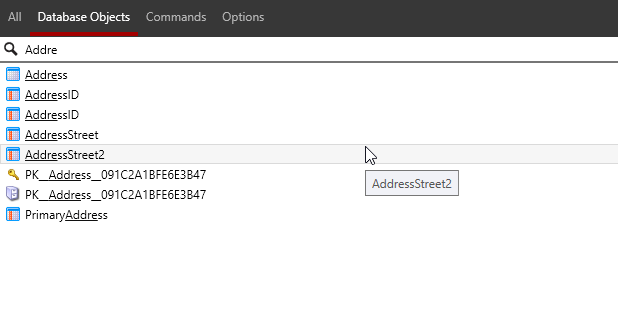
UPDATE: A comment asked about partial matches, and you can see I see partial matches for “Addre”.
Flyway is a command line tool with lots of options and parameters. Working with those is a pain, but we’ve made this easier in Flyway Desktop 6.5+. In this tip, see how you can add parameters to your Flyway command.
I’ve been working with Flyway Desktop for work more and more as we transition from older SSMS plugins to the standalone tool. This series looks at some tips I’ve gotten along the way.
Flyway Options
There are a lot of options in Flyway that you can use, and we added a dialog in Flyway Desktop to make it easy to construct a command line call. However, we also made the FWD tool work better recently, removing the need to save your changes.
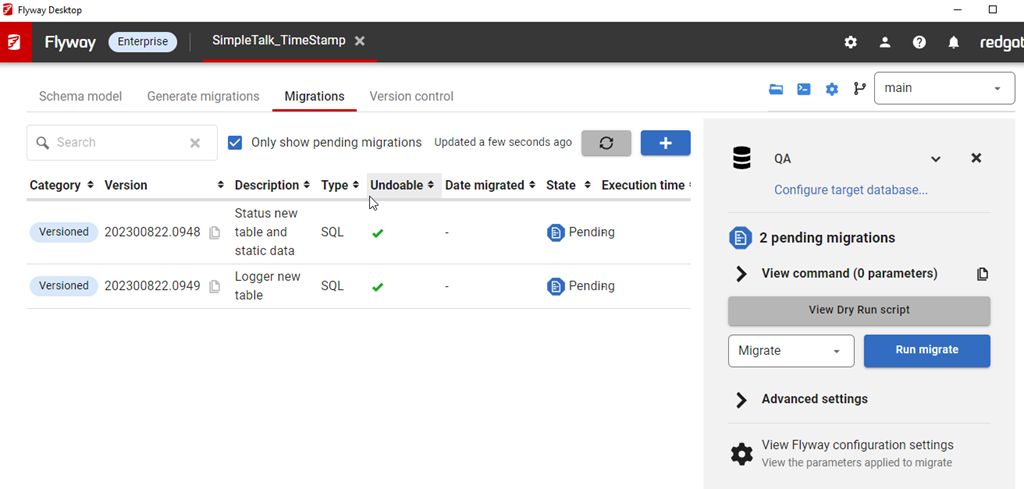
In the migrations tab, I have all my migrations listed, and on the right side, I can see the command that would be run with the Flyway CLI.
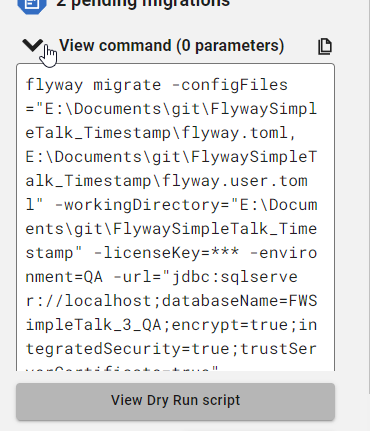
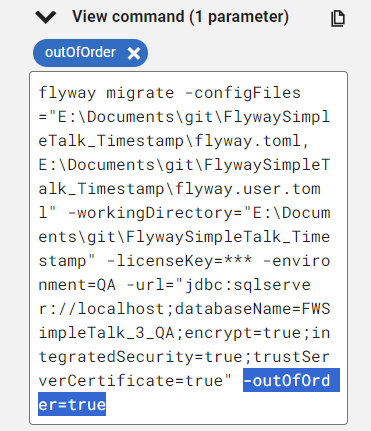
If I click “View command”, I can see this command, which has a number of parameters by default.
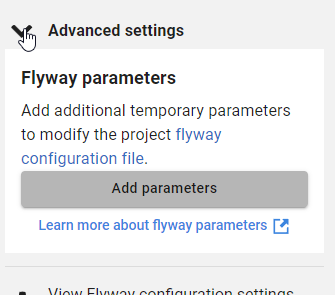
However, often I want to add other parameters. Below this dialog is the Advanced settings area, which is where we add parameters.
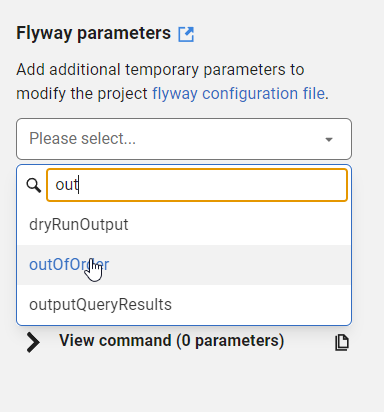
If I click Add parameters, I get a list of all the parameters, and I can type in the list to filter them down. For example, I often want outOfOrder, so if I type “out” I see this listed.
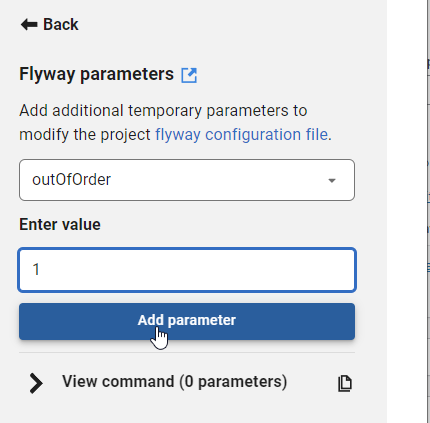
I can select this and then enter a value for the parameter. I showed in a previous tip how you can easily copy migration numbers, which is handy for using in some of these parameter values.
Once I enter a value, I can click “Add parameter”. Of course, if I’ve done something silly, like enter an integer for a true/false value, the GUI tells me.
If I add this, then it’s reflected in the command, which is what I’d copy and paste into some deployment tool like Azure DevOps, GitHub Actions, Octopus Deploy, etc.
Try it out today. If you haven’t worked with Flyway Desktop, download it today. There is a free version that organizes migrations and paid versions with many more features.

![2023-09-04 04_39_35-SQLQuery3.sql - ..dlm_1_dev (WAY0UTWESTHP_way0u (89))_ - Microsoft SQL Server Ma_thumb[1]](https://voiceofthedba.com/wp-content/uploads/2023/09/2023-09-04-04_39_35-sqlquery3.sql-.dlm_1_dev-way0utwesthp_way0u-89_-microsoft-sql-server-ma_thumb1.png "2023-09-04 04_39_35-SQLQuery3.sql - ..dlm_1_dev (WAY0UTWESTHP_way0u (89))_ - Microsoft SQL Server Ma_thumb[1]")
![2023-09-04 04_40_25-SQLQuery3.sql - ..dlm_1_dev (WAY0UTWESTHP_way0u (89))_ - Microsoft SQL Server Ma_thumb[1]](https://voiceofthedba.com/wp-content/uploads/2023/09/2023-09-04-04_40_25-sqlquery3.sql-.dlm_1_dev-way0utwesthp_way0u-89_-microsoft-sql-server-ma_thumb1.png "2023-09-04 04_40_25-SQLQuery3.sql - ..dlm_1_dev (WAY0UTWESTHP_way0u (89))_ - Microsoft SQL Server Ma_thumb[1]")
![2023-09-04 04_43_07-SQLQuery3.sql - ..dlm_1_dev (WAY0UTWESTHP_way0u (89))_ - Microsoft SQL Server Ma_thumb[1]](https://voiceofthedba.com/wp-content/uploads/2023/09/2023-09-04-04_43_07-sqlquery3.sql-.dlm_1_dev-way0utwesthp_way0u-89_-microsoft-sql-server-ma_thumb1.png "2023-09-04 04_43_07-SQLQuery3.sql - ..dlm_1_dev (WAY0UTWESTHP_way0u (89))_ - Microsoft SQL Server Ma_thumb[1]")