Tag: SQL Clone

  • SQL Clone at Scale with Striped Backups

    I had a customer recently reach out to ask if SQL Clone would work with 20 backup files. I decided to test this.

    This is part of a series of posts on SQL Clone, which is a virtualization product from Redgate Software.

    The Scenario

    A customer asked about SQL Clone working with a lot of backup files (striped), like 20. Our support org said this should work and handle the max number of files, which is 64 for the backup command.

    I know SQL Clone works with striped backups because I wrote an article on it, but I only tested 7 files. How to test more than that?

    First, get the backups. To do this, I used a GenAI to quickly get me a command. Once I had this, I ran it and got a lot of files.

    2025-10_0155

    Now to get the SQL Clone image.

    Image Creation

    I decided to start with the GUI. This has changed since I wrote the article in that it now puts each file in a separate text box. By default you get two. I pasted in my file path and file, and then copy/pasted in the 2nd box. I continued adding them, clicking the “Add another file” at the bottom each time (see the image).

    2025-10_0157

    It was tedious, but it was a quick way of testing this. I likely would have taken longer than the 3-4 minutes of copy/pasting to write a PoSh script (though I need to do that). You can see most of my files below.

    2025-10_0156

    Once I had 32 of them, I clicked “Continue” and entered the name and location for my image. Then clicked “Create”.

    It worked. The image shows my SQL Clone image being created successfully and a clone from this image.

    2025-10_0158

    These were small files, so the restore time was quick. Each is about 3MB, so we’re not looking at much.

    Summary

    This shows that SQL Clone can work with 32 files. I assume it works with 64, but that will have to wait until I have time to mess around with the PoSh to make the image command creation easy.

    If you are looking to save storage space for multiple copies of databases, or give each user a consistent copy in seconds, check out SQL Clone.

    Video Walkthrough

    See this article in video below.

  • Creating a SQL Clone Image from a SQL Clone Database

    A customer asked if a new image could be created from a database that was itself a SQL Clone. It can, and I’ll show that in this post.

    This is part of a series of posts on SQL Clone, which is a virtualization product from Redgate Software.

    Creating a New Image

    To start with, I’ll look at the clones that I have deployed on a test server. As you can see below, I have a database, called “SimpleTalk”, on a local instance.

    2023-09-29 15_52_52-Zoomit Zoom Window

    I’m going to use this to create an image. First, I’ll click “Create Image” on the left. I’ll choose SQL Server, since I will use the existing cloned database as the source.

    2023-09-29 15_53_00-SQL Clone

    I pick the instance and database. As you can see, I’ve chosen the database that was listed above as a clone.

    2023-09-29 15_53_10-SQL Clone

    Next we skip the classification screen. This is a test db, so no data in there to worry about.

    2023-09-29 15_53_14-SQL Clone

    I’m not going to modify this, as this is a test.

    2023-09-29 15_53_17-SQL Clone

    Now I pick the destination, which is a local share.

    2023-09-29 15_53_21-SQL Clone

    I give this a name which differentiates from the original db and other images. I normally want to name all images as _new or _current for rotation purposes, but here I’m adding a test name since I’ll delete this right away.

    2023-09-29 15_53_32-SQL Clone

    You can see this start working.

    2023-09-29 15_53_36-SQL Clone

    And it completes in about the time for a restore. If I had added masking, this would run a little slower.

    2023-09-29 15_53_59-SQL Clone

    I have the image created, so it’s time to test this with a new database.

    Validating the Image with a Clone

    Click “Create clone” on the left menu and you get a dialog that asks for an image. I’ll pick the one I created above.

    2023-09-29 15_54_06-SQL Clone

    Once we chose the image, we can modify it. We won’t here.

    2023-09-29 15_54_11-SQL Clone

    Now we add an instance and a name. I’ve entered those below.

    2023-09-29 15_54_24-SQL Clone

    Once this completes, I can see this database, and my other clone in the SSMS Object Explorer.

    2023-09-29 15_54_37-SQLQuery14.sql - ARISTOTLE.sandbox (ARISTOTLE_Steve (75))_ - Microsoft SQL Serve

    If I query both databases, I get the same data, since I haven’t changed either one during this process. Note below that each one of these queries is from a cloned database.

    2023-09-29 15_55_23-SQLQuery1.sql - ARISTOTLE.SimpleTalk Cloned Clone (ARISTOTLE_Steve (54))_ - MicrThe SQL Clone cloned database is just a database. SQL Server sees it as any other database, as SQL Clone presents the mdf/ldf/ndf as any other database. You can back it up like any other one.

    If you are looking to save storage space for multiple copies of databases, or give each user a consistent copy in seconds, check out SQL Clone.

  • A Weekly SQL Clone Image Creation Process

    SQL Clone is a neat product from Redgate that I wish I’d have had when I was doing database software development. It lets me have a consistent image for all developers, and create/reset databases to that starting point in seconds.

    There are two parts to this process: image creation and clone database creation. I’ve written about both in different places, but in this post I want to tackle a weekly image creation process with some tips and recommendations for how to handle this.

    If you want a basic image creation post, read Creating a SQL Clone Agent and a First Image.

    The Goal

    There are a few goals with a weekly image refresh process for database developers:

    • I don’t want to interrupt developers’ work
    • I want consistency that allows other people’s scripts to just run

    In this case, as I create a new image with updated schema and data, I don’t want to require developers to stop working for me to update the image. I also don’t want them to stop while I switch out images. This means I need multiple images for a short period of time.

    The other thing, which wasn’t a recommendation early on, was in naming. Lots of early customers, and us Advocates, were naming images with timestamps or some unique value. However, in an ongoing process, this doesn’t work well.

    This post is the result of some learning, experiments, and feedback from customers.

    The Process Outline

    Rather than start at the beginning of a project, let’s assume we are in an ongoing development process. There is an image, and multiple developers are using this in their cloned databases. For simplicity, let’s say I have this setup:

    • A production database – ADW_Prod
    • Developer Kathi, with a cloned database against ADW_Current – AWD_Kathi
    • Developer Grant, with a cloned database against ADW_Current– AWD_Grant
    • An Image, ADW_Current

    Given all this in use, how do I update ADW_Current with the latest version of production?

    The basic process to follow is this:

    • Create a new image from production, ADW_New
    • Check if there is an ADW_Old image.
      • If so, remove the cloned databases from ADW_Old
      • remove the ADW_Old image
    • Rename ADW_Current to ADW_Old
    • Rename ADW_New to ADW_Current

    That’s it. In an ongoing process, I need image rotation, hence the _New->_Current->_Old. If there isn’t an old image, I skip a couple steps.

    In this process, developers that are using the current image, ADW_Current, are left alone, though they are now using ADW_Old as the image.

    If developers are 2 versions back, on ADW_Old, their databases are dropped. I could deploy new copies of from ADW_Current (or ADW_New), but really, I want developers to be thinking about saving their changes in a VCS often, and not making special little databases they keep for days or weeks.

    Really, I want a developer to finish some work, commit it, and then destroy and recreate their dev database. That’s the whole point of SQL Clone. In about 7sec, I have a new copy of the database. I can then pull everyone else’s changes from VCS and be up to date.

    The Code

    How does this work? Well, I have a single script that I added to a repo on GitHub. I’ll use some images here to show parts, but get the code from there.

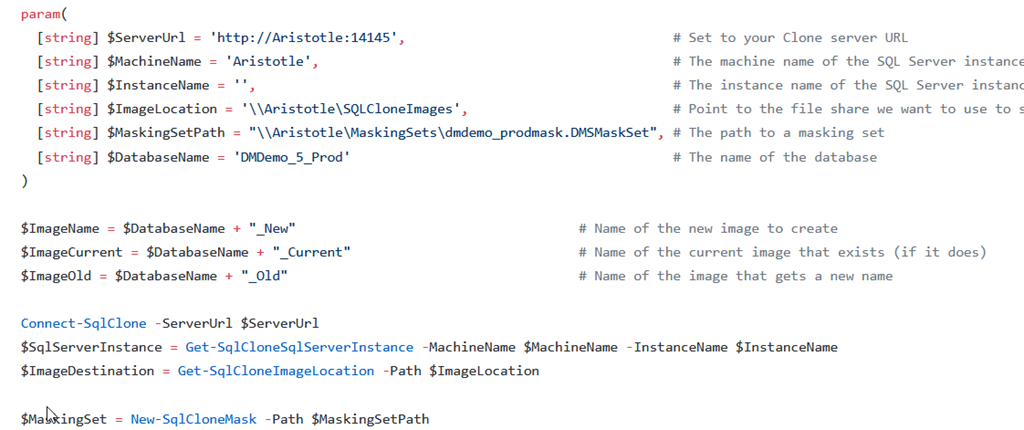
    The newimagerotation.ps1 is the script you want. In here, I have some help at the top to give you parameters from PoSh. Then we set some items.I set defaults and then add some standards for my New/Current/Old structure. Feel free to change if that doesn’t make sense to you.
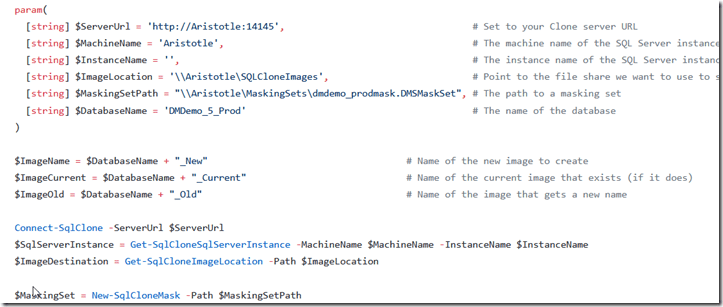
    2021-06-15 18_53_55-buildapisqlclone_newimagerotation.ps1 at main · way0utwest_buildapisqlclone — Mo

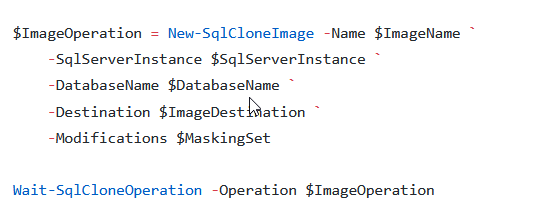
    The next part is where I create the New image. If this exists for some reason, like an error, I remove it. Possibly you want to check if there are clones against this and stop, but I never want someone using this.
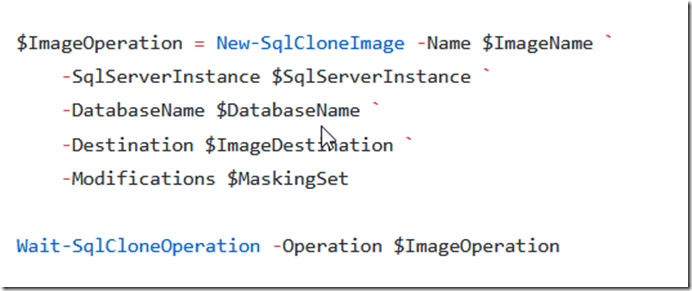
    2021-06-15 18_55_38-buildapisqlclone_newimagerotation.ps1 at main · way0utwest_buildapisqlclone — Mo

    After this, we want to rename the current image to old. However, if an old image exists, we remove it. Before we can do that, we need to loop through and remove cloned databases. Protection against someone accidentally removing an image, but I am purposefully doing it here.
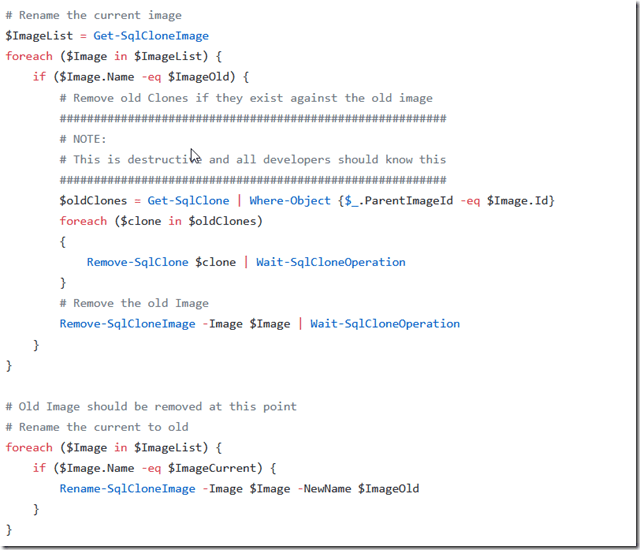
    2021-06-15 18_56_35-buildapisqlclone_newimagerotation.ps1 at main · way0utwest_buildapisqlclone — Mo

    Once this is done, we rename the new to current, and we’re done.

    2021-06-15 18_57_23-buildapisqlclone_newimagerotation.ps1 at main · way0utwest_buildapisqlclone — Mo

    Summary

    This is an easy process to follow weekly, and it rotates your image so that if people are using scripts or the GUI, they always know to use the _Current image to create a new database.

    This also gives developers a grace period that equals your image refresh process for using an old image. If you run this daily, they can use an image for 2 days. If you run it weekly, they can use it for two weeks.

    If you want to warn them, add a call in the “rename current to old” section to send a message to developers that there are databases that will be removed when the next image is created.

    If you haven’t tried SQL Clone , download an eval and give it a try today. It’s a great way to speed up developer’s experimentation and ensure consistency in dev and test environments.

  • SQL Clone Works with FILESTREAM

    SQL Clone is an amazing product that virtualizes your data, allowing multiple instances to share a read only image, but still produce writeable databases that look normal to SQL Server. It’s similar to how a container appears to a user, but this uses real SQL Server instances.

    I need to write up a more detailed walkthrough of this, but someone asked the question today about SQL Clone and FILESTREAM and I didn’t see a proper article on the Redgate site, so I decided to run a test and post this.

    Setting up FILESTREAM

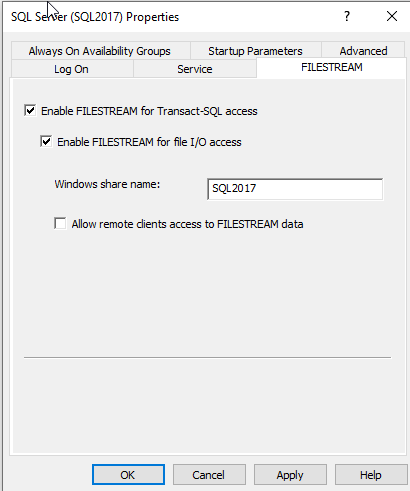
    We have some articles at SQLServerCentral on FILESTREAM, but essentially this feature uses a folder on your instance file system to store blog files, instead of putting them in the database. To enable this, you need to do it in Configuration Manager

    2020-08-12 12_30_53-Window

    and in SSMS

    2020-08-12 12_31_19-Window

    You do need to restart the database engine, but then you can create a database that includes a FILESTREAM filegroup.

    CREATE DATABASE [FSTest]
     CONTAINMENT = NONE
     ON  PRIMARY 
    ( NAME = N'FSTest', FILENAME = N'D:\SQLServerData\SQL2017\FSTest.mdf' , SIZE = 8192KB , FILEGROWTH = 65536KB ), 
     FILEGROUP [FSFG] CONTAINS FILESTREAM 
    ( NAME = N'FSData', FILENAME = N'D:\SQLServerData\SQL2017\FSData' )
     LOG ON 
    ( NAME = N'FSTest_log', FILENAME = N'D:\SQLServerData\SQL2017\FSTest_log.ldf' , SIZE = 8192KB , FILEGROWTH = 65536KB )
    GO

    Once this is done, create a table and load some data.

    CREATE TABLE Books
    (   BookKey     INT              IDENTITY(1, 1)
      , BookTitle   VARCHAR(100)
      , FSGIUD      UNIQUEIDENTIFIER ROWGUIDCOL UNIQUE NOT NULL
            DEFAULT NEWID()
      , BookContent VARBINARY(MAX)   FILESTREAM);
    GO
    DECLARE @Document AS VARBINARY(MAX)
     
    -- Load the image data
    SELECT @Document = CAST(bulkcolumn AS VARBINARY(MAX))
          FROM OPENROWSET(
                BULK
                'E:\Documents\Using Local and Hosted Agents for Build with Azure DevOps.docx',
                SINGLE_BLOB ) AS Doc
     INSERT dbo.Books
         (BookTitle, FSGIUD, BookContent)
     VALUES
         ('Using Local and Hosted Agents for Build with Azure DevOps'   -- varchar(100)
        , NEWID() -- uniqueidentifier
        , @Document
         )         
     ;
    GO

    This gives you a database table with some data in SQL Server, in the Books table, and some in this folder, FSData, on your file system.

    2020-08-12 13_54_32-Window

    DO NOT mess with this folder, but the contents here will be included in any backup.

    Now, I showed how to make an image and clone in a previous post, which I’ll do from this database.

    When I get done, I’ll deploy this to another instance. In this case, I was worried about a folder issue on the same instance, but I’ll test that another day.

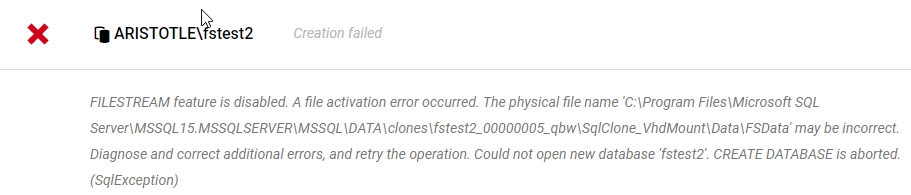
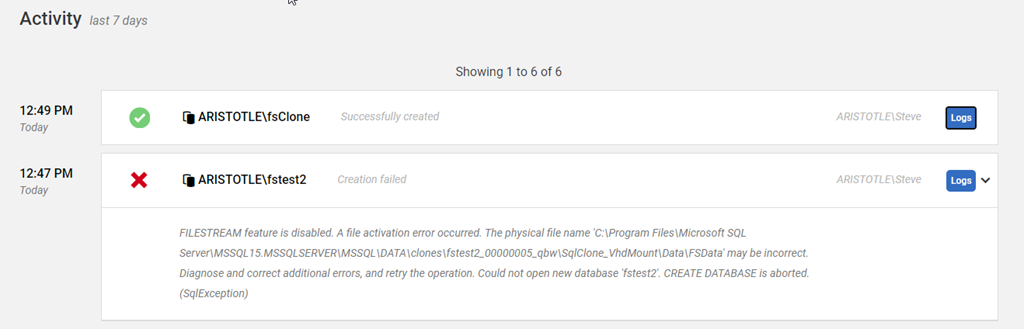
    Whoops, I need FILESTREAM on the second instance.

    2020-08-12 12_52_32-Window

    I’ll follow the same config steps as above and restart this instance. this time things work.

    2020-08-12 12_52_28-Window

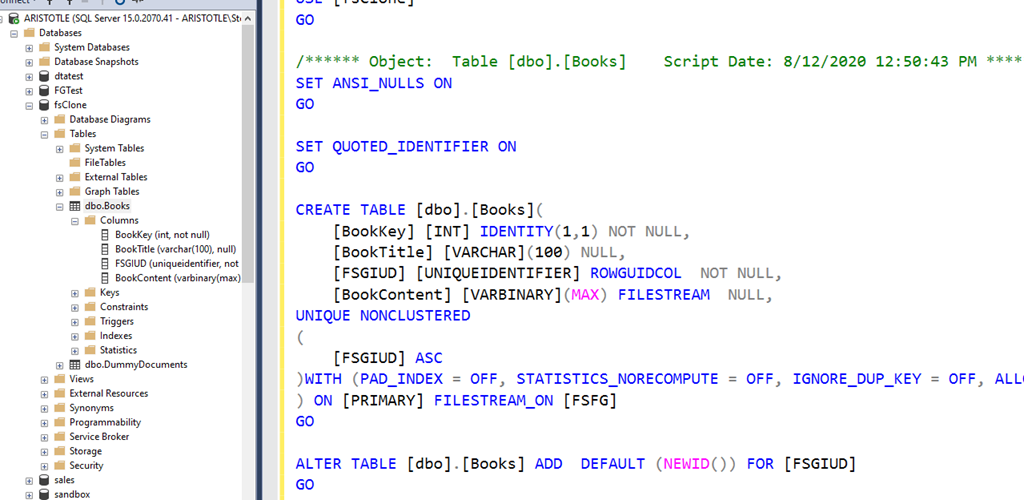
    If I script the table, I see it is  a FILESTREAM enabled table.

    2020-08-12 12_50_47-Window

    That’s it for now, but I’ll get a proper article written for the Redgate Hub.