Tag: Redgate

  • Adding SQL Search to Azure Data Studio

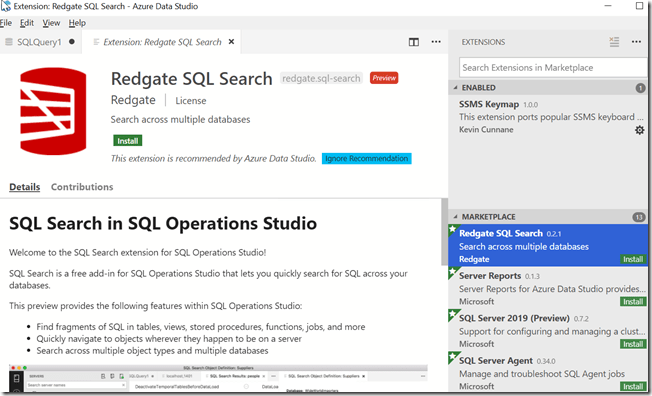
    There are a limited number of extensions available for Azure Data Studio (ADS), but one that came out early is SQL Search. This is highlighted as a recommended extension from Microsoft. Redgate worked with them early on in the lifecycle of the product to get this extension working, including helping spec out the APIs for interaction with ADS.
    2018-10-19 17_53_21-Extension_ Redgate SQL Search - Azure Data Studio

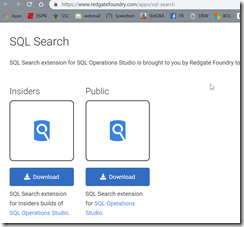
    My extensions pane is on the right, so my details are on the left. There’s a description of SQL Search as well as a link to install the extension. As with most extensions, the link takes you to a download page. For SQL Search, this is a Redgate Foundry page with a few builds. I picked the public one.
    2018-10-19 17_53_45-Redgate Foundry Labs

    Installing extensions is basically using File | Install Extensions from VSIX and picking the downloaded file. You need to approve the extension and then reload once it’s installed. You can see it installed if you re-open the extensions pane.

    2018-10-19 18_01_40-● SQLQuery1 - Azure Data Studio

    Using SQL Search

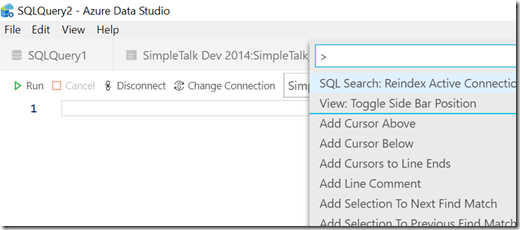
    To use this extension, you can use the CTRL+Shift+P command to bring up the command palette. When you do this, you get a way to run commands at the top of the ADS window. This is a handy tool that you will use often.
    2018-10-20 15_51_23-SQLQuery2 - Azure Data Studio

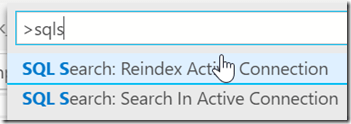
    If we type “SQL S”, we’ll get the SQL Search commands. There is a reindex command and a search command. These are the two items implemented at this time.
    2018-10-20 15_51_33-SQLQuery2 - Azure Data Studio

    The re-index command will update the SQL Search index with information from the current database connection. If you cannot find an object you need, then you might run the reindex.

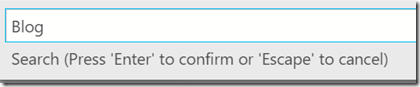
    The other command allows you to search the database. If we click this one, we get a new edit box at the top of the window. Focus will be in this window, so you can type a term. For me, I know there are a number of items in this database for blogs, so let’s enter that.
    2018-10-20 15_56_20-SQLQuery2 - Azure Data Studio

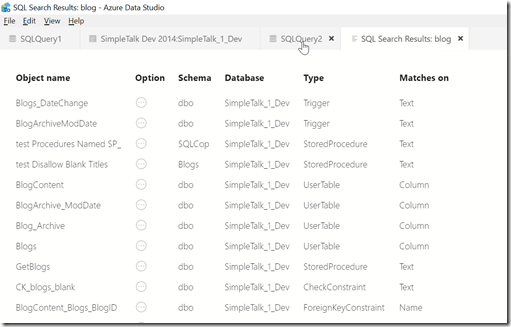
    The results will appear in a new tab alongside your currently open tabs.
    2018-10-20 15_56_42-SQL Search Results_ blog - Azure Data Studio

    The results show me that I have an object name along with the schema and database. We see the type of the object and then the way the object was matched. Next to the object name, there is a circle with an ellipsis. If we click this, we have a couple of choices for what to do with our results.

    2018-10-20 15_57_06-SQL Search Results_ blog - Azure Data Studio

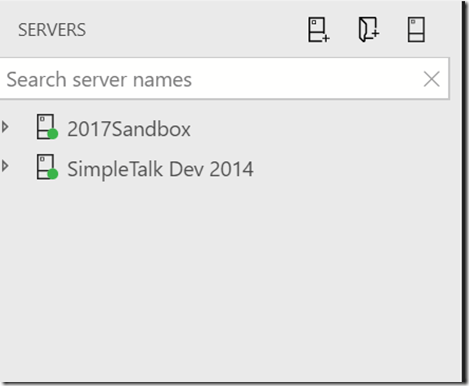
    We can highlight this object in our object explorer, which will, well, do nothing for me. I suspect that the call from the extension to the servers Object Explorer is flaky. Even if I open the Servers pane and then click “Reveal in Object Explorer”, nothing happens. I see whatever I had opened in the Servers Pane.
    2018-10-20 16_04_14-SQL Search Results_ blog - Azure Data Studio

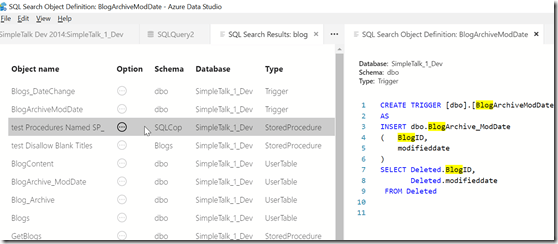
    If I close the server pane and instead click View Definition, I get a split pane on the right with the object definition. I can resize this as needed, but this is a view only pane. I can’t edit or execute this code. It’s for reference, which can be helpful when coding, but is of limited use.
    2018-10-20 16_05_16-SQL Search Object Definition_ BlogArchiveModDate - Azure Data Studio

    I can  copy this code for another window if I click the start and end places in the search results while holding the Shift key. Then I right click in the window and select Copy.
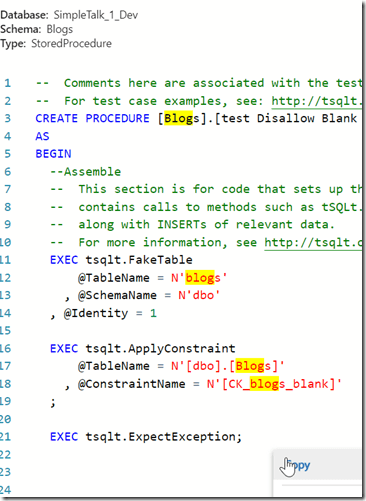
    2018-10-20 16_10_10-SQL Search Object Definition_ test Disallow Blank Titles - Azure Data Studio

    This is a limited use extension, but it does allow one to find code quicker than browsing through the Object Explorer. We can keep the search results up as a separate pane, so that we can use this as a pick list if we were looking for all the dependent objects for an object.

    One nice touch from ADS is that if you CTRL+Shift+P again, the SQL Search commands appear at the top as recently used items.

    2018-10-20 16_14_17-SQL Search Results_ blog - Azure Data Studio

    Give SQL Search a try and let us know what you think.

  • Time for SQL in the City Summit–Chicago

    This week is the last live SQL in the City Summit this year. It’s this Friday at the Microsoft office in Chicago, and if you’re nearby, you can still register with “stevejones” as the code.

    We’ve presented this program in New York and London this month, and we’ll be showcasing some similar talks in Chicago, with a few speaker switches. Bob Ward and Brian Randell are back, with the additions of Bob Pusateri, Bob Walker, and Esteban Garcia.

    It’s a great program, with lots of good SQL Server, DevOps, and Redgate information coming out. If you can join us, we’d love to have you come.

    If not, we’ll be back in December with another SQL in the City Streamed edition.

  • Quick PoSh SQL Provision Databases for New Developers

    As part of some presentation work, I wanted to demonstrate some onboarding of new developers. To that end, as part of a demo, I wanted to build a script that would take a few parameters and generate some SQL Provision databases for development. The idea is that an admin can have a script here to set up a developer with a database for a project with SQL Provision. I imagine this would be part of a script that also cloned a repo, set up a project, etc.

    The Process

    My thought here was that I needed a script that uses some pattern to build databases. The one I decided on was that the basic image name would be used with the developer name to prevent collisions. This would work if an admin used login names or even nicknames, as long as there is some uniqueness on the instances. Of course, if you’re provisioning to a local instance, this doesn’t matter.

    In any case, the images I make are often date driven, with a format like:

    SimpleTalk_Base_20181001

    Using formats like this, I can easily strip off the beginning part of the name (SimpleTalk) and then append my _developer to the end. For me, this means I’d get a database named: SimpleTalk_Steve

    This manifests itself as a script:

    2018-10-03 20_09_05-NewDeveloper.ps1 - Minimize impact Dev Test Environments - Visual Studio Code

    That produces a new database.

    2018-10-03 20_08_57-SQLQuery6.sql - Plato_SQL2016.DataMaskerDemo (PLATO_Steve (61)) - Microsoft SQL

    I also see this in the SQL Provision dashboard as a new item.

    2018-10-03 20_10_14-Microsoft Edge

    The Script

    I started this with some simple PowerShell. The first part of this script is a few parameters and a variable. Note that I’m splitting the instance name here.

    2018-10-03 20_11_48-● NewDeveloper.ps1 - Minimize impact Dev Test Environments - Visual Studio Code

    From here, I connect to the SQL Provision server and then get the instance and image objects.

    2018-10-03 20_12_01-● NewDeveloper.ps1 - Minimize impact Dev Test Environments - Visual Studio Code

    Lastly, I create the clone, making a new name from the image, and if the word “base” is included (I do this often), I strip it out.

    2018-10-03 20_12_06-● NewDeveloper.ps1 - Minimize impact Dev Test Environments - Visual Studio Code

    Quick and easy, but this allows me to demo how to onboard a new developer.

    There are lots of enhancements, and I need to add some error checking if there isn’t an instance, and if the connection fails, but for now, PoSh lets me quickly start getting some useful scripts that I can use for demonstrating some functionality. This certainly would work in an environment where I knew the Clone server was there and I had control over imaging. If not, I’d be writing more PowerShell.

    SQL Provision is pretty amazing and lets you really leverage technology to provide developers with copies of databases in seconds. Download an evaluation and see what you think.

  • Redgate Releases Sept 2018–Practicing DevOps

    At Redgate, we build tools to help you build software in the entire DevOps cycle. In fact, I love this new graphic that shows the areas that we focus on in the entire software development cycle.

    We don’t just preach DevOps, we live it. As an example, here are the releases for September:

    SQL Monitor (Sept 11, 20) – New viewing and reporting options

    SQL Clone (Sept 11, 24, 25) – Added reset, new notifications and an EAP of the  next version!!!!

    Data Masker/Figleaf – Sept 5, 14, 25, 26 – Bug fixes for Data Masker and enhancements to Figleaf

    SQL Change Automation – Sept 19 – cmdlet updates and bug fixes

    SQL Backup – Sept 6 – import registered servers

    SQL Compare/Data Compare – Sept 3, 17, 24 – bug fixes in frequent updates releases

    SQL Prompt – Sept 12, 25 – refactor insert into updates, bug fixes

    SQL Source Control – Sept 24 – bug fixes

    SQL Test – Sept 4 – bug fixes

    SQL Index Manager – Sept 3 – bug fixes