Tag: SQL Prompt

  • Surround Code with Comments in SQL Prompt

    I work for Redgate and write about products. I’ve got a series of SQL Prompt posts here on little things I like. SQL Prompt might be my favorite tool.  SQL Prompt will be yours as well if you give it a try.

    I can’t believe I haven’t built this snippet before now, but it’s not in my list. I’ve dealt with this for some time, but I decided enough was enough.

    Here’s what I want. Note that all the code is inside a single comment.

    2018-01-27 09_28_29-SQLQuery1.sql - (local)_SQL2016.Northwind (PLATO_Steve (66))_ - Microsoft SQL Se

    Getting There

    I often have some random notes that I want to keep in a comment. For example, I might get a list of tables like this:

    2018-01-27 09_25_12-SQLQuery1.sql - (local)_SQL2016.Northwind (PLATO_Steve (66))_ - Microsoft SQL Se

    If I highlight this code and hit Ctrl, I get a list of snippets that contain a certain token. In my case, I get:

    2018-01-27 09_26_31-SQLQuery1.sql - (local)_SQL2016.Northwind (PLATO_Steve (66))_ - Microsoft SQL Se

    If I select Comment, I get the code commented, but as single line quotes.

    2018-01-27 09_26_58-SQLQuery1.sql - (local)_SQL2016.Northwind (PLATO_Steve (66))_ - Microsoft SQL Se

    That’s OK, but if I am saving something like STATISTICS output, that’s not pretty or easy for me to read. I prefer a single comment, not a series of separate inline comments. This is even more annoying with code.

    Let’s fix this with a snippet. Here’s my snippet code:

    2018-01-27 09_30_43-SQL Prompt - Create New Snippet

    The $SELECTEDTEXT$ token will take whatever text you’ve highlighted and insert it into the token. In my case, I just want this commented out.

    Let’s see how this works. Suppose I have this query:
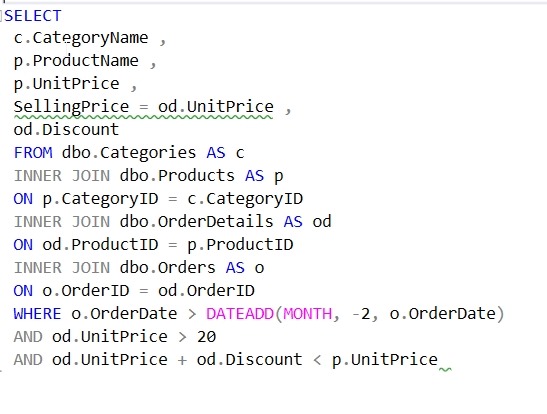
    2018-01-27 09_36_06-SQLQuery1.sql - (local)_SQL2016.Northwind (PLATO_Steve (66))_ - Microsoft SQL Se

    I really want to get the results from STATISTICS IO and TIME as I’m tuning a few things here and I want to check how well my changes work.

    Once I run this, I’d like to place the results with the query and see them to compare with the next iteration. I paste the results into the query window like this:
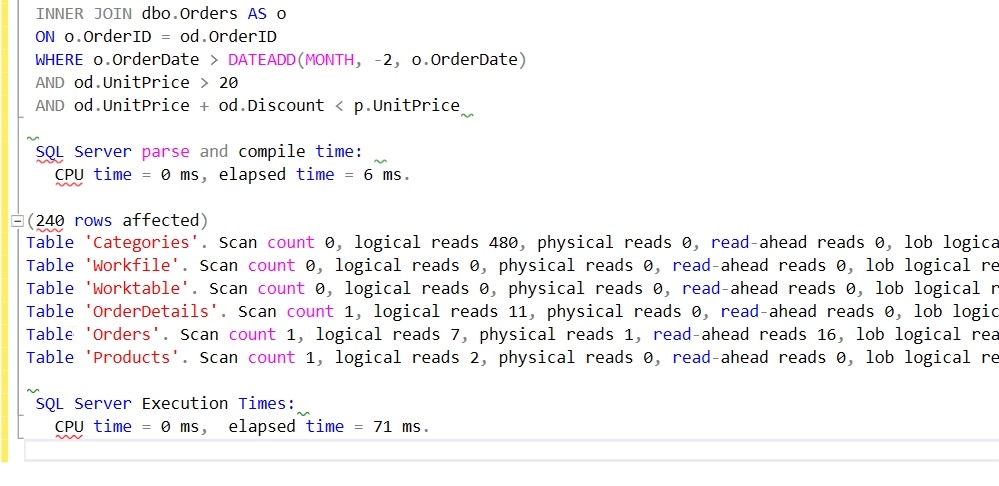
    2018-01-27 09_37_42-SQLQuery1.sql - (local)_SQL2016.Northwind (PLATO_Steve (66))_ - Microsoft SQL Se

    Now I can highlight those results and hit CTRL, type surr, and get this:

    2018-01-27 09_38_12-SQLQuery1.sql - (local)_SQL2016.Northwind (PLATO_Steve (66))_ - Microsoft SQL Se

    I hit tab and I have my notes commented out:
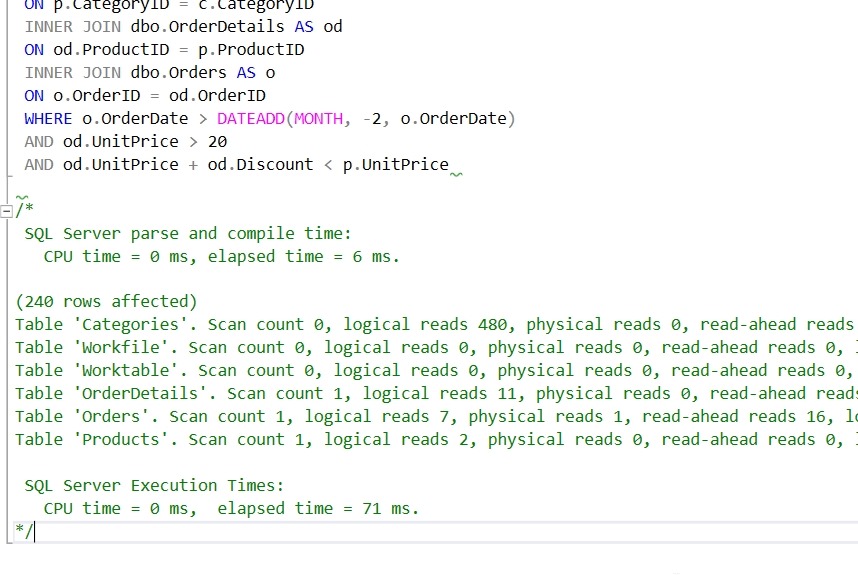
    2018-01-27 09_38_28-SQLQuery1.sql - (local)_SQL2016.Northwind (PLATO_Steve (66))_ - Microsoft SQL Se

    The next time I run the query, I can easily compare how things have changed:

    2018-01-27 09_38_37-SQLQuery1.sql - (local)_SQL2016.Northwind (PLATO_Steve (66))_ - Microsoft SQL Se

    I also use this when working through a list of results. I’ll get those in the query window, highlight them, and then surround them with a comment.

    There are lots of places you might like to use this token with SQL Prompt. For more ideas, Phil Factor has a nice scenario for using this with other tokens in the Redgate Hub.

    Give SQL Prompt a try today and see how it can improve coding and feel free to share your tips here.
  • Managing SQL Prompt Code Analysis Rules

    I work for Redgate and write about products. I’ve got a series of SQL Prompt posts here on little things I like. SQL Prompt might be my favorite tool.  SQL Prompt will be yours as well if you give it a try.

    SQL Prompt includes new Code Analysis rules that help you write better code. This iteration of the rules in v9 are items that are highlighted with a green squiggly line. These are basic rules, and may not apply in your environment, and you may want to disable some of these. Here’s how.

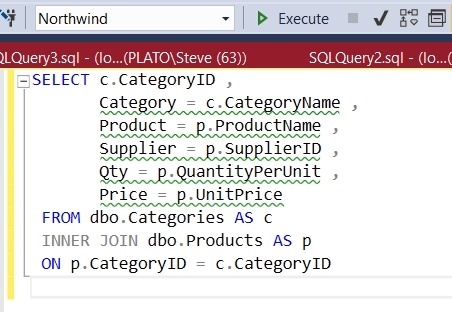
    Imagine you have a simple query like this one:

    2018-01-29 13_14_03-SQLQuery1.sql - (local)_SQL2016.Northwind (PLATO_Steve (66))_ - Microsoft SQL Se

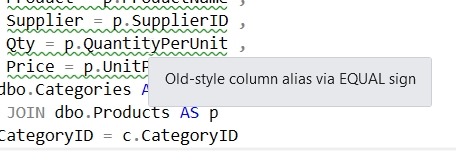
    As you can see, there are green squiggly lines under some code. These are static Code Analysis warnings from SQL Prompt. If I put my cursor on the line, I’ll see the warning about the old style column alias:

    2018-01-29 13_19_24-SQLQuery1.sql - (local)_SQL2016.Northwind (PLATO_Steve (66))_ - Microsoft SQL Se

    In this case, I know this is rule ST02, and it’s not a warning I care about. I like the equals alias construct and don’t want to constantly see this, so I’ll disable this rule.

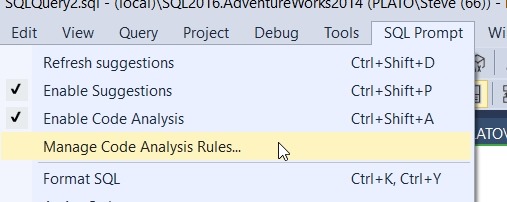
    First, open the SQL Prompt menu. There are a few new items shown below. The “Enable Code Analysis” is below the other Prompt “Enable Suggestions”. There is also the “Manage Code Analysis Rules”. Select that item.

    2018-01-29 13_20_59-

    When the dialog opens, we see a number of rules broken into sections. Each of these is numbers, and has a prefix. Best Practices have BP prefixes, Deprecated items use DEP, etc.

    2018-01-29 13_21_50-Sql Prompt - Code analysis rules

    Scroll down to the Style rules, which have ST prefixes. We can see that ST002 is the Old-style column alias. Uncheck this box and click “Save”.

    2018-01-29 13_23_23-Sql Prompt - Code analysis rules

    Now the rule is disabled. If I wait a couple seconds, I’ll see the green lines disappear.

    2018-01-29 13_24_20-SQLQuery1.sql - (local)_SQL2016.Northwind (PLATO_Steve (66))_ - Microsoft SQL Se

    There are all sorts of items that SQL Prompt tracks as a part of Code Analysis. We’re looking to understand how you use these rules, what exceptions you need, and any additional rules you’d like to see added. Send us feedback at UserVoice.

    Give SQL Prompt a try today and see how it can improve coding and feel free to let me know how you like this new feature.

  • SQL Prompt Gets Even Better

    SQL Prompt v9 came out recently, and just when you thought they couldn’t make it better, they found a way. If you click the menu for SQL Prompt, you’ll see a couple new items.

    2017-11-29 14_55_40-SQLQuery2.sql - (local)_SQL2016.AdventureWorks2014 (PLATO_Steve (66)) - Microsof

    Code Analysis!!! Finally, a first step towards some sort of better analysis of code. These are a set of rules from our SQL Code Guard acquisition and we’ve integrated these into Prompt. Now you’ll get some green squiggly’s to alert you to potential issues.

    For example, I get two in this short, poorly written code. The first item is a TOP without an ORDER BY, which usually isn’t a good thing.

    2017-11-29 14_59_07-SQLQuery2.sql - (local)_SQL2016.AdventureWorks2014 (PLATO_Steve (66))_ - Microso

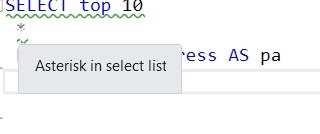
    The second item is one of those that I would like to put in all CAPs for developers. No asterisks.

    2017-11-29 14_59_11-SQLQuery2.sql - (local)_SQL2016.AdventureWorks2014 (PLATO_Steve (66))_ - Microso

    Right now there are a set of static rules, but we are working to add more and allow you to customize these items. We’re also looking for feedback on how you might like to apply or surface these rules to your staff. Please, if you have comments or questions, ask at the Redgate Hub.

    For now, you can disable analysis, or disable selected rules. Click the Manage link, and you’ll see a list of rules, which you can turn off as needed.

    2017-11-29 14_55_51-Sql Prompt - Code analysis rules

    Static analysis of SQL code has a long way to go, but I am looking forward to seeing more improvements appear in SQL Prompt and our other products over time.

  • Adding a Format SQL Button to the Redgate Toolbar

    I’ve gotten used to CTRL+K,Y to format SQL with SQL Prompt, but a customer wanted a button on the toolbar. It’s fairly easy to do, but I thought I should document the process for others.

    First, if you click the small area on the right of a toolbar in SSMS, you’ll get an “Add or Remove Buttons” menu, as shown here.

    2017-11-14 16_29_31-~vs7FB.sql - DKRSPECTRE_SQL2016.sandbox (DKRSPECTRE_way0u (52))_ - Microsoft SQL

    If you click that, you’ll see this dialog.

    2017-11-14 16_29_39-~vs7FB.sql - DKRSPECTRE_SQL2016.sandbox (DKRSPECTRE_way0u (52))_ - Microsoft SQL

    In  this case, I’m happy with the buttons, I want to customize my toolbar. Click that option. This opens up the dialog below, and I’ll want to click the “add Command” to add a menu item as a button.

    2017-11-14 16_29_50-Customize

    From here, I get a list of all SSMS menus. In this case, I’ve clicked the Dimension item, and I can see all the possible menu items on the right.

    2017-11-14 16_30_02-Add Command

    However, I want a SQL Prompt item, so I need to scroll down the left to SQL Prompt. Once I click that, I see the commands on the right,

    2017-11-14 16_30_11-Add Command

    Now scroll the right to find Format SQL.

    2017-11-14 16_30_23-Add Command

    Click OK and then your new button appears in the list.

    2017-11-14 16_30_32-Customize

    And on the toolbar.

    2017-11-14 16_30_41-~vs7FB.sql - DKRSPECTRE_SQL2016.sandbox (DKRSPECTRE_way0u (52))_ - Microsoft SQL

    Now you GUI clickers can reformat SQL quickly.