Tag: SQL Prompt

  • Quick SQL Prompt Updates in a Pattern

    I work for Redgate and write about products. I’ve got a series of SQL Prompt posts here on little things I like. SQL Prompt might be my favorite tool.  SQL Prompt will be yours as well if you give it a try.

    We had a customer post a question today on how they can built an update statement with a pattern. Specifically, they said that the code often looks like:

    UPDATE dbo.Contacts
       SET 
       c.Salutation = @Salutation
    , c.FirstName  = @FirstName
    , c.MiddleName = @MiddleName
    , c.LastName   = @LastName
    , c.Suffix       = @Suffix
    WHERE ContactID = @contactid

    The table columns are the same name as a variable. That’s a good pattern, and I’d think SQL Prompt could handle that.

    It doesn’t.

    The column picker doesn’t work with Updates (logged w/ product team), and I can’t duplicate selected text over (also logged for discussion). However, I do have a workaround.

    As I thought about it, I realized there are some features of Prompt that help here, and some of SSMS that will work.

    I made a quick video of the process, but I’ll describe it below:

    The Process

    The first thing is to get a column list. ssf<tab> does for me. I’ll get the select statement for a table and then expand the list of columns with a tab when on the *.

    Now, I’ll copy the columns. I tend to copy all since it’s usually easier to remove than pick and choose specific ones. I’ll wrap these in an update, which could be a snippet. If it’s not, that’s fine.

    From here, I use the power of Shift+ALT. If you’ve never done this, it’s amazing. I use this to select the columns and copy them. Then I’ll CTRL+ALT  to add the = and paste in the columns. I can then use CTRL+ALT once again to remove the alias and replace with a @.

    And, of course, I can reformat to make it look nice with SQL Prompt. Give SQL Prompt a try today and see how it can improve coding and feel free to share your tips here.
  • Disabling #sqlprompt Formatting

    I love SQL Prompt, especially the new formatting engine. However, it’s not perfect, and there are times I don’t want code reformatted. One great example is when I write INSERT statements. Here’s what I might write:

    INSERT dbo.Payments_A
      ( [Month], SerialNumber, DateBegin, DateEnd, paid)
    VALUES
      ( 'Mar-15', '0000000000001', '3/16/2015 0:00', '4/10/2015 0:00', 5000.01),
      ( 'Apr-15', '0000000000001', '4/7/2015 0:00' , '4/13/2015 0:00', 0),
      ( 'Apr-15', '0000000000001', '4/10/2015 0:00', '4/30/2015 0:00', 15000.00);

    I often build a single row, then I might copy/paste to add the other rows and then manually change the data. When I use my reformat command (CTRL+K, Y), I get this:

    INSERT dbo.Payments_A
    (
        [Month],
        SerialNumber,
        DateBegin,
        DateEnd,
        paid
    )
    VALUES
    (
        'Mar-15', '0000000000001', '3/16/2015 0:00', '4/10/2015 0:00', 5000.01
    ),
    (
        'Apr-15', '0000000000001', '4/7/2015 0:00', '4/13/2015 0:00', 0
    ),
    (
        'Apr-15', '0000000000001', '4/10/2015 0:00', '4/30/2015 0:00', 15000.00
    );

    That’s not bad, but it’s hard to read and ends up eating up a bunch of screen space when I try to look at code. What I really want is for that INSERT statement to not be reformatted, even though  I may want the spacing and line feeds in other code.

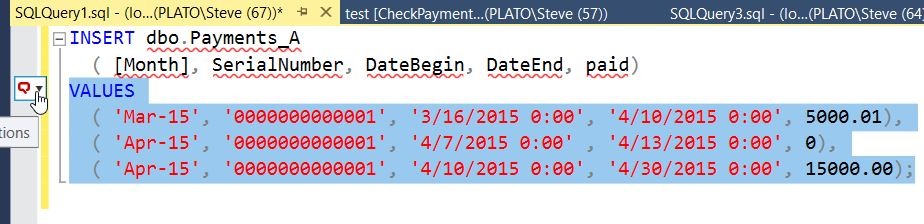
    Fortunately, SQL prompt allows me some control. If I highlight my code, I get a little box to the left of the code. There’s a hand with a finger pointing at it in the image below.

    2017-01-03 12_35_05-SQLQuery1.sql - (local)_SQL2016.sandbox (PLATO_Steve (67))_ - Microsoft SQL ServIf I hit CTRL, I get a drop down (or I can click). In this box, I can type snippets, or words. Note I’ve typed “dis” below, and I see that one of my options is to disable formatting for the selection.

    2017-01-03 12_35_14-SQLQuery1.sql - (local)_SQL2016.sandbox (PLATO_Steve (67))_ - Microsoft SQL Serv

    If I select this, I’ll get comments added to my code that SQL Prompt can read.

    2017-01-03 12_35_30-SQLQuery1.sql - (local)_SQL2016.sandbox (PLATO_Steve (67))_ - Microsoft SQL Serv

    Now I can hit CTRL_K, Y, and I’ll get all my code formatted, except what’s inside of the comments.

    2017-01-03 12_35_36-SQLQuery1.sql - (local)_SQL2016.sandbox (PLATO_Steve (67))_ - Microsoft SQL Serv

    Watch this and a few more SQL Prompt tips from a short video shown at last year’s SQL in the City:

  • Useful #SQLPrompt Tips

    One of the tools that Redgate write is SQL Prompt. This might be my favorite product, and I’m constantly impressed by the improvements that the dev team releases. In fact, I’m also impressed by the rate at which they produce changes, with updates happening every week or two.

    At this point, the product has a lot of features, some of which I’ve forgotten about, and a few that slipped by me. At SQL in the City streamed last year, I watched a short piece from Carly Meichen that taught me a couple things. I’ll write about a few of them, but take a look at this video and see if any of these will help you become more productive.

  • Getting My Alias in #SQLPrompt

    I got a tweet after my SQL Prompt formatting piece that said a user would be interested in upgrading from v5 if “as ‘Alias’” was transformed into “’Alias’ = “.

    Well, in v7.3, this is in there, and I didn’t realize it. You can clearly see this in the formatting actions options, which is a place I didn’t think to look.

    2017-01-17-09_00_38-sql-prompt-options

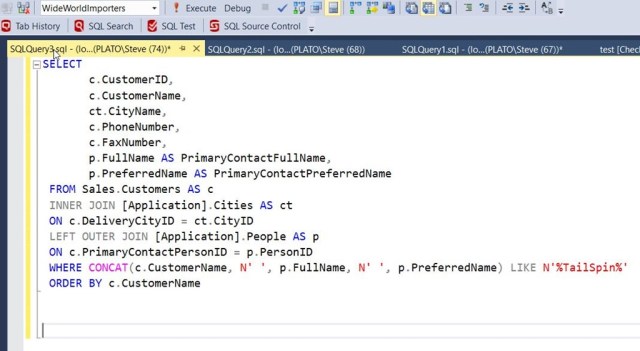
    Does this work? It sure does. Let’s examine a query you might get from a VCS or a colleague. Suppose you’re working in the new WideWorldImporters database.

    2017-01-04-08_39_52-SQLQuery3.sql-local_SQL2016.WideWorldImporters-PLATO_Steve-74_-Microso.jpg

    You prefer to see the actual columns returned in the result set at the front of the query, with an alias = format. That’s what I prefer as well, and so I want to have the column list shown as:

    PrimaryContactFullName = p.FullName,
    PrimaryContactPreferredName = p.PreferredName

    A quick CTRL+K, Y and I see this.

    2017-01-17-09_11_08-sqlquery18-sql-local_sql2016-wideworldimporters-plato_steve-70_-micros

    My aliases have moved.

    This is a great feature for those of you that need consistent formatting. There are other alias options if you prefer the alias at the end.

    Update: I originally had this as single quoted aliases, but as pointed out, that format is deprecated, so I wouldn’t use it.

    And if you want to change this back, you can have a second formatting preference that you choose to reformat code before sending it back to someone else.

    Give SQL Prompt a try today.