Tag: SQL Prompt

  • Creating Custom Databases with SQL Prompt

    I work for Redgate and write about products. I’ve got a series of SQL Prompt posts here on little things I like. SQL Prompt might be my favorite tool.  SQL Prompt will be yours as well if you give it a try.

    SQL Prompt has lots of great features that can help you write SQL quicker. However, you’ve got to train yourself to use a few of these and not just start to type with your old habits. This quick tip looks at one of those areas where a little customization can make things work smoothly.

    Perhaps you are like me and you’re often creating databases for testing things. It’s quick and easy, and certainly a good template goes a long way to ensuring that you don’t have any issues when you build a database.

    There’s a “cdb” snippet in SQL Prompt that I have come to really like. Of course, the default code leaves something to be desired, so I usually change it. I wrote a bit about this on the Redgate blog, but there are a few other things I’d add to my changes for a developer.

    Here’s the default code:

    CREATE DATABASE database_name
    ON
    PRIMARY ( -- or use FILEGROUP filegroup_name
      NAME = database_name_data,
      FILENAME = 'database_name.mdf'
    ) --, and repeat as required
    LOG ON
    (
      NAME = database_name_log,
      FILENAME = 'database_name.ldf'
    ) --, and repeat as required
    --COLLATE collation_name
    --WITH
    --  DB_CHAINING ON/OFF
    --  TRUSTWORTHY ON/OFF
    --FOR LOAD
    --FOR ATTACH
    --WITH
    --  ENABLE_BROKER
    --  NEW_BROKER
    --  ERROR_BROKER_CONVERSATIONS
    --FOR ATTACH_REBUILD_LOG
    GO

    Here’s how I changed this on the Redgate blog:

    CREATE DATABASE database_name
    ON
    PRIMARY ( 
      NAME = database_name_data,
      FILENAME = 'E:\SQLServer\MSSQL12.SQL2014\MSSQL\DATA\database_name.mdf'
    ) 
    LOG ON
    (
      NAME = database_name_tlog,
      FILENAME = 'E:\SQLServer\MSSQL12.SQL2014\MSSQL\Log\database_name.ldf'
    ) 
    WITH
      TRUSTWORTHY ON
    GO

    However, I really want other things in place when I’m working in a dev environment. For example, I’ve started to want to ensure that I create random test databases with the Simple recovery model. While I usually have the model database set to Simple, that isn’t the default and I sometimes forget. As a result, I’ll add this code to my snippet:

    ALTER DATABASE database_name SET RECOVERY SIMPLE;

    I also usually want to change the growth settings. I don’t care too much about the total limit, since I use placeholders, but I do want a slightly larger initial size to prevent growths when I load test data. In my case, I usually want to specify an initial size larger than model. Having this in the snippet also means I can easily modify it.

    However, I don’t want to make this complex. I’ll make this easy by using the GUI to generate template code. I can open the Create Database dialog and see my options, which I can change, as I’ve done for size in the image (50 from 1 for data).
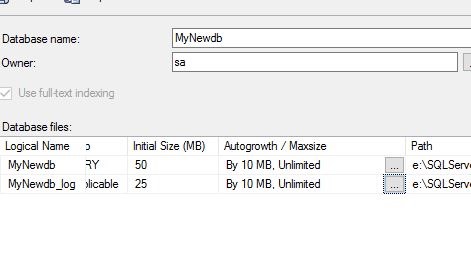
    2016-09-23 09_47_21-New Database

    There’s a dialog for growth, and as you can see, I’ve adjusted the values.

    2016-09-23 09_47_29-Change Autogrowth for MyNewdb

    and for things like recovery model. I’ve open the dialog below. Below here are all the other database options I might want to set.

    2016-09-23 09_47_50-SQLQuery1.sql - (local)_SQL2014.Sandbox (PLATO_Steve (68))_ - Microsoft SQL Serv

    When I’m done, I can click the “Script button shown in this image. It’s at the top of the dialog.

    2016-09-23 09_48_24-New Database

    Once I do this, I cancel out of the GUI, and I can see my code.

    2016-09-23 09_48_33-SQLQuery1.sql - (local)_SQL2014.Sandbox (PLATO_Steve (57)) - Microsoft SQL Serve

    Now I’ll cut and paste the items I want into my SQL Prompt snippet. This gives me something like this:

    2016-09-23 09_53_18-SQL Prompt - Edit Snippet

    I could have more or less options, depending on what matters to me. I might even have a cdbp snippet for production settings, where I have more items specified to be sure they’re set. It’s one thing to expect defaults, it’s another thing to think they won’t change and shouldn’t be specified.

    Hopefully, you’ll see the value in SQL Prompt and start using snippets to improve your ability to code quickly and take the hassles and guesswork out of building clean SQL Code. If you’d like to see another take on this snippet, check out my Redgate blog.

    Try a SQL Prompt evaluation today and then ask your boss to get you this productivity enhancing tool, or if you’re using the tool, practice using ii the next time you need to insert some data.

    You can see a complete list of SQL Prompt tips at Redgate.

  • Using TRY..CATCH in SQL Prompt

    I work for Redgate and write about products. I’ve got a series of SQL Prompt posts here on little things I like. SQL Prompt might be my favorite tool.  SQL Prompt will be yours as well if you give it a try.

    I learned something new recently about SQL Prompt. I was working on documenting and experimenting with snippets and found a quicker way to write code.

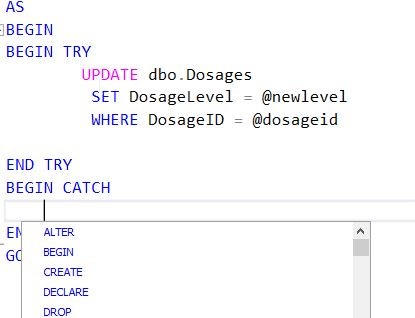
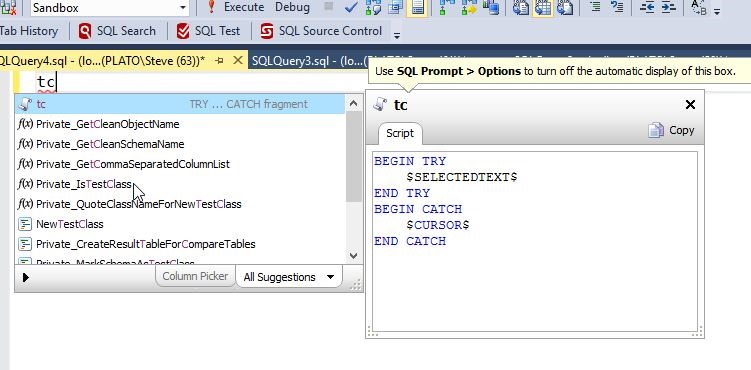
    One of the things I think is great is to use the TRY..CATCH structure. I don’t do it enough, but I want to do this more, and make it smooth. SQL Prompt includes a tc snippet, which gives me this code when I type t-c-TAB.

    2016-09-23 12_13_39-SQLQuery4.sql - (local)_SQL2014.Sandbox (PLATO_Steve (63))_ - Microsoft SQL Serv

    You’ll notice that my cursor is in the CATCH block. Why? Well, if you pause after t-c, you’ll see the snippet and code (unless you’ve turned off the window). Notice the $CURSOR$.

    2016-09-23 12_13_17-SQLQuery4.sql - (local)_SQL2014.Sandbox (PLATO_Steve (63))_ - Microsoft SQL Serv

    This means the cursor appears there. Not too handy. However, also notice the $SELECTEDTEXT$ snippet. This is handy.

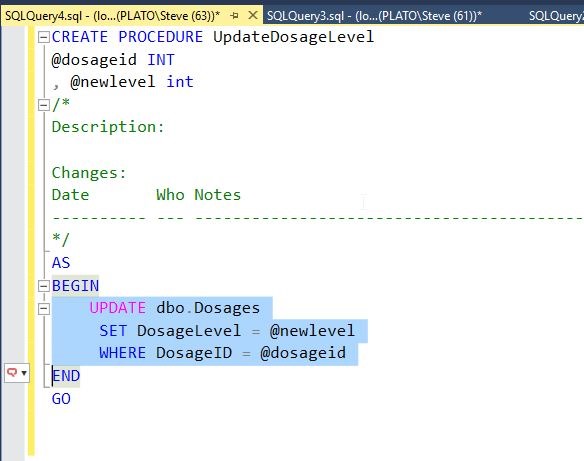
    Let’s change our code and include an update statement. For example, suppose as part of a procedure, I’m writing this code:

    2016-09-23 12_15_44-SQLQuery4.sql - (local)_SQL2014.Sandbox (PLATO_Steve (63))_ - Microsoft SQL Serv

    I’ve got a procedure, and I’ve forgotten to include TRY..CATCH. Certainly I can surround the highlighted code with the structure, but that’s cumbersome, even using Prompt’s intellisense.

    There’s a better way.

    Notice the little SQL Prompt icon in the side bar. Prompt is active, and if I click CTRL, I’ll get this:

    2016-09-23 12_16_59-SQLQuery4.sql - (local)_SQL2014.Sandbox (PLATO_Steve (63))_ - Microsoft SQL Serv

    I’ve activated SQL Prompt in the context of my highlighted text. Now I can type t-c and see the snippet.

    2016-09-23 12_17_49-SQLQuery4.sql - (local)_SQL2014.Sandbox (PLATO_Steve (63))_ - Microsoft SQL Serv

    If I hit TAB, I get this:

    2016-09-23 12_18_23-SQLQuery4.sql - (local)_SQL2014.Sandbox (PLATO_Steve (63))_ - Microsoft SQL Serv

    Pretty cool. My update is surrounded by the snippet code, and placed where the $SELECTEDTEXT$ placeholder was used.

    Use this. Write code quicker and make it better.

    Try a SQL Prompt evaluation today and then ask your boss to get you this productivity enhancing tool, or if you’re using the tool, practice using ii the next time you need to insert some data.

    You can see a complete list of SQL Prompt tips at Redgate.
  • The Snippet Manager in SQL Prompt

    I work for Redgate and write about products. I’ve got a series of SQL Prompt posts here on little things I like. SQL Prompt might be my favorite tool.  SQL Prompt will be yours as well if you give it a try.

    I love SQL Prompt, since it makes T-SQL coding quicker and easier. One of the handiest things is the Snippet Manager. I’ll show you how this works.

    When I type something, like “cl”, I get a list of things, as shown below..

    2016-09-23 10_24_42-SQLQuery3.sql - (local)_SQL2014.Sandbox (PLATO_Steve (61))_ - Microsoft SQL Serv

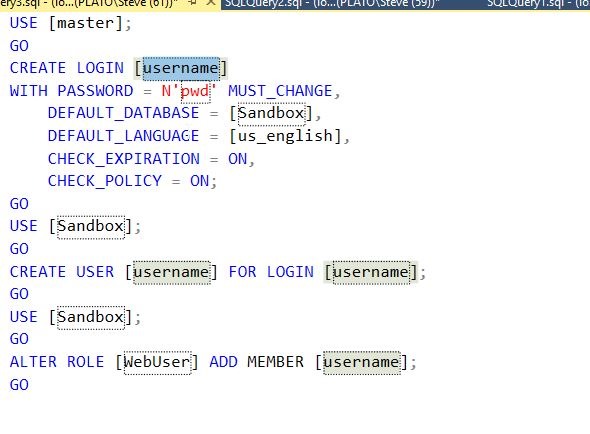
    I see CLOSE, which has “cl” in it, as well as a number of functions. However there are two items (cl and clrp) that have a description to the right. They also have a scroll to the left. These are snippets. If I hit Tab, the highlighted snippet, cl, will be replaced with code. This is shown below.

    2016-09-23 10_19_22-SQLQuery3.sql - (local)_SQL2014.Sandbox (PLATO_Steve (61))_ - Microsoft SQL Serv

    This is all custom code I put into my Snippet Manager. I can now replace these parameters with new values, or just execute this code as is to create a new login and user. Note I typed three things (c, l, TAB) to get lots of code here.

    The Snippet Manager

    To access the Snippet Manager, click the SQL Prompt menu item and look down towards the bottom.

    2016-09-23 10_27_33-SQLQuery3.sql - (local)_SQL2014.Sandbox (PLATO_Steve (61))_ - Microsoft SQL Serv

    This will bring up the Snippet Manager (part of SQL Prompt options in 7+). Note that I have a folder where I store snippets at the top, various snippets below that (with new/edit/delete buttons) and then the snippet code the the highlighted snippet at the bottom of this image.

    2016-09-23 10_27_41-SQL Prompt – Options

    The snippet is highlighted, and if I type, I get completion here. So, I’ll type C-D, and jump to the “cdb” snippet. Note I’ve skipped over cci.

    2016-09-23 10_29_53-SQL Prompt – Options

    I can then edit or delete this snippet. If I edit it, I’ll get a dialog with the snippet and the placeholder parameters listed. This is shown below.

    Note: I’ve customized this code, so it isn’t the SQL Prompt default.

    2016-09-23 10_31_02-SQL Prompt - Edit Snippet

    I can also create new ones. For example, on one of our Redgate VMs, we keep some demo snippets. I’ll can create a new one by clicking “New…”

    2016-09-23 10_32_05-SQL Prompt – Options

    I’ll then get this dialog.

    2016-09-23 10_32_12-SQL Prompt - Create New Snippet

    I can give this a name, a description, and type any code into the code window. I’ve added a few items below.

    2016-09-23 10_35_15-SQL Prompt - Create New Snippet

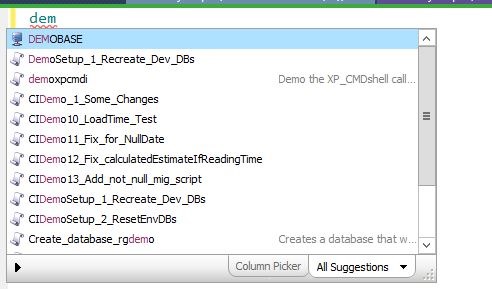
    Now if I save this, close the Snippet Manager, and go back to a Query Window, I can type d-e-m, and see this:

    2016-09-23 10_36_53-SalesDemo-2016-09-07-1117-export-i-fh727xw9 - VMware Workstation

    My new demoxpcmdi appears before the other “demo” snippets. I can also see my description to the right.

    Hopefully, you’ll see the value in SQL Prompt and start using snippets to improve your ability to code quickly and take the hassles and guesswork out of cleanly building SQL Code. You can also read a similar piece I wrote on the Redgate blog.

    Try a SQL Prompt evaluation today and then ask your boss to get you this productivity enhancing tool, or if you’re using the tool, practice using ii the next time you need to insert some data.

  • My SQL Prompt GitHub Repo

    I work for Redgate and write about products. I’ve got a series of SQL Prompt posts here on little things I like. SQL Prompt might be my favorite tool.  SQL Prompt will be yours as well if you give it a try.

    Last year I published an article on SQLServerCentral from Guarav Vohra on using SQL Prompt with a VCS. I really like the article, and had been meaning to get my own SQL Prompt Snippet library into a repo, but kept putting it off.

    If you don’t have a SQL Prompt library, download an eval and give it a try. It’s a fantastic tool and worth your boss buying since it will save you time when coding.

    Finally this year, as I was setting up my 4th new machine in less than a year, and probably my 10th VM with SQL Prompt, I decided to just get myself set up to collaborate with myself. I don’t really have a team for development work now, but I do work across 3 physical machines weekly and perhaps 3-4 VMs as well.

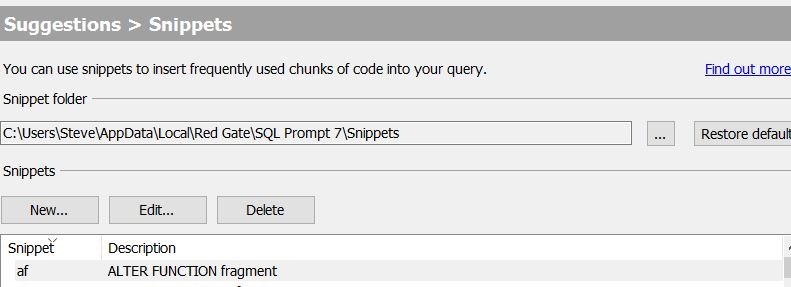
    Here’s how I got my snippets into a repo. First, get the folder where your snippets are stored. Since I’m on Prompt 7.3x, my system might look slightly different. If you open the Snippet Manager, you should see something similar to this:

    2016-10-03 11_30_24-SQL Prompt – Options

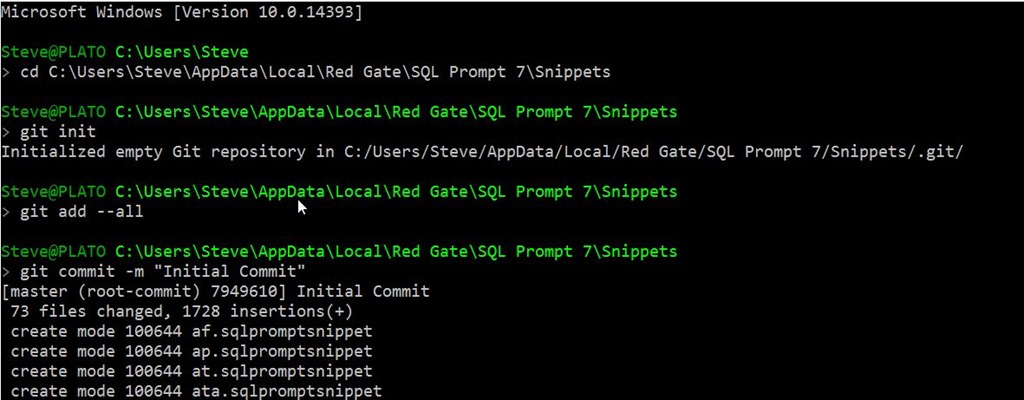
    The important part is the folder. I copied this path and pasted it into a command prompt. In this folder, I then ran a “git init” to create the repo.

    2016-10-03 10_07_44-cmd

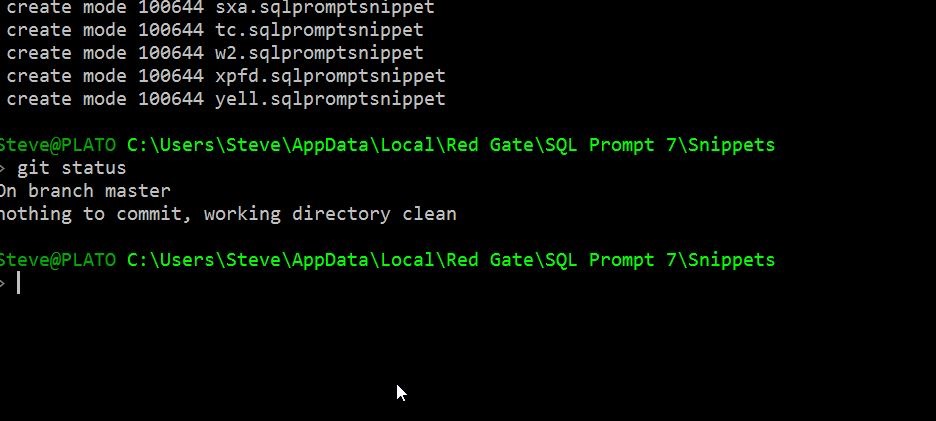
    Once that was done, you can see I did a “git add –all” to add all the existing files and folders. I then made an initial commit, with a basic comment.

    That committed all my current snippets to the repo. However, this is a local repo. This doesn’t help me with sharing across machines. The next step is to get up a repo somewhere I can access when I’m on another machine.

    I chose GitHub since I put lots of work stuff there. I could have done BitBucket, set up my own Git server, etc., but this was simple. I created a new repo on Github.com and then got this:

    2016-10-03 10_08_25-way0utwest_SQLPromptSnippets

    This image appears as one of the options when you create a new repo. I could have cloned this empty repo to my machine, but since I’d already set on up, I wanted to push to github.

    I used this code, and authenticated, to push my code. You can see the push below.

    2016-10-03 10_07_55-cmd

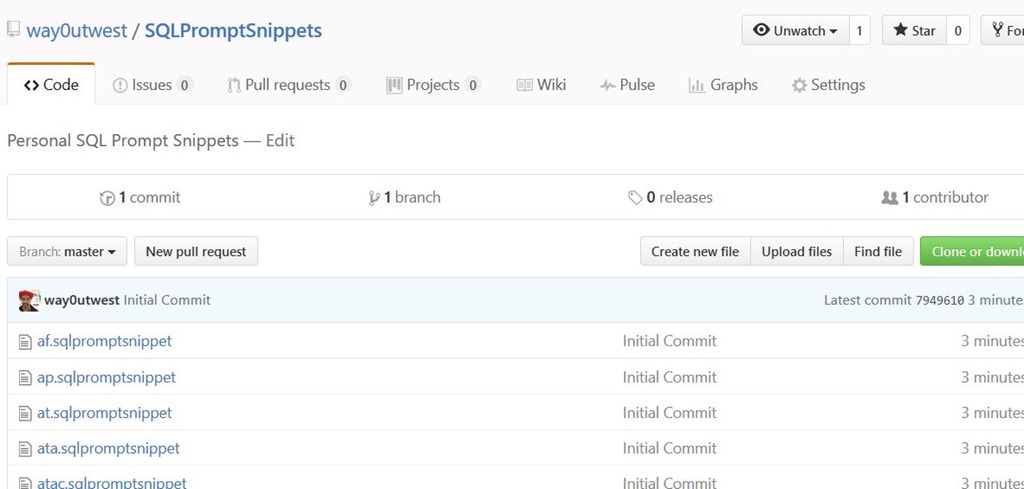
    Now, all my snippets are up on Github.

    2016-10-03 10_10_55-way0utwest_SQLPromptSnippets_ Personal SQL Prompt Snippets

    That has my snippets saved off to the cloud. I tested this by adding a new snippet and then from the command line doing:

    git add –all

    git push

    And my code moved to GitHub.

    The next post will look at pulling this code down to another machine with SQL Prompt.