Tag: SQL Prompt

  • Quick Tips–Using ii in #SQLPrompt

    SQL Prompt has lots of great features that can help you write SQL quicker. However, you’ve got to train yourself to use a few of these and not just start to type with your old habits. This quick tip looks at one of those areas when inserting data into tables.

    There are times I’m building some test data to try a new piece of code. In the past, I’d start typing INSERT. In SQL Prompt, this gives me a selection after beginning the ins, which is how far I get as a quick typist.

    2016-08-22 10_34_02-SQLQuery7.sql - (local)_SQL2014.Sandbox (PLATO_Steve (57))_ - Microsoft SQL Serv

    Effort: 4 keystrokes.

    I’ve tried to write cleaner T-SQL, so I’d add in the INTO, which for me is “i” plus 2 down arrows.

    2016-08-22 10_34_11-SQLQuery7.sql - (local)_SQL2014.Sandbox (PLATO_Steve (57))_ - Microsoft SQL Serv

    Now: 9 keystrokes

    Next, I’d begin with the table, in this case, my Employee table. For me, this means hitting “e” and then the down arrow.

    2016-08-22 10_35_26-ObjectDefinitionBox

    Now: 11 keystrokes

    Hitting Tab at this point would get me the insert statement, with the list of columns and default values. Having the quotes already there, and the data types, can be really handy.

    Total: 12 keystrokes

    That’s a pretty quick way to get the insert statement. However, there’s a better way. If I type “ii”, I get this:

    2016-08-22 10_41_51-ObjectDefinitionBox

    That’s one of the built in snippets for SQL Prompt that builds an insert statement. Now I can add my table.

    2016-08-22 10_42_02-SQLQuery7.sql - (local)_SQL2014.Sandbox (PLATO_Steve (57))_ - Microsoft SQL Serv

    That means in 6 keystrokes I’ve built the same insert statement, and it’s much quicker. As I’ve gotten used to using ii, I can get test data for an algorithm built very quickly.

    Hopefully, you’ll see the value in SQL Prompt and start using snippets to improve your ability to code quickly and take the hassles and guesswork out of cleanly building SQL Code. You can also read a similar piece I wrote on the Redgate blog.

    Try a SQL Prompt evaluation today and then ask your boss to get you this productivity enhancing tool, or if you’re using the tool, practice using ii the next time you need to insert some data.

    I’ve also written a similar piece on the Redgate Blog,  You can see a complete list of tips at Redgate.

    You can also watch this tip in action:
  • Quick #SQLPrompt Tips – Expanding Wildcards

    I tend to try and get code on the screen quickly and then start to remove things. I’m a visual person, and it’s helpful for me to see some tables, joins, filters, and columns as I’m structuring a query.

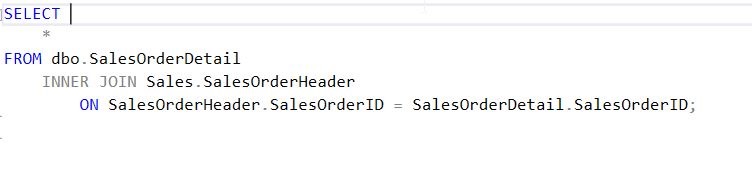
    One of the ways I work quickly is with SQL Prompt is that I’ll write a query, using the SELECT * to hold the place where columns will appear. Since I’m not always sure what columns exist in a table, using the asterisk allows me to complete a valid query.

    2016-08-26 08_46_03-30113.sql - (local)_SQL2014.AdventureWorks2008 (PLATO_Steve (73))_ - Microsoft S

    However, I don’t want to leave the asterisk there. Let’s put the cursor behind it. As you can see here, a tip pops up.

    2016-08-26 08_53_16-30113.sql - (local)_SQL2014.AdventureWorks2008 (PLATO_Steve (73))_ - Microsoft S

    When we hit Tab (or your completion hotkey), the entire column list expands. All columns, from all tables, qualified if necessary, according to my SQL Prompt settings.

    2016-08-26 08_53_25-30113.sql - (local)_SQL2014.AdventureWorks2008 (PLATO_Steve (73))_ - Microsoft S

    Now I have a well written query, or if I don’t need all columns, I can easily remove those that I no longer want to retrieve.

    This is a quick tip, one that doesn’t do a lot, but has the potential to make developers really think about all the data being returned in large queries with a SELECT *.

    Give this a try the next time you find yourself writing a SELECT * query and then remove the columns that you really don’t need. You might also check out a similar piece I wrote for the Redgate blog.

    If you aren’t a SQL Prompt user, then think about downloading an evaluation and becoming a more efficient T-SQL developer.

    You can see a complete list of SQL Prompt tips at Redgate.

  • SQL Prompt Prevents Stupidity

    I work for Redgate and write about products. I’ve got a series of SQL Prompt posts here on little things I like. SQL Prompt might be my favorite tool.  SQL Prompt will be yours as well if you give it a try.

    I upgraded my SQL Prompt recently, mostly as a habit. The team led by David and Aaron are always adding cool new features, and have almost never broken my flow, so I usually take the changes they’ve made whenever they appear. In this case, I got an unexpected surprise.

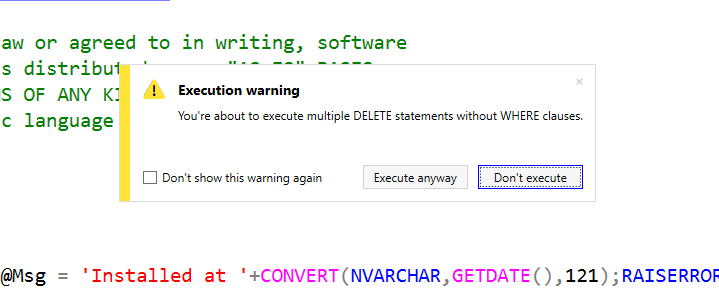
    While demoing some tSQLt stuff, I wanted to show how to install the framework. I loaded the tsqlt.class.sql file and clicked Execute. What I saw was this:

    2016-06-01 19_09_49-06_testingtsql_install_tSQLt.class.sql - JOLLYGREENGIANT_SQL2014.SimpleTalkDev_S

    In the middle of my SSMS window was a warning. I’ve got multiple items without WHERE clauses in the script. There are deletes, and in this case they don’t matter. However I got a warning. I could stop execution or execute.

    This made me pause in front of the audience for 10 seconds while I read it, but I clicked “Execute anyway”, things worked, and I went on.

    However, that was cool.

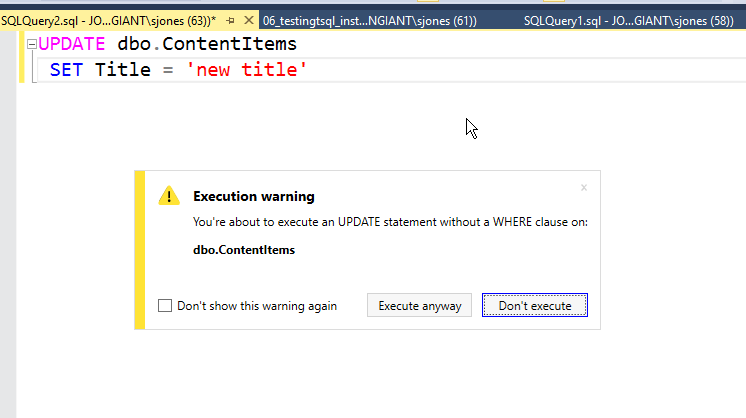
    I tried this in other ways. Suppose I had an UPDATE without a WHERE.

    2016-06-01 19_11_06-SQLQuery2.sql - JOLLYGREENGIANT_SQL2014.TestingTSQL (JOLLYGREENGIANT_sjones (63)

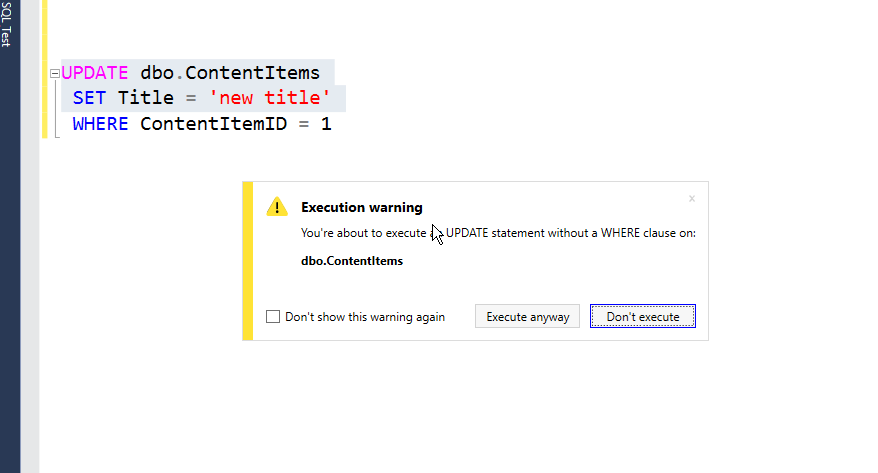
    Same warning. That’s a good one. What if I highlighted just part of a script?

    2016-06-01 19_13_21-SQLQuery2.sql - JOLLYGREENGIANT_SQL2014.TestingTSQL (JOLLYGREENGIANT_sjones (63)

    I can’t tell you how many times I’ve done this in a presentation. Or in production, where it’s happened a few times. I could turn off the warning, but I love it. This is exactly what I need to prevent me from doing something stupid that I didn’t mean to do.

    If I want to clear a table, and sometimes I do in demos, I click “Execute”. However, if I’ve made a mistake, I just hit enter, take the default, and then fix things.

    I love SQL Prompt, and it’s one of my favorite tools from Redgate. I also love the development process, with the team working against submissions and requests from users, and responding with small releases hundreds of times a year.

    If you’ve got SQL Prompt, be sure you update to v7.2. If not, then download it and give it a try. I think if you spend a good two weeks working with it, customizing snippets, and practicing some of they keystrokes, you’ll love it as well.

    You can see a complete list of SQL Prompt tips at Redgate.

  • Custom Placeholders in SQL Prompt 7

    I work for Redgate and write about products. I’ve got a series of SQL Prompt posts here on little things I like. SQL Prompt might be my favorite tool.  SQL Prompt will be yours as well if you give it a try.

    I love my snippets in SQL Prompt. Adding some snippets can make work go so much quicker.  I add new ones all the time, based on the tasks I’m doing and I find that code can almost write itself.

    SQL Prompt 7 was just released, and it added a neat feature to the suggestions that I really appreciated. You can now add your own placeholders for code.  How does this work? Let me show you.

    Let’s imagine that I want to quickly view a table and update a column. I build a snippet like this:

    2015-09-09 15_01_15-SQL Prompt - Edit Snippet

    Notice that I’ve added “tblnm” as a placeholder inside of two dollar signs. This is my custom value. It’s not a parameter, but rather a placeholder.

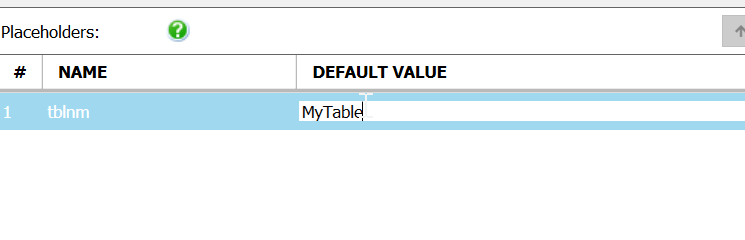
    I can set a default value if I’d like.

    2015-09-09 15_01_10-SQL Prompt - Edit Snippet

    Now when I start typing, I see my snippet appear.

    2015-09-09 15_01_24-ObjectDefinitionBox

    I hit tab and then I get my snippet. The cursor is where I specified with the $CURSOR$ placeholder that was built in. However my custom placeholder has a list of the objects available that fit here.

    2015-09-09 15_01_32-SQLQuery1.sql - aristotle.sandbox (ARISTOTLE_Steve (67))_ - Microsoft SQL Server

    If I select one, I get my code. Note that the default value was inserted above.

    2015-09-09 15_01_45-SQLQuery1.sql - aristotle.sandbox (ARISTOTLE_Steve (67))_ - Microsoft SQL Server

    Very cool.

    Now I can adjust my snippets with my own placeholder that makes sense to me, and have intellisense pop up right away.

    Another keystroke or two saved.