Tag: syndicated

  • Rebooting Ubuntu Linux from the Command Line–#SQLNewBlogger

    Another post for me that is simple and hopefully serves as an example for people trying to get blogging as #SQLNewBloggers.

    Since SQL Server 2017 is now out, and Linux is an option, I thought I’d write a bit more about little Linux things that admins might want to know.

    After installing an update, I neede to reboot my Ubuntu install. Apparently there was a dialog, but it was hidden. Unlike on Windows, I didn’t see an easy way to click a button and restart. However, since I had a terminal shell open, I was sure there was an easy way to do this.

    I could have run a quick search, but I fell back to the old standby:

    man shutdown

    This showed that there is a shutdown, as on Windows, with the same –r parameter. This needs sudo to run, and by default it reboots after a minute. The command I ran was:

    shutdown -r

    Learned something, which I should have known. I almost typed shutdown, but I decided to double check.

    Note: I realized later that there is a small menu in the upper right. I had the VM in a window and didn’t notice the icon. Clicking the gear gives a menu.

    2017-10-02 10_38_28-Ubuntu 64-bit SQL Server .210 - VMware Workstation

    This lets you then choose shutdown or restart.
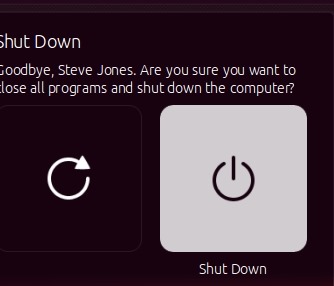
    2017-10-02 10_38_36-Ubuntu 64-bit SQL Server .210 - VMware Workstation

  • Quick SQL Prompt Updates in a Pattern

    I work for Redgate and write about products. I’ve got a series of SQL Prompt posts here on little things I like. SQL Prompt might be my favorite tool.  SQL Prompt will be yours as well if you give it a try.

    We had a customer post a question today on how they can built an update statement with a pattern. Specifically, they said that the code often looks like:

    UPDATE dbo.Contacts
       SET 
       c.Salutation = @Salutation
    , c.FirstName  = @FirstName
    , c.MiddleName = @MiddleName
    , c.LastName   = @LastName
    , c.Suffix       = @Suffix
    WHERE ContactID = @contactid

    The table columns are the same name as a variable. That’s a good pattern, and I’d think SQL Prompt could handle that.

    It doesn’t.

    The column picker doesn’t work with Updates (logged w/ product team), and I can’t duplicate selected text over (also logged for discussion). However, I do have a workaround.

    As I thought about it, I realized there are some features of Prompt that help here, and some of SSMS that will work.

    I made a quick video of the process, but I’ll describe it below:

    The Process

    The first thing is to get a column list. ssf<tab> does for me. I’ll get the select statement for a table and then expand the list of columns with a tab when on the *.

    Now, I’ll copy the columns. I tend to copy all since it’s usually easier to remove than pick and choose specific ones. I’ll wrap these in an update, which could be a snippet. If it’s not, that’s fine.

    From here, I use the power of Shift+ALT. If you’ve never done this, it’s amazing. I use this to select the columns and copy them. Then I’ll CTRL+ALT  to add the = and paste in the columns. I can then use CTRL+ALT once again to remove the alias and replace with a @.

    And, of course, I can reformat to make it look nice with SQL Prompt. Give SQL Prompt a try today and see how it can improve coding and feel free to share your tips here.

  • Using Backup-DbaDatabase for a Quick Backup

    I really like the dbatools project. This is a series of PowerShell cmdlets that are built by the community and incredibly useful for migrations between SQL Servers, but also for various administrative actions. I have a short series on these items.

    One of the core tasks of a DBA is backing up a database. In fact, I’d argue that it’s the most important thing for a DBA to know. Second would be restores.

    I’ve used the BACKUP DATABASE command so often from T-SQL that it’s a quick way for me to just get a backup of a database. I almost always have SSMS running, so I can easily just run the backup.

    For regular backups there are some great tools out there, SQL Backup Pro from Redgate, Minion Backup, Ola Hallengren’s scripts, and more. However, there still might be a time I want to make a few backups, perhaps copy them over, and that’s where I think dbatools and Backup-DbaDatabase might help.

    This is a nice, easy cmdlet to use. You can probably guess how to use it. Give it an instance, a database (or few), include a path, maybe create folders for each database, and let it go.

    That’s about it.

    If I run this interactively, I’d get the progress bar:

    2017-10-02 17_04_29-{15%} cmd - powershell (Admin)

    When the command is done, I see the results from each database. I get the file, folder, full path, and the script used.

    2017-10-02 17_04_36-cmd - powershell (Admin)

    I could include a different path if I wanted, and certainly I can chain this along with other PoSh commands.

    I don’t know that I’d use this often, but it is handy in places, and certainly if I want to script the movement of some files, perhaps for something like HA/DR testing or setup, or even to refresh other environments.

  • Getting the Random Module in SQL Data Generator

    This is a series on SQL Data Generator, covering some interesting scenarios I’ve run into. If you’ve never tried it, SQL Data Generator is a part of the SQL Toolbelt. Give it a try today with an evaluation today.

    I have SQL Data Generator, and use it regularly to build quick  test data in non-trivial scenarios. One of the things I ran into recently was a minor bug, but one that’s been logged. Hopefully you won’t need this, but in case you do.

    I was trying to use a Python script and return a random value from a list. My code was:

    return random.choice(mylist)

    This gave me an error.

    2017-10-05 11_02_09-SQL Data Generator - New project _

    No biggie, I’ll add “import random” to the top of the script. That didn’t help. Apparently the distro with SQL Data Generator is missing the random module for some reason.

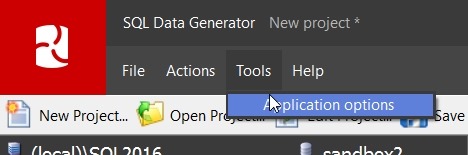
    Fortunately, I have Python 2.7 on my system. I clicked “Tools” and “Application Options” in SQL Data Generator.

    2017-10-05 11_00_47-SQL Data Generator - New project _

    This gave me a dialog. On the General tab, there’s a “Python” section. I added the path to my Python lib folder in here.

    2017-10-05 11_01_00-Application Options

    That worked fine. I didn’t need to import random; it was available. My script now worked.