Tag: syndicated

  • SSoL–Exiting Root

    I don’t think most of us need to know Linux, but if you end up managing a system, it’s good to have a little idea of how to get around. This is a short series of posts as I remember the skills I used to have back in university.

    There are times you need to execute a bunch of commands as root. Rather than sudo x, sudo y, sudo z, you might just sudo –i to change to root.

    For example, I often will do this:

    sudo apt-get update
    
    sudo apt-get install mssql-server
    
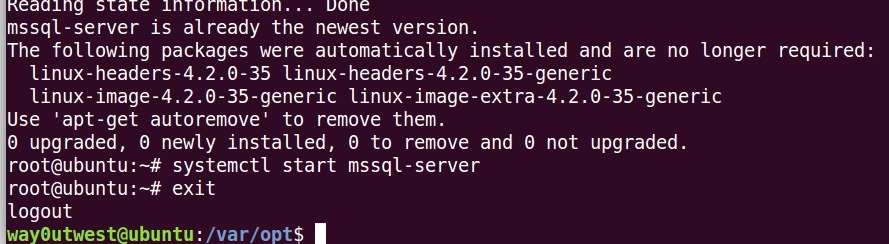
    sudo systemctl start mssql-server

    I could just run those as root. However, when I’m done, how do I get back to my normal user? It’s been a long time, so I had to look it up. I wrote this post so I’ll remember since I don’t use Linux daily.

    2017-06-15 10_05_14-Ubuntu 64-bit SQL Server .210 - VMware Workstation

    Type

    Exit

    That’s it.

  • Database Mirroring Needs FQDNs

    A quick basic post, and one that I’ve forgotten. Since blogging is a good way to remind myself of things, here goes.

    I was testing Database Mirroring (DBM) recently for an upgrade situation. I’ve set up it up in the past, but since it’s deprecated, I’ve moved on to working with Availability Groups (AG) for the most part. However, mirroring might still be in use for you, or you’re looking to perform a simple rolling upgrade, and DBM works well.

    I restored a database on a new instance, opened the firewalls for 5022, and then went through the mirroring wizard. Once I was done, I enabled mirroring on the secondary database (the one restoring) and that worked fine.

    Then I ran this on the primary:

    ALTER DATABASE Baseball SET PARTNER = 'TCP://192.168.1.201:5022'

    After a few minutes, I got an error:

    Msg 1418, Level 16, State 1, Line 10
    The server network address “TCP://192.168.1.201:5022” can not be reached or does not exist. Check the network address name and that the ports for the local and remote endpoints are operational.

    I tried all sorts of things, including shutting off firewalls, and disabling the rebuilding mirroring. My endpoints were fine, the domain accounts running the instances had access, but it wouldn’t work. I tore down mirroring and added it back, verifying each machine could see the other by name. I tried again.

    ALTER DATABASE Baseball SET PARTNER = 'TCP://SQL02:5022'

    I knew I had a problem when this took more than 5sec to respond. Again, an errror.

    Msg 1418, Level 16, State 1, Line 10
    The server network address “TCP://SQL02:5022” can not be reached or does not exist. Check the network address name and that the ports for the local and remote endpoints are operational.

    Finally I tore things down again, deleted endpoints, but this time I connected to the instance with an FQDN and configured things. I made I connected to the mirror with an FQDN as well. Finally things worked:

    ALTER DATABASE Baseball SET PARTNER = 'TCP://SQL02.HOME.XXXXX.COM:5022'

    I must have read the documentation numerous times, each time reading the FQDN, but somehow thinking that couldn’t be the issue in a small network.

    Hopefully this blog will help me remember.
  • DevOps Basics–Staging and Committing Changes

    Another post for me that is simple and hopefully serves as an example for people trying to get blogging as #SQLNewBloggers. This is also a part of a basic series on git and how to use it.

    In the course of normal work, you’ll change your code files. Git requires that you specify those changes that you want to commit, and those that you don’t. This means I can make changes to a few files, but not commit all those changes.

    For example, let’s say that I add a couple files to my repo. I’ll add the Tables/Log.sql and Views/LogView.sql to my repo. This will give me a status in git that shows these are new files. In this case, I see the folders as they are new as well.

    2017-06-27 21_21_16-cmd

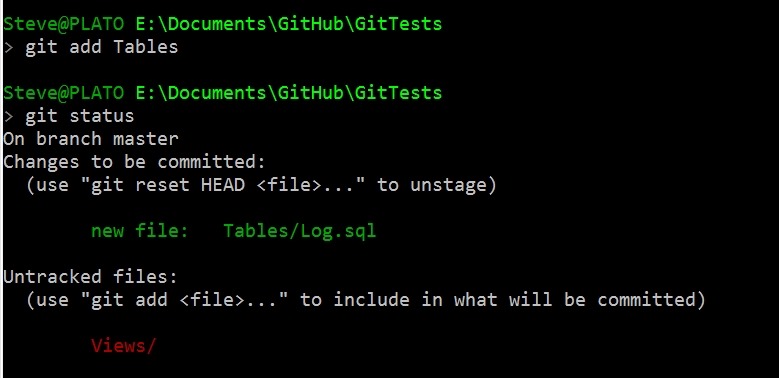
    If I add these files as being tracked, I’ll use “git add Tables” to add that folder and file. I get a new status.

    2017-06-27 21_22_07-cmd

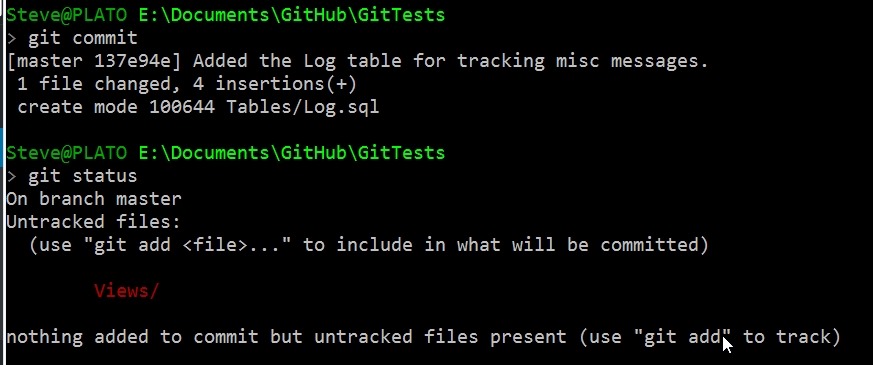
    Here my Log.sql file is being tracked (and the folder) as changes that are staged to be committed. If I commit now, I’ll get just that file added, but not Views\LogView.sql.

    2017-06-27 21_23_40-cmd

    Staged and Changed

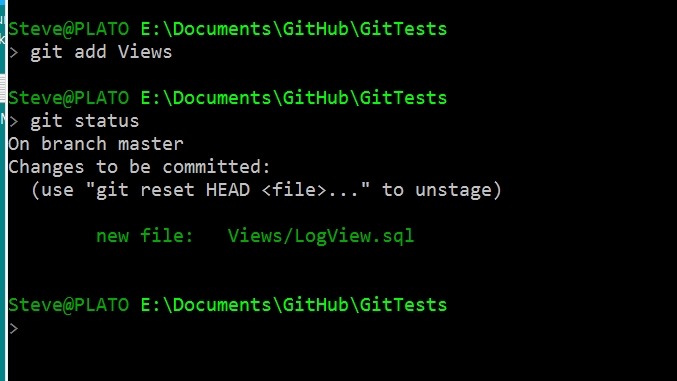
    There is one strange thing I’ve run into, at least, strange to me. If I stage my Views folder, I’ll get this:

    2017-06-28 12_12_23-cmd

    Now I’ll change the LogView.sql file, removing the SELECT * and adding columns. When I check the status, I now see the file in both the staged and unstaged areas.

    2017-06-28 12_13_25-cmd

    This is allowed, but if I commit, I’ll get the original version of LogView.sql as it existed when I ran the git add command. See below that after my commit, I still see the modified file.

    2017-06-28 12_15_50-cmd

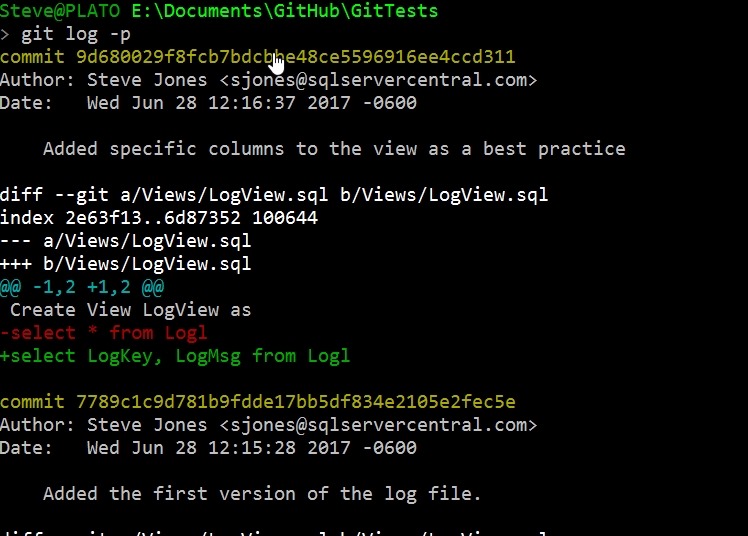
    If  I add and commit that file, I can use git log to see the actual changes. See the line in red with the – is the original line, while the green line with + is the change.

    2017-06-28 12_17_02-cmd - git  log -p

    Git add and git commit are the main ways you’ll commit files. If you have issues with a GUI client, then this is a good way for you to debug and clean up your repo. Knowing the command line is always the best way to truly understand what is happening.

  • Adding Performance Counters back for SQL Server

    I had a strange situation the other day, where a number of things went wrong with my instance. First, I lost permissions to detached databases. The SID was listed in the file permissions, but apparently unlinked to an account.

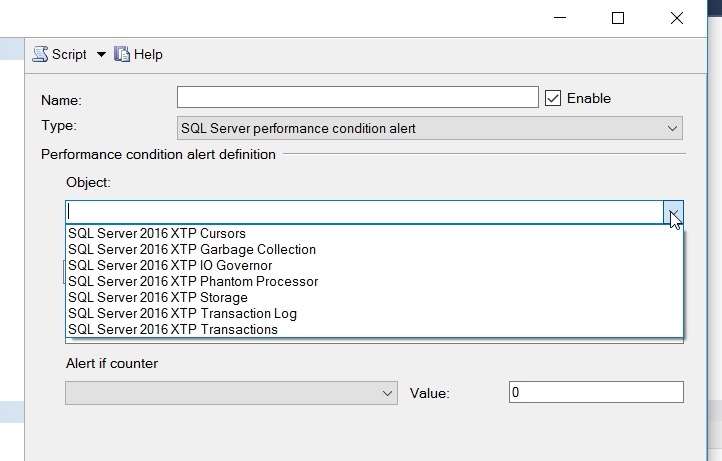
    Next, I went to add an alert, and I only had the XTP counters.

    2017-06-14 12_16_20-SQLQuery4.sql - (local)_SQL2016.sandbox2 (PLATO_Steve (63))_ - Microsoft SQL Ser

    The counters are also missing in Performance Monitor. What is interesting is that I show the correct SQLAgent counters for each of my three instances.

    2017-06-16 08_54_19-Add Counters

    A quick search found me this blog on MSDN, where it recommends the following:

    unlodctr mssqlserver
    
    lodctr perf-mssqlserversqlctr.ini

    I had a named instance, so for me I entered:

    unlodctr mssql$sql2016
    
    lodctr perfMSSQL$SQL2016sqlctr.ini

    from an elevated command prompt. Running the last command again shows the counters loaded.

    2017-06-16 09_19_26-cmd (Admin)

    I also checked my registry, which appeared to be fine:

    2017-06-16 09_08_38-Adding Performance Counters back for SQL Server - Open Live Writer

    I next found another blog that noted I might need to resynch WMI, so I ran winmgmt, using the PID from Task Explorer (details tab):

    2017-06-16 09_24_32-cmd (Admin)

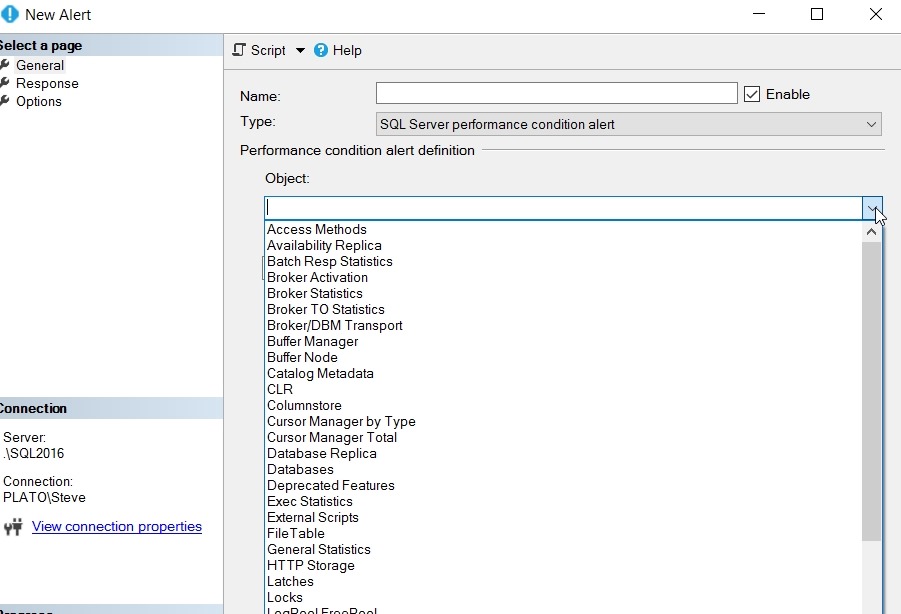
    I didn’t see counters at first, but I restarted the instance. Once that was done …

    2017-06-16 09_23_29-New Alert

    A nice fix, and one I probably won’t forget after this blog.