Tag: T-SQL

  • Using TRY..CATCH in SQL Prompt

    I work for Redgate and write about products. I’ve got a series of SQL Prompt posts here on little things I like. SQL Prompt might be my favorite tool.  SQL Prompt will be yours as well if you give it a try.

    I learned something new recently about SQL Prompt. I was working on documenting and experimenting with snippets and found a quicker way to write code.

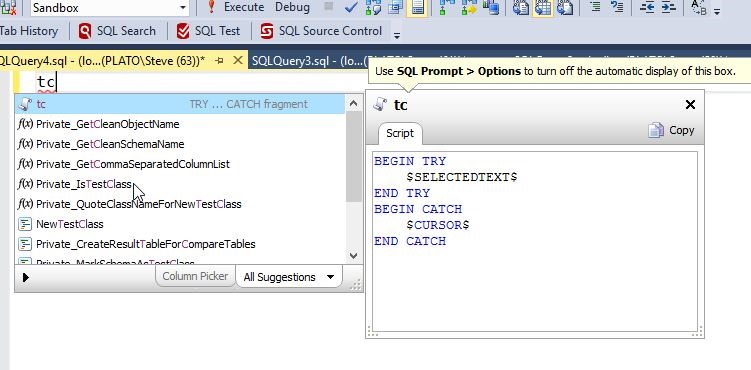
    One of the things I think is great is to use the TRY..CATCH structure. I don’t do it enough, but I want to do this more, and make it smooth. SQL Prompt includes a tc snippet, which gives me this code when I type t-c-TAB.

    2016-09-23 12_13_39-SQLQuery4.sql - (local)_SQL2014.Sandbox (PLATO_Steve (63))_ - Microsoft SQL Serv

    You’ll notice that my cursor is in the CATCH block. Why? Well, if you pause after t-c, you’ll see the snippet and code (unless you’ve turned off the window). Notice the $CURSOR$.

    2016-09-23 12_13_17-SQLQuery4.sql - (local)_SQL2014.Sandbox (PLATO_Steve (63))_ - Microsoft SQL Serv

    This means the cursor appears there. Not too handy. However, also notice the $SELECTEDTEXT$ snippet. This is handy.

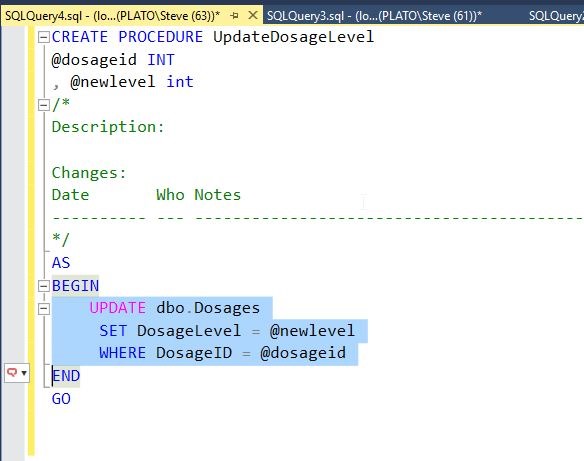
    Let’s change our code and include an update statement. For example, suppose as part of a procedure, I’m writing this code:

    2016-09-23 12_15_44-SQLQuery4.sql - (local)_SQL2014.Sandbox (PLATO_Steve (63))_ - Microsoft SQL Serv

    I’ve got a procedure, and I’ve forgotten to include TRY..CATCH. Certainly I can surround the highlighted code with the structure, but that’s cumbersome, even using Prompt’s intellisense.

    There’s a better way.

    Notice the little SQL Prompt icon in the side bar. Prompt is active, and if I click CTRL, I’ll get this:

    2016-09-23 12_16_59-SQLQuery4.sql - (local)_SQL2014.Sandbox (PLATO_Steve (63))_ - Microsoft SQL Serv

    I’ve activated SQL Prompt in the context of my highlighted text. Now I can type t-c and see the snippet.

    2016-09-23 12_17_49-SQLQuery4.sql - (local)_SQL2014.Sandbox (PLATO_Steve (63))_ - Microsoft SQL Serv

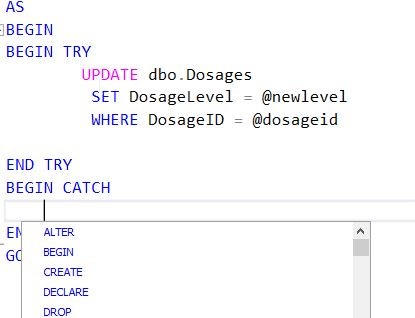
    If I hit TAB, I get this:

    2016-09-23 12_18_23-SQLQuery4.sql - (local)_SQL2014.Sandbox (PLATO_Steve (63))_ - Microsoft SQL Serv

    Pretty cool. My update is surrounded by the snippet code, and placed where the $SELECTEDTEXT$ placeholder was used.

    Use this. Write code quicker and make it better.

    Try a SQL Prompt evaluation today and then ask your boss to get you this productivity enhancing tool, or if you’re using the tool, practice using ii the next time you need to insert some data.

    You can see a complete list of SQL Prompt tips at Redgate.

  • Creating a Logon Trigger–#SQLNewBlogger

    Another post for me that is simple and hopefully serves as an example for people trying to get blogging as #SQLNewBloggers.

    Suppose you want to audit logins for your SQL Server instance. There are multiple ways to do this, but Logon Triggers have a few advantages. First, they get data into a table that most of us are familiar with, SQL Server. Second, they guarantee that the event is captured on the instance if the trigger is enabled.

    There are plenty of other uses for these triggers, but beware that you can cause problems if your code doesn’t execute flawlessly.

    I’ll show you how to create a basic logon trigger here. Note, these are server level items, and you’ll need to be able to create the trigger in the master database.

    The structure of this code is similar to other triggers. We’ll use the CREATE TRIGGER DDL. Where this differs from DML triggers is that we use the ON ALL SERVER command. For auditing, I tend to set this as an EXECUTE AS ‘sa’, but you may choose a different type of account.

    Here’s my basic code:

    CREATE TRIGGER LogonTrigger
    --ALTER TRIGGER LogonTrigger
    ON ALL SERVER
    WITH EXECUTE AS 'sa'
    FOR LOGON
    AS
    BEGIN
        INSERT DBAAdmin.dbo.LoginAuditing
        SELECT SYSDATETIMEOFFSET(),
            ORIGINAL_LOGIN(),
            HOST_NAME(),
            APP_NAME();
    END;
    GO
    Note in this code  I’m specifying a specific table to store data in. This has to exist.

    I also use the FOR LOGON event. You can scope triggers for other events, at the server or database levels, and read more about DDL triggers in BOL.

    Once a user attempts to logon, the trigger fires and a simple insert takes place. If there are errors in inserting this data, the user may not be able to logon.

    There is a lot to write about logon triggers, but for this short piece, I’m just showing hot to get started. Please, please, please, be careful with these and read the documentation carefully. Be sure you understand how they work and how to disable them. If you implement one, test it extensively.

    SQLNewBlogger

    I had a small issue building a logon trigger, and thought I’d get a few posts written on the topic. This was 5 minutes work since I had the code and just wanted to describe things, but I’ve got a few more posts sketched on this topics  as I’ve learned more.

    Learning something, solving a problem, writing about it. This is a good way to show someone you are learning about a topic and developing some skill.

  • The Snippet Manager in SQL Prompt

    I work for Redgate and write about products. I’ve got a series of SQL Prompt posts here on little things I like. SQL Prompt might be my favorite tool.  SQL Prompt will be yours as well if you give it a try.

    I love SQL Prompt, since it makes T-SQL coding quicker and easier. One of the handiest things is the Snippet Manager. I’ll show you how this works.

    When I type something, like “cl”, I get a list of things, as shown below..

    2016-09-23 10_24_42-SQLQuery3.sql - (local)_SQL2014.Sandbox (PLATO_Steve (61))_ - Microsoft SQL Serv

    I see CLOSE, which has “cl” in it, as well as a number of functions. However there are two items (cl and clrp) that have a description to the right. They also have a scroll to the left. These are snippets. If I hit Tab, the highlighted snippet, cl, will be replaced with code. This is shown below.

    2016-09-23 10_19_22-SQLQuery3.sql - (local)_SQL2014.Sandbox (PLATO_Steve (61))_ - Microsoft SQL Serv

    This is all custom code I put into my Snippet Manager. I can now replace these parameters with new values, or just execute this code as is to create a new login and user. Note I typed three things (c, l, TAB) to get lots of code here.

    The Snippet Manager

    To access the Snippet Manager, click the SQL Prompt menu item and look down towards the bottom.

    2016-09-23 10_27_33-SQLQuery3.sql - (local)_SQL2014.Sandbox (PLATO_Steve (61))_ - Microsoft SQL Serv

    This will bring up the Snippet Manager (part of SQL Prompt options in 7+). Note that I have a folder where I store snippets at the top, various snippets below that (with new/edit/delete buttons) and then the snippet code the the highlighted snippet at the bottom of this image.

    2016-09-23 10_27_41-SQL Prompt – Options

    The snippet is highlighted, and if I type, I get completion here. So, I’ll type C-D, and jump to the “cdb” snippet. Note I’ve skipped over cci.

    2016-09-23 10_29_53-SQL Prompt – Options

    I can then edit or delete this snippet. If I edit it, I’ll get a dialog with the snippet and the placeholder parameters listed. This is shown below.

    Note: I’ve customized this code, so it isn’t the SQL Prompt default.

    2016-09-23 10_31_02-SQL Prompt - Edit Snippet

    I can also create new ones. For example, on one of our Redgate VMs, we keep some demo snippets. I’ll can create a new one by clicking “New…”

    2016-09-23 10_32_05-SQL Prompt – Options

    I’ll then get this dialog.

    2016-09-23 10_32_12-SQL Prompt - Create New Snippet

    I can give this a name, a description, and type any code into the code window. I’ve added a few items below.

    2016-09-23 10_35_15-SQL Prompt - Create New Snippet

    Now if I save this, close the Snippet Manager, and go back to a Query Window, I can type d-e-m, and see this:

    2016-09-23 10_36_53-SalesDemo-2016-09-07-1117-export-i-fh727xw9 - VMware Workstation

    My new demoxpcmdi appears before the other “demo” snippets. I can also see my description to the right.

    Hopefully, you’ll see the value in SQL Prompt and start using snippets to improve your ability to code quickly and take the hassles and guesswork out of cleanly building SQL Code. You can also read a similar piece I wrote on the Redgate blog.

    Try a SQL Prompt evaluation today and then ask your boss to get you this productivity enhancing tool, or if you’re using the tool, practice using ii the next time you need to insert some data.

  • Finding the Attribute

    I was playing with some Extended Events recently. If you haven’t tried, I’d encourage you to do so. However, working with XML is not my favorite. I know I can get the GUI in SSMS 16.x to show me events, but I sometimes want to query.

    Here was my quick adventure in XML and XQUERY. I should know this stuff better, but I think I’m working with XML so rarely that I’m constantly re-learning things.

    I had a document like this:

    DECLARE @x XML = CONVERT (XML, 
    '<event name="login" package="sqlserver" timestamp="2016-09-28T01:48:31.743Z">
      <data name="is_cached">
        <value>false</value>
      </data>
      <data name="is_recovered">
        <value>false</value>
      </data>
      <data name="is_dac">
        <value>false</value>
      </data>
      <data name="database_id">
        <value>1</value>
      </data>
      <data name="database_name">
        <value>master</value>
      </data>
      <action name="username" package="sqlserver">
        <value>PLATO\Steve</value>
      </action>
      <action name="session_nt_username" package="sqlserver">
        <value>PLATO\Steve</value>
      </action>
      <action name="session_id" package="sqlserver">
        <value>60</value>
      </action>’

    There was more, but this is fine. I had a query someone else sent me that looked like this:

    SELECT 
    [message] = @x.value(
                         '(event/data[@name="database_name"]/value)[1]',
                         'nvarchar(250)'
                         )

    That’s fairly simple, but what I really wanted was to get an attribute at the top. In the “event” node, I wanted the “name” attribute. I can go from the query above to that, right? I could have dug into XQUERY, but I’ve found it logical in the past, so I thought I could actually figure this out.

    I know that the path was just event, and I needed to get the attribute from that. I tried this:

    SELECT 
    [message] = @x.value(
                         '(event[@name="name"]/value)[1]',
                         'nvarchar(250)'
                         )

    That didn’t work. So I modified things to

    SELECT 
    [message] = @x.value(
                         '(event/name/value)[1]',
                         'nvarchar(250)'
                         )

    No go.

    Hmmmm. What do I need to do? I decided to Google a little and saw a note that the attribute is accessed with the @ symbol. OK, so I need to provide that as the path.

    SELECT 
    [message] = @x.value(
                         '(event/@name/value)[1]',
                         'nvarchar(250)'
                         )

    Still no good, but then I removed the value.

    SELECT      @x.value(
                    '(event/@name)[1]', 
                    'nvarchar(250)'
                   )

    That was it.

    XPATH and XQUERY make sense once you get the rules, but they’re still annoying to work with. I’ll be trying to work with the GUI in SSMS as much as possible with XE.