Tag: T-SQL

  • How many calls – A T-SQL Question

    I got a call from a friend recently that was looking for some query help. He was actually using Access, which I haven’t used in years. He knew a little T-SQL, so he could convert anything I gave him to work with his database.

    Here was his issue. He had a list of calls made for a marketing campaign, and with each call, a call back date. His task was to get counts of the calls made for a particular date for which there were call backs within two time periods: 5 days and 10 days.

    I want to walk through what I tried and what worked. I actually came up with two methods, though I’m not sure either is that efficient. However they worked, and since this is something he’ll run in Access monthly, it’s not a big deal.

    I set up a table and get some samples from him:

     CREATE TABLE Calls
    ( date_sent DATETIME , acc_call_date DATETIME ) GO -- rules -- #1 acc call < 6 days -- #2 acc call < 11 days INSERT calls SELECT '12/1/2011', '12/2/2011' -- meets #1 INSERT calls SELECT '12/1/2011', '12/3/2011' -- meets #1 INSERT calls SELECT '12/1/2011', '12/8/2011' -- meets #2 INSERT calls SELECT '12/2/2011', '12/8/2011' -- meets #2 INSERT calls SELECT '12/2/2011', '12/9/2011' -- meets #2 INSERT calls SELECT '12/3/2011', '12/4/2011' -- meets #1 INSERT calls SELECT '12/3/2011', '12/4/2011' -- meets #1 INSERT calls SELECT '12/3/2011', '12/11/2011' -- meets #2 INSERT calls SELECT '12/4/2011', '12/11/2011' -- meets #2 INSERT calls SELECT '12/5/2011', '12/6/2011' -- meets #2 go

    I have two rules that track the calls. As a quick note, if a call is returned in 5 days, it’s also returned in 10 days, so we should never have more calls returned in 5 days than are returned in 10 days.

    Essentially to meet rule #1, we want this:

    SELECT date_sent
           , COUNT(*) 'five_day_call' FROM calls
           WHERE DATEDIFF(DAY, date_sent, acc_call_date) < 6
           GROUP BY date_sent

    If I run this, I get back three rows:

    date_sent               five_day_call

    ———————– ————-

    2011-12-01 00:00:00.000 2

    2011-12-03 00:00:00.000 2

    2011-12-05 00:00:00.000 1

    These are the counts of calls returned in five days. If I change the scalar from 6 to 11, I get back the calls back in ten days.

     SELECT date_sent
      , COUNT(*) 'ten_day_call' FROM calls_made
       WHERE DATEDIFF(DAY, date_sent, acc_call_date) < 11
       GROUP BY date_sent
    go

    The results, as expected, include the 5 calls above, but also have the additional calls returned in ten days.

    date_sent               ten_day_call

    ———————– ————

    2011-12-01 00:00:00.000 3

    2011-12-02 00:00:00.000 2

    2011-12-03 00:00:00.000 3

    2011-12-04 00:00:00.000 1

    2011-12-05 00:00:00.000 1

    Now I need to combine these sets. The first thought is often a UNION, but in this case, that doesn’t work. Here’s what happens:


    SELECT date_sent
           , COUNT(*) 'five_day_call' FROM calls
           WHERE DATEDIFF(DAY, date_sent, acc_call_date) < 6
           GROUP BY date_sent
    UNION SELECT date_sent
      , COUNT(*) 'ten_day_call' FROM calls_made
       WHERE DATEDIFF(DAY, date_sent, acc_call_date) < 11
       GROUP BY date_sent

    I get duplicate rows for each date if there are rows from each separate query:

    date_sent               five_day_call

    ———————– ————-

    2011-12-01 00:00:00.000 2

    2011-12-01 00:00:00.000 3

    2011-12-02 00:00:00.000 2

    2011-12-03 00:00:00.000 2

    2011-12-03 00:00:00.000 3

    2011-12-04 00:00:00.000 1

    2011-12-05 00:00:00.000 1

    I can’t do a DISTINCT here, nor can I sum up the rows, because the ten day calls include the five day calls.

    Plus my friend really wanted this report:

    date_sent               five_day_call ten_day_call

    ———————– ————- —————-

    2011-12-01 00:00:00.000 2             3

    2011-12-02 00:00:00.000 0             2

    2011-12-03 00:00:00.000 2             3

    2011-12-04 00:00:00.000 0             1

    2011-12-05 00:00:00.000 1             1

    This report is designed to measure the effectiveness of calls, and business analysts need an easy report. If I join the two queries on the call date (date_sent), the problem is that I don’t necessarily have matching call dates for all rows.

    What about an outer join?

    ; WITH fiveCTE (call_date, five_day) AS ( SELECT date_sent
           , COUNT(*) 'five_day_call' FROM calls
           WHERE DATEDIFF(DAY, date_sent, acc_call_date) < 6
           GROUP BY date_sent
    ) , tenCTE (call_date, ten_Day) AS ( SELECT date_sent
      , COUNT(*) 'ten_day_call' FROM calls_made
       WHERE DATEDIFF(DAY, date_sent, acc_call_date) < 11
       GROUP BY date_sent
    ) SELECT a.call_Date
     , a.five_day
     , b.ten_day
     FROM fiveCTE a
       FULL OUTER JOIN tenCTE b
         ON a.call_date = b.call_date

    I’ve moved the two queries into CTEs for readability. I then join them on the date the call was made and return the results. I get this:

    call_Date               five_day    ten_day

    ———————– ———– ———–

    2011-12-01 00:00:00.000 2           3

    NULL                    NULL        2

    2011-12-03 00:00:00.000 2           3

    NULL                    NULL        1

    2011-12-05 00:00:00.000 1           1

    Hmmm, not quite what I need, but it’s closer. I need to get the date for ten day calls, and I also need the NULLs removed from the five day calls.

    My first take is to remove the NULL counts.

    ; WITH fiveCTE (call_date, five_day) AS ( SELECT date_sent
           , COUNT(*) 'five_day_call' FROM calls
           WHERE DATEDIFF(DAY, date_sent, acc_call_date) < 6
           GROUP BY date_sent
    ) , tenCTE (call_date, ten_Day) AS ( SELECT date_sent
      , COUNT(*) 'ten_day_call' FROM calls_made
       WHERE DATEDIFF(DAY, date_sent, acc_call_date) < 11
       GROUP BY date_sent
    ) SELECT a.call_Date
     , ISNULL( a.five_day, 0) 'five_day' , b.ten_day
     FROM fiveCTE a
       FULL OUTER JOIN tenCTE b
         ON a.call_date = b.call_date

    This was better, and cleaned up the results slightly.

    call_Date               five_day    ten_day

    ———————– ———– ———–

    2011-12-01 00:00:00.000 2           3

    NULL                    0           2

    2011-12-03 00:00:00.000 2           3

    NULL                    0           1

    2011-12-05 00:00:00.000 1           1

    Next, I’ll clean up the dates.

    ; WITH fiveCTE (call_date, five_day) AS ( SELECT date_sent
           , COUNT(*) 'five_day_call' FROM calls
           WHERE DATEDIFF(DAY, date_sent, acc_call_date) < 6
           GROUP BY date_sent
    ) , tenCTE (call_date, ten_Day) AS ( SELECT date_sent
      , COUNT(*) 'ten_day_call' FROM calls_made
       WHERE DATEDIFF(DAY, date_sent, acc_call_date) < 11
       GROUP BY date_sent
    ) SELECT ISNULL(a.call_date, b.call_date) 'date_sent' , ISNULL( a.five_day, 0) 'five_day' , b.ten_day
     FROM fiveCTE a
       FULL OUTER JOIN tenCTE b
         ON a.call_date = b.call_date

    This is much better:

    date_sent               five_day    ten_day

    ———————– ———– ———–

    2011-12-01 00:00:00.000 2           3

    2011-12-02 00:00:00.000 0           2

    2011-12-03 00:00:00.000 2           3

    2011-12-04 00:00:00.000 0           1

    2011-12-05 00:00:00.000 1           1

    That’s what I want, or, what my friend wants. However that wasn’t what I sent. I wasn’t sure that Access would support the full outer join and CTEs, so I actually came up with another way that I’ll write about next time.

    If you know of a more efficient way of doing this, I’ve love to know what it is.

  • T-SQL Tuesday #25 – T-SQL Tricks

    TSQL2sDay150x150It’s time for T-SQL Tuesday again, and this time Allen White (@SQLRunr | blog) is asking for your tricks. If you want to participate, read Allen’s post and learn how.

    The question this month is: What T-SQL tricks do you use today to make your job easier?

    My Tricks

    I don’t have any great whiz bang tricks in T-SQL, and I’m sure there are more than a few people that can out-code me with their. However I do like to make my job easier, and so I have a couple of administrative tricks for use with your T-SQL environments. These are the ways that I save time, and work more efficiently.

    The thing that has helped me most often in my career is to keep little snippets of code handy to that I make few mistakes and save time. These days I do that quite often with SQL Prompt, a third party tool from my employer. It basically implements intellisense for SSMS, but more importantly, it gives me shortcuts.
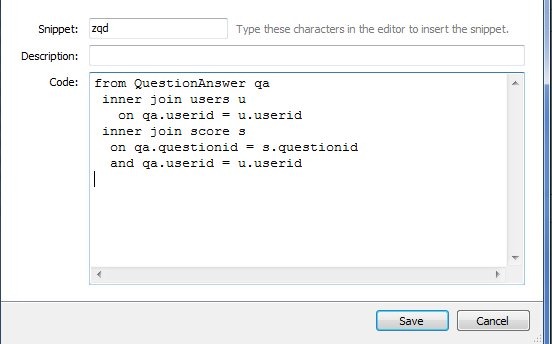
    However the biggest advantage to me is the Snippets in Prompt. There’s a feature that allows you to type a shortcut and then press “Tab” and have that shortcut replaced with a longer section of text. For example. I have this shortcut:

    prompt1

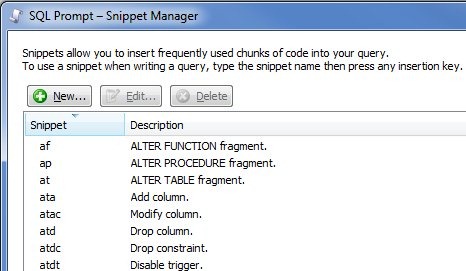
    If I type “zqd” in SSMS, and then hit tab, the T-SQL in the “code” box above appears. There are a few very frequently used slices of code that I can insert like this, without taking my hands off the keyboard, which is very handy. There’s even a whole snippet manager in Prompt that has pre-defined, and custom, snippets.

    prompt2

    The most often one I use is “ssf”, which inserts this:

    SELECT TOP 10 * FROM 

    So do you need to buy SQL Prompt? No, but if you do, tell them I recommended it so my boss with be happy and maybe send me a nice bonus next Christmas.

    A very similar functionality is in SSMS. I actually used to heavily use templates in the old Query Analyzer days of SQL Server 7/2000 and this has continued in Management Studio with the Template Explorer

    template1

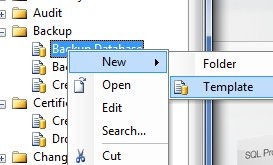
    I can drag a template from the explorer on the right into the code window and the code appears. I’ve pulled in the backup template. You can even add your own:

    template2

    It’s easy to do, and you can read more about Template Explorer in BOL.

    However if you’re like me, you move around, you use VMs for coding, and you want to be sure that your tools are on all these machines. There are a few ways to do this:

    • portable drives
    • cloud sevices

    I guess these are both the same thing, just implemented differently. I’ve used both ways, and while I do carry some flash drives, and hard drives, with various items on there, I find that I can never quite keep these up to date, and they’re really emergency drives for me in the event I don’t have connectivity.

    The primary way that I manage mode snippets, templates, etc. is by putting all my code in centralized places. For Prompt and SSMS, these locations are known, and while configurable, I stick with the defaults. For me this means I have three folders to track:

    • SQL Prompt default snippet folder
    • SSMS Templates folder
    • \SQL in my Documents folder in Windows

    All three of these folders are the same on all my machines, and I use a cloud service to keep them in sync. For me, I have two difference services in play, mostly for testing, and I see little difference between them. I have Live Mesh, a Microsoft service, for some folders, and DropBox for others. From what I’ve seen, they both work essentially the same, though DropBox is a little smoother for me with the Apple integration of some apps. That probably doesn’t matter for most of you, but it’s a difference. Live Mesh works on my Macbook, but not on the iPhone.

    There are other cloud services, and you can choose the one that works well for you, but I highly recommend you have a script library, as well as a snippet/template library, and you use a cloud service to be sure you can access those files if you are away from your primary machine. You might be surprised how handy this is when working on a server or remote machine.

    That’s my T-SQL Tuesday trick for T-SQL, better script management to make your work easier.

  • A view has no data

    I have seen quite a few posts and questions lately from people that are trying to change the data in a view, or move data in a view.

    A view has no data.

    It’s that simple. If you have something like this in AdventureWorks:

    SELECT firstname
    , lastname
     FROM HumanResources.vEmployee
     

    And this view is defined as:

    CREATE VIEW [HumanResources].[vEmployee] 
    AS 
    SELECT 
    e.[EmployeeID]
    ,c.[Title]
    ,c.[FirstName]
    ,c.[MiddleName]
    ,c.[LastName]
    ,c.[Suffix]
    ,e.[Title] AS [JobTitle] 
    ,c.[Phone]
    ,c.[EmailAddress]
    ,c.[EmailPromotion]
    ,a.[AddressLine1]
    ,a.[AddressLine2]
    ,a.[City]
    ,sp.[Name] AS [StateProvinceName] 
    ,a.[PostalCode]
    ,cr.[Name] AS [CountryRegionName] 
    ,c.[AdditionalContactInfo]
    FROM [HumanResources].[Employee] e
    INNER JOIN [Person].[Contact] c 
    ON c.[ContactID] = e.[ContactID]
    INNER JOIN [HumanResources].[EmployeeAddress] ea 
    ON e.[EmployeeID] = ea.[EmployeeID] 
    INNER JOIN [Person].[Address] a 
    ON ea.[AddressID] = a.[AddressID]
    INNER JOIN [Person].[StateProvince] sp 
    ON sp.[StateProvinceID] = a.[StateProvinceID]
    INNER JOIN [Person].[CountryRegion] cr 
    ON cr.[CountryRegionCode] = sp.[CountryRegionCode];

    The SELECT statement is the same as running

     SELECT 
     c.[FirstName]
    ,c.[LastName]
    FROM [HumanResources].[Employee] e
    INNER JOIN [Person].[Contact] c 
    ON c.[ContactID] = e.[ContactID]
    INNER JOIN [HumanResources].[EmployeeAddress] ea 
    ON e.[EmployeeID] = ea.[EmployeeID] 
    INNER JOIN [Person].[Address] a 
    ON ea.[AddressID] = a.[AddressID]
    INNER JOIN [Person].[StateProvince] sp 
    ON sp.[StateProvinceID] = a.[StateProvinceID]
    INNER JOIN [Person].[CountryRegion] cr 
    ON cr.[CountryRegionCode] = sp.[CountryRegionCode];
    

    Note this is exactly the same thing as the view definition with fewer columns included. Or it could be written like this:

    SELECT firstname
    , lastname
     FROM 
     (
    SELECT 
    e.[EmployeeID]
    ,c.[Title]
    ,c.[FirstName]
    ,c.[MiddleName]
    ,c.[LastName]
    ,c.[Suffix]
    ,e.[Title] AS [JobTitle] 
    ,c.[Phone]
    ,c.[EmailAddress]
    ,c.[EmailPromotion]
    ,a.[AddressLine1]
    ,a.[AddressLine2]
    ,a.[City]
    ,sp.[Name] AS [StateProvinceName] 
    ,a.[PostalCode]
    ,cr.[Name] AS [CountryRegionName] 
    ,c.[AdditionalContactInfo]
    FROM [HumanResources].[Employee] e
    INNER JOIN [Person].[Contact] c 
    ON c.[ContactID] = e.[ContactID]
    INNER JOIN [HumanResources].[EmployeeAddress] ea 
    ON e.[EmployeeID] = ea.[EmployeeID] 
    INNER JOIN [Person].[Address] a 
    ON ea.[AddressID] = a.[AddressID]
    INNER JOIN [Person].[StateProvince] sp 
    ON sp.[StateProvinceID] = a.[StateProvinceID]
    INNER JOIN [Person].[CountryRegion] cr 
    ON cr.[CountryRegionCode] = sp.[CountryRegionCode]
     ) a
     

    In this case I’ve moved the view definition into the FROM clause of my SELECT query.

    A view is literally a stored query that you can use to make it easier to write code. There is no data in the view, so if you need to change the data, or “refresh” the data from another database, you need to move the data in the tables that are referenced in the VIEW.

  • The Basics of Joins – Skill #4

    This series of blog posts are related to my presentation, The Top Ten Skills You Need, which is scheduled for a few deliveries in 2011.

    Databases are built to store data. That’s the primary purpose, and in SQL Server, we store data in a relational form. That means that often we have data spread across multiple tables. Why we do this is a discussion for another day, but suffice it to say that we often have structures like this:

    personcontact

    Part of the person.contact table in AdventureWorks above and the HumanResource.Employee table below.

    employee

    One typical join task might be to get an employee’s name, or a list of employees and their names. Here we have a birthday in the Employee table, but we don’t have a name. That’s in the Person.Contact table. Essentially we want to match these up using basic, elementary school set theory.

    settheory

    In the diagram above, you can think of each letter as a row in a table. As an example, let’s assume that B in the orange circle represents the row in the employee table with a ContactID value of 4. The B in the pink circle would represent the row in the Contact table with a ContactID value of 4 as well.

    When we join these to get the Employee name and birth date, we get:

    join2

    I used a join in my query to get that:

    SELECT 
      c.firstname
    , c.LastName
    , e.BirthDate
     FROM person.contact c
       INNER JOIN HumanResources.Employee e
         ON c.ContactID = e.ContactID
     WHERE c.ContactID = 4
     

    In this query I’ve included two tables in the FROM clause with the INNER JOIN key phrase between them, which specifies I only choose the matching rows. The match is made in the ON clause.

    I’ve also qualified this to only apply to the row with a ContactID of 4 in the WHERE clause.

    There’s a lot more you can do with joins, and you can include more than two tables, such as this query:

    SELECT 
      c.firstname
    , c.LastName
    , e.BirthDate
    , pa.AddressLine1
    , pa.AddressLine2
     FROM person.contact c
       INNER JOIN HumanResources.Employee e
         ON c.ContactID = e.ContactID
       INNER JOIN HumanResources.EmployeeAddress ea
         ON e.EmployeeID = ea.EmployeeID
       INNER JOIN person.Address pa
         ON ea.AddressID = pa.AddressID
     WHERE c.ContactID = 4
     

    I would recommend that you practice working with basic joins, based on the information that you commonly see queried in your application. Sooner or later someone will ask you for some data that isn’t available in the application and you will want to write a query to extract it for them.