Tag: windows

  • A Smooth Laptop Setup

    A little over a week ago, I got a new laptop. This was late on a Sunday afternoon, and I went home to spend time with me wife. After dinner, we relaxed with a little TV time. While trying to decide what to watch, I opened the laptop and started the Windows setup process. This post talked about how smoother and simple things were for me, though certainly not seemless as I’ve had on OSX machines. Still, it went well.

    Windows

    The first part of getting a new Windows machine going is usually the account. I have a Microsoft account I use for a few things. It’s actually an old Hotmail account, but it’s worked well for me.I entered this, and it linked to a few things I already had set up, including my OneDrive. This bootstrapped quite a bit of the process.

    I then checked Windows Update (nothing to apply) and upgraded to Windows 10 Pro. Once this was done, I opened the Windows Store and applied a few updates from there. While this was running, I did two things.

    Chrome

    I prefer Chrome as a browser, and I keep some settings linked to this browser, like bookmarks, some throwaway user/pwds, and settings. I usually start by opening Edge on a new install and going to Chrome and installing it. I could to this separately, but it’s usually my first step.

    Chocolatey

    This is my go-to install system. It’s yum or apt-get for Windows and I’ve used it for close to a decade now. I go to the website, and grab the script. Since I usually don’t have DropBox yet, and that’s where I have lots of stuff, I start here. Run this in an admin command prompt that’s got PowerShell running:

    Set-ExecutionPolicy AllSigned or Set-ExecutionPolicy Bypass -Scope Process
    Set-ExecutionPolicy Bypass -Scope Process -Force; iex ((New-Object System.Net.WebClient).DownloadString('https://chocolatey.org/install.ps1'))

    Those two things get the package manager running. Once this is done, I usually start grabbing stuff I know I need. I used to have a long list of things to install, but since my needs change over time, I usually go with this:

    choco install dropbox -y
    choco install evernote -y
    choco install greenshot –y
    choco install spotify –y

    These are the main things I want, and really need. While these are running, I usually go get the o365 portal from work and start that install, because it’s long.

    With every laptop, I somewhat change the things I install. I posted I was doing this and Aaron Nelson dropped me a link to his gist of database pro software: https://gist.github.com/SQLvariant/d29ffd1e9905992318b4585c83399328.

    This is a great list, and I immediately added some of these items. I don’t use all of these, but I use many.

    • SSMS
    • ADS
    • Git
    • VSCode
    • PowerBi
    • VS
    • Python
    • Sublime Text
    • Slack
    • Teams
    • Docker Desktop

    I do need SQL Server, but I held off since I wasn’t sure if I want to install it or just run containers. I’m debating this as I write this. I’m really tempted to skip an install and set up folders for holding db/log files at specific versions.

    Once these tools were installed, I added the Redgate Toolbelt, missing that in Aaron’s list. I saw Kendra tried this and it worked, but I was half paying attention and just running choco commands while watching a movie.

    Just in glancing at the machine on a dresser a few times and typing a few commands had most of the machine set up in the space of a 2 hour movie. It was Holiday in the Wild, if you’re wondering. An enjoyable movie.

    More to do, but really typing a few commands, I had most software installed that I need.

    Now I just need to decide what to do about SQL Server.
  • Upgrading Windows 10 Home to Pro

    I use Hyper-V and a few other things that require Windows 10 Pro. When I got my new laptop, it had Windows 10 home on it. Not a big deal, as I’ve run into this a few times over the years when buying consumer laptops. I have a Pro key, so I usually just wipe and reinstall the OS.

    That’s not necessary anymore. Certainly there are unwanted programs that I can remove, but I don’t need an OS reinstall. I found a few articles on the Internet that explain this, but it was simple.

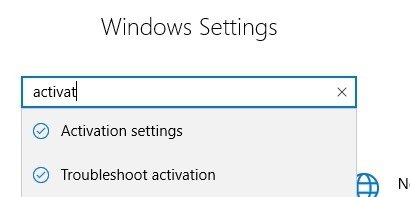
    I first booted the laptop and went through initial Windows setup. I made sure Windows Update didn’t have any pending items. Then I hoped the Control Panel with Win+I. If you’ve never used this, the Windows key with various other items is handy. Win+I gives me settings. I typed in activation.

    2019-12-02 11_53_37-Settings

    You’ll see the activation settings, which you can then click.

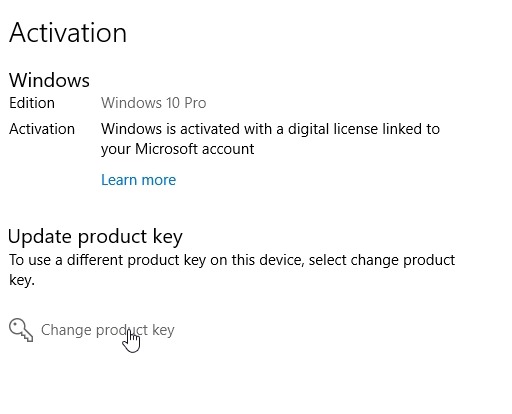
    I already did this, but on my laptop, I saw Windows 10 Home already listed and licensed. I then saw Upgrade options below it, where you see Update Product Key here. There were two links. One was for the MS store, to purchase an upgrade. The second was the Change product key option listed.

    2019-12-02 11_53_45-Settings

    I chose that one and then it prompted me to enter a key. I did and clicked OK. This immediately set my laptop to Windows 10 Pro and I could enable and activate Hyper-V.

    Windows has greatly smoothed this process over time and I’m looking forward to the ease of the setup system for this machine.

  • Upgrading Your OS

    I loved Windows 7. I haven’t felt that way about many of the Windows systems. I tolerated 3.1, preferring DOS and Solaris at the time. Windows 95 was great, with me skipping Windows 98 after installing it on a few PCs at work. I thought Windows 2000 was OK, and did really like XP. I avoided Vista, running XP until I got a beta of Win 7. Then I thought Microsoft had made a great move, slimming down the OS and making it faster on the same hardware.

    I skipped Windows 8 and moved to Windows 10, so I guess I like every other version of Windows. That makes sense. I’ve often felt every other version of SQL Server was really good, with some slim, not quite sure I like this, not quite sure this is worth the money, in-between versions. That might be changing as I liked SQL Server 2016, 2017, and 2019 is looking good.

    I ran across an article on the move to Windows 10, which Microsoft has been pushing and which as proceeded very well. Many people upgraded, especially with the free offer to upgrade. However, the pace of change has leveled off, with Windows 10 at 44% recently and Windows 7 at nearly 37%. The disconcerting issue is that the latter number has barely changed from the end of 2018. With Windows 7 expected to EOL in Jan of 2020, Microsoft is trying to push people forward.

    There are all sorts of reasons people are loathe to update their OS. Compatability issues, the comfortable feeling of knowing how a system works, and certainly resource concerns. I wish security was a higher level of concern for more people. When Win7 EOLs, enterprises can pay $200/yr/machine to get patches, but there is no option for Home users. I think this is a little short sighted as many Home users might not see value in upgrading, but they (and the rest of us) need secure machines on the Internet. Why wouldn’t a $50/yr charge for security patches make sense?

    Modern hardware is powerful and lasts longer, so I could understand an individual that started running the OS in 2011 not seeing a need to change. They are happy with a PC that runs email, browses the web, plays solitaire, and manages money. Do these people need to upgrade to Win 10? I don’t know that they do, and the vast majority of the world are consumers, not creators, so the much of the work done in Win10 isn’t useful for them.

    There isn’t a right answer here, and certainly there are security concerns from an older OS, but at some point the OS and hardware will be good enough for most people to stick around a long time. Microsoft ought to be prepared in those cases to enable very long term support, perhaps with some yearly charge, to provide patches to the OS. I don’t know if Win7 is the place to do that, but I do think that Win10 ought to be around for a long, long time with paid support.

    Steve Jones

    Listen to the podcast at Libsyn.

  • The End of XP

    This week we have the end of Windows XP. At least, we have the end of support, which means the lifespan of the OS was over 17 years. That’s a long time. It’s longer than I’ve run any system without an upgrade. I have some Windows 7 systems I use at times, but that’s a mere 10 years old. I know there are still a few SQL 2000 systems out there, which is older than XP, and likely a few of them are running on Windows 2000 in a VM somewhere.
    I have to admit that I liked Windows XP and thought it was a nice upgrade from previous versions. I ran it for a long time, skipping Vista, before moving to Windows 7 when it was released. Most of the early days of SQLServerCentral were run from an XP workstation, with SQL Server personal and lots of text editors helping me manage the site. I’m somewhat sad that it’s gone, though I think Win7, and now Win10 were very nice improvements.
    XP isn’t likely gone, as some companies will continue to run it and I expect some ATMs, some kiosk displays, and other embedded applications will show that XP start screen on occasion. That’s not unlike the way that some of us might connect to an SQL instance and be surprised to see a single digit number in the major version space. In fact, a lot of you might still see a “9”, for SQL Server 2008. I was seeing that until last year when we moved SQLServerCentral to SQL Sever 2017. I expect the more and more organizations will be slowly moving on, perhaps reluctant to upgrade those old versions that work and don’t cost much to maintain.
    Or do they? Is there a big cost on older systems that run and don’t see regular development work? My thought has been that for many internal systems, I need a database platform, and likely an OS, to run for 10 years or more. I know some of the larger enterprises have this view as well. Picking a platform is a major decision and it can be very hard to change directions. Porting takes a lot of resources, as do upgrades, so ensuring a system can handle a load for 10 years makes sense.
    I know many of us would like to regularly switch versions, and one of the great things about my job is that I get to do so. I’ve held onto SQL 2014 and 2016, but I’m slowly moving all my work to SQL Server 2017 and 2019, with the idea that apart from some repro situations, I won’t try to run older versions anymore.
    It seems many people are town about upgrades. Some people prefer the system they know and are comfortable with, since they know what workarounds are needed. They may bemoan the need to learn new skills and change old habits. Others prefer the latest and greatest, quickly adopting new platforms and agonizing over the spend on old systems. No matter which way you feel, it’s likely that you’ll be forced to do a bit of both as the pace of change for SQL Server means many of us will adopt new versions for new work and end up supporting 4 or 5 versions at any one time.
    Steve Jones