Tag: windows

  • Rename a Server with PowerShell

    I’m sure many people are experimenting with VMs and SQL Server. If you’re like me, many of you just default to installing Windows 7/10 or Windows Server xx Standard for your testing. Those systems work fine, but I’ve been trying to build slimmer systems, which means looking at Server Core. Installing Server Core is much the same as other versions, though you end up with only a command line. If you’re like me, using VMWare, you also might end up with a server name like “WIN-LKR3R4FfL5T”.

    I want to change that. It’s a fine name if I’m working locally. It’s not to much fun connecting across a network. This post looks at how to rename that machine.

    Get the Name

    The first thing is to get the name. I’ve always just right clicked the Computer in Explorer, but that’s not possible in Core. Instead, I decided to use PowerShell, since I know how to do that.

    First, start PowerShell, which is simple.

    2016-10-02 12_39_57-SQL2016Alone - VMware Workstation

    Next, use the environment variable, $env:computername, to find the name. You can see me do that here:

    2016-10-02 12_42_20-SQL2016Alone - VMware Workstation

    Rename-Computer

    Technically I don’t need the name to rename the system, but I wanted to know what it was. Plus, I’ll want to verify things work. There is a cmdlet, Rename-Computer, that does exactly what you’d expect. It renames a machine.

    There are various parameters, but the only one I really need is “NewName”. I haven’t joined a domain yet, so no reason to worry about that security. I could include the Restart parameter, but I wanted the screenshot below.
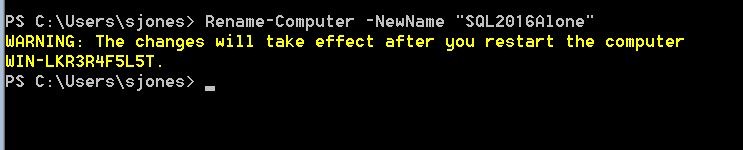
    2016-10-02 12_45_09-SQL2016Alone - VMware Workstation

    That’s really it, other than a restart. Intuitively enough, Restart-Computer works fine.

    And on restart, I log in and can see my rename worked fine.

    2016-10-02 12_48_37-SQL2016Alone - VMware Workstation

    Now, on to SQL Server installation.
  • Better Explorer on High dpi Displays

    I’ve got a high dpi display on my laptop. The recommended resolution is 2560×1704. That’s small. I have had all kinds of issues with SSMS, VS, and various other applications, including a few from Redgate.

    The other day I was looking at the Explorer window from about 2 feet away and struggling to see some of the icons and filenames as the light faded one afternoon. I found I could barely make out some icons and found myself leaning forward to see and back to type. Getting older has really made this annoying.

    I found an article that helped, letting me adjust the title bars and icon sizes in Explorer. I bumped up the sizes for title bars, menus, and icons. Everything went to 12 or 14, from the 9 or 10 points that are the defaults.

    Now I can read my Explorer window better. If you’re struggling with the higher resolution displays, give this a try. It’s hard to tell in the screenshot, but things are much easier to read now.

    2016-06-09 18_14_38-File Explorer

  • Running Powershell with Task Scheduler

    Another post for me that is simple and hopefully serves as an example for people trying to get blogging as#SQLNewBloggers.

    One of the things I needed to do with my SQL Saturday download process was run this automatically. I don’t want to remember to do this, so I decided to set this up on a schedule.

    I ran a quick search and it seemed to be a simple process. Essentially I run the Task Scheduler application and then call my script as a parameter to the PowerShell exe. The first step is to run Task Scheduler.

    2015-11-05 11_43_36-Task Scheduler

    This has a list of jobs, which I found some to be interesting. I disabled Adobe and a few others. Those are really annoying. I clicked "Create a basic task".

    2015-11-05 11_43_47-Task Scheduler

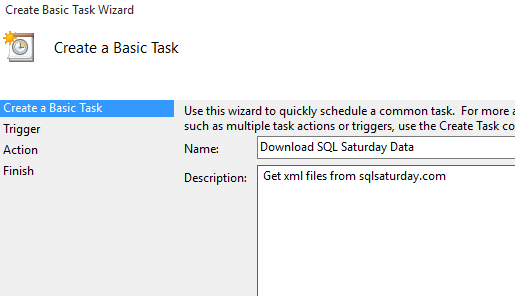
    The basic task is a wizard to walkthrough. First enter a name and description. Use something that will help you in 5 months when this breaks.

    2015-11-05 11_44_07-Create Basic Task Wizard

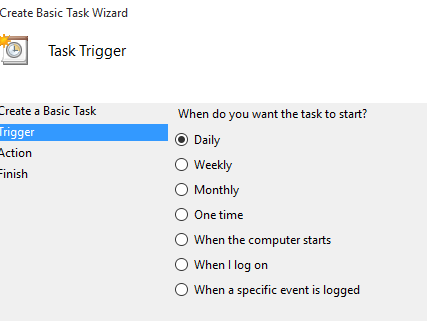
    I decided to run this daily. It’s not a big deal to me, so I’ll let it just go.

    2015-11-05 11_44_16-Create Basic Task Wizard

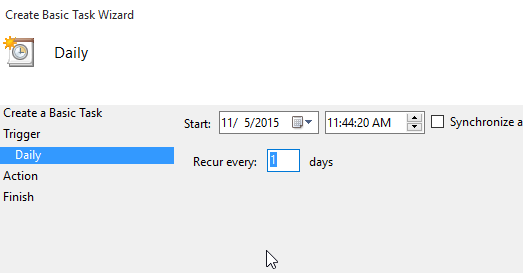
    The time doesn’t matter, and I let it run in the middle of the day. This way I might notice it running sometimes and that will motivate me to keep working on this process.

    2015-11-05 11_44_22-Create Basic Task Wizard

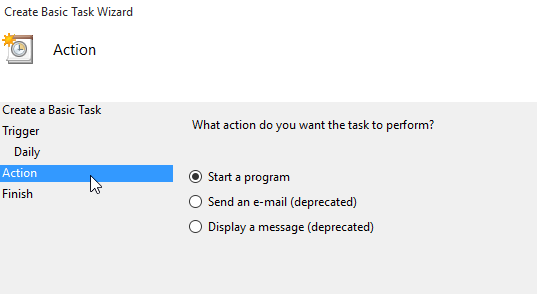
    I want to run a program, so I choose that in the next step.

    2015-11-05 11_44_29-Create Basic Task Wizard

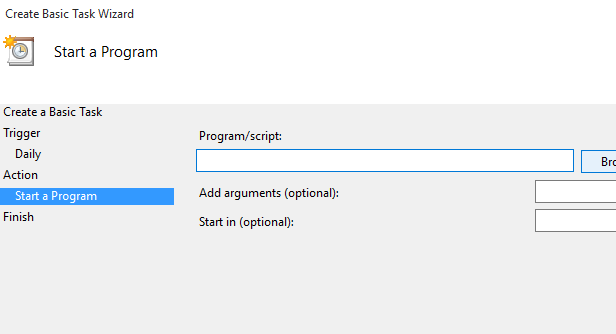
    The dialog wants to know which program. In my case, I’ll have to browse to my PoSh code.

    2015-11-05 11_44_36-Create Basic Task Wizard

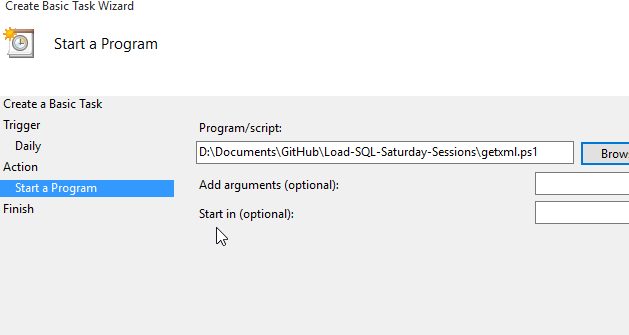
    I pick my code and it puts the path in here. However that won’t run as is. If you’ve used PoSh, you know this doesn’t work.

    2015-11-05 11_44_44-Create Basic Task Wizard

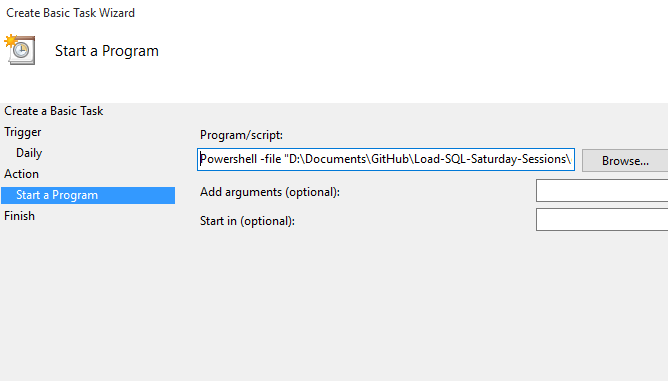
    What I need to do is call powershell.exe. I found this in the reference item below and what I do is add "powershell" to the front of my file, and then use the "-file" parameter. I also enclose my PoSh script in quotes.

    2015-11-05 11_44_58-Create Basic Task Wizard

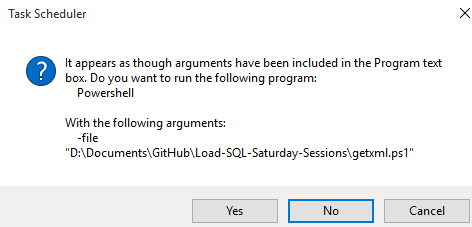
    When I click next, I get the warning, which I accept.

    2015-11-05 11_45_05-Task Scheduler

    There’s a summary after this, but I say OK to that, and then run the script from the Task Scheduler. It works perfectly, so I stop there.

    Now we’ll see how it works over time. And if I get the next step working.

    SQLNewBlogger

    This was a quick process for me. A google search, a 2 minute read, and then 2 minutes to build the task.

    It took maybe 10 minutes to write this post, most of which was taking the screen shots and resizing them.

    You can do this.

    References

    I just used one link, which was from the Scripting Guy blog.

  • The Command Line is Back

    I grew up using a command line for all of my computing. I started with a Commodore VIC-20 as a youth, moving on to Apple IIs, TRS-80s, and then OpenVMS in university classes. It wasn’t until I started doing graduate work that I started to enjoy graphics in the X Window System, though many of my windows just ran bash and korn shells on SunOS. Since that time, I’ve mostly made my living in Microsoft Windows and OSX, using graphical programs. I’ve still been quick to open a command shell at times, but not too often.

    However there have been times when I’ve needed PuTTY to access remote machines, or I’ve had to struggle with some PowerShell remote commands. What would be nice is to have some of these tools on every machine. I love PowerShell available, but it’s often a pain when I encounter a new machine.

    However things might be getting easier. Apparently OpenSSH may be coming to Windows. It’s not there yet, but I think this will be a nice addition to allow remote access. I can see the day when I need to access an overloaded SQL Server and can use SSH to get a remote terminal and make a DAC connection with SQLCMD quickly. Or I can access any *nix machine without having to download and install a utility.

    I’ve often used command lines because the speed of getting processes to run and fail quickly is under my control, not some programmer that might not be responding to keyboard and mouse events. I love the command line cut/copy/paste in Windows 10, and I look forward to being able to make SSH connections quickly and easily for a variety of tasks, including secure version control and software development tool connections.

    Steve Jones

    The Voice of the DBA Podcast

    Listen to the MP3 Audio ( 2.4MB) podcast or subscribe to the feed at iTunes and LibSyn.