Tag: windows

  • No More Downtime

    At one point in my career, I worked for a wealth management firm. We managed funds for various customers, a part of which was making trades in the financial markets. Various brokers and companies used our platform to run their business, and performance was always an issue. At the time we were an NT 4.0/SQL Server 6.5 shop, though we moved to Windows 2000 and SQL Server 2000 while I was there.

    While we were looking at upgrades, a number of potential customers asked why we weren’t using AIX or Solaris or Linux. Management would come to a few of us technical leads to ask, and we usually had to provide some justification. Our success was hit and miss, though we did run into a few companies that were doing real time trading on the Windows platform, and a few of us had the chance to talk to them about how they managed their systems in an age when Windows hosts often needed patching, a requirement of which was rebooting. If you’re interested, the company actually had a fairly server oriented architecture built on top of Windows, essentially managing work by just connecting to whichever boxes were running.

    Things have changed. These days Microsoft has been working hard to build a better Windows OS to power Azure and they’ve done some amazing work. I saw a post on one of the things they’re doing, which is finding ways to patch the underlying OS without disturbing applications, including VMs that are running on the host OS.

    The work is amazing to me, and this is where we should have been going with all operating systems. We ought to be able to patch these without downtime, and certainly without disturbing guests or programs that might be running. As this rolls out to Windows hosts in our data centers, I could imagine an era when we have monthly patches for Windows that never cause downtime for SQL Server.

    Well, I guess there is some downtime. Applications such as the hypervisor are paused, which some of us might consider downtime. However, if the time frame were in the single digits of seconds, I’m not sure many clients would this as downtime. It’s along the lines of a network hiccup or a momentarily busy server. In some sense, this would be a great move forward for HA.

    On the other hand, this would raise expectation. Clients and customers would be less tolerant of downtime, which is something we can’t control with Windows and SQL Server patches. However, it is something we can control with our deployments. A system that is almost never down because of patches would put pressure on us to ensure that our enhancements to the database itself also didn’t cause downtime.

    While there’s no magic in how we make changes to objects in SQL Server, there are techniques that can make changes in stages, perform additive work, and use automation in a DevOps style workflow to limit downtime and lower the risk of making changes. To me, this might be a bigger change than cloud systems. With that in mind, I’d urge many of you to learn techniques to avoid interrupting applications when you deploy changes. There are ways to do this, but it takes some effort and practice to build better skills and habits.

    Steve Jones

    The Voice of the DBA Podcast

    Listen to the MP3 Audio ( 4.8MB) podcast or subscribe to the feed at iTunes and Libsyn.

  • Confusing Networking Behavior

    The other day I got on a Skype for Business call and I struggled to hear the other people. I looked at the interface, and saw red where the network connection was represented. Since I was communicating with the UK, and I sometimes see issues, I assumed this was our office over there.

    Then it happened the next day. I decided to assume it was my issue, and I ran a speed test.

    2018-04-19 10_00_00-Speedtest by Ookla - The Global Broadband Speed Test

    That’s not great, but that looks OK. I’d think this was enough bandwidth for a video call. No one else was in the house, so there shouldn’t be contention. After contacting both Redgate’s IT group and my provider, I ran a ping test.

    2018-04-19 10_02_00-cmd - ping  _t redgate.slack.com

    If you know anything about networking, you know this is no bueno. The periodic long times will cause stuttering and problems with real time communications. A short, 4 ping test might not show this, but over time, you can see things repeating.

    In this case, it seems something is wrong with my connection.

    However

    That’s not the issue. I called my provider, and they didn’t see issues from their end. We restarted the router (hard start) and things didn’t see to improve. They escalated, which is a callback, so I went on with my day.

    This was bothering me and I had more calls, so I decided to restart my machine. After the system came up, I started shutting services down. No Spotify, no TweetDuck, nothing with network access.

    In the meantime a call started, which had stuttering and issues, as you might expect if regularly there was a 1-3s delay for packets. In this case, I finally got to my Crashplan backup process. This was backing up files, which is something that has been happening for a few years. However, as soon as I shut this down, my video/audio issues stopped. In fact,

    2018-04-23 11_41_29-cmd

    That’s more what I have been experiencing for years.

    Since then I’ve restarted that process a few times, just to see, but issues haven’t returned. In hindsight I should have tried video from another machine and made sure this was a networking issue and not a “this machine” issue.

    I’ve been good at troubleshooting in my career, but this is one of this times that I didn’t really do a good job of looking at the trees and not the forest. I made assumptions and experienced issues for a few days that were unnecessary.

    A good reminder and lesson for me.

  • Administrative Native and ConEmu Command Prompts–#SQLNewBlogger

    Another post for me that is simple and hopefully serves as an example for people trying to get blogging as #SQLNewBloggers.

    I would think many people know how to do this, but I’ve run into a few, so here you go.

    There are times you need to run elevated commands on a machine as an administrator. I’ve had to run various apps, as well as command utilities in this way, so I’ve learned how. I’ll give you two ways to get admin command prompts running.

    Cmd.exe

    This is the command prompt most people on Windows use. You can hit the Windows key and type cmd, and you’ll see this:

    2016-12-09 12_53_21-Installation

    On Win 7 or earlier, you’d get something along these lines.

    2016-12-09 12_55_01-Win7x64 SQL 2012 Demo - VMware Workstation

    In either case, if you hit Enter, you’ll get this:

    2016-12-09 12_55_47-Win7x64 SQL 2012 Demo - VMware Workstation

    A command line where you can type DOS style commands. Many of you might not use this much, but you should. The more you know about doing things from the command line, the more efficient and effective you’ll be. Plus you’re well on your way to being comfortable in DevOps type environments.

    This isn’t a privileged command prompt, and certain things won’t work here. To get an administrative level prompt, do this. First, after typing “cmd” don’t hit enter. Instead, right click the icon. You’ll see this:

    cmd_a

    Or this:

    2016-12-09 12_57_30-Win7x64 SQL 2012 Demo - VMware Workstation

    In both of these, there is a “Run as administrator” option. You want that. Once you do, you’ll need to accept the UAC prompt to allow an administrative level command prompt to open.

    ConEmu

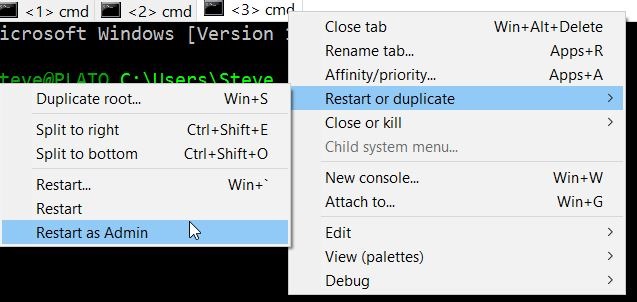
    I have switched to ConEmu. I think it’s a much better console, and it’s handy. I get it with Chocolatey, and then it’s just a hot key away. What’s more, I can easily open multiple command windows. For example, I’ve got two open, but I can open a third, administrative level one, but right clicking allows me to restart my prompt.

    2016-12-09 13_02_09-cmd

    When I do that, I need to acknowledge the UAC prompt, but then I’ll have an admin level prompt.

    SQLNewBlogger

    These quick, handy tips showcase your continuous learning and improvement. As well as help you remember cool things like this.

  • Quick Command Shells–#SQLNewBlogger

    Another post for me that is simple and hopefully serves as an example for people trying to get blogging as #SQLNewBloggers.

    This isn’t a SQL post, per se, but since I’ve been using lots of PowerShell for SQL stuff at times, this is a handy trick I picked up.

    I was reading the announcement on the Windows Insider build 14971, which will have a few new things. One of these is the default command shell won’t be cmd.exe any longer. It will be PowerShell.

    Buried in the announcement was a tip I’d never heard. I don’t have any real cmd additions to my Windows machines, so to get to a particular folder in a command shell, I usually do lots of “cd”s or I right click in the address bar, and copy the path. Thankfully Windows 10 lets me paste this easily into a command prompt.

    2016-11-21 16_21_20-EndtoEndEncryptionwithSQL2016

    There’s another way.

    I can click the address bar and type “cmd”.

    2016-11-21 16_21_47-EndtoEndEncryptionwithSQL2016

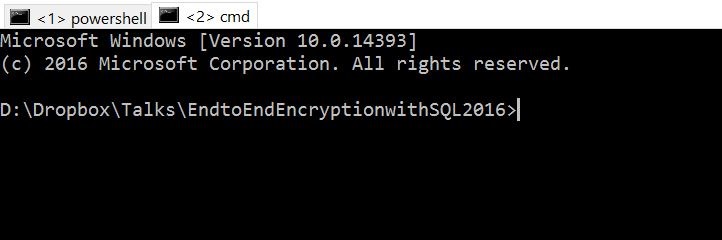
    When I do this, I get a new command prompt at that location, as shown here. I do install ConEmu on my machines, so that’s where the prompt opens.

    2016-11-21 16_21_55-cmd

    That’s super handy.

    We’ll see how may workflow changes when PoSh is the default shell, but I’m looking forward to it.

    #SQLNewBlogger

    The quick tips that help me work more efficiently are what I’m writing in these posts. Here’s one that took my 5 minutes, and you can write this kind of post as well. Show off what you know, do, and have learned.