Tag: hardware

  • A Solid Laser Printer

    41RaggnhBzL._SL500_AA300_I bought a Brother 2060 about 5 years ago to serve as our primary printer at the ranch. It was a basic, compact, black and white laser that did a good job for us. It seems as though we’ve had it forever, and I’ve only replaced the toner once. We don’t print a ton, but it’s been a very solid printer.

    In that time, we’ve had an HP inkjet, and an Epson Workforce 610 Inkjet all in one that currently works fine, but is very flaky on the network. We’ve been reduced during the last week to saving images to a flash drive and plugging that into the Epson.

    That’s because the old Brother seemed to die. The feed for paper (auto or manual) just won’t pull paper in, and so the machine doesn’t print.

    I asked for a few recommendations from Twitter. I was thinking to bite the bullet and get a color laser, which might replace both printers, and keep the Epson as a spare. We don’t print a lot, but the kids sometimes need color for school stuff, and we definitely need something to print out the occasional document. Usually so we can tackle the process using the antiquated fax method.

    We looked at a few recommendations and were considering the a Brother color laser, but it felt wrong to spend $300 for something that we rarely need. I’d rather fuss with the inkjet when we need it, or even buy new ink.

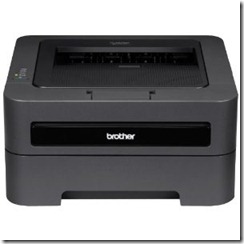
    So we settled on the Brother 2270, pictured above. It’s a low end printer, for $120, and hopefully it will last as long as our previous one.

  • Hardware Fun

    This has been a bit of a hardware week for me, which is strange. I used to love hardware, building my own computers, picking out the components, and making something work out of a pile of parts.

    Now I just want my tools to work.

    Our Windows Home Server died a few months ago. This is the third time I’d lost a boot drive in the WHS server, though to be fair I was reusing a few older drives in it. However when you lose the boot drive, not only do you need to reload WHS, but it can’t reload your content from the old drives. The drive extender technology is flawed, which is why it might be cut loose from the WHS 2011 product.

    I’ve delayed actually rebuilding things, but with my wife traveling one week, the kids occupied, I took it apart and connected the drives one at a time to check how things were working. They all connected and seemed to work, which was strange. Perhaps bad blocks?

    I reconnected the 160GB drive as the boot drive, since that was the smallest, added in two 1TB drives in a RAID 1 array, and a 1TB drive as a spare. I booted to WHS 2011, but it promptly failed. This is a Dell E521, an AMD x64 CPU, but it didn’t want to load. No problem, I was planning on virtualizing anyways.

    I booted to Windows 7 x64, and got through the initial install, but on boot, the 160GB drive failed. Aha! I removed that, replaced with a 1TB drive, and reloaded Windows 7.

    Only to find that there aren’t x64 drivers for a number of components for Win 7. Grrrr. This is why I don’t like to mess with hardware. I want stuff to just work.

    I fell back to Windows XP, x64 (since I want 64 bit guests) and got that installed. I had RAID drivers, but for some reason Windows setup doesn’t want to install them or load onto a RAID set. That feels like a waste of the purpose of hardware RAID, but whatever.  I got Windows loaded, patched, drivers installed, and added Virtual Box 4.

    Then the harder part. I created a guest on my R1 array, which too time for VirtualBox to format the drive. Once it was done, however, I booted up a guest, installing WHS 2007 on there and connecting to the network. I killed the host firewall, and bridged the network adapter. Not sure which one fixed things, but I don’t do anything on the host, and it’s firewalled from the outside world.

    Now I had two spare 2TB drives from the old system, where I copied off the pictures, video, and music to my desktop. A long transfer process in the background added them to the WHS server, and I have a home network again.

    It’s RAID protected, so I should be OK for now, but we’ll see what happens. I have an external enclosure with 2 2TB drives in it, but I don’t want to add them for now. At least until I need more space.

  • Disk Drives in the Sky

    Not too many data professionals are working with databases in the cloud, and while I think it’s a platform that will grow, it’s not suited for all environments. One thing all of us need, however, is bigger, better, and faster storage for our data. Our data volumes are growing, sometimes surprising us with the sheer number of bits our queries must go through, and access times for storage are often a bottleneck in our systems.

    There have been some interesting advances in how storage is connected to our systems, and there are some even more interesting ways in which the large cloud vendors are tackling the storage issues they face. I read a fascinating piece on the various storage systems used by Google, Amazon, and Azure. It talks about the various architectures being used, and there are some innovative ideas being implemented in order to ensure there is a high level of reliability and performance for these systems.

    Should you be interested in storage architectures as a data professional? I think that having a basic idea of the options out there will give you the chance to understand the options your storage people (or vendors) may recommend in the future, and have some idea of the suitability of these systems for your databases. I don’t think you need to understand the detailed implementations, but knowing the pro and cons of these systems, as well as the experiences of other companies, may help you detect how much fluff is being presented to you.

    There’s one part at the end of the piece that caught my eye: “as data volumes continue to go up for “big data” applications, server memory is becoming “the new disk” and file systems are becoming where the log for application activity gets stored—”the new tape.” That’s interesting. Maybe we’ll start to do more in stream processing, ala Streaminsight, on our data and keep more aggregations and analysis in memory, reducing the need for disk access.

    Steve Jones


    The Voice of the DBA Podcasts

    My apologies. The hosting provider for the podcasts is having issues, so we do not have them available today.

  • Does It Help

    This editorial was originally published on Oct 12, 2006, published today as Steve is out today at the PASS Summit. 

    Years ago I used to work for an import company and we dealt with all types of distributors and wholesalers for the products we brought in from overseas. One of our divisions dealt with metal products, mostly door hinges, from China and we had workers whose job it was to arrange for inventory from various warehouses to be shipped to fulfill orders.

    At the time, circa 1996, we were pretty high tech. We mostly dealt with faxes and phone orders at the time, phone orders being the easiest because the workers would just enter an order and match it up with inventory from the closest warehouse. Faxes were more challenging, but we had a high tech fax server that caught every fax coming into our company and saved it to an imaging system.

    When I got there, Windows had just been deployed, so workers would pull up an image on the screen, look at it, and then alt-tab to the order entry system and enter some information, alt-tab back to read, alt-tab back, etc. They could also make notations on the image, and would do so with an order number, ship date, etc. and save the image back to our high tech, SQL Server 4.2-based, image server.

    We were looking to rewrite the order entry system when I got there and as we did so, we spent a lot of time with the workers trying to figure out how to speed the process up for them and make their job easier, and get them to process more orders per day.

    Recently a study said that one 30inch monitor would increase productivity, though some people disagreed. The alternative presented was two 19″ inch monitors instead. The type of work you do probably has some impact on which is more productive, but I know that either of these is better than a single 17″ monitor.

    This brings me back to my little tale because I actually tested this a decade ago. At the time most people had 14″ or 15″ monitors on their desks, each of which could cost $300 or so. I proposed moving to two monitors for the workers that needed to see two applications at the same time and got permission to buy an extra 15″ monitor and a fancy $500 video card with two VGA outputs. I also got permission to spend $800 on a single 20″ monitor and we spent a few months swapping the setups among all the workers and even a few others to see what they thought. The result?

    Two monitors hands down.

    As much as I’d like to have a monitor the size of my desk, like on The Island or Minority Report, I know it’s not as productive as multiple monitors. You just spend too much time moving things around, resizing, etc. to make them fit your current task. You might work with Outlook and Query Analyzer now, but then need Excel and Outlook, or Word and Query Analyzer, or Outlook and Word, and all the sizes and locations you set don’t always work.

    You’ll still resize and move applications with multiple monitors, but there’s another key. You can full screen an app on multiple monitors and it will stick to just that screen. So even if you have to drag something from one to the other quickly, you can maximize it and cover everything else up. I use that a lot and it’s helpful.

    If you’ve never tried it, get a $30 video card and borrow another monitor. You won’t go back. I have a 19″ LCD and a 20″ CRT on my desk and love it. Unless I was some type of artist, I’m not sure I’d go to one monitor, even a 42″ wide one.

    So what do you think for the Friday poll? Do information workers, or more importantly, DBAs do better with a large monitor?