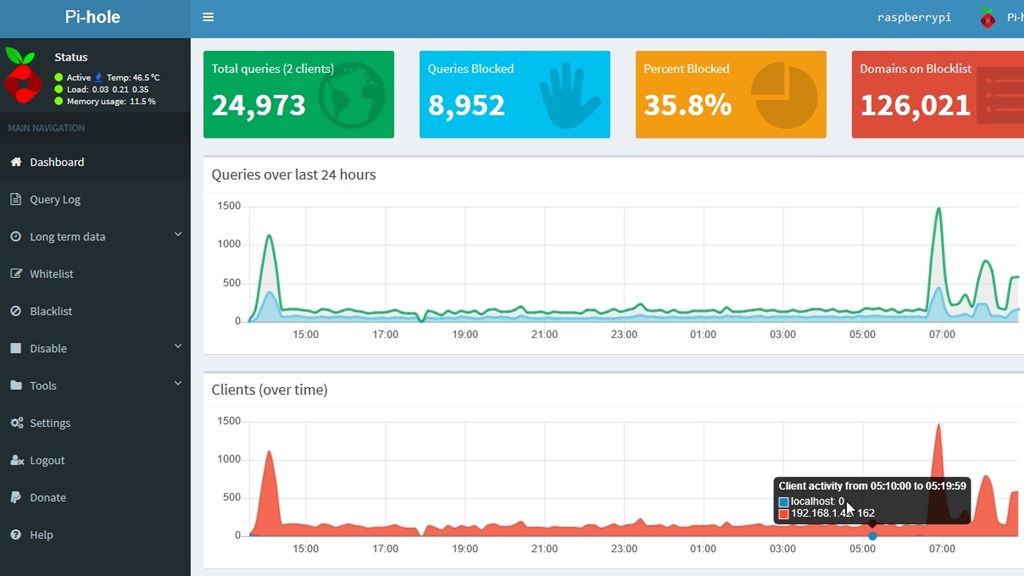
Tag: Linux

  • A New PiHole in the Sky

    Last year I set up a PiHole server on my RaspberryPi to help block some ads and malicious stuff (tracking, malware, etc) on my home network. It’s not perfect, but it’s a layer.

    Unfortunately the Raspberry Pi was unstable and would die or lag or restart fairly often. I’d end up with poor performance and that drove me crazy. Eventually I gave up and started to just run normal DNS again. However, I was frustrated with Netflix overseas and decided to set up a cloud version and see if that helps.

    I started the project by looking at a blog post that covers the general cloud setup.

    Creating a VM

    I started by going to the Azure Portal and clicking on a new Virtual Machine. The default I got was actually Ubuntu 18.04 LTS, which is what I’d like.
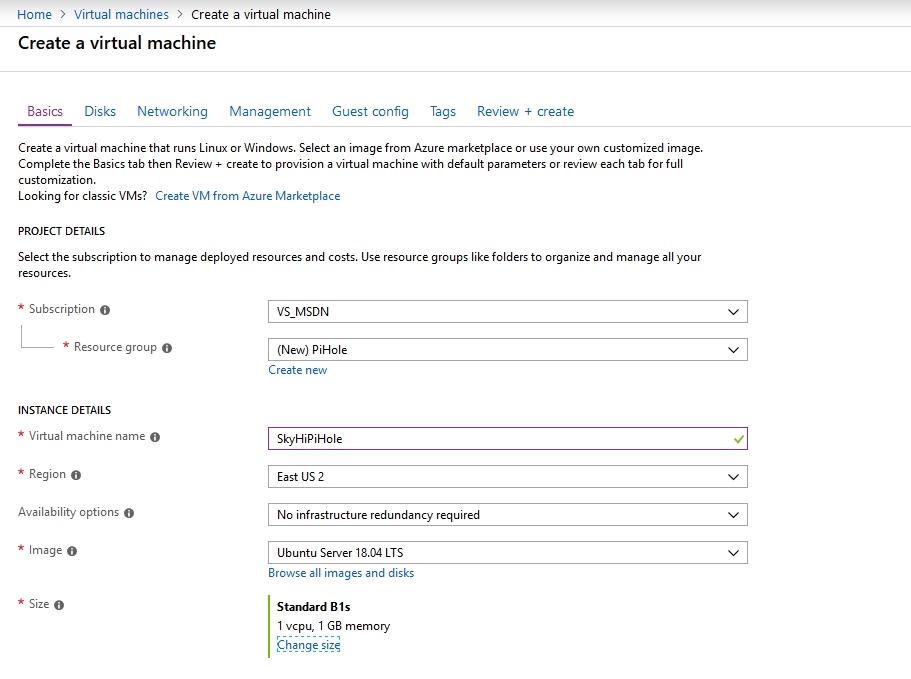
    2018-12-27 12_04_11-Create a virtual machine - Microsoft Azure

    I went with it, giving my new machine the wonderful anme of SkiHiPiHole. I wanted this to be inexpensive, as it uses minimal processing power. I decided to check the various sizes, and if you look to the right, you’ll see that you don’t want to just blindly click the top item. The sizes aren’t ordered by cost.
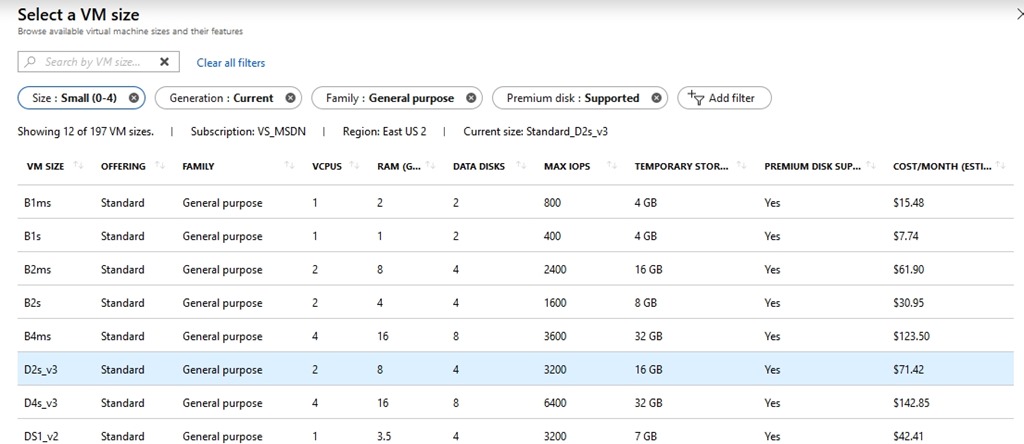
    2018-12-27 12_03_58-Select a VM size - Microsoft Azure

    I picked the B1s, which should eat up about US$8/month. I can spare that as I usually have about $50 credit from MSDN left every month.

    I picked this, and then had to generate an SSH key. I tried this with sshkeygen on Windows, but had issues. I won’t document what I did, but I have PuTTy installed, so I used puttykeygen instead.
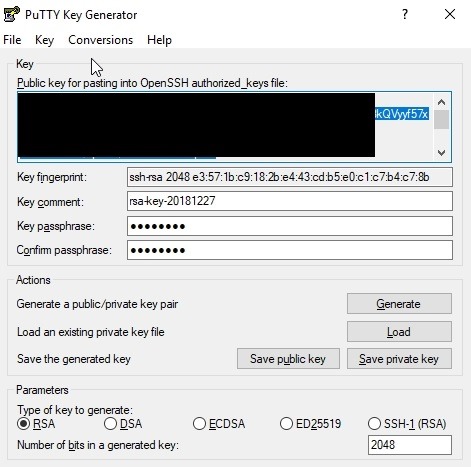
    2018-12-27 12_16_54-PuTTY Key Generator

    I copied and pasted this file into the Portal and then created the VM.
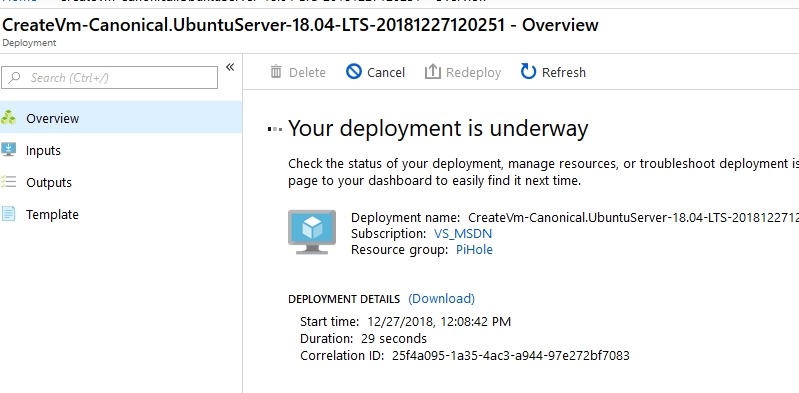
    2018-12-27 12_09_12-CreateVm-Canonical.UbuntuServer-18.04-LTS-20181227120251 - Microsoft Azure

    Once this was done, which was minutes, I connected with PuTTy to complete the install. I updated the OS and ran the Pi-Hole install, according to the blog above. I accepted defaults and then the system ran.
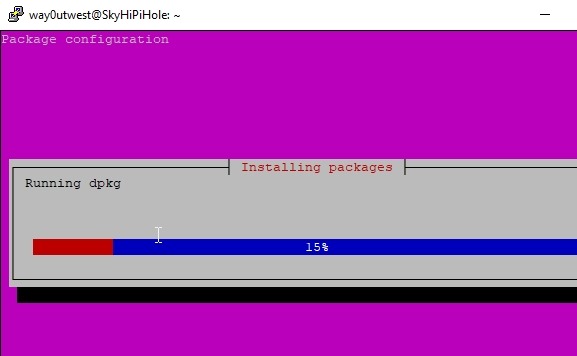
    2018-12-27 12_28_34-way0utwest@SkyHiPiHole_ ~

    Once this was done, I went into the Azure Portal for my VM and added firewall rules to let me connect with DNS (53) and for the admin console that’s web based. I limited the latter to my home network, but I can change it on the road if needed.
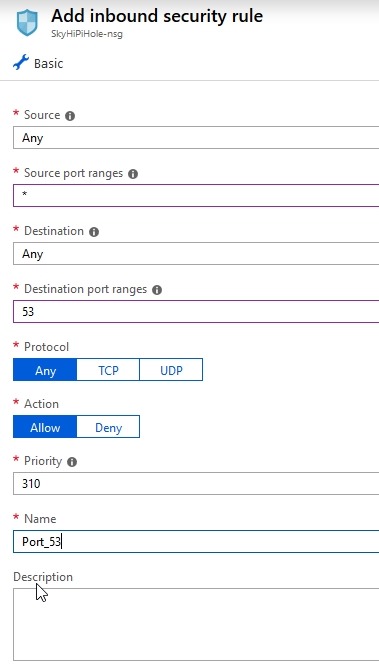
    2018-12-27 12_38_23-Add inbound security rule - Microsoft Azure

    With all that done, I changed my local DNS settings to use this server and tested it on a few pages.
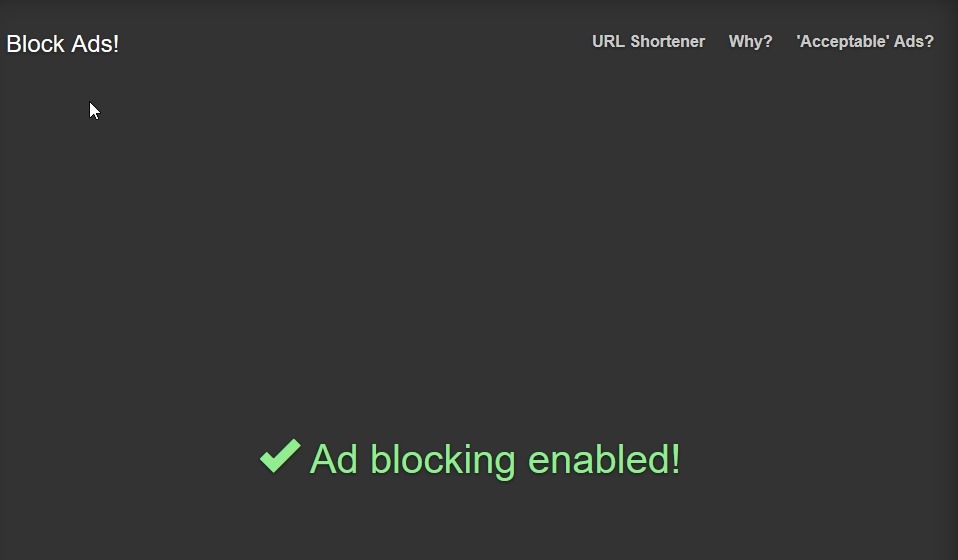
    2018-12-27 12_56_09-Block Ads!

    I could also see the admin panel. Success!
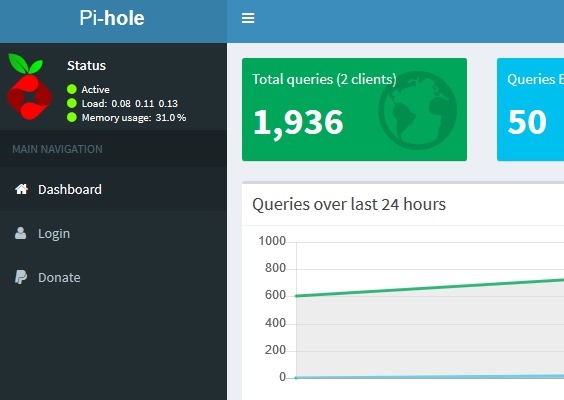
    2018-12-27 12_52_31-Pi-hole Admin Console

    Now we’ll see if this works overseas.
  • Setting Up Pi-Hole.Net

    I saw a tweet a short time ago from Drew Furgiuele about pi-hole.net. He noted this was a near use of a Raspberry Pi, and I wanted to give it a try. I got one awhile ago, and used it for a few things. We started with a media streaming device, but when I got a Fire Stick, this wasn’t needed or used. Then I tried a Bluetooth audio bridge to the stereo. It wasn’t as reliable as I’d like, and it added complexity to turning this on, letting it boot, etc.

    As a result, it’s been sitting a bit as I thought of some other project. The pi-hole seemed like something to try, so I decided to give it a go. It was pretty easy, and it blocks some ads. Not all of them, but

    First, I grabbed the latest release, Stretch, of Raspbian. I chose the lite version, since this will be headless. I downloaded that and also grabbed Etcher to flash the card. This took a bit, but I let it run in the background as I did other things.

    From there, I used Explorer to connect to the drive and create an empty “ssh” file. I read this tutorial, and ended up just creating a new text file in Windows, and removing the extension.

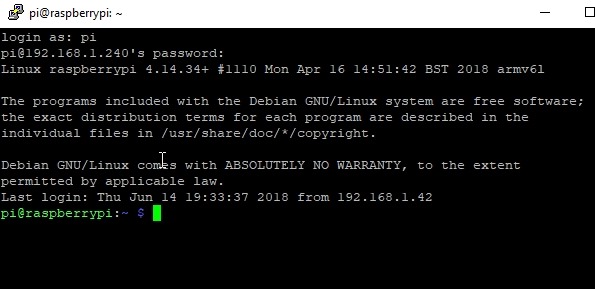
    Once this was done, I took the device up and plugged it into the router, both the Ethernet and the USB cables. This booted and connected the device. Back at my machine, I used Putty to connect. I did have to upgrade Putty to get the proper encryption level, but if you get a new copy, you’ll be fine.

    2018-06-14 14_00_42-pi@raspberrypi_ ~

    A few people pointed out ssh is in Windows now. Great, that works, I like Putty.

    Once connected, I ran the curl command to get pi-hole installed. It was fairly simple, and once installed, walks you through some basic config and networking. I use the 192.168.1.0/24 network that most people do, but my DHCP is set to give out addresses from 2 to 199. 200 and above are statics for me, so I configured this to use one.

    After that, I got a password for the device and I went to my static IP/admin to see the Pi-hole dashboard. I logged in and I could see traffic. This is from the next day.

    2018-06-15 09_11_16-Pi-hole Admin Console

    It’s an interesting project and I’ll see how this goes. I could add a other software to this device, and I may. We’ll see.

    I’m not against advertising, but there are some shady sites and some data gathering. Right now, a lot of blocks are for some telemetry service, which is fine. I can’t get info on it, so I’m guessing it’s not legitimate.

    In case you are wondering, there are lots of queries to telemetry.servers.getgo.com that are being blocked.

    If you want to try it, this is a cheap experiment, and you can also play with Linux, some hardware, and SSH.

  • No @@ServerName on Linux

    I setup a new instance of SQL Server on Linux some time ago. At the time, the Linux machine didn’t have any Samba running, and no real “name” on the network. As a result, after installing SQL Server I got a NULL when running SELECT @@SERVERNAME.

    The fix is easy. It’s what you’d do if you had the wrong name. You run:

    sp_addserver ‘Ubuntu’, Local

    In this case, Ubuntu was the name I gave my machine under the Samba server, since that’s the OS. I don’t plan on adding more for now, so this is fine.

    After the chance, I couldn’t restart the instance from SSMS, so on the host itself, I ran a

    sudo systemctl stop mssql-server
    sudo systemctl start mssql-server

    That completed, and my @@servername is now working.

  • A Broken Linux VM

    I have no idea if this is the best thing, but I went to boot up a Linux VM today and got this:

    2018-05-23 09_35_37-Ubuntu 64-bit SQL Server .210 - VMware Workstation

    My Linux skills are rusty, but this looks like a disk error. I rebooted and found this:

    2018-05-23 09_39_33-Ubuntu 64-bit SQL Server .210 - VMware Workstation

    A search on Stack showed this page: https://askubuntu.com/questions/697190/fsck-error-on-boot-dev-sda6-unexpected-inconsistency-run-fsck-manually

    I ran the utility, and answered yes to about 20-30 items. I have no idea what to do, but I figured this was worth a try. Once this completed, I rebooted again.

    The boot sequence in text took awhile, with a “start job” running about about 2 minutes on the disk device. While 2 minutes isn’t that long, it’s an eternity when you are hoping something works.

    Eventually it completed and I found this:

    2018-05-23 09_45_33-Ubuntu 64-bit SQL Server .210 - VMware Workstation

    Good news, as I wasn’t looking forward to rebuilding the machine. It’s just a lab machine, but I need to check something that day, and so I needed it. While installing Ubuntu and SQL Server is fairly quick, it’s still time.

    Fortunately things appear to be working and I can connect from SSMS to the server, so I’m guessing things are mostly working. Fingers crossed.