Tag: Linux

  • SSoL: Where are my data and log files?

    I don’t think most of us need to know Linux, but if you end up managing a system, it’s good to have a little idea of how to get around. This is a short series of posts as I remember the skills I used to have back in university.

    This is easily documented, and once you start working, you’ll learn this, and it is documented, but after a few weeks when I actually go into a Linux VM, sometimes I forget. Most of the time I connect with SSMS, and it’s just another server.

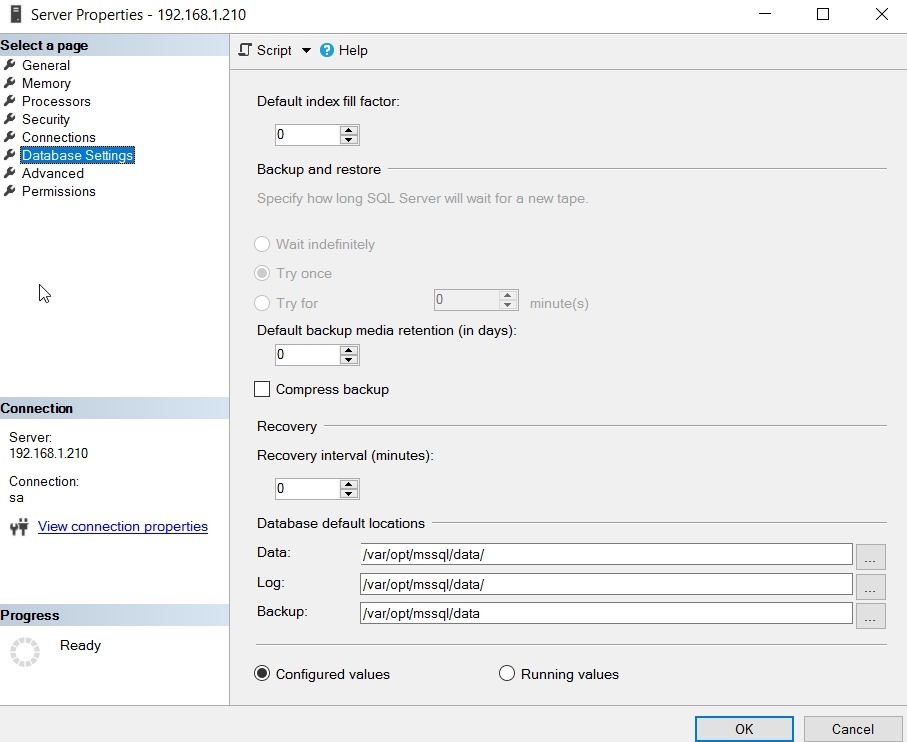
    Data and log files are stored in /var/opt/data. You can see this in SSMS by selecting the properties of the server instance.

    2017-06-15 11_21_18-Server Properties - 192.168.1.210

    If you check the Files tab in a database properties, you’ll also see this:

    2017-06-15 11_22_41-Database Properties - AlwaysEncrypted

    You can also get this in Linux by starting the file manager as root. In a terminal type:

    sudo nautilus

    and enter your password. Then browse to the folder (computer/var/opt/mssql/data) as shown here:

    2017-06-15 11_19_11-Ubuntu 64-bit SQL Server .210 - VMware Workstation

  • SQL Server 2017 RC1 is Here

    And I’ve got it.

    2017-07-17 10_33_19-SQLQuery1.sql - 192.168.1.210.master (sa (52))_ - Microsoft SQL Server Managemen

    Glenn Berry posted a a link to the MSDN blog and almost immediately a note that the link was still the CTP. I decided to fire up my Ubuntu install and check. No updates there, though a few people reported Docker had the new bits.

    A short while later, the Windows link was correct, and my Linux update worked.

    I did re-register the repository

    curl https://packages.microsoft.com/config/ubuntu/16.04/mssql-server.list | sudo tee /etc/apt/sources.list.d/mssql-server.list

    And then the rest was the same as previous updates. Quick and easy, a few command line things to type and I was updated.

    Now I need to get Docker working, since I’m betting we’ll see updates and changes there faster than anywhere else.

  • Bash on Windows

    With SQL Server coming on Linux, some people will want to learn a bit of Linux. Or perhaps they need to get re-acquainted with the OS, which is my situation. I grew up on DOS, but moved to Unix in university. I’ve dabbled in Linux over the years, but with no real use for it over Windows, I abandoned it a decade ago.

    Now, I’m trying to re-learn some things as I play with SQL Server on Linux.

    Recently I saw a quick video from Scott Hanselman on the Bash subsystem in Windows. I actually first saw this live at the Build 2016 announcement, but when it was added in Beta to Windows 10, I didn’t add it. I’ve been meaning to, but hadn’t.

    Until today.

    The video shows, but there are two things to do, well, really 3.

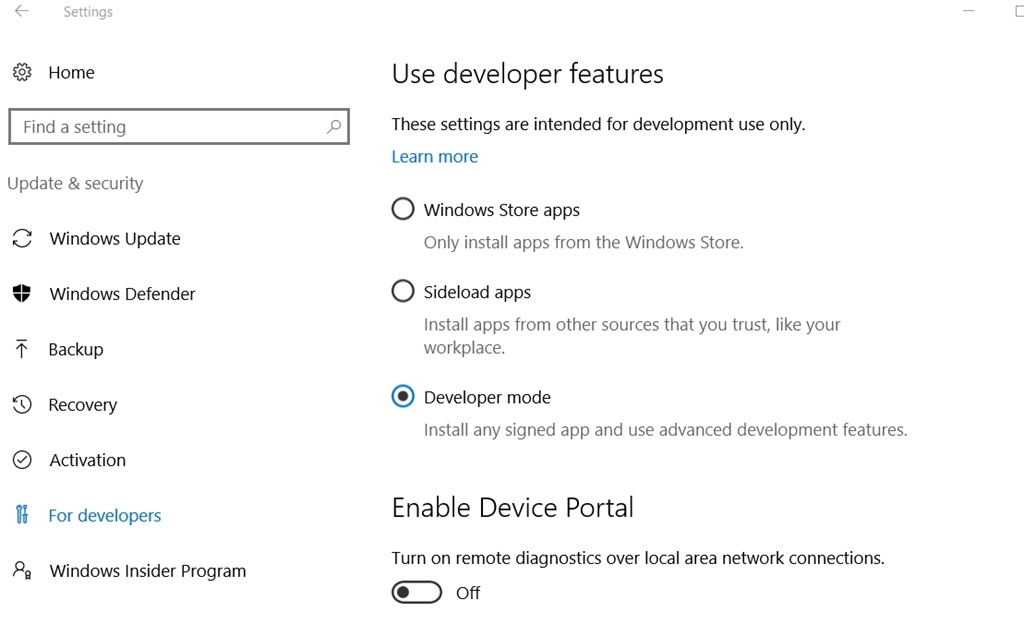
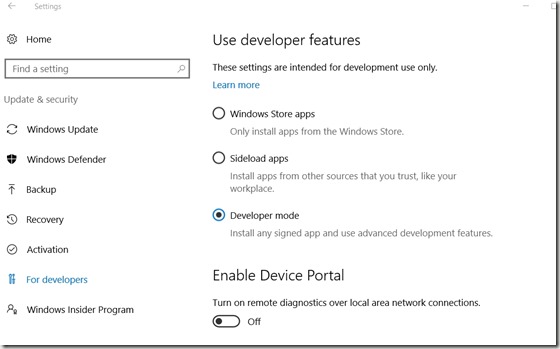
    First, enable developer mode. In the W10 Control Panel, type “developer” and you’ll find under Update and Security, a “For Developers” option. I’d enabled “developer mode” before, so that was done for me, but check that box (shown below).
    2017-06-28 16_34_18-Settings

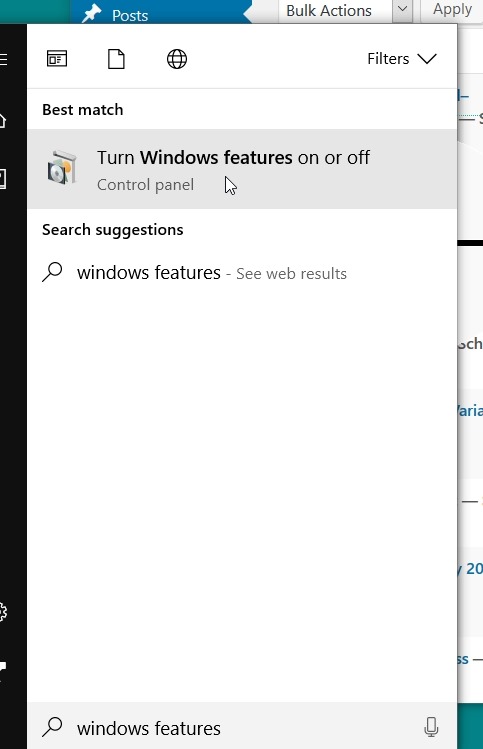
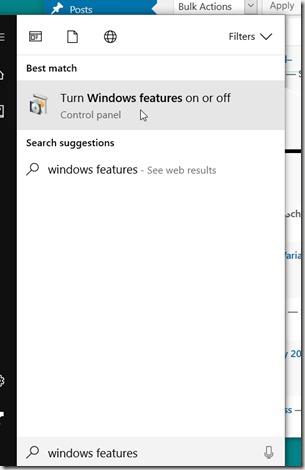
    Next, hit the Windows key and type “Windows features”. You’ll get this:
    2017-06-28 16_34_56-Photos

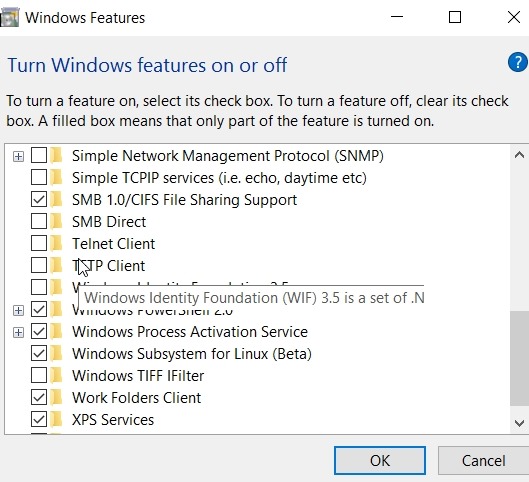
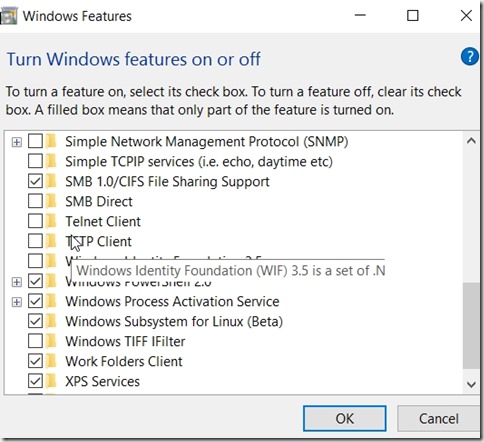
    Click that, and in the dialog, scroll down. You’ll find the Windows Subsystem for Bash. Check it.
    2017-06-28 16_35_32-Windows Features

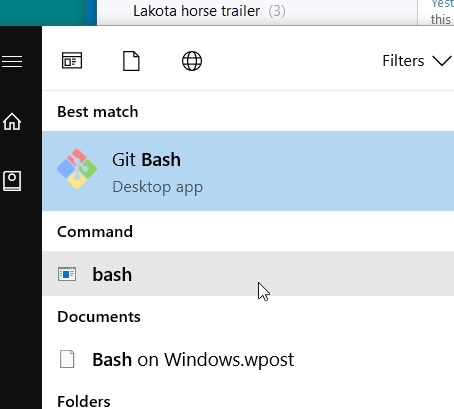
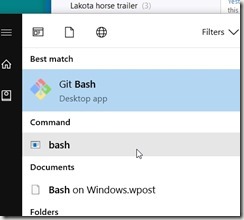
    Then Windows will tell you to reboot, so do that. After you reboot, type “bash”.
    2017-06-28 16_40_02-Editorials - sjones@dkranch.net - Evernote

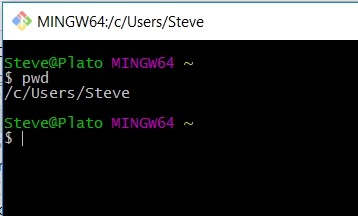
    The command “bash” will open the shell. Once you do that, you have bash running.
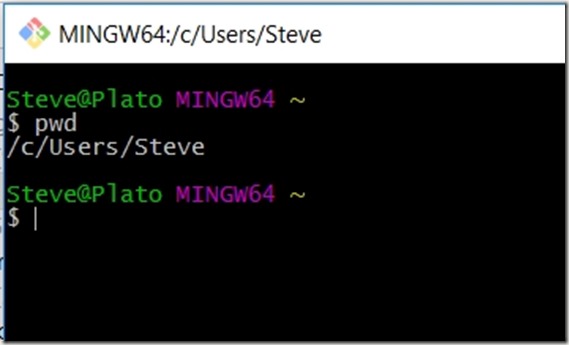
    2017-06-28 16_40_25-MINGW64__c_Users_Steve

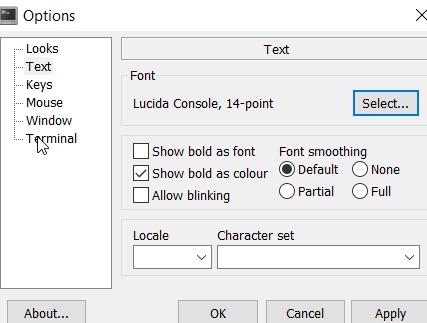
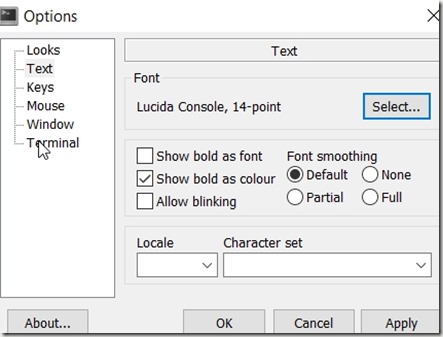
    There are options here, though I’m sad this doesn’t integrate into my ConEmu terminal. Maybe soon. The first thing I did was raise the font, because, well, I’m old.
    2017-06-28 16_40_49-Options

    I’ll have to play around, and get familiar with bash again. I won’t use it a lot, but it could be handy when working with SSoL and needing to SSH or otherwise connect to that vm without firing up rdp or my VMWare console.

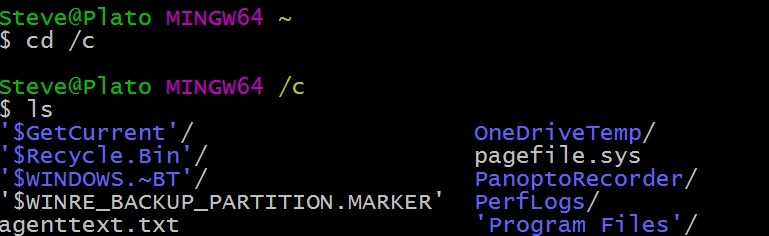
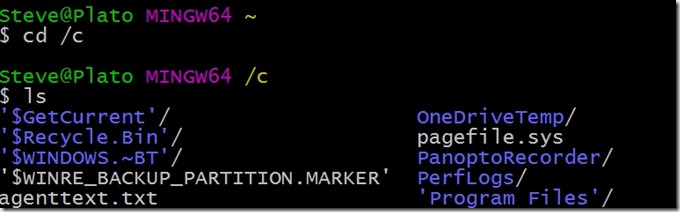
    I don’t remember lots of commands, but I did manage to get to my C: drive.
    2017-06-28 16_44_19-MINGW64__c

  • SSoL–Exiting Root

    I don’t think most of us need to know Linux, but if you end up managing a system, it’s good to have a little idea of how to get around. This is a short series of posts as I remember the skills I used to have back in university.

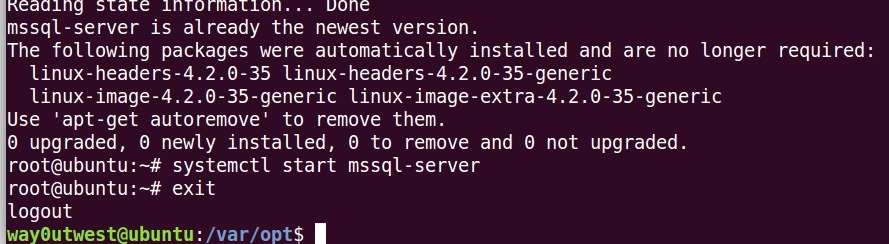
    There are times you need to execute a bunch of commands as root. Rather than sudo x, sudo y, sudo z, you might just sudo –i to change to root.

    For example, I often will do this:

    sudo apt-get update
    
    sudo apt-get install mssql-server
    
    sudo systemctl start mssql-server

    I could just run those as root. However, when I’m done, how do I get back to my normal user? It’s been a long time, so I had to look it up. I wrote this post so I’ll remember since I don’t use Linux daily.

    2017-06-15 10_05_14-Ubuntu 64-bit SQL Server .210 - VMware Workstation

    Type

    Exit

    That’s it.