Tag: Linux

  • Pro SQL Server Linux–Connecting and Building an App

    As part of my learning goals for 2018, I wanted to work through various books. This is part of my series on Pro SQL Server on Linux from Bob Ward.

    I set up my Red Hat server as a command line only instance, so installing VSCode or Azure Data Studio aren’t options. I could add a graphical manager, but I decided not to for now. Instead, I want to use some of the tools from my local Windows machine.

    If you’ve tried some networking with VMs recently, you’ll realize that this isn’t always simple. First, you need to figure out where your VM is. On Linux, ifconfig will do this.
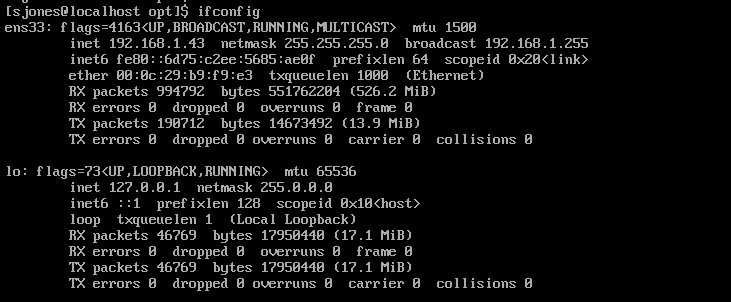
    2019-01-16 18_30_32-RHEL74 Bob - VMware Workstation

    However, when I go to SSMS and try to connect to 192.168.1.43, I get the network error that the SQL Server isn’t found. I know this is because of the firewall because my SQL Server is running locally on Linux and sqlcmd.exe works.

    To open the firewall, on Red Hat you use the firewall-cmd command. This wasn’t in the book, so I had to search for the process. Once I did, this is a simple thing to do.

    2019-01-16 18_29_17-RHEL74 Bob - VMware Workstation

    Now that this is open, let’s connect from SSMS. I can see that worked.

    2019-01-16 18_32_59-SQLQuery3.sql - 192.168.1.43.master (sa (52)) - Microsoft SQL Server Management

    My first step is to create a database. The standard CREATE DATABASE works, but I can see when I query metadata that this isn’t Windows anymore.
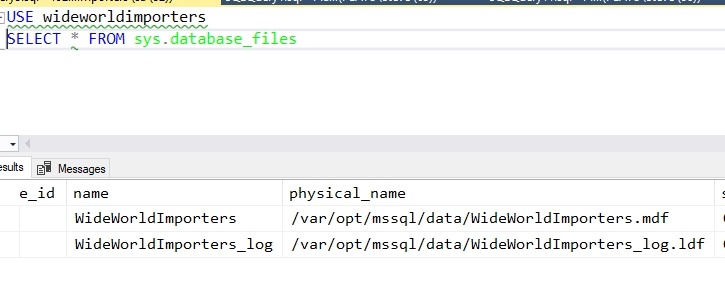
    2019-01-16 18_35_22-SQLQuery3.sql - 192.168.1.43.WideWorldImporters (sa (52))_ - Microsoft SQL Serve

    From here I used scripts to create the objects in the sample database. That’s a first step to getting an application working.  To get the scripts, I used:

    git clone https://github.com/Apress/pro-sql-server-on-linux.git

    This is the repo where Bob has his scripts. If you don’t know how to use git, start learning. I’ve got some posts, but there are lots of tutorials out there.

    Once the database is created, with some tables and data, I can now work on an application. Bob is using a node app, which I’ve never written, so this is a chance to learn a little something new.

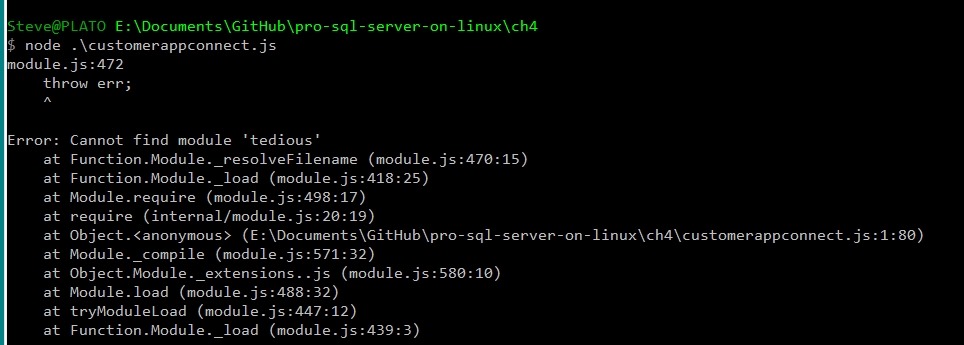
    I tried the npm installs, but had issues. I kept getting errors from installing tedious. I had to change to use http: instead of https, and I was able to instally async, but I kept getting errors.  I know this because:
    2019-01-24 17_40_59-cmd (Admin)

    Let’s try something else. I want to just connect, to see if my system is working. I could use SQLCMD, but let’s be creative.

    2019-01-24 17_46_48-cmd - python (Admin)

    I’m more comfortable in Python and this works. SQL Server 2019 here.

    There is a good tutorial with some sample code at https://www.microsoft.com/en-us/sql-server/developer-get-started/python/windows/. I took some of the code from there to get this working.

    In chapter 4, Bob shows how to use T-SQL and an application to read and write data. This is essentially sending SQL batches to the server, like I did with SELECT @@version above. I can do this stuff, and I know how to send batches. Executing code, including stored procedures, isn’t something I want to do here.

    A number of the parts of chapters 3, 4, 5, 6, 7 are normal stuff that really are a part of working with any SQL Server version. There was little I saw in here that I hadn’t learned as a part of my work on Windows with SQL Server 2012/2014/2016/2017. Not that it’s not good content, but it’s more basic.

    I read it anyway to get an idea of how Bob presents these things and there were good reminders of how things like Temporal tables or how bcp work. It’s worth reading if you aren’t familiar with the various concepts of working with SQL Server, getting performance information, and what tools are available. It certainly was a nice refresher for me.

    From here, it’s moving on to more features, hoping that I see more Linux specific things.

  • Pro SQL Server on Linux- More Installs

    As part of my learning goals for 2018, I wanted to work through various books. This is part of my series on Pro SQL Server on Linux from Bob Ward.

    After my last post, I decided to try and install the SQL Server 2019 preview version and see how that worked. I followed the instructions from Books Online.

    Adding a new Repo

    At first, I used curl to get the new repo file and then run the install. When looking at the install (sudo yum install –y mssql-server), I wondered if this would know I wanted 2019 instead of 2017. At this point,  my system has two repos, so how does it know?

    No idea, but it worked.

    2018-12-20 14_32_09-RHEL74 Bob - VMware Workstation

    Or did it?

    2018-12-20 14_35_41-RHEL74 Bob - VMware Workstation

    I think I upgraded my instance, which is fine. This is testing, so it works fine for me.

  • Pro SQL Server on Linux–Install

    As part of my learning goals for 2018, I wanted to work through various books. This is part of my series on Pro SQL Server on Linux from Bob Ward.

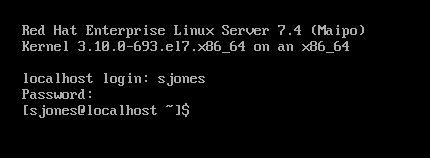
    I had an Ubuntu VM setup at home, but it started to flake and eventually stopped responding as a desktop. Since I’m not a Linux expert, I wasn’t sure what to do and really didn’t think it was worth debugging a broken Linux OS. Instead, I moved on.

    In the book, Bob uses Red Hat Linux, so I downloaded RHEL and installed it, after going through the process of joining the Red Hat Developer network. If I don’t do this, I only get a 30 day trial, which I didn’t want. I get the process, and understand them making money.

    For a lab, it was a pain. This made me want to go back and just get Ubuntu.

    2018-12-20 09_15_22-RHEL74 Bob - VMware Workstation

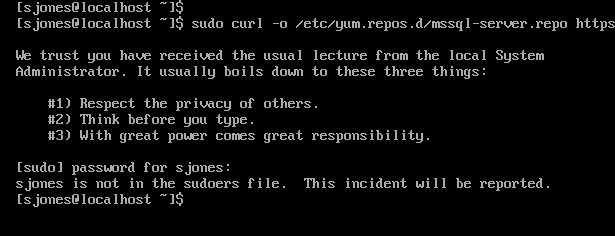
    In following the install instructions, I started with getting the Microsoft registry set up. I got an error when downloading the repo file.

    2018-12-20 12_34_30-RHEL74 Bob - VMware Workstation

    From this link, I added my user with

    usermod –aG wheel sjones

    2018-12-20 12_37_49-RHEL74 Bob - VMware Workstation

    Had to change the network to bridged in VMWare. Not sure why, but this is how I have a few VMs set, so I just matched this.

    Subscription

    I needed to attach my subscription. I started by registering, which was fun. I had to go back to the Red Hat portal, log off and back on.

    2018-12-20 12_48_12-RHEL74 Bob - VMware Workstation

    Then dependency errors. Isn’t yum supposed to resolve this?

    2018-12-20 12_45_08-RHEL74 Bob - VMware Workstation

    The key is that I wasn’t getting updates. I had to run

    subscription-manager attach –auto

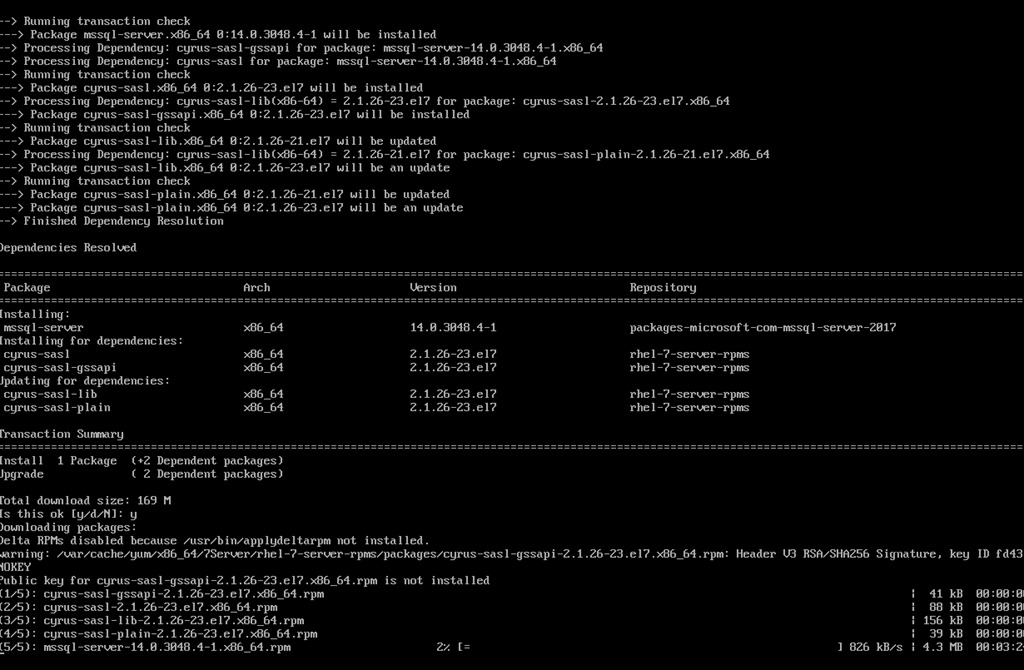
    which linked my system to the update system. I can see how Red Hat makes money. This feels as onerous as Windows for management and product key matching. In any case, this allowed the install to proceed:

    2018-12-20 12_58_20-RHEL74 Bob - VMware Workstation

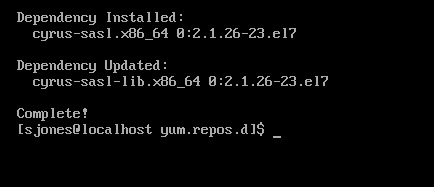
    Eventually this completes, which is a welcome sight.

    2018-12-20 13_02_00-RHEL74 Bob - VMware Workstation

    One note, when trying to get the dependencies, I removed the –y option for the install. Once things worked, I had to answer “y” to a lot of questions, so you’ll want that enabled.

    Configuration

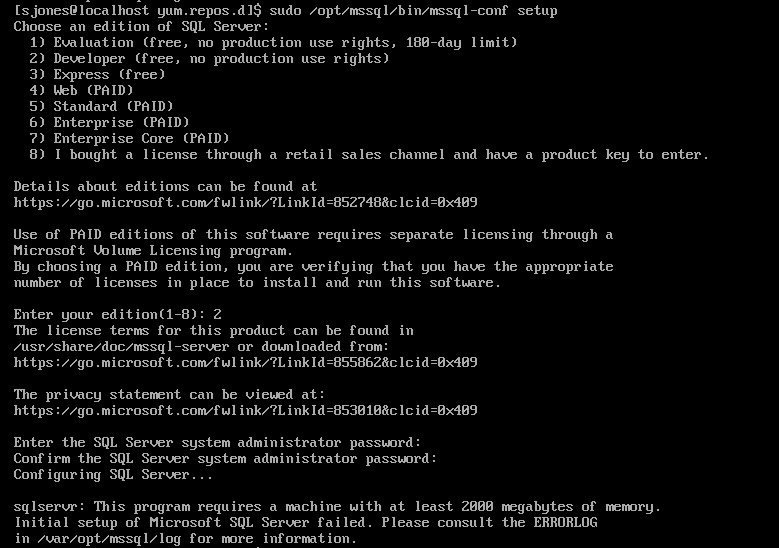
    The next step is to configure your instance. I started this, but it didn’t quite work.

    2018-12-20 13_04_13-RHEL74 Bob - VMware Workstation

    If you look, you’ll see the failure message is that we need 2000MB (2GB) of memory. The VM has 2048, but that’s not enough. I reset this to 3072MB and the config worked.

    2018-12-20 13_07_57-RHEL74 Bob - VMware Workstation

    Validating the Install

    From the book, the first step is to check the service.

    2018-12-20 13_12_04-RHEL74 Bob - VMware Workstation

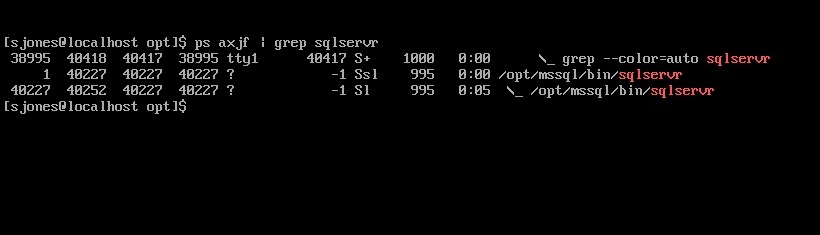
    The the process.

    2018-12-20 13_12_33-RHEL74 Bob - VMware Workstation

    That’s good, so I followed instructions to install tools. This ran off the screen, so I didn’t bother capturing a screenshot, but it worked according to instructions.

    Next, connect to SQL Server and check the version.

    2018-12-20 13_54_05-RHEL74 Bob - VMware Workstation

    Tada. Well, not that exciting. The process was more annoying than I expected or remembered, but most of that appears to be RHEL more than SQL Server.

    However, this was a nice test and project, with no GUI on the system. Looking forward to doing more with this across the month.

  • Pro SQL Server on Linux–Getting Started

    As part of my learning goals for 2018, I wanted to work through various books. This is part of my series on Pro SQL Server on Linux from Bob Ward.

    I purchased Pro SQL Server on Linux and started reading it in December. I’ve been playing with the Linux version of SQL Server 2017 for a few years, but very lightly. Mostly I’ve just tested stuff I do on Windows to see what works on Linux. After talking to Bob Ward at our SQL in the City Summit events, I decided to dive in deeper and work through some basics as my knowledge here is spotty.

    I didn’t have a Linux machine handy in December while traveling, but I started to read anyway. This is a first look at what I got through.

    Why SQL Server on Linux?

    The opening chapter describes some of the history of SQL Server and how the version was built on Linux. Between MVP sessions, some online reading, and some other presentations, I’ve seen a lot of this, but it’s still neat to review it.

    To me, this is one of the more impressive software ports I’ve seen, especially since the core engine really is the same, with the code being shared between Windows and Linux. Microsoft is easily maintaining two platforms here in a way that they couldn’t do with Windows.

    Interesting to read.

    Install and Config

    I’ve done this a few times, but it’s good to go through. Bob covers some common Linux commands you’ll use, and it’s good to see these. While I read this without a VM, I vaguely remember some of this. Need to go through this when I get in front of a setup.

    The install of SQL Server is done a few times, a very high level, and then a more detailed look. There are also some troubleshooting references to review with lots of links. We’ll check this later.

    Chapter 3, 4, 5

    I bundled these as they are SQL Server basics that aren’t really related to Linux. Chapter 3 is about building a database and some T-SQL fundamentals. I know most of these, so I skimmed this one.

    Chapter 4 lets you build a basic Node.js app and connect. This also covers some advanted T-SQL structures. Again, for someone that’s used SQL Server for any length of time and tried new features, you’ll want to skip this.

    Chapter 5 is tools. I know most of the tools, though I’ll review the linux variants later.

    The First Half

    This is what I got done before the end of the year, reading on planes and during downtime. This is almost the first half of the book, but it’s a lot of pages. I’m looking forward to digging into more parts of the book during the rest of January.