Tag: powershell

  • Finding the Service Name–#SQLNewBlogger

    Another post for me that is simple and hopefully serves as an example for people trying to get blogging as #SQLNewBloggers.

    A quick one today, and this one I remembered without looking anything up.

    I recently needed the service name to kill it for a test. I was using the sc.exe command line and couldn’t get it to give me the SQL Agent service name. I could have hit Windows, typed services, scrolled down, found the Agent, right clicked it, selected properties, and gotten the name.

    Or I could do this:

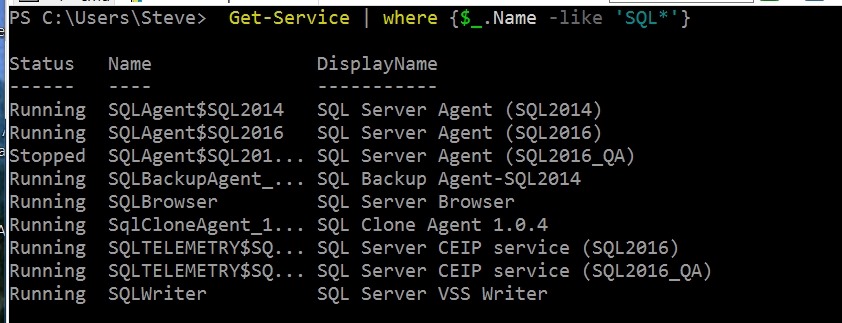
    Get-Service | Where {$_.Name –Like ‘SQL*’}

    That worked and I could quickly see all the names.

    2017-04-18 11_19_49-cmd - powershell (Admin)

    The only thing that threw me was I forgot the hyphen before “like”. One of these days I’ll actually remember that.

  • Getting a VHD into Azure with PoSh

    Another post for me that is simple and hopefully serves as an example for people trying to get blogging as #SQLNewBloggers.

    I thought this would make a nice SQLNewBlogger post, an easy get started one. I used the docs from Microsoft as a guide, so here’s how it went.

    Login to my account. I used Add-AzureRMAccount here to get the login dialog. I’m not repeating this for now, so this is just an interactive test.

    2017-03-23 14_09_25-Sign in to your Microsoft account

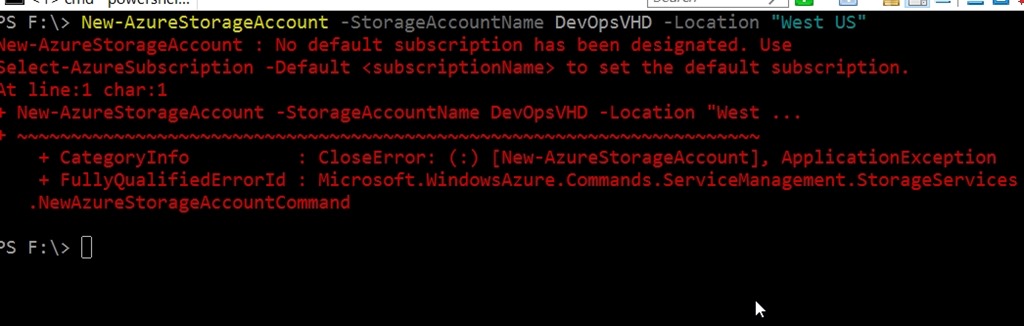
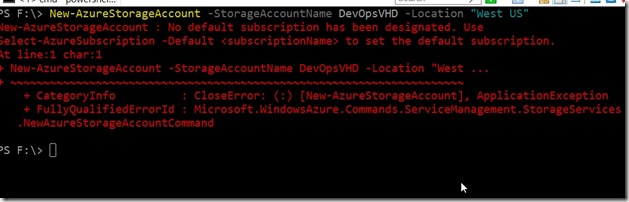
    Now I tried to create a storage account, but I hadn’t assigned a subscription. I didn’t think I needed to  since I only have one,but hey, I guess I do.
    2017-03-23 14_11_36-cmd - powershell

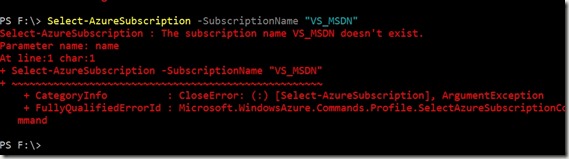
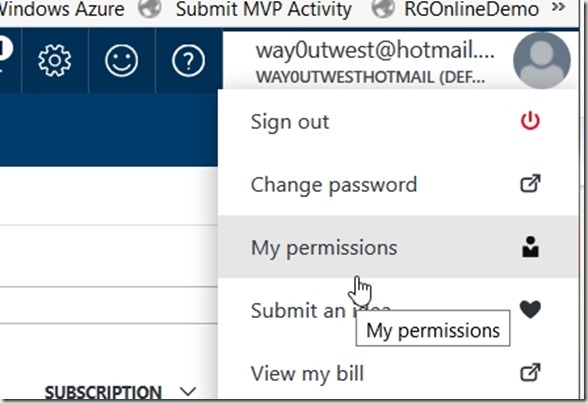
    I started typing Select-AzureSubscription, but realized I didn’t know what it was. I can’t remember naming this and under my name in the portal, I didn’t see a place to find it.
    2017-03-23 14_13_22-Getting a VHD into Azure - Open Live Writer

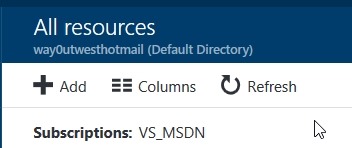
    Ah, under All Resources I see something, so I’ll try this.

    2017-03-23 14_12_26-All resources - Microsoft Azure

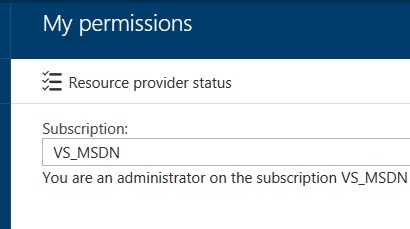
    On second thought, under My Permissions, I see it there.

    2017-03-23 14_14_17-My permissions - Microsoft Azure

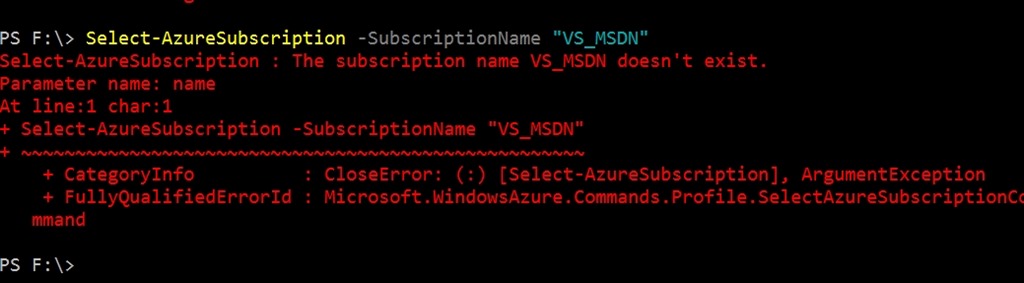
    Or not

    2017-03-23 14_14_41-cmd - powershell

    Get-AzureSubscription doesn’t quite work.

    2017-03-23 14_17_54-cmd - powershell

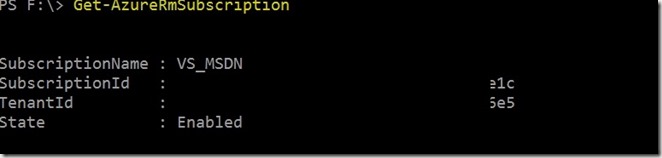
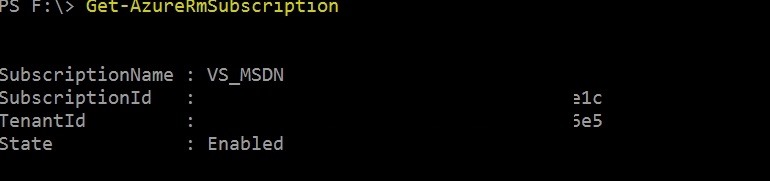
    It’s Get-AzureRMSubscription

    2017-03-23 14_19_02-cmd - powershell

    So, why doesn’t my creation of the storage account work? I should really read error messages. The issue is Select-AzureSubscription fails because I need Select-AzureRMSubscription.

    Sometimes the rev’ing of the cloud is hard.

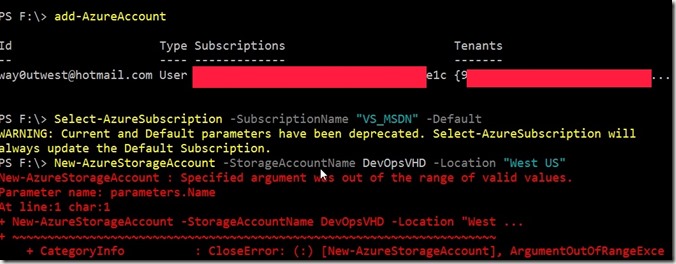
    Actually, maybe neither work.

    2017-03-23 14_22_02-cmd - powershell

    I retreat.

    2017-03-23 14_23_59-cmd - powershell

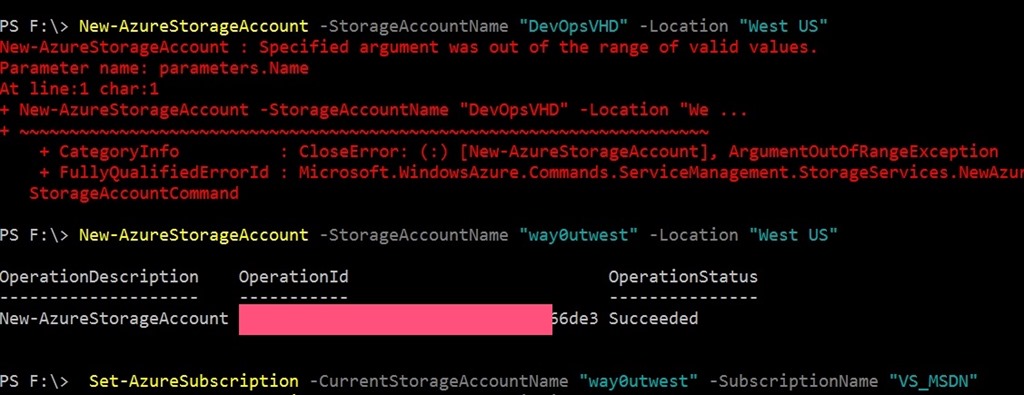
    I’m still annoyed. “US West” isn’t valid. FFS, Microsoft. Whether I type any of these, just ask me or process them.

    • “US West”
    • “West US”
    • “USWest”
    • “US_West”

    OK, I decided to go exercise for a bit.

    I’m back (30 minutes later), and I try Get-AzureLocation. I can guess some cmdlets. I get a lot of stuff back and see “West US” is valid. I try a few other valid names of regions, but get errors. It’s not that parameter.

    Let’s try a new name.

    2017-03-23 14_30_22-cmd - powershell

    #$%#@#@# engineers and developers. That’s a valid error message? Not, this is a duplicate or something that makes sense. Glad I left.

    Maybe not. At least this is an error that makes sense.

    2017-03-23 14_31_27-cmd - powershell

    Finally. Let’s upload the VHD.

    2017-03-23 14_33_25-{0%} cmd - powershell

    And it’s off.

    2017-03-23 14_33_41-{0%} cmd - powershell

    Hopefully this will work. I haven’t tried this with PoSh before, and it was somewhat frustrating, though it really didn’t take that long.

    SQLNewBlogger

    This was a bit of a live blog. Do something, take a screenshot, write some text. It was a bit of a learning experience.
  • Delete an Azure SQL Database from PowerShell

    Another post for me that is simple and hopefully serves as an example for people trying to get blogging as #SQLNewBloggers.

    One of the things I’ve been working on is trying to get my DevOps, continuous delivery pipeline working with Azure. Part of that is a test deployment to an Azure SQL Database, which means I need to be able to update an existing database from a backup. Unfortunately, Azure SQL Database doesn’t support a restore over an existing database (yet).

    That means one task I have is to remove an existing database, in order to replace it with a new database with the same name. A little work in the PoSh documentation found Remove-AzureRMSQLDatabase, which is just what I need.

    To use this cmdlet, I need a connection to the Azure space first. I can do that with a credential that I get with this command. Ultimately I need to store this, but interactively this lets me get started:

    Login-AzureRMAccount

    This gets me an interactive login. I enter my account and password. Since I use a Live account, this won’t work in the pipeline, but it gets me going.

    2017-03-10 09_00_34-Sign in to your account

    From here, I can set a few variables I’ll need. I want the name of a resource group, a server, and a database. In my case, I’ll use a few variables. I call the database the “new” one, since I’ll be using an existing one that I’ll recreate from an “old” one.

    2017-03-10 09_03_07-powershell - How to Login without prompt_ - Stack Overflow

    From here, it’s just a question of calling the Remove-AzureRmSqlDatabase cmdlet with parameters. I do that, and get results. Here’s the call

    Remove-AzureRmSqlDatabase -ServerName $server -ResourceGroupName $rgname -DatabaseName $newname

    Here are the results. I’ve blacked out a few ids.

    2017-03-10 09_05_16-Photos

    This clears the database, and after refreshing, I can see it’s gone from my list of Azure SQL Databases.

    2017-03-10 09_08_12-SQL databases - Microsoft Azure

    Not much to this, but it’s part of a larger scheme, which is getting a copy of the production database and restoring it.

  • Opening the PowerShell ISE from Explorer

    This is a cool productivity trip, and one that I ran into by accident. I had heard that I could launch a command prompt by typing cmd in the address. That works, and it’s cool. It even works with ConEmu, which is my default command window.

    However, while I was looking for other hints, I found that Powershell_ISE also works. That will launch the Powershell_ISE editor with the current folder as the default one in the lower pane. The “open” dialog, is still a the previous location, but I’m not sure how easy that is to change.

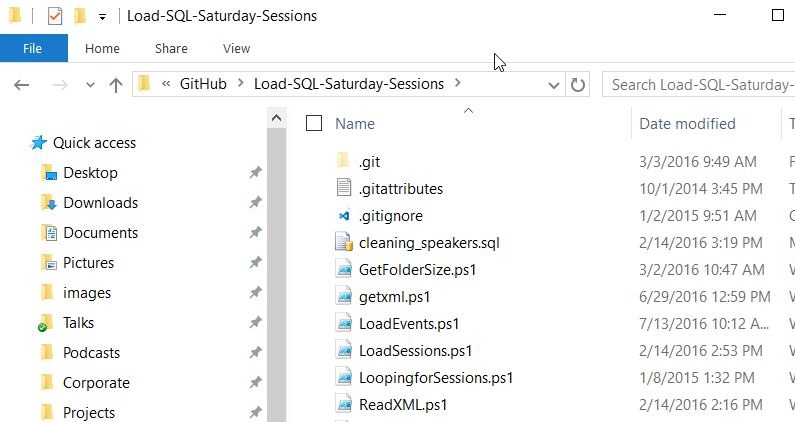
    In any case, here’s how this works. Browse to a folder in Exporer, such as a GitHub repo I have:

    2017-01-06 12_13_47-Load-SQL-Saturday-Sessions

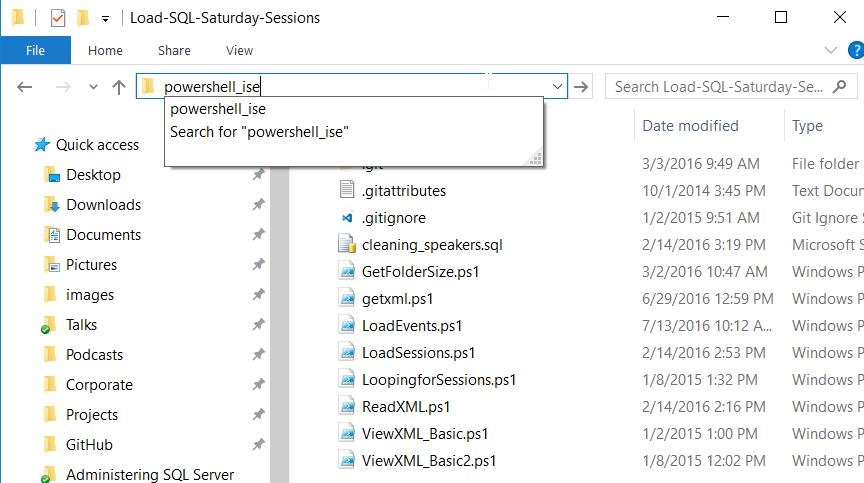
    Type “powershell_ise”

    2017-01-06 12_13_56-Load-SQL-Saturday-Sessions

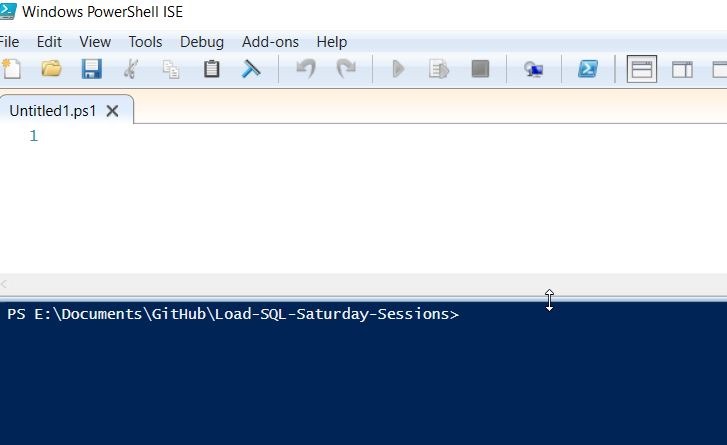
    Hit Enter, and the ISE appears. Note the path in the lower pane.

    2017-01-06 12_14_18-Windows PowerShell ISE

    That’s it.

    Quick, easy, and if you want to get to the ISE quickly to do something, or write some code, this is one way to do from a folder.