Tag: Redgate

  • SQL Source Control v5.0 Beta–First Migration Script

    I joined the beta program for SQL Source Control recently. I know, I work for Redgate, I should be in all beta programs. However I present on our various products, and I need those presentations  to work reliably. As a result, I rarely get ahead of our RTM products because I value stability.

    However, I really, really like SQL Source Control, and wanted to get the migrations stuff working in Git. Of course, I’m also looking for holes and problems, so I’ll be giving feedback.

    Install is simple, though after I download the beta, it took me a week to get going because of other tasks. In the meantime, there were updates. I always check for SQL Source Control updates, and I had to download and install an update. Redgate operates on a very agile, DevOps development cycle, so always check for updates.

    2016-03-11 12_27_35-Settings

    That was easy, other than the SSMS reboot. Here are the versions of SQL Source Control:

    2016-03-11 12_29_14-About SQL Source Control

    And SSMS:

    2016-03-11 12_29_25-Settings

    I had a previous database I’ve been using for demos that I keep in GitHub. This hasn’t worked with migrations in the past, but I want it to, so I decided to see how this database would “upgrade” to migrations.

    Syncing from GitHub

    First I created an empty database.

    2016-03-11 12_33_24-Settings[3]

    I then linked this to my git repo. This is easy, but I’ll run through it. I select the database in the Object Explorer (OE) and then click link in the SQL Source Control (SOC) plugin. I’m using Git, so this is a good place to start.

    2016-03-11 12_33_38-Settings

    Next I pick the folder and let the system create the link. Note this repo already is updated from the remote (Github) and contains all my database scripts.

    2016-03-11 12_34_40-

    Once that’s done, I switch to the Get Latest tab and click “apply” to move all the code to my database. This process reads all the .SQL files and runs them in my database, in the appropriate order.

    2016-03-11 12_34_53-Settings

    When that’s done, I have a database. Simple setup, and this makes it easy for me to get a dev system on a new instance quickly.

    2016-03-11 12_47_44-Start

    Migrations

    Now the fun part. Migrations. I’ve been waiting for this version of SOC to support Git. No message here saying my VCS isn’t supported.

    2016-03-11 12_48_38-SQL Source Control - Microsoft SQL Server Management Studio

    Now I want to create a migration script. There are a lot of things I could do here, but let’s do something simple. I’ll go ahead and add a not null column to my RSSFeeds table.

    Let’s try the designer. This is easy enough to do. We’ll add the last column.

    2016-03-11 12_56_34-Settings

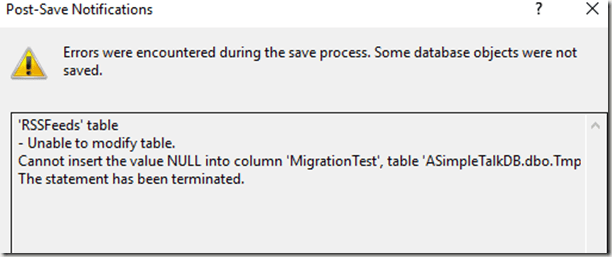
    However we can’t save this:

    2016-03-11 12_56_42-Post-Save Notifications

    This doesn’t work as a script, either. The reason is that SQL Server doesn’t know how to manage this change. What goes in the NOT NULL space?2016-03-11 12_57_31-Settings

    There are lots of ways to do this, but the way many people want to deal with this is”

    • Add a NULL column
    • Populate data
    • Change the column to NOT NULL

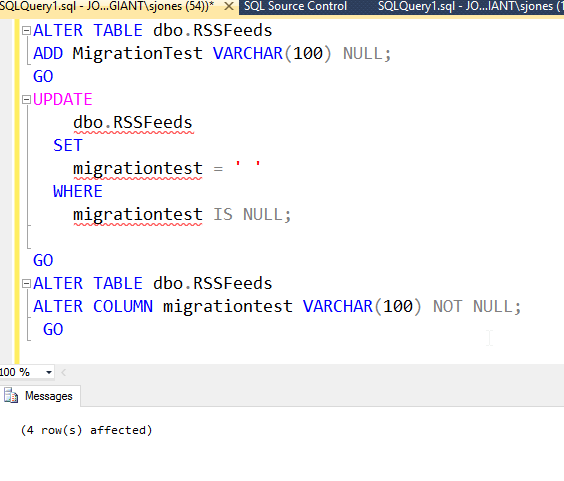
    Let’s do that. We’ll use a script to do this:

    2016-03-11 13_07_45-Settings

    This works, but when we go to commit this change, we see this:

    2016-03-11 13_08_09-SQL Source Control - Microsoft SQL Server Management Studio

    The tool lets us know this might cause issues, and we need a migration script. If I click on the the “Add a migration script”, I go to the Migrations tab, where I see the table effected. Let’s select it and click “Create migration script.”

    2016-03-11 13_08_52-SQL Source Control - Microsoft SQL Server Management Studio

    This brings me to the script editor. I’ve pasted in my script.

    2016-03-11 13_09_08-New migration script.sql - JOLLYGREENGIANT_SQL2014.ASimpleTalkDB (JOLLYGREENGIAN

    Note I also need to give this a name. The default isn’t great.

    2016-03-11 13_09_25-Settings

    Once I’m done here, I close and save. Now I can see all the items listed on the Commit tab. I’ll start at the bottom. Here is my data change, which is subordinate to the migration script. I’ve scrolled over to see the actual data.

    2016-03-11 13_09_45-SQL Source Control - Microsoft SQL Server Management Studio

    Now let’s look at the schema. Here the NOT NULL is added, but we know this won’t work. This needs the migration script.

    2016-03-11 13_09_57-Settings

    And here’s the script. This is what I wrote and pasted in.

    2016-03-11 13_10_04-SQL Source Control - Microsoft SQL Server Management Studio

    I commit this, and I’ve got a script. Or do I? Do you know what the issue is?

    It’s that I didn’t set a default. I left this out to show you there’s no magic here. SQL Source Control isn’t doing the work for you of deciding how schemas should change. Instead, you need to write the appropriate scripts. In this case, I’ll acknowledge and commit, which it lets me do.

    2016-03-11 13_15_48-Warnings

    However, this will be an issue, so I’ll add another commit. I can check this in my history tab (I committed too quick).

    2016-03-11 13_36_00-History

    You can see this has added the default. What happens on another machine? Let’s check my presentation VM, which is also updated to SOC v5 Beta (with a snapshot to undo this).

    I created a new database and linked it.  At the bottom of the list of objects, I see my migration script.
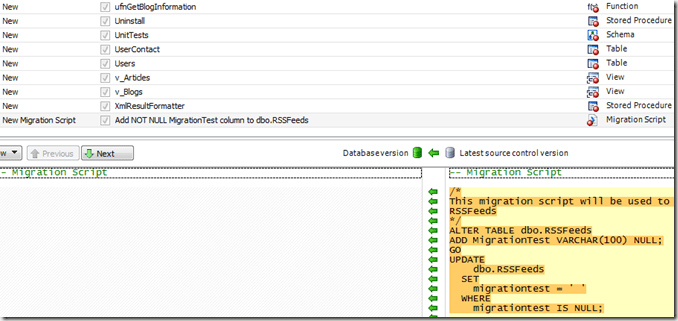
    2016-03-11 13_50_44-Win7x64 SQL 2012 Demo - VMware Workstation

    I also see this in the migrations tab.

    2016-03-11 13_50_11-Win7x64 SQL 2012 Demo - VMware Workstation

    Applying all changes worked. If I look at the table, I see what I expect, with the the NOT NULL setting, the data, and the default is set correctly

    2016-03-11 13_56_02-Win7x64 SQL 2012 Demo - VMware Workstation

    This is a very basic look at what’s happening with the new SQL Source Control v5. It’s in beta, and if you’re interested, we want more testers and lots of feedback. We’re excited about this release, but we want to ensure it’s the best there is.
  • Converting SQL Backup Files to MTF

    I got a copy of some backup files recently and needed to restore them. However, I don’t have SQL Backup installed on all my instances. It’s not a big deal to install it, but since this is a one-off, I decided to just decompress the files.

    The documentation for SQL Backup Pro notes that you will have the file converter installed with your SQL Backup installation. The path given is the default, but if you’re like me, you need to track down the actual path. Mine is actually on my e: drive, which means I need to use the full path to call the program.

    The converter is a command line tool, so I need to open a command prompt and then type the path to the file. I could to this many ways, but I started by going to the folder with my .sqb files. I then typed this:

    2016-02-16 11_45_50-Netflix

    This actually worked, but it then put the decrompressed files in the folder with the SQL Backup utility. I then adjusted the command to this:

    “E:\Program Files\Red Gate\SQL Backup 7″\sqbconverter FULL_
    INS1_SQLServerCentral_20160210_000500.sqb H:\SQL Server\Backup\sqlservercentral_20160209.bak MyPassword
    This command actually is seen in the help if you type sqbconverter with no parameters. The format is the .exe, then the input file (the .sqb), the output file (the .bak) and the password.

    The utility gives you the progress as the files are decompressed.

    2016-02-16 10_12_23-Netflix

    Depending on the threads used, you’ll end up with multiple files. In my case, 7 files.

    Now I can restore each of these as a normal, striped backup.

  • The Next DLM Demo Webinar–Feb 23

    A quick note that I will be presenting a webinar on Feb 23rd at 10:00am MST. That’s noon EST and 5:00pm GMT. You can sign up here if you’d like to watch. This is similar to other DLM webinars I’ve done that look at the Redgate stack of products that help you develop database software in a smoother fashion.

    I am changing things up a bit. This time the stack is:

    • Git – version control
    • Team City – Continuous Integration or Build server
    • Octopus Deploy – Release Management tool.

    As with the other webinars, I’ll show how I track the version of the database in each environment, then show how to make changes in SSMS, commit them to my VCS with SQL Source Control, and then deploy them in an automated fashion across various environments. In this case, I’ll have this flow of environments

    • development
    • integration
    • test
    • acceptance
    • production

    It’s an impressive demonstration. As I’ve watched this grow at Redgate, I am impressed with how well things work. I wish I’d have had these tools when I built database software earlier in my career.

  • Limiting Database Permissions for DLM Dashboard

    I was talking with some of our support people recently about permissions on DLM Dashboard. A client was having issues, and we weren’t sure what was wrong. As a result, I decided to dig in a bit and see how limited I could be with permissions for the login/user that is used to track changes.

    My first step was to create a new login in SQL Server, giving the public server role and then granting very limited permissions in master and the Redgate database. Those permissions were:

    • master – VIEW ANY DEFINITION
    • master – execute on dbo.RG_SQLLighthouse_ReadEvents
    • RedGate – SELECT ON SQLLighthouse.DDL_Events

    That’s a nice, limited set of permissions. You do need sysadmin for setup, but after that, you can set these permissions for the user that you’ve configured in DLM Dashboard. The permissins are documented on the DLM Dashboard documentation site.

    In my case, I have a login/user, DLMDashUser, configured in the tool.

    2016-02-04 17_32_21-New notification

    I then went to add a new database on my local instance.  However since this login isn’t mapped to a user, nor has any high server privileges, I got an error.

    2016-02-04 17_08_18-Movies & TV

    To fix this, I connected to my instance and modified the user. Scripting is a better way to do this, and in my case, I used this script:

    USE Puzzles
    GO
    CREATE USER DLMDashUser FROM LOGIN DLMDashUser;
    GO
    GRANT SELECT ON sys.sql_expression_dependencies TO DLMDashUser
    GO

    This grants the necessary permissions to a new user in this database. You can save this script, which is especially handy for production systems where we don’t want monitoring tools to have elevated permissions.

    Now when I go to add the database, I click add and it works.

    2016-02-04 17_09_02-Movies & TV

    And I can then see the database in my monitoring dashboard.

    2016-02-04 17_09_23-Start

    The principle of least privilege should apply everywhere, certainly in production, but also in development. If you limit permissions in development, you might cause a few headaches, but you’ll understand the issues and solve them early on. More importantly, if you have security flaws, they aren’t in production systems where data is exposed.

    SQL Server security isn’t that hard, but it can be cumbersome. Set it up properly in development, keep your scripts (even from the GUI), and then use those scripts for your production systems.

    NOTE: Typically I’d create a role for this system, which is perhaps what I should do. Having a role like this would make switching users in DLM Dashboard at some point much easier.

    CREATE ROLE Monitoring
    GO

    GRANT SELECT ON sys.sql_expression_dependencies TO Monitoring

    GO
    ALTER ROLE Monitoring ADD MEMBER DLMDashUser

    In fact, I just changed to use this role, and added the role to the other databases so that my dev system is propery set up.