Tag: SQL Prompt

  • SQL Prompt Tips–Using $surroundtext$ in a Snippet

    A user on the SQL Community Slack was asking about what the $surroundtext$ variable. This post looks at how this can be used in snippets.

    This is part of a series of posts on SQL Prompt. You can see all my posts on SQL Prompt under that tag.

    A Scenario

    I find that I want to convert some inline SQL to a stored procedure. We have a lot of code in an application that looks like this:

    SELECT 
         SUM(sod.OrderQty) OVER(ORDER BY sod.SalesOrderID, sod.ProductID) AS Total
      FROM Sales.SalesOrderDetail AS sod
      WHERE sod.ProductID = <somevalue>

    The application replaces <somevalue> with an actual value and runs this code. This potentially is a SQL Injection vector, but this also isn’t easily tuned on the server, and can get copied and pasted into different places in the code. It would be better to have this as a stored procedure.

    Make the Conversion Easy

    To make this a stored procedure, I would want this query to look like this:

    CREATE PROCEDURE dbo.GetGroupedSales
         @Id INT
    AS
    BEGIN
    SELECT 
         SUM(sod.OrderQty) OVER(ORDER BY sod.SalesOrderID, sod.ProductID) AS Total
      FROM Sales.SalesOrderDetail AS sod
      WHERE sod.ProductID = @id
    
    END

    I can create a snippet that looks like the skeleton of a stored procedure with this code:

    create procedure $procname$
    $param1$ $paramdt$
    as
    begin
    $SELECTEDTEXT$
    end
    go

    I’ve got a screenshot of this below, showing some default values for the various parameters. This makes it easy for me to build a proc. However, there is one variable that isn’t in the list: $SELECTEDTEXT$.

    This variable will take any text that is selected in SSMS (or VS) and put it inside of the snippet in that location specified.  That will help us wrap our query with the other code in the snippet.

    Here is my snippet:

    2023-11-10 14_17_05-SQL Prompt - Edit Snippet

    Using the Snippet

    Let’s see this in action. In SSMS, I have highlighted my query.Notice the little Prompt popup near the cursor.

    2023-11-10 14_23_22-SQLQuery2.sql - ARISTOTLE_SQL2022.AdventureWorks2017 (ARISTOTLE_Steve (71))_ - M

    When I see this, I can hit the CTRL key and I’ll get a drop down list. I will type “mp” which is my snippet code.
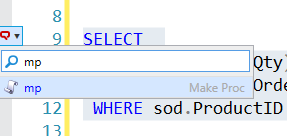
    2023-11-10 14_23_29-SQLQuery2.sql - ARISTOTLE_SQL2022.AdventureWorks2017 (ARISTOTLE_Steve (71))_ - M

    This finds my snippet. I can hit Tab and my snippet is inserted, with my default variable values and also the text I selected in the place where $SELECTEDTEXT$ was in the snippet.
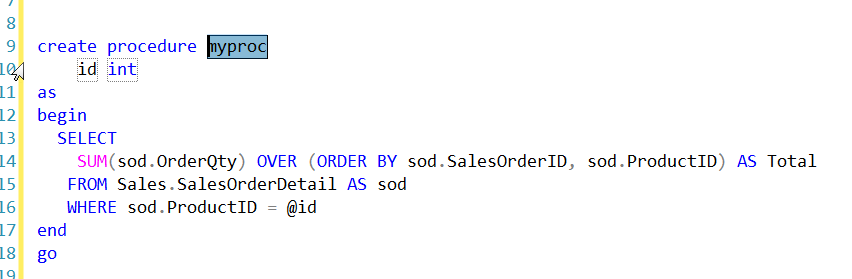
    2023-11-10 14_23_58-SQLQuery2.sql - ARISTOTLE_SQL2022.AdventureWorks2017 (ARISTOTLE_Steve (71))_ - M

    Now like any other snippet, I can tab between the variables and change them. When I’m done, I hit Enter and I have my code.

    Now I just need to save this in version control and deploy it to my production system.

    If you haven’t tried SQL Prompt, download the eval and give it a try. I think you’ll find this is one of the best tools to increase your productivity writing SQL.

    Video Walkthrough

    I made a video of using $surroundtext$ that you can watch. All my SQL Prompt tips are in this playlist.


  • A SQL Prompt AI Experiment with Window Clauses

    SQL Prompt has an EAP with some AI capabilities. I was asked to do some testing, and while I’ve done relatively little, I did find some time to play with this recently and decided to document what happened.

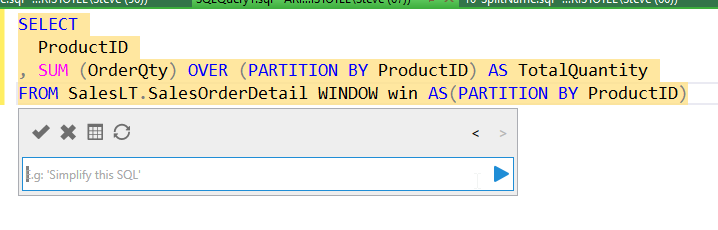
    I completed this and then clicked the < back arrow to return through previous versions of the code, which also shows what the prompt was that produced this code.

    This is part of a series of posts on SQL Prompt. You can see all my posts on SQL Prompt under that tag.

    My Experiment

    I wanted to write a windowing function to test something. Instead, I decided to ask SQL Prompt to do this for me. I connected to a database, hit ALT+Z, and then entered this prompt in the popup. You can see the code produced.

    2023-11-10 16_04_38-SQLQuery1.sql - ARISTOTLE.AdventureWorksLT2019 (ARISTOTLE_Steve (67))_ - Microso

    I only entered the prompt in the dialog. SQL Prompt wrote the highlighted code.

    This wasn’t what I wanted, so I changed the prompt. You can see what I typed and what changed below.

    2023-11-10 16_04_32-SQLQuery1.sql - ARISTOTLE.AdventureWorksLT2019 (ARISTOTLE_Steve (67))_ - Microso

    Not bad, but not what I wanted. Next I asked to move this to the window clause. I got a window clause, but it wasn’t used in the OVER() clause.

    2023-11-10 16_04_21-SQLQuery1.sql - ARISTOTLE.AdventureWorksLT2019 (ARISTOTLE_Steve (67))_ - Microso

    Hmm, I tried again. Once I hit the play button, the AI does something and clears the prompt. That happened above, and this is the prompt I tried next:

    2023-11-10 16_14_31-SQLQuery1.sql - ARISTOTLE.AdventureWorksLT2019 (ARISTOTLE_Steve (67))_ - Microso

    It still didn’t work. Actually, it really didn’t work. I’m glad I have a back button.

    2023-11-10 16_14_42-SQLQuery1.sql - ARISTOTLE.AdventureWorksLT2019 (ARISTOTLE_Steve (67))_ - Microso

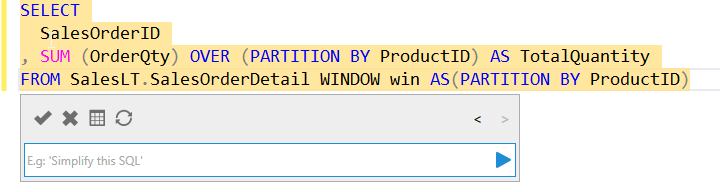
    Let me move on. I can fix that myself. Now I’ll change the column list.

    2023-11-10 16_17_08-SQLQuery1.sql - ARISTOTLE.AdventureWorksLT2019 (ARISTOTLE_Steve (67))_ - Microso

    That worked:

    2023-11-10 16_17_18-SQLQuery1.sql - ARISTOTLE.AdventureWorksLT2019 (ARISTOTLE_Steve (67))_ - Microso

    Can I add a second aggregate? I’ll try that.

    2023-11-10 16_18_03-SQLQuery1.sql - ARISTOTLE.AdventureWorksLT2019 (ARISTOTLE_Steve (67))_ - Microso

    That didn’t work. It changed my SUM to the COUNT I wanted. Interesting.

    Thoughts

    This is interesting in that it can help me structure queries, but knowing how to prompt them matters. I do like the back and forth, as I hit back above and then added to my prompt, which worked.

    2023-11-10 16_20_35-SQLQuery1.sql - ARISTOTLE.AdventureWorksLT2019 (ARISTOTLE_Steve (67))_ - Microso

    This doesn’t feel faster to me, but I’ve written a lot of SQL code. I could structure this stuff quickly and easily. In fact, I’d likely use a * in the column list and try to build the window clauses I need first, then go back and add aggregates. Normal SQL Prompt would help me, and I think it would be faster than the AI.

    However, I also know the AI is new, and there are possibilities here, which might be easier than me playing with syntax and looking through suggestions, even with SQL Prompt.

    I’ll keep playing and hopefully I’ll find this useful. Or at least useful enough that I can give good feedback to the team experimenting here.

  • SQL Prompt Quick Access to Helper Code

    We’ve been doing some events as part of the Redgate Roadshow, and at one of the events, we had a customer ask about something that we demo’d. This post looks at quick access to snippets.

    This is part of a series on SQL Prompt that I’ve written. If you’ve never tried SQL Prompt, it’s amazing. Download an eval today.

    The Command Palette from the Query Editor

    When typing a query in SSMS, I can hit the CTRL button and get the palette on the side. Here’s a basic query:

    2023-09-04 04_39_35-SQLQuery3.sql - ..dlm_1_dev (WAY0UTWESTHP_way0u (89))_ - Microsoft SQL Server Ma_thumb[1]

    I might want to add the begin and end around my code in the proc. If I highlight some code and hit CTLR, I see this:

    2023-09-04 04_40_25-SQLQuery3.sql - ..dlm_1_dev (WAY0UTWESTHP_way0u (89))_ - Microsoft SQL Server Ma_thumb[1]

    On the left, I have opened the palette where I can down arrow to pick something relevant or search for a command that helps me. As you can see, the first one is the very common “add begin end” to the code. If I pick this, it will surround my code with begin end, as seen here:

    2023-09-04 04_43_07-SQLQuery3.sql - ..dlm_1_dev (WAY0UTWESTHP_way0u (89))_ - Microsoft SQL Server Ma_thumb[1]

    I can also get other helper code, like the CTE outline, as you can see below:

    2023-09-25 15_16_58-SQLQuery14.sql - ARISTOTLE.sandbox (ARISTOTLE_Steve (75))_ - Microsoft SQL Serve

    SQL Prompt is amazing, as this video shows. Download an eval today.

  • Opening the SQL Prompt Command Palette

    A few years ago SQL Prompt added a command palette to let you search the commands available. This is similar to the same concept in Visual Studio Code, ADS, and various other tools. This post looks at how to get to this tool in SSMS.

    This is part of a series of posts on SQL Prompt, which is an amazing productivity tool from Redgate Software.

    Opening the Palette

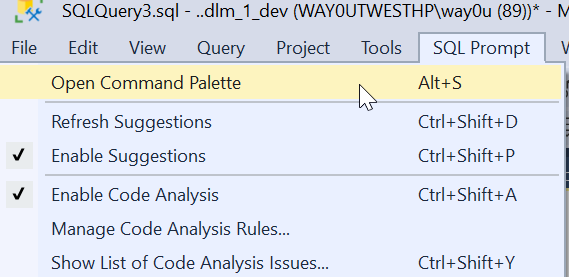
    You can also open the Command Palette from the menu. In the SQL Prompt menu, it is the first item. You can also see there is a shortcut of ALT+S below here.

    2023-09-04 04_44_26-

    When I click this, I’ll see the full list of palette commands. This is a large window, and across the top I can filter things. In the complete list, you see various things: objects, snippets, and refactoring commands. We also have the Prompt behavior settings as well.

    2023-09-04 04_44_43-SQL Prompt_ Command Palette

    For example, I could look for things with “brackets”. I see a few things that are relevant. I can pick any of them if I want that apply to my code or change the behavior of the tool

    2023-09-04 04_52_25-SQL Prompt_ Command Palette

    Adding to the Menu

    If you can’t remember the shortcut. or don’t want to use the menu, you can add this as a button in the toolbar. Here’s the easy way. When you installed SQL Prompt (or the Toolbelt), there is a Redgate toolbar added. Mine looks like this:

    2023-09-04 07_29_16-SQLQuery3.sql - ..dlm_1_dev (WAY0UTWESTHP_way0u (92)) - Microsoft SQL Server Man

    I clicked the “Add or Remote buttons ” and got a list of buttons on this toolbar. I can click “Customize if I like. That opens the dialog below.

    2023-09-04 07_51_53-Customize

    Now click “Add Command”. That gives you a list of items in all the menus in SSMS. Pick the SQL Prompt menu on the left (first one). Then scroll down and find “Open command palette” in the right side. Select it and click OK.

    2023-09-04 07_52_16-SQLQuery3.sql - ..dlm_1_dev (WAY0UTWESTHP_way0u (92)) - Microsoft SQL Server Man

    Now you have this in your toolbar.

    2023-09-04 07_52_25-SQLQuery3.sql - ..dlm_1_dev (WAY0UTWESTHP_way0u (92)) - Microsoft SQL Server Man

    Now one click, and you have the palette.

    FWIW, you can use this trick to add any menu item to a toolbar that you want.

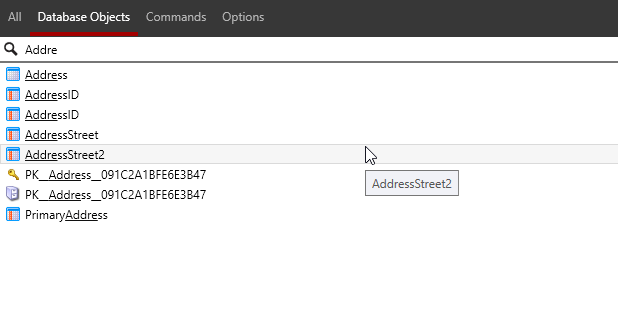
    UPDATE: A comment asked about partial matches, and you can see I see partial matches for “Addre”.

    Partial match of a word in the command palette