Tag: SQL Prompt

  • A New Command Palette in SQL Prompt

    I’ve gotten used to using the Command Palette in VS Code/ADS/Sublime Text regularly to find some setting or change something. What felt strange at first has become a habit for me. I actually like having this one place to search and get things done.

    It’s now in SQL Prompt.

    If I press ALT+S, I see this in SSMS. A large command prompt with lots of entries.

    2022-02-22 12_33_20-SQLQuery1.sql - ARISTOTLE_SQL2017.sandbox (ARISTOTLE_Steve (54))_ - Microsoft SQ

    This popup lets me do a few things. If I start typing, I can get to most any object or SQL Prompt command from here. It’s like a global search for all things Prompt.

    As an example, I can highlight an object and then ALT+S, type “object ex” and I’ll see this:

    2022-02-22 12_35_27-SQL Prompt_ Command Palette

    If I select the “Select in Object Explorer” (or click), the OE will navigate to that item.

    2022-02-22 12_36_57-

    Simple, and I could get there in other ways, but having all this in one searchable place, rather than right clicking and looking through a menu, or looking at the top menu bar, is easy. I even see the shortcut in the command palette (CTRL+F12) if I want to memorize it.

    I can also use this for commands like insert semicolons, which I can never remember the shortcut for.

    2022-02-22 12_38_50-SQL Prompt_ Command Palette

    I can look for objects, commands, or options, filtering my results with the selection at the top. Or I can look in all areas. I can even look at the see the status of options in the palette, as shown here.

    2022-02-22 12_41_38-SQL Prompt_ Command Palette

    I have some things memorized, and the ALT+S isn’t quite in my muscle memory, but I am finding that I use it when I don’t know where something is located, or can’t remember a shortcut.

    It’s a new feature, and the team is looking for feedback, so give it a try and let them know what you think.

    If you don’t have SQL Prompt for SSMS and SQL Server, download an eval today and give it a try.
  • Summarizing a Script with SQL Prompt

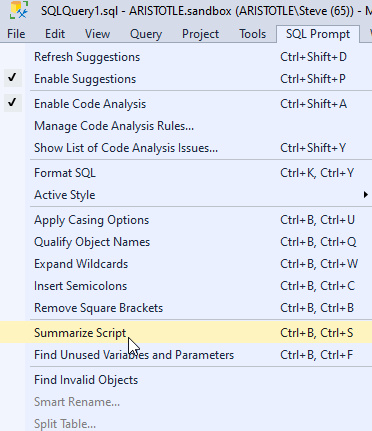
    I have never used this feature, but someone was asking for feedback on Prompt, and I noticed  this in the menu: Summarize script.

    prompt_summary_a

    I had guessed that it might look at the code and give me some outline, which is what it does, but I wasn’t sure how it might work. I decided to try it on a few scripts.

    I had a demo script for a customer, and I ran it there. I got what I expected, an ordering of various operations.

    2021-03-12 08_10_22-SQLQuery1.sql - ARISTOTLE.sandbox (ARISTOTLE_Steve (65))_ - Microsoft SQL Server

    Useful in some sense. I can see I cleaned up the CREATE with the DROP. However, I could also see that easily if I looked at the script. Depending on length, this might be helpful to remind me or let me see if I’ve dropped all the code I expected.

    I picked a longer script from some of the Advent of Code stuff I’ve been slowly working on. In this one, there is some looping, as it’s a looping type of problem (to me). In this case, I see something more complex.

    2021-03-12 08_14_16-day3.sql - ARISTOTLE.AdventofCode (ARISTOTLE_Steve (57)) - Microsoft SQL Server

    Not a lot of information from the SELECTs, but I do see some looping. The actual code is a bunch of math changes, and I could have used SET, which might have helped here. This let’s me see that the code is more of a procedural construct, which looks like this:

    2021-03-12 08_14_51-day3.sql - ARISTOTLE.AdventofCode (ARISTOTLE_Steve (57)) - Microsoft SQL Server

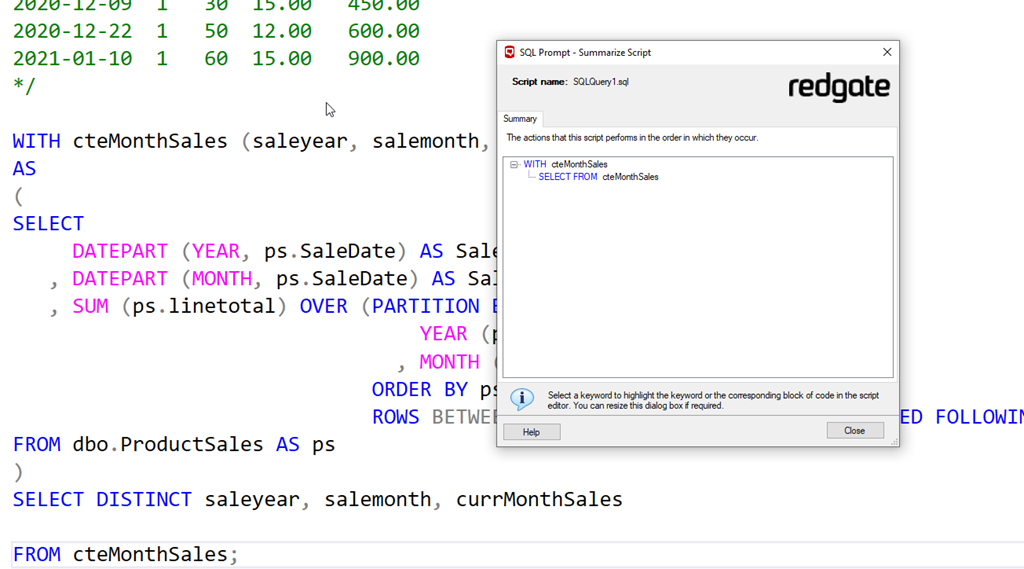
    What about other types of code? I looked at a CTE, which wasn’t that helpful. I can’t see the base tables here, which isn’t useful.

    2021-03-12 08_16_26-SQLQuery1.sql - ARISTOTLE.sandbox (ARISTOTLE_Steve (61)) - Microsoft SQL Server

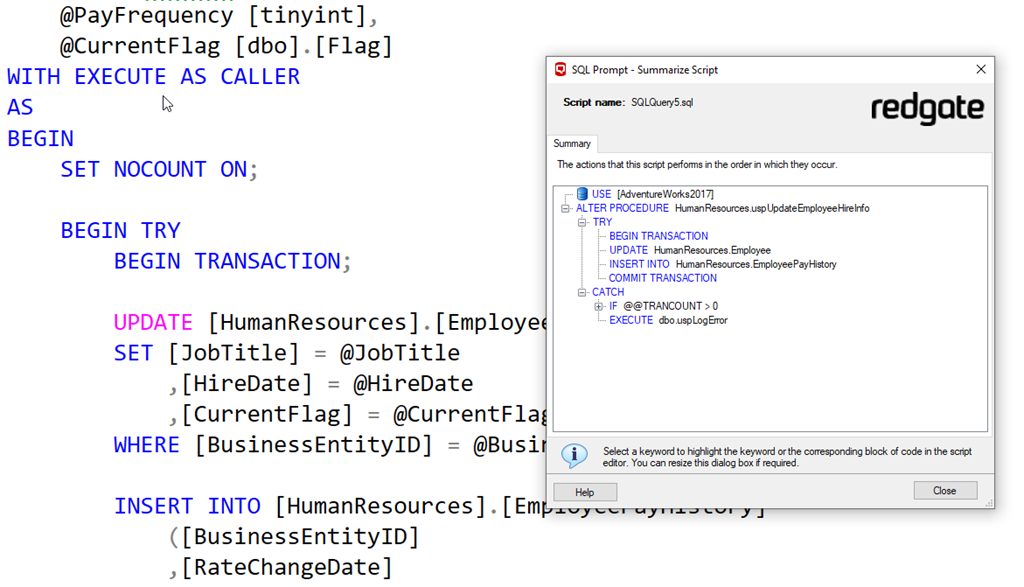
    However, in AdventureWorks, there is a procedure that shows me a TRY CATCH. In a long set of code, this might help me make sure I’ve actually included the CATCH, among other things.

    2021-03-12 08_17_41-SQLQuery5.sql - ARISTOTLE_SQL2017.AdventureWorks2017 (ARISTOTLE_Steve (61)) - Mi

    I’m not sure how useful this feature is, but it’s now in my mind to try a few times and see what I think. What is the outline and structure of my code.

    If you have other ideas, I’m sure Redgate would appreciate suggestions. Otherwise, give it a try and let me know if it works.

    If you don’t have SQL Prompt, it’s an amazing developer productivity tool, and we now offer it as a subscription, so you can try it for a bit longer than than evaluation without committing.

  • Quick NoLock with SQL Prompt

    First, please, please, please, avoid NoLock. You can lose data, or get strange results, as Jason Strate demonstrates (blog | video). Before you read further or try this, read his post and look at Kendra’s video.

    I had a customer request an easy way to add NOLOCK to tables in SQL Prompt. This person wanted to be able to highlight a table and make this happen. Fortunately, this is easy in Prompt.

    A snippet will allow you do this on demand. I’ll explain how.

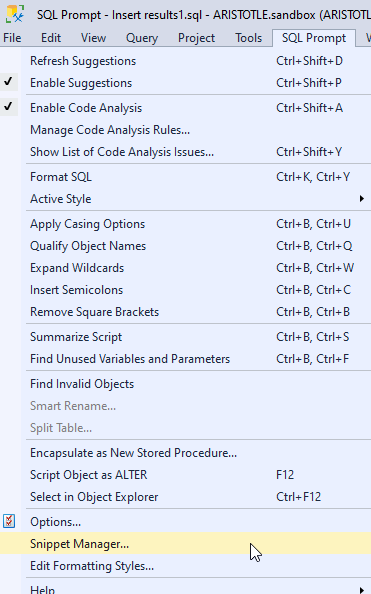
    First, open the Snippet manager from the SQL Prompt menu in SSMS.

    2021-02-26 13_34_26-

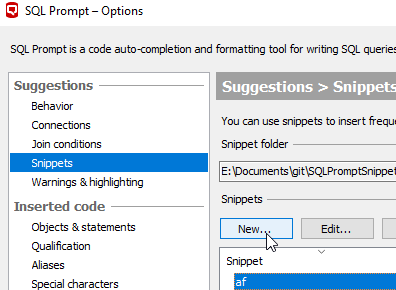
    Click “New” to create a new snippet.

    2021-02-26 13_34_35-SQL Prompt – Options

    When the form appears, fill it out as shown. Feel free to change the snippet code if you want. The $SELECTEDTEXT$ is the key. This allows me to have this snippet available when you highlight a table name.

    2021-02-26 13_34_49-SQL Prompt - Edit Snippet

    Save this, and then when you highlight a table, you can have Prompt add nolock by pressing CTRL and then typing your snippet name. It will be in the popup list.

    I also have an animated gif to show this:

    promptnolock

  • Color Coding a Database on All Servers with SQL Prompt

    SQL Prompt has some nice color coding features, but sometimes I want a database to keep the same color, regardless of instance. I don’t know that I’d recommend this, but since I work in demo environments across versions, this is a handy trick for me.

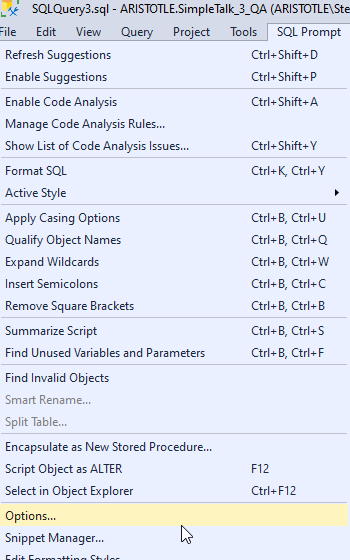
    In the SQL Prompt menu, there is an options item.

    2020-07-11 10_39_15-

    Clicking this brings up a dialog with a number of sections along the left and details on the right. Near the bottom is the color menu.

    2020-07-11 10_39_26-SQL Prompt – Options

    When I decide to color code a database, I click “add” and I get this view. The cursor defaults to the Server/Group edit box, and I’ve typically entered a server name here.

    2020-07-11 10_39_39-SQL Prompt – Options

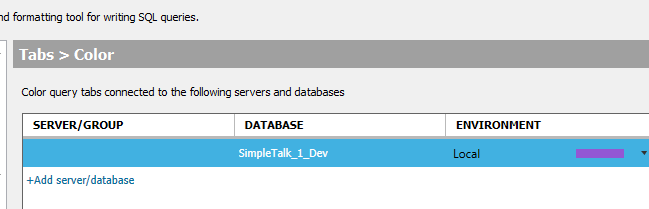
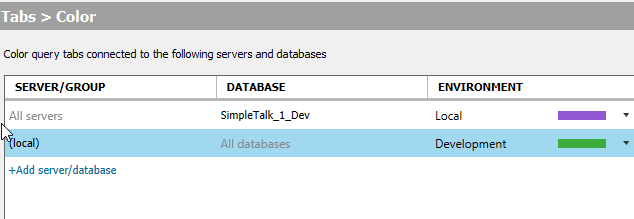
    However, I can skip this and just enter a database.

    2020-07-11 10_39_51-SQL Prompt – Options

    In this configuration, every time I open a query window to a database called SimpleTalk_1_Dev, no matter which instance, it will be colored purple.

    I can see this when connecting to my default local instance.

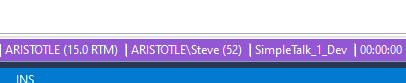
    2020-07-11 10_40_01-SQLQuery2.sql - ARISTOTLE.SimpleTalk_1_Dev (ARISTOTLE_Steve (52))_ - Microsoft S

    I also test things on a v14 (SQL 2017) instance, and if I connect there, I see the same thing.

    2020-07-11 10_41_08-SQLQuery6.sql - ARISTOTLE_SQL2017.SimpleTalk_1_Dev (ARISTOTLE_Steve (60)) - Micr

    In some sense, this is an edge case. I demo similar things across instances and versions, and it’s nice to keep colors simple rather than entering dozens of instance names. However, it’s not something many people do, as they often use the same database name on different instances. That’s a more common scenario.

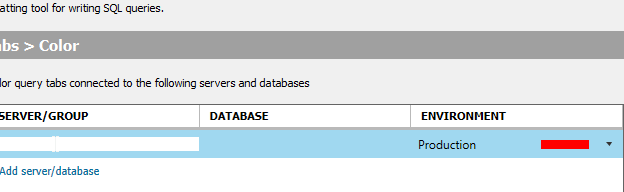
    That’s supported as well. Notice here I’ve entered just a server with no database.

    2020-07-11 10_47_12-SQL Prompt – Options

    Now every database I connect to on this instance will be colored green. Note that the purple still overrides because it is specific to a database. The third tab below is connected to the SimpleTalk_1_Dev database.

    2020-07-11 10_47_19-SQLQuery6.sql - ARISTOTLE_SQL2017.SimpleTalk_1_Dev (ARISTOTLE_Steve (60)) - Micr

    SQL Prompt has some amazing features, but color coding is one that helps me keep track of which databases and instances I’m connected to in a query window. If you‘ve never configured this, give it a try.

    If you’ve never tried SQL Prompt, it’s incredible. Download an eval today and see what you think.