Tag: sql server

  • Using OPENROWSET in SQL Server on Linux

    I wanted to import the million song dataset in SQL Server on Linux. There’s a github repo that has the SQL to allow you to use this with the graph database features. However, it’s built for Windows.

    Linux is a slightly different beast. Once I started down this path, I had memories of working on SunOS in college, messing with permissions and moving files.

    I run Ubuntu in VMWare, so I first downloaded the files to my Documents folder. That’s pretty easy. However, once there, the mssql user can’t read them. Rather than mess with permissions for my home, I decided to move these to a location where the mssql user could read them.

    First, I need to use mv to move the files. However, the default location for SQL Server (/var/opt/mssql) doesn’t let me drop files in there. Instead, I need to sudo the mv.

    sudo mv unique_tracks.txt /var/opt/mssql/unique_tracks.txt

    I repeated this for each file.

    However, I still had permissions errors. Files have their own permissions in Linux, so I needed to alter those. I decided to use chown since these are temp files the SQL Server will use and once imported, I’ll delete them.

    chown mssql unique_tracks.txt

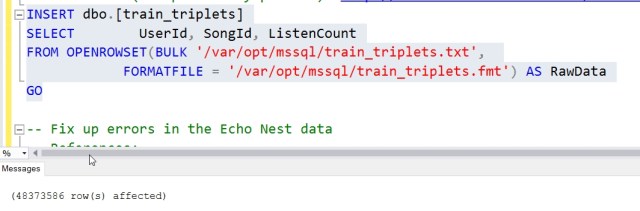
    From here, I could easily run the OPENROWSET commands and get the data loaded. Now to play around with a graph.

  • Renaming MDF/LDF Files–SQLNewBlogger

    Another post for me that is simple and hopefully serves as an example for people trying to get blogging as #SQLNewBloggers.

    I would guess many people would run into this situation at some point. A developer or DBA creates a database, then decides to rename it, but the logical and physical names aren’t correct. This post will look at how to do this. A couple of notes and then the process below.

    This might not matter to many of you, but in development, I sometimes find I’ll rename a database and then attempt to recreate (or deploy) a new database with the old name. The mdf/ldf files don’t match, and I realize it’s because I’m using defaults.

    However, I’d also say this is an issue in a DR situation. If the filenames don’t seem to match, someone might restore the wrong database or the wrong files. Or worse, think the can delete a file on the file system because there’s no database with that name.

    Renaming the Database

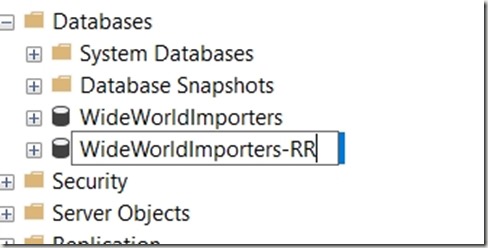
    This is easy. Right click, select Rename.

    2017-06-07 09_38_49-

    Then type the name name. In this case, I’m going from WideWorldImporters-SSDT to WideWorldImporters-RR.
    2017-06-07 09_38_59-SQLQuery1.sql - (local)_SQL2016.msdb (PLATO_Steve (52)) - Microsoft SQL Server M

    That renames the database, but what about the files? If I run this:

    sp_helpdb ‘WideWorldImporters-RR’

    I get this:

    2017-06-07 09_42_00-SQLQuery1.sql - (local)_SQL2016.msdb (PLATO_Steve (53)) - Microsoft SQL Server M

    Not really what I want. I need these mdf/ldf files to be changed. How do I do this?

    I can get to the properties for the database and select the “Files” pane to get a list of files. Here I can change the logical name by clicking that field and typing a new name. I’ve done that here.

    2017-06-07 09_43_29-Database Properties - WideWorldImporters-RR

    However, if I scroll to the right to the File Name column, I can’t change anything.

    2017-06-07 09_43_44-SQLQuery1.sql - (local)_SQL2016.msdb (PLATO_Steve (53))_ - Microsoft SQL Server

    What I need to do is use the ALTER DATABASE command with the MODIFY FILE command. I need to do this twice.

    1. Change the physical file name
    2. Change the logical file name

    Let’s do that. Here’s the code to change the physical name.

    ALTER DATABASE [WideWorldImporters-RR]
     MODIFY FILE
     (   NAME = 'WideWorldImporters-SSDT_Data',
         FILENAME = 'C:\Program Files\Microsoft SQL Server\MSSQL13.SQL2016\MSSQL\DATA\WideWorldImporters-RR.mdf'
     );

    I need to repeat this for the log file and the MOT file. Once I change the names, I get this message.

    2017-06-07 09_48_38-SQLQuery1.sql - (local)_SQL2016.WideWorldImporters-RR (PLATO_Steve (53))_ - Micr

    This is key. If I were to restart my system now, when the database attempted to start and go through recovery, the files would not have been found. Now, I need to change the physical file names.

    To do that, I first need to take the database offline.

    USE master
    go
    ALTER DATABASE [WideWorldImporters-RR] SET OFFLINE

    Then I go to the location of the physical files and rename them in Windows Explorer.

    2017-06-07 09_53_35-DATA

    Now I bring the database online.

    ALTER DATABASE [WideWorldImporters-RR] SET ONLINE

    Once that’s done, I can then use ALTER DATABASE again to change the logical file names.

    ALTER DATABASE [WideWorldImporters-RR]
      MODIFY FILE (NAME='USERDATA_612671E2',
                   NEWNAME = 'WWI_UserData'
                   );


    And run a final sp_helpdb.

    2017-06-07 09_54_13-SQLQuery1.sql - (local)_SQL2016.master (PLATO_Steve (53))_ - Microsoft SQL Serve

    SQLNewBlogger

    An easy task, with a touch of research in Books Online, but not too difficult. This took me about 10 minutes to do, and since I realized this was a good skill, I took screenshots and saved code as I went.

    Then about 10 minutes to write this up.
  • Why Does My Log Grow–SQLNewBlogger

    Another post for me that is simple and hopefully serves as an example for people trying to get blogging as #SQLNewBloggers.

    This is a great topic, and really, every DBA or admin should blog this and be sure they understand the issue.

    I saw a posting from someone that said this: they kept running low on disk space where the transaction log was kept. They would shrink the log, and they had 3 log backups per day, but the log kept growing, and this was an issue. What can they do?

    Let’s examine what happens: first, assume you have a trans‌‌action log that gets 2 transactions an hour. You have enough log space for 4 transactions in your log file. You back up 3 times a day (every 8 hours). Here’s your log size in transactions:

    1:00am - 2 transactions
    2:00am - 4 transactions‌‌‌
    3:00am - 6 transactions (log grows)
    4:00am - 8 transactions (log grows) 
    ‌5:00am‌‌ - 10 transactions (log grows)
    ‌5:00am‌‌ - 12 transactions (log grows)
    ‌5:00am‌‌ - 14 transactions (log grows)
    8:00am‌‌ - log backup with 14 transactions. Log is large enough for 14 transactions
    ‌9:00am - 2 transactions
    10:00am - 4 transactions‌‌‌
    11:00am - 6 transactions 
    12:00pm - 8 transactions 
    1:00pm‌‌ - 10 transactions 
    ‌2:00pm‌‌ - 12 transactions 
    ‌3:00pm‌‌ - 14 transactions 
    4:00pm‌‌ - log backup with 14 transactions. Log is large enough for 14 transactions
    ‌4:30 - you shrink the log back to 4 transaction size
    5:00pm - 2 transactions
    6:00pm - 4 transactions‌‌‌
    7:00pm - 6 transactions (log grows)
    8:00pm - 8 transactions (log grows) 
    9:00pm‌‌ - 10 transactions (log grows)
    ‌10:00pm‌‌ - 12 transactions (log grows)
    11:00pm‌‌ - 14 transactions (log grows)
    12:00am‌‌ - log backup with 14 transactions. Log is large enough for 14 transactions
    ‌

    Repeat this every day.

    Now, how does this change if we run log backups more often? Let’s say we decide to run log backups every hour. Now I get:

    1:00am - 2 transactions‌‌‌, log backup runs
    2:00am - 2 transactions‌‌‌, log backup runs
    3:00am -2 transactions‌‌‌, log backup runs
    4:00am - 2 transactions‌‌‌, log backup runs
    ‌5:00am‌‌ - 2 transactions‌‌‌, log backup runs
    ‌5:00am‌‌ - 2 transactions‌‌‌, log backup runs
    ‌5:00am‌‌ - 2 transactions‌‌‌, log backup runs
    8:00am‌‌ - 2 transactions‌‌‌, log backup runs
    ‌9:00am - 2 transactions, log backup runs
    10:00am - 2 transactions‌‌‌, log backup runs
    11:00am - 2 transactions‌‌‌, log backup runs
    12:00pm - 2 transactions‌‌‌, log backup runs
    1:00pm‌‌ - 2 transactions‌‌‌, log backup runs
    ‌2:00pm‌‌ - 2 transactions‌‌‌, log backup runs
    ‌3:00pm‌‌ - 2 transactions‌‌‌, log backup runs
    4:00pm‌‌ - 2 transactions‌‌‌, log backup runs
    5:00pm - 2 transactions‌‌‌, log backup runs
    6:00pm - 2 transactions‌‌‌, log backup runs
    7:00pm - 2 transactions‌‌‌, log backup runs
    8:00pm - 2 transactions‌‌‌, log backup runs
    9:00pm‌‌ - 2 transactions‌‌‌, log backup runs
    ‌10:00pm‌‌ - 2 transactions‌‌‌, log backup runs
    11:00pm‌‌ - 2 transactions‌‌‌, log backup runs
    12:00am‌‌ - 2 transactions‌‌‌, log backup runs

    In both scenarios, the total log transaction load across the day is the same. The total log backup size is the same across the day. However, a log backup allows me to reuse the log, so I never run out of space and get growths in the second scenario.

    If you aren’t sure how things work, or want to write your own blog, I would also recommend you read this:  http://www.sqlservercentral.com/articles/Administration/64582/


    ‌‌

  • SQL Server is Getting Smarter

    There’s been a lot of press and media about Microsoft on the AI and machine learning work they’re heavily investing in. From Cognitive Services to Cortana to Bots, Microsoft is really investing in developers and applications that will perform detailed analysis and make more complex decisions in any environment. Event SQL Server has gotten Python added to R Services and will change the way we run queries for analysis and reporting.

    The effect this will have on data professionals is not just limited to SQL Server’s machine learning capabilities. This week I saw a couple announcements from Microsoft on changes in SQL Server. Automatic plan correction is coming in SQL Server 2017 and automatic index management is in SQL Azure. I expect the latter to make an appearance in the on-premises product at some point, perhaps 2018 or 2019, but I would certainly count on this coming to your local installations at some point.

    Currently plan correction still requires a DBA to decide which plans need correcting, but once that the decisions are made, SQL Server can handle things. However, with automatic plan correction, we can allow SQL Server to force the last good plan when it detects an regression. This isn’t a huge change, but it can dramatically reduce some of the random calls that DBAs get when plans regress and performance tanks. Over time, we might find that many of those nuisance calls go away. I hope that most of you have other work that you can do instead of tracking down plan regressions, and you certainly should have more.

    There are other changes, such as threat detection, that I expect will allow a single person, perhaps the accidental DBA or developer, to manage a lot of the trivial, but important, administrative items for a SQL Server instance. This means that we need less data professionals that focus on the infrastructure side of databases. There will be more and more ways that SQL Server improves to handle the mundane tasks, amplifying the power of a single human, reducing the management burden, and using less people to manage more and more.

    I expect additional capabilities in SQL Server to simplify most tasks over time, and I’m hoping there’s one in particular that gets built soon. I’d like to see automatic backups (full and log) as a part of the database creation process. Some helpful defaults, perhaps at the instance level, that are applied to ensure that all databases are being backed up and we never see the “transaction log full” error unless we run out of disk space. It will come, as we move to the quick, button click, automatic setting method of managing all the cattle in our infrastructure. At least, I’m planning on this happening.

    Steve Jones

    The Voice of the DBA Podcast

    Listen to the MP3 Audio ( 3.8MB) podcast or subscribe to the feed at iTunes and Libsyn.
